

Overview
Some MCP servers accept only requests signed with AWS credentials. Amazon Bedrock AgentCore Gateway with IAM inbound authorization is the common case, and the AWS MCP Server, Lambda function URLs and API Gateway APIs with IAM authorization work the same way. The AWS SigV4 auth type (aws_sigv4) covers them: Bifrost signs every request with AWS Signature Version 4, using the AWS identity of the environment it runs in.
- No keys to store. Bifrost uses the same AWS credentials as any AWS SDK in that environment: EKS Pod Identity, IAM roles for service accounts (IRSA), an EC2 instance profile, or
AWS_ACCESS_KEY_IDandAWS_SECRET_ACCESS_KEYin its environment. Nothing secret is saved with the server. - Another account’s role. Bifrost can assume an IAM role first, for a server in a different AWS account, with an external ID when the role’s trust policy asks for one.
- Every request is signed. A signature covers one request and is valid for a few minutes, so Bifrost signs each request, the tool list and tool calls included. Credentials are cached and renewed before they expire.
- One identity for every caller. Like Headers or OAuth 2.0, the server sees the same identity whoever calls the tool.
Prerequisites
- An AWS identity where Bifrost runs. On EKS, Pod Identity or IRSA; on EC2 or ECS, the instance or task role; elsewhere, AWS credentials in Bifrost’s environment.
-
Permission to call the server. The identity, or the role Bifrost assumes, needs the IAM action the server checks. For AgentCore Gateway that is
bedrock-agentcore:InvokeGateway: -
For a role in another account: the role’s trust policy must allow Bifrost’s identity to assume it, and Bifrost’s identity needs
sts:AssumeRoleon the role. - The server is reached over HTTP or SSE, or is an OpenAPI server. STDIO servers can’t use this auth type.
-
A signed-in admin. Creating an AWS SigV4 server, or changing its signing settings, needs an admin signed in to Bifrost, since requests go out under Bifrost’s own AWS identity. When dashboard authentication is off, declare the server in
config.jsoninstead.
Choosing the service
The service is the name the server’s signature is checked against. It must match the AWS service at the URL you enter.
Bifrost signs only for these services, so a server entry can’t sign requests to any other AWS API.
Setup
- Web UI
- config.json
- Helm
- Go to MCP Registry and click New MCP Server.
- Enter the server’s name and URL, then choose AWS IAM (SigV4) as the Authentication type.
-
Under AWS SigV4 Signing, enter the Region, for example
us-east-1orus-gov-west-1. -
Choose the Service. Keep
bedrock-agentcorefor an AgentCore Gateway. - To sign as a role in another account, enter its Role ARN. Then fill in External ID if the role’s trust policy requires one, and Session name if you want a specific name in CloudTrail.
-
Click Create.
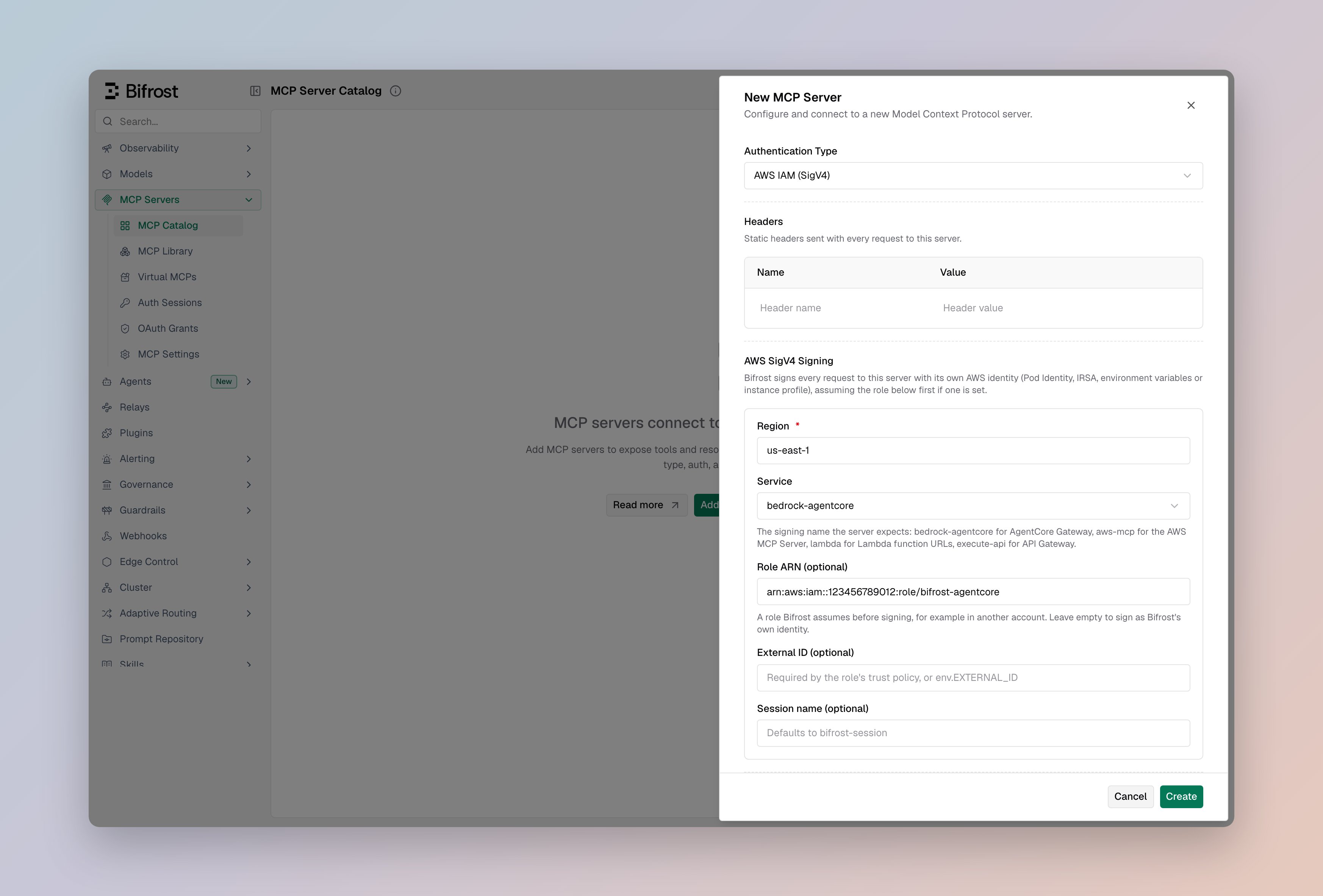
The external ID is always shown masked when you view the server. Other values given as
env. or vault. references are shown masked too; values typed in directly are shown as you entered them.
Headers on an AWS SigV4 server
You can still add static headers, and let callers forward headers through Allowed extra headers.Authorization and any header starting with X-Amz- can’t be in either list, because the signature sets them.
How signing works
Credentials. Bifrost looks up its AWS credentials the first time the server is used, in the same order as the AWS SDKs. With a role, it then assumes the role through AWS STS in the configured region. Both are cached and renewed shortly before they expire, so requests don’t wait on AWS. Each request is signed for the configured region and service, after every other header is set. The signature covers the method, the URL, the body and the headers that identify the request, so it can’t be reused for another request or another host. Bifrost doesn’t follow redirects from the server, since the signature is only valid for the original host. When the server refuses a request, for example because the role lacks permission, the server’s status shows AWS’s reason. On a per-call connection, Bifrost renews its credentials and tries once more before reporting it, so a role whose permissions just changed recovers without an edit.OpenAPI servers
For an OpenAPI server, the requests Bifrost sends to the API are signed. The OpenAPI document itself, when you give a spec URL, is fetched without a signature, so Bifrost’s AWS identity is sent only to the API. A refusal from the API is returned to the model as the tool’s result, as for any other API error.Troubleshooting
”the MCP server refused the signed request”
The server checked the signature and refused it; AWS’s reason follows in the message. The common causes:- Not authorized to perform the action. The identity or role is missing the IAM permission in Choosing the service, or the policy’s resource doesn’t match the server.
- The credential scope is wrong. The region or service doesn’t match the server. Check that the region is the one in the server’s URL, and the service matches the table above.
- The signature has expired. The clock on Bifrost’s host is more than five minutes off. Sync it with NTP.
”could not get AWS credentials”
Bifrost couldn’t obtain credentials. Without a role, check that the environment provides them: the Pod Identity association or IRSA annotation on the service account, the instance profile, or the environment variables. With a role, the message includes the reason AWS STS gave. Usually Bifrost’s identity may not assume the role, or the external ID doesn’t match the role’s trust policy.”does not resolve to an AWS region”
The region is anenv. or vault. reference whose value is missing or isn’t a region. Set the variable or secret, then save again.
A header “is set by the SigV4 signer”
A static header or an allowed extra header isAuthorization or starts with X-Amz-. Remove it: the signature provides it.
Next Steps
- OpenAPI Servers - Turn an API Gateway API into MCP tools, signed with AWS SigV4
- OAuth Client Credentials - Machine-to-machine servers that issue OAuth tokens instead
- Connections, States & Lifecycles - How shared clients connect and recover