

This feature is only available on
v1.4.0-prerelease1 and above.Overview
Code Mode is a transformative approach to using MCP that solves a critical problem at scale:The Problem: When you connect 8-10 MCP servers (150+ tools), every single request includes all tool definitions in the context. The LLM spends most of its budget reading tool catalogs instead of doing actual work.The Solution: Instead of exposing 150 tools directly, Code Mode exposes just four generic tools. The LLM uses those tools to write Python code (Starlark) that orchestrates everything else in a sandbox.
The Impact
Compare a workflow across 5 MCP servers with ~100 tools: Classic MCP Flow:- 6 LLM turns
- 100 tools in context every turn (600 tool-definition tokens)
- All intermediate results flow through the model
- 3-4 LLM turns
- Only 4 tools + definitions on-demand
- Intermediate results processed in sandbox
Benchmark Results
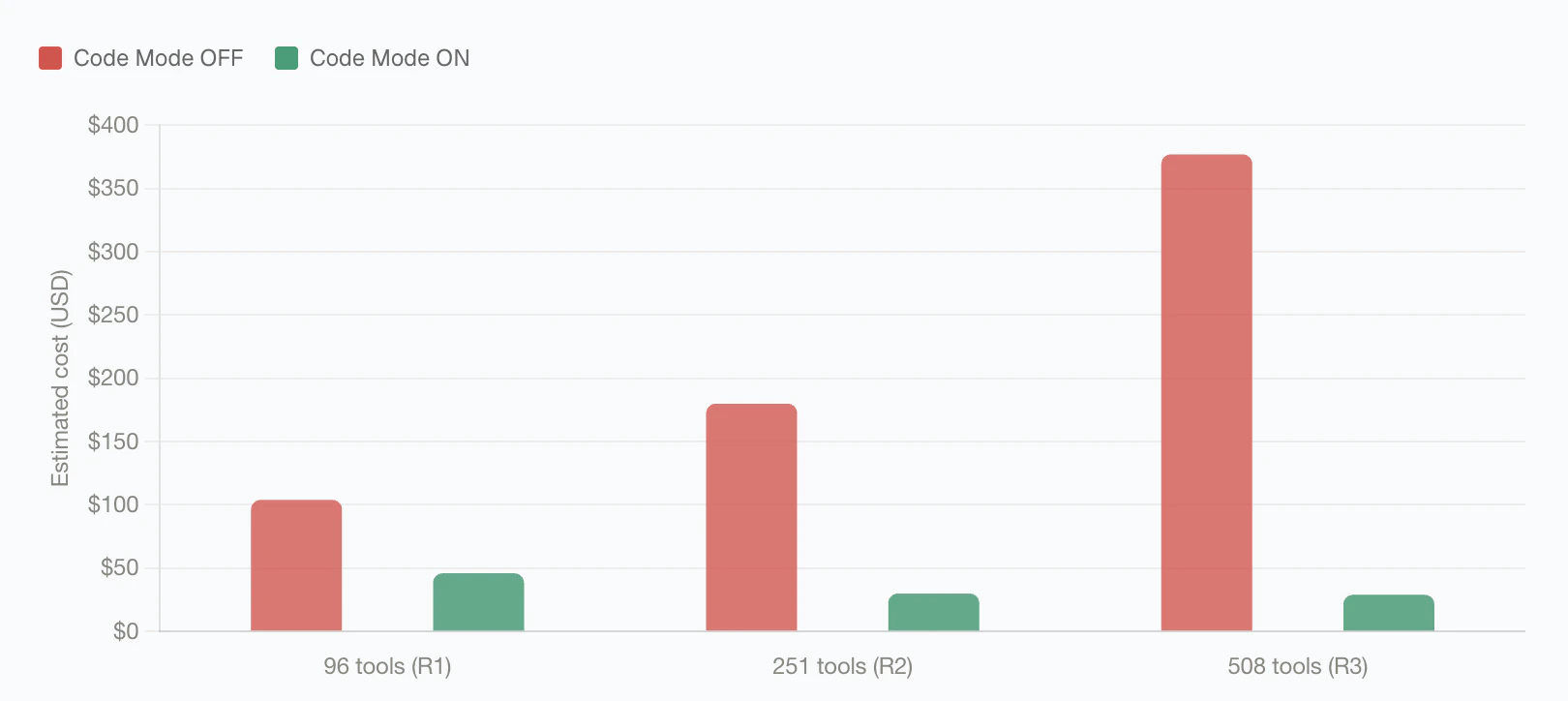
Bifrost Code Mode was benchmarked against classic MCP across three controlled rounds with increasing MCP footprint. Each round used the same query set with Code Mode off and on.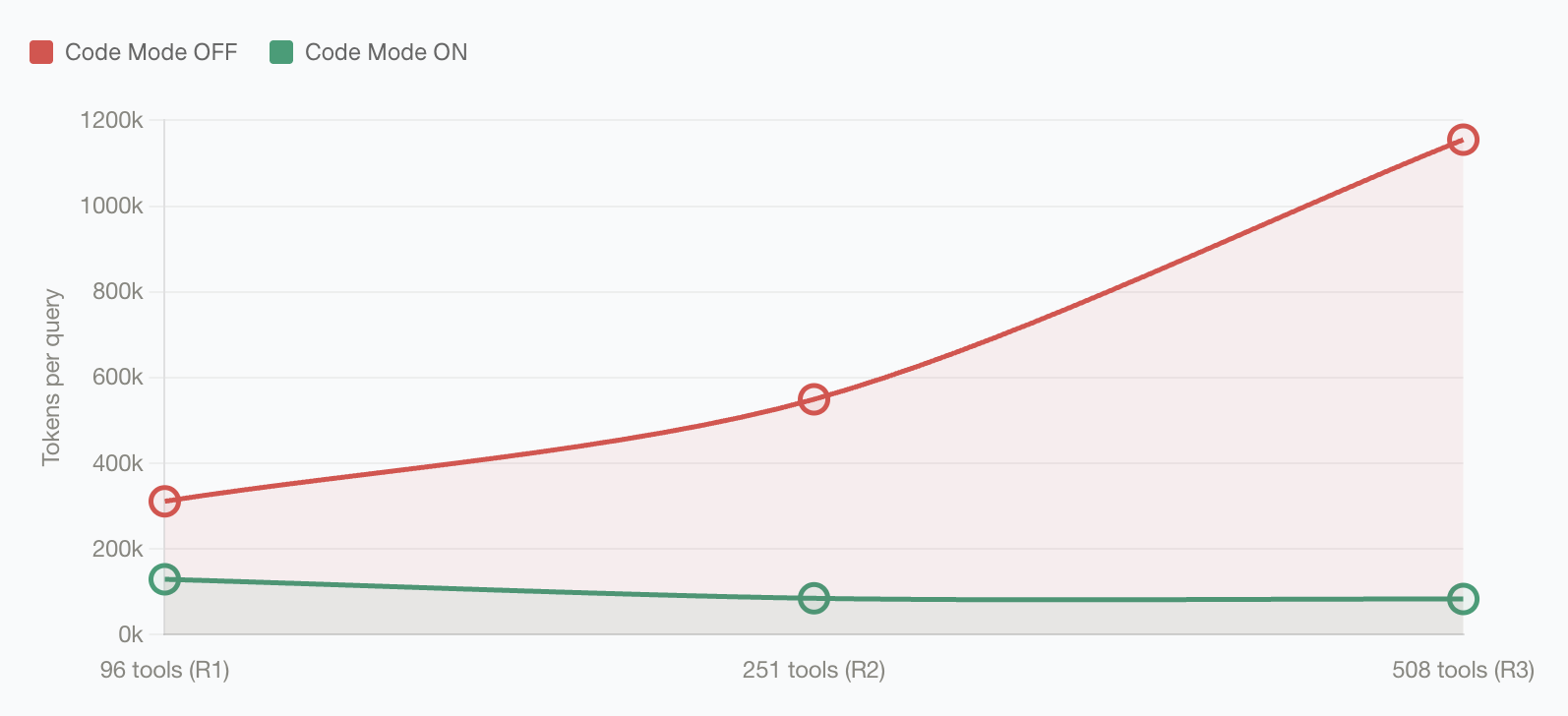
listToolFiles- Discover available MCP serversreadToolFile- Load Python stub signatures on-demandgetToolDocs- Get detailed documentation for a specific toolexecuteToolCode- Execute Python code with full tool bindings
When to Use Code Mode
Enable Code Mode if you have:- ✅ 3+ MCP servers connected
- ✅ Complex multi-step workflows
- ✅ Concerned about token costs or latency
- ✅ Tools that need to interact with each other
- ✅ Only 1-2 small MCP servers
- ✅ Simple, direct tool calls
- ✅ Very latency-sensitive use cases (though Code Mode is usually faster)
How Code Mode Works
The Four Tools
Instead of seeing 150+ tool definitions, the model sees four generic tools:The Execution Flow
Key insight: All the complex orchestration happens inside the sandbox. The LLM only receives the final, compact result, not every intermediate step.Why This Matters at Scale
Take a multi-step workflow such as looking up a customer, checking their order history, applying a discount, and sending a confirmation.Classic MCP: every turn carries the full tool list
With classic MCP, every intermediate result returns to the model, and every next turn includes the complete set of available tool definitions again. As the number of connected MCP servers grows, the model keeps paying to reread the same tool catalog.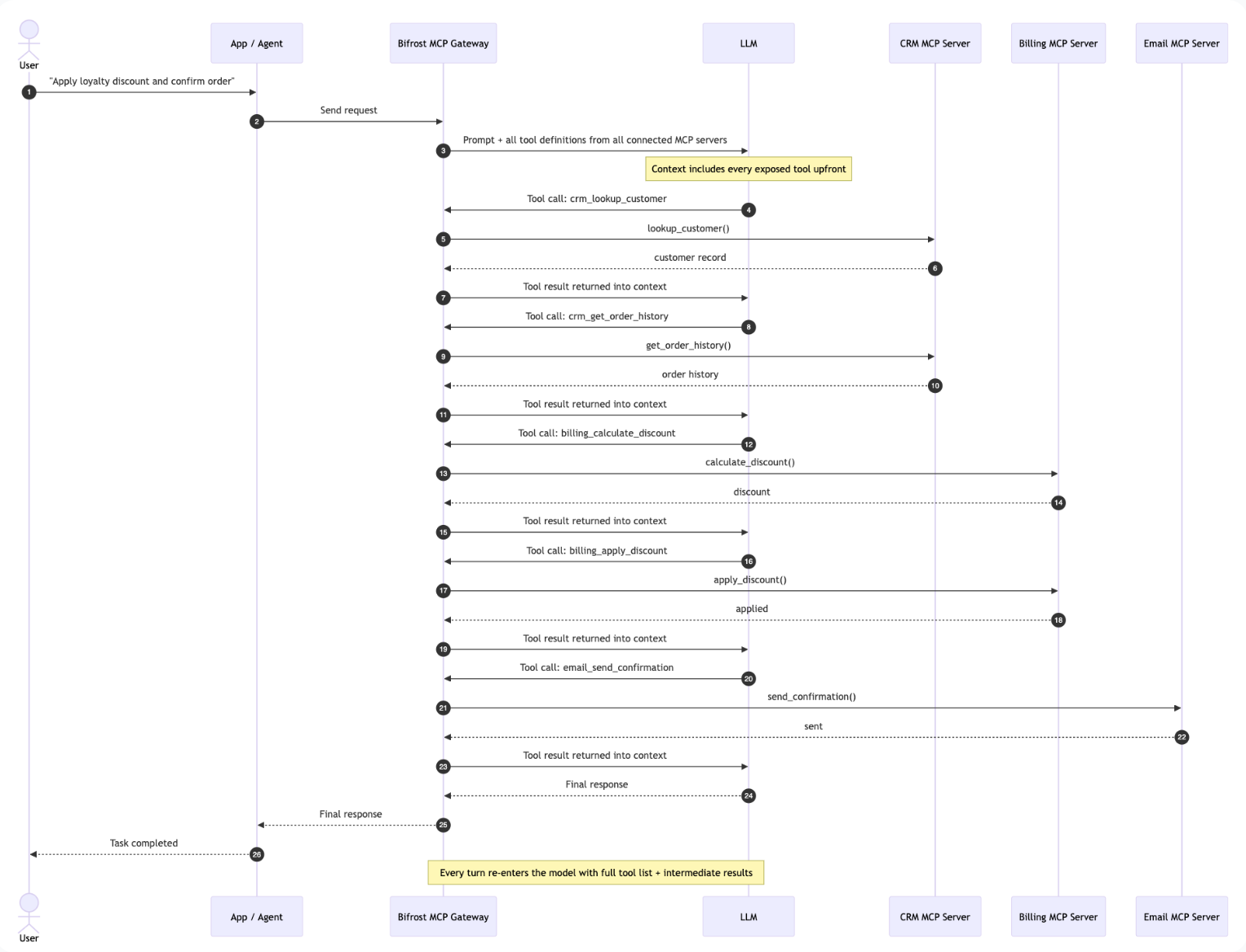
Code Mode: discover, write once, execute once
With Code Mode, the model discovers the relevant stubs, writes a short orchestration script, and Bifrost runs the tool calls inside the Starlark sandbox. The intermediate tool results stay inside the sandbox, and the model receives the compact final output.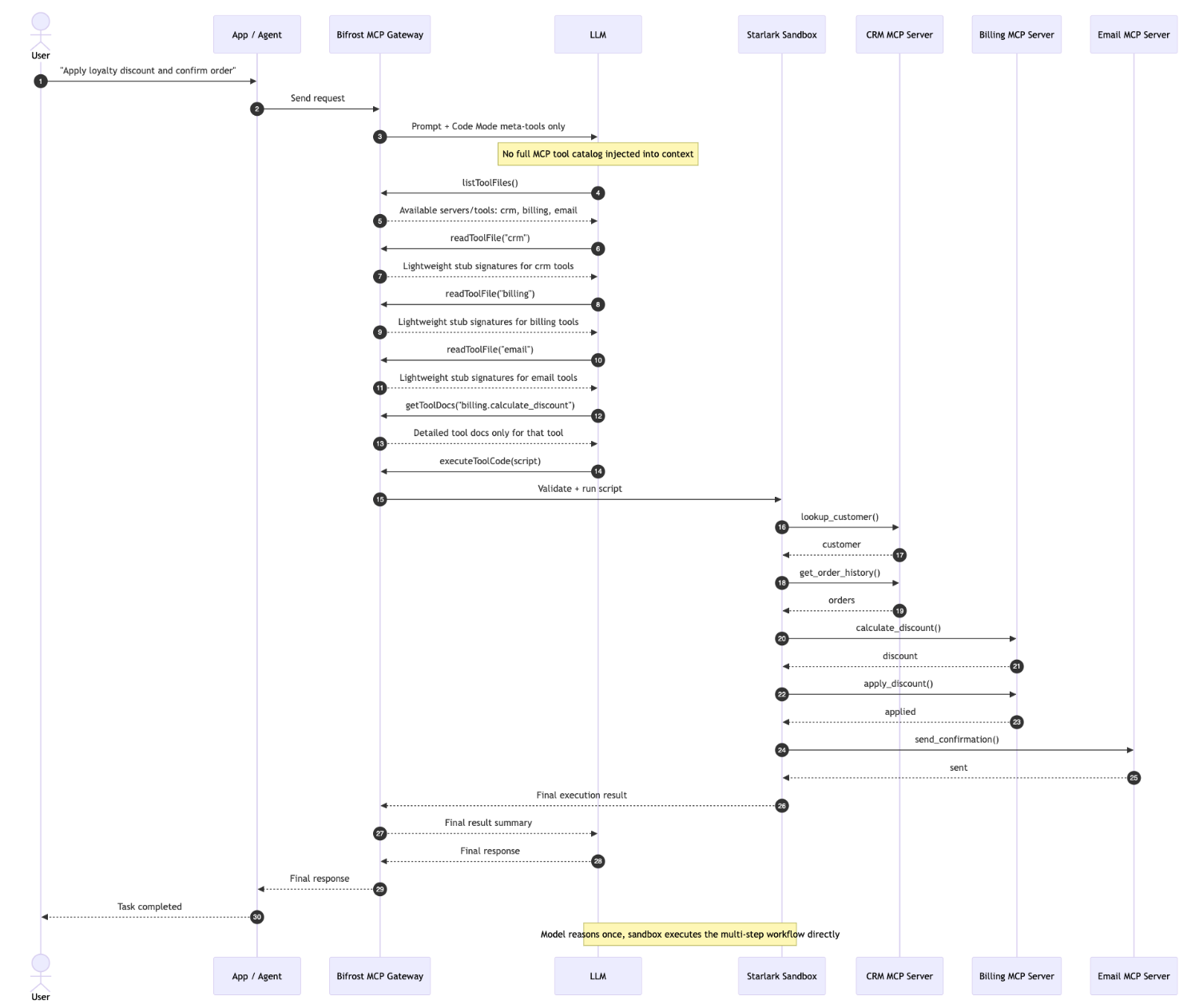
Enabling Code Mode
Code Mode must be enabled per MCP client. Once enabled, that client’s tools are accessed through the four meta-tools rather than exposed directly. Best practice: Enable Code Mode for 3+ servers or any “heavy” server (web search, documents, databases).- Web UI
- API
- config.json
Enable Code Mode for a Client
- Navigate to MCP Gateway in the sidebar
- Click on a client row to open the configuration sheet
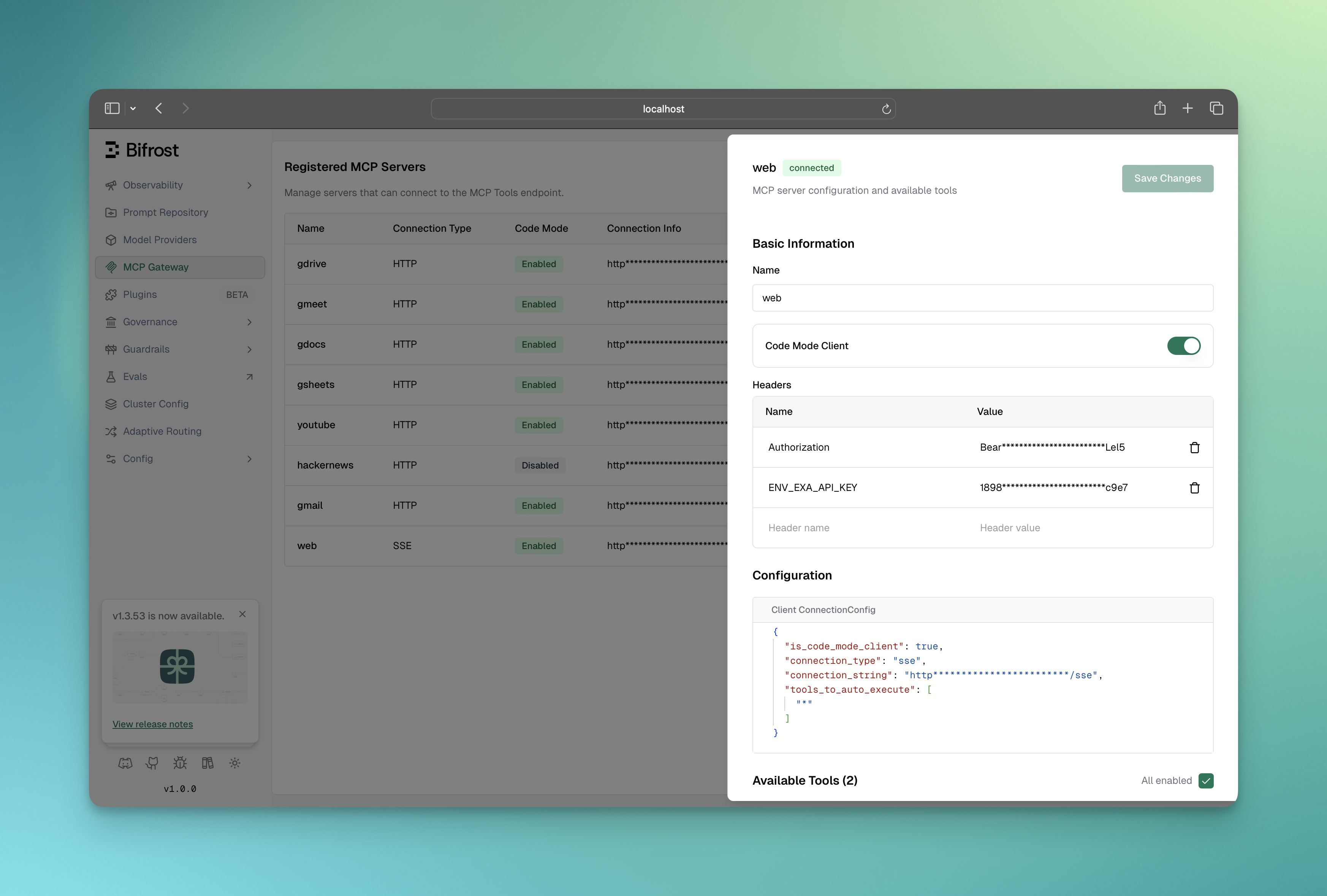
- In the Basic Information section, toggle Code Mode Server to enabled
- Click Save Changes
- This client’s tools are no longer in the default tool list
- They become accessible through
listToolFiles()andreadToolFile() - The AI can write code using
executeToolCode()to call them
Go SDK Setup
The Four Code Mode Tools
When Code Mode clients are connected, Bifrost automatically adds four meta-tools to every request:1. listToolFiles
Lists all available virtual.pyi stub files for connected code mode servers.
Example output (Server-level binding):
2. readToolFile
Reads a virtual.pyi file to get compact Python function signatures for tools.
Parameters:
fileName(required): Path likeservers/youtube.pyiorservers/youtube/search.pyistartLine(optional): 1-based starting line for partial readsendLine(optional): 1-based ending line for partial reads
3. getToolDocs
Get detailed documentation for a specific tool when the compact signature fromreadToolFile is not sufficient.
Parameters:
server(required): The server name (e.g.,"youtube")tool(required): The tool name (e.g.,"search")
4. executeToolCode
Executes Python code in a sandboxed Starlark interpreter with access to all code mode server tools. Parameters:code(required): Python code to execute
- Python code runs in a Starlark interpreter (Python subset)
- All code mode servers are exposed as global objects (e.g.,
youtube,filesystem) - Tool calls are synchronous - no async/await needed
- Use
print()for logging (output captured in logs) - Assign to
resultvariable to return a value - Tool execution timeout applies (default 30s)
- Use keyword arguments:
server.tool(param="value")NOTserver.tool({"param": "value"}) - Access dict values with brackets:
result["key"]NOTresult.key - List comprehensions work:
[x for x in items if x["active"]]
Binding Levels
Code Mode supports two binding levels that control how tools are organized in the virtual file system:Server-Level Binding (Default)
All tools from a server are grouped into a single.pyi file.
- Servers with few tools
- When you want to see all tools at once
- Simpler discovery workflow
Tool-Level Binding
Each tool gets its own.pyi file.
- Servers with many tools
- When tools have large/complex schemas
- More focused documentation per tool
Configuring Binding Level
Binding level is a global setting that controls how Code Mode’s virtual file system is organized. It affects how the AI discovers and loads tool definitions.- Web UI
- config.json
- Go SDK
Binding level can be viewed in the MCP configuration overview: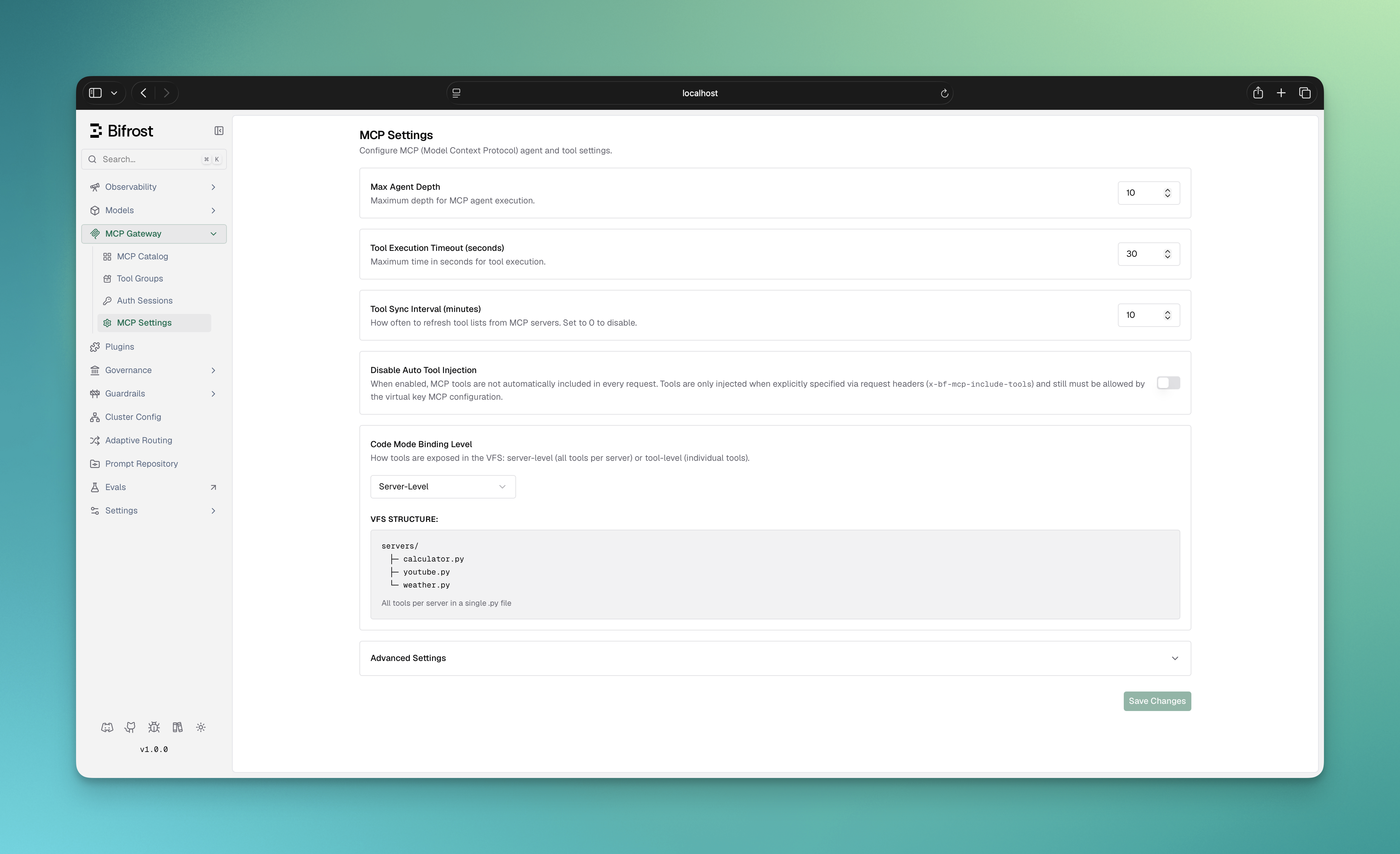
-
Server-level (default): One
.pyifile per MCP server- Use when: 5-20 tools per server, want simple discovery
- Example:
servers/youtube.pyicontains all YouTube tools
-
Tool-level: One
.pyifile per individual tool- Use when: 30+ tools per server, want minimal context bloat
- Example:
servers/youtube/search.pyi,servers/youtube/list_channels.pyi
listToolFiles, readToolFile, getToolDocs, executeToolCode). The choice is purely about context efficiency per read operation.Auto-Execution with Code Mode
Code Mode tools can be auto-executed in Agent Mode, but with additional validation:- The
listToolFilesandreadToolFiletools are always auto-executable (they’re read-only) - The
executeToolCodetool is auto-executable only if all tool calls within the code are allowed
How Validation Works
Validation happens at two points, and only the second one is the actual security guarantee:- Pre-flight (heuristic, decides whether to ask before running). When
executeToolCodeis called in agent mode, Bifrost scans the generated code’s source text forserverName.toolName()calls and checks each againsttools_to_auto_executefor that server. If every call it can identify is allowed, the code runs immediately without prompting; otherwise it’s returned to the user for approval first. This is a best-effort scan over source text, not a full parse - it can only recognize the literalserver.tool(...)call shape. - At each tool call, while the code is running (authoritative). Every time the running code
actually invokes a tool - however it was referenced, including indirection a text scan can’t
see, like
getattr(server, name)(...)or a dispatch table - Bifrost checks that specific tool again before making the call. When the code is running unattended in the agent loop, a tool not intools_to_auto_executeis refused at that moment, regardless of how it was called or whether the pre-flight scan let the code run without asking. This is what makes the guarantee below hold even for code the pre-flight step couldn’t fully analyze. If a plugin pre-hook rewrites the tool name, the rewritten name is the one checked.
/v1/mcp/tool/execute) is not held to tools_to_auto_execute: approving it is the human
decision that list asks for. Every nested call is still limited to tools_to_execute.
Example:
Code Execution Environment
Available APIs
Runtime Environment Details
Engine: Starlark interpreter (Python subset) Tool Exposure: Tools from code mode clients are exposed as global objects:- Code is validated for syntax errors
- Tool calls are extracted and validated
- Code executes in isolated Starlark context
- Result variable is automatically serialized to JSON
- Default timeout: 30 seconds per tool execution
- Memory isolation: Each execution gets its own context
- No access to host file system or network
- Logs captured from print() calls
Error Handling
Bifrost provides detailed error messages with hints:Timeouts
- Default: 30 seconds per tool call
- Configure via
tool_execution_timeoutintool_manager_config - Long-running operations are interrupted with timeout error
Why Savings Grow with Tool Count
Classic MCP injects every available tool definition on every model turn. As you connect more servers, the repeated tool catalog dominates the input context, so cost rises with the size of your MCP footprint. Code Mode keeps that catalog behind four meta-tools. The model discovers the relevant stub files, reads only the signatures and docs it needs, and executes the multi-tool workflow inside the sandbox. In the benchmark rounds above, that kept Code Mode input usage nearly flat while classic MCP grew from 19.9M to 75.1M input tokens. The effect is most visible at large scale: with 508 tools across 16 servers, Code Mode cut input tokens from 75.1M to 5.4M and estimated cost from 29.00, while preserving a 65/65 (100%) pass rate.Next Steps
Agent Mode
Combine Code Mode with auto-execution
MCP Gateway Mode
Expose your tools to external clients