

Overview
Warp is an agent built into the Bifrost dashboard. You ask it a question about your deployment, such as “Who are my top 5 users by cost this week?”, and it answers from your own data. It reads that data through a fixed set of read-only tools: request logs, metrics, usage rankings, model performance, request traces, and virtual key limits. Warp runs on a model you choose, separate from the providers your gateway serves. Its own model calls go through Bifrost like any other request. They are logged, priced, and governed under the app name Warp, so you can always see what Warp costs. Key features:- Answers from live telemetry - Warp looks up costs, error rates, latency percentiles, and usage rankings, so the numbers come from your logs.
- Semantic log search - Warp finds conversations by meaning (“requests where users asked about refunds”) using an embedding index of your logs.
- Inline charts and log links - Answers can include line and bar charts and links that open the matching rows on the Logs page.
- Clarifying questions - When a question is ambiguous, Warp asks a multiple-choice question instead of guessing.
- Read-only and scoped - Warp cannot change configuration. It reads only the data the person asking is allowed to see.
Warp is in alpha. Its settings and behavior may change between releases.
Requirements
Warp answers questions only when all of the following are in place:Enable the feature flag
Thewarp flag is the master switch. While it is off, every /api/warp route returns 404, new logs are not indexed for Warp, and the dashboard hides the launcher, chat panel, and settings page. Turning the flag on does not make Warp answer anything yet. You still need to configure it.
- Web UI
- API
- config.json
- Go to Settings > Feature Flags.
- Turn on Warp.
config.json, it shows as locked here and can only be changed in the file.Configure Warp
Warp’s own settings are stored in the config store and managed through the Web UI or API. There is noconfig.json section for them.
- Web UI
- API
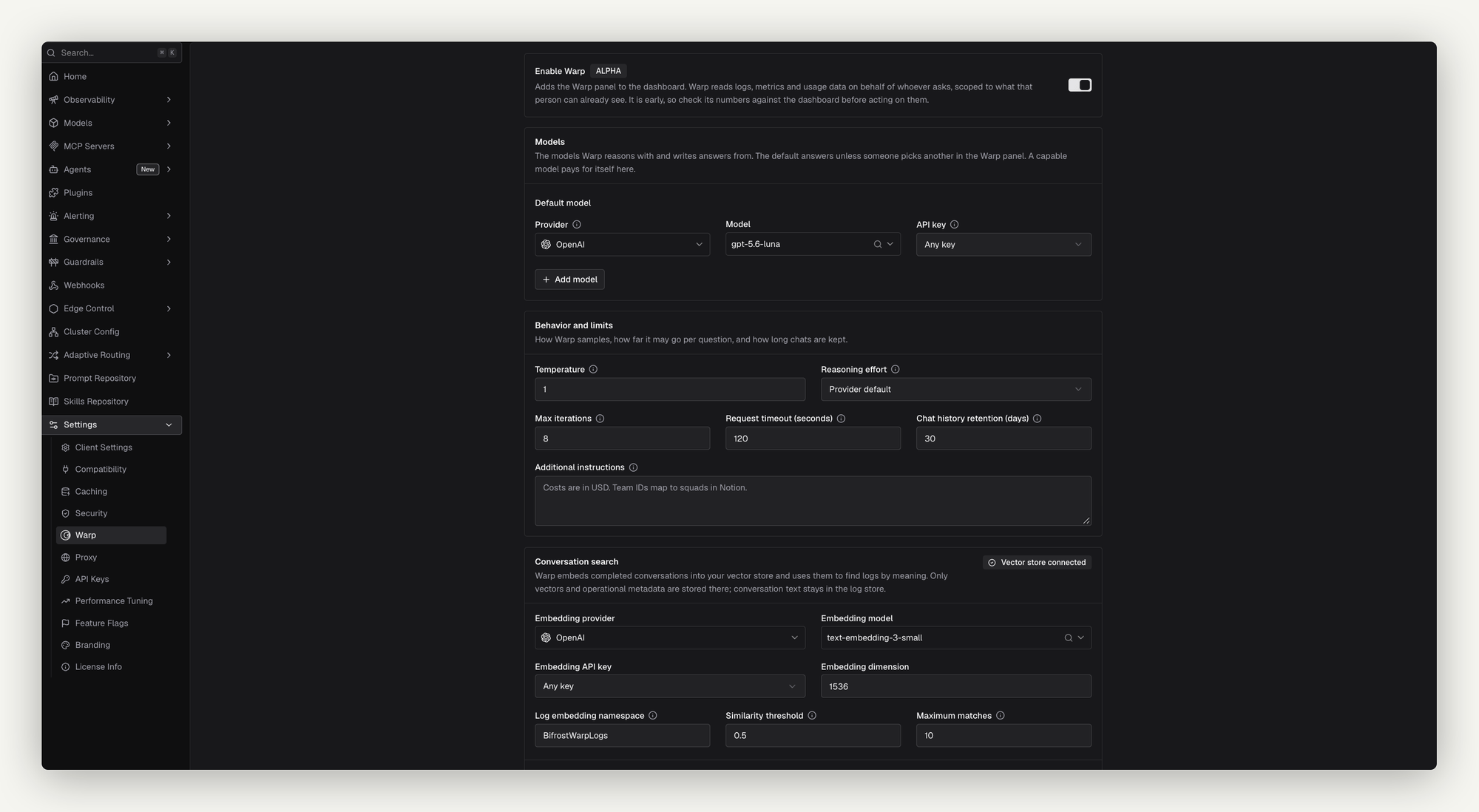
- Go to Settings > Warp.
- Under Models, choose the Default model: a Provider, a Model, and an API key. Any key load-balances across the provider’s keys. Pin a specific key to keep Warp’s spend separate from tenant traffic.
- Optionally, click Add model to offer more models in the chat panel’s model switcher.
- Adjust Behavior and limits if needed (see Settings reference).
- Under Conversation search, choose the Embedding provider, Embedding model, Embedding API key, and Embedding dimension. The dimension must match what the embedding model returns, for example
1536fortext-embedding-3-small. - Turn on Enable Warp at the top of the page.
- Click Save Changes.
Settings reference
Index logs for semantic search
Semantic search works over an embedding index of your logs, stored in the vector store underlog_vector_store_namespace.
What gets indexed
A log is indexed when all of these are true:- It is a chat completion or Responses API request, streaming or not.
- It has finished: its status is success, error, or cancelled.
- Its content is logged. Logs with content logging turned off are skipped.
- It is not Warp’s own traffic.
Live indexing
Once Warp is configured, each new log is embedded in the background as it is written. If logs arrive faster than they can be embedded, the queue fills and further logs are dropped from the index with a warning in the server log. They stay in the logs store, and a backfill can add them to the index later.Backfill
Logs written before Warp was configured, or dropped during a burst, are added with a backfill.- Web UI
- API
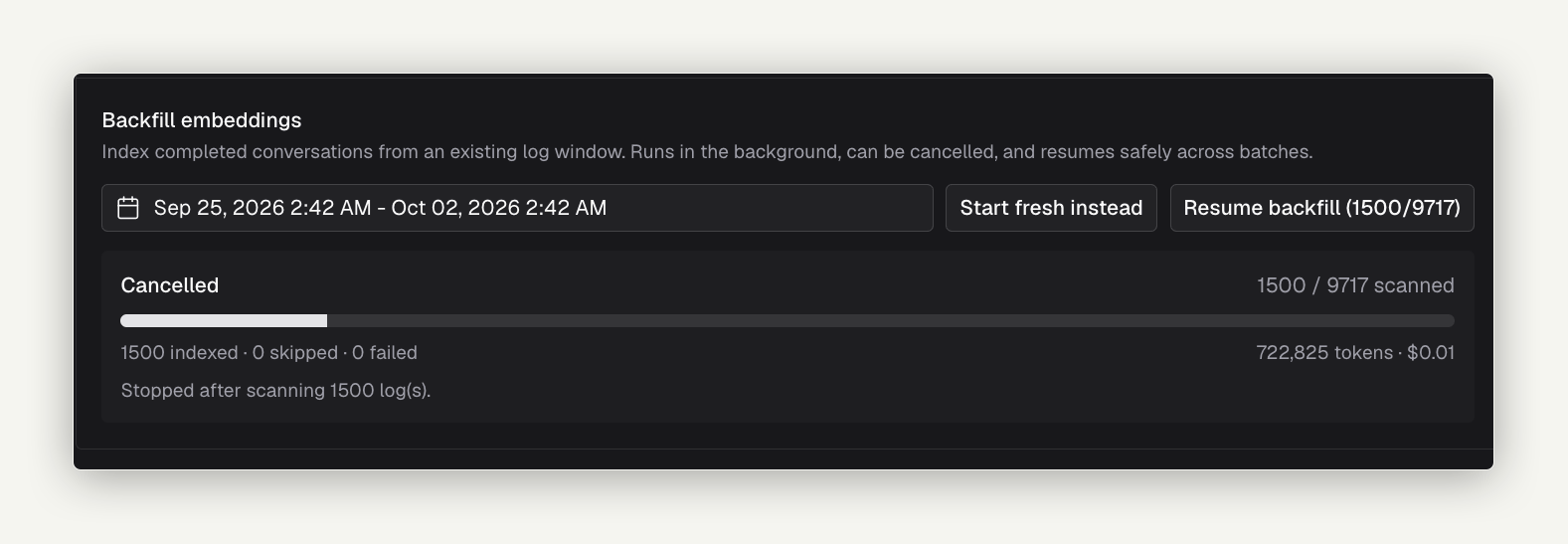
- Go to Settings > Warp > Backfill embeddings.
- Choose a date range. The default is the last 7 days.
- Click Start backfill.
409 with the running job’s status. A backfill stops on its own after 100 consecutive embedding failures.
Change the embedding model
Vectors from different embedding models cannot be compared. When you change the embedding provider, model, or dimension, you must also choose a new Log embedding namespace. Bifrost rejects the save otherwise. The new namespace starts empty, so run a backfill to fill it. You cannot change the embedding configuration while a backfill is running. Cancel it first.Use Warp
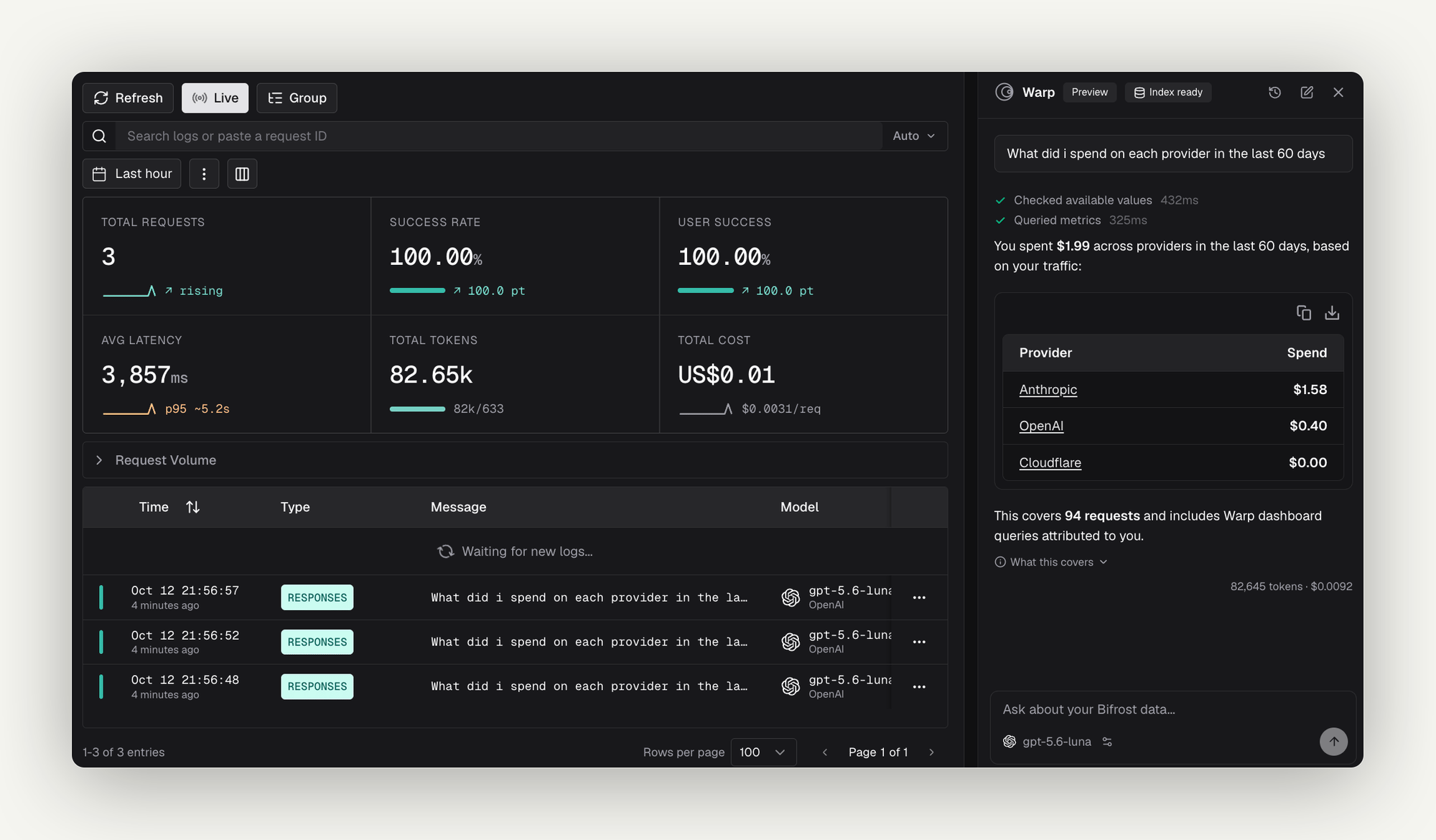
- “What did I spend on each provider in the last 7 days?”
- “Which model had the worst p99 latency yesterday?”
- “Who are my top 5 users by cost this week?”
- “Show me failed requests in the last 24 hours”
- Model switcher - Under the input, choose any model an administrator exposed in Models. The default is marked Default. Your choice is remembered in the browser.
- Clarifying questions - When Warp needs to know something, such as which team or time window you mean, it shows a Question card with options. Pick one with the mouse or the arrow keys, or type your own answer when the card allows it. Skip tells Warp to use its best judgement and say what it assumed.
- Charts - Answers can include line or bar charts of requests, errors, error rate, cost, tokens, or latency. Each chart has an Open in Logs link to the underlying rows.
- Log links - Links in an answer open the Logs page with the matching filters applied. Warp only shows links built from queries it actually ran.
- New chat - Click New chat in the header, or type
/clear. - Chat history - Click Chat history to reopen or delete earlier conversations. Each one lists its token usage and cost.
When Warp runs out of iterations before it finishes researching, it still answers with what it found and marks the answer as partial. Raise Max iterations if this happens often.
What Warp can look up
Warp uses only these read-only tools:
Warp has no tool that changes configuration, sends requests to providers on your behalf, or reads data outside the logs store and governance settings.
Access and scoping
Who can use Warp
Without authentication, anyone who can open the dashboard can use Warp. With RBAC (Enterprise), access is split across two resources:
Saving the configuration and running a backfill require an administrator: the local admin, or (with RBAC) a role with Update on Warp. Other callers get
403. When dashboard authentication is turned off, every caller counts as the local admin.
What data Warp reads
Every tool call runs as the person asking. With Enterprise row-level access control, Warp sees exactly the logs that person could see on the Logs page, and semantic search results are filtered the same way. When a question does not say whose traffic it means, Warp chooses a default:- A signed-in user with restricted access - their own traffic.
- An unrestricted caller, such as an administrator - the whole deployment.
- No user identity, and several teams, customers, or business units to choose from - Warp asks which one you mean.
Cost and governance
Warp’s model calls go through the full Bifrost pipeline, so they appear on the Logs page with the app name Warp and the user agentbifrost-warp/1. Calls from one conversation share a session ID equal to the conversation ID. MCP tools are never attached to Warp’s calls.
Warp’s traffic is subject to the same governance as any other request. If a budget, rate limit, or model restriction applies to the person asking, Warp reports that its model call was refused and why (budget_exceeded, rate_limited, or model_blocked).
Embedding calls made while indexing skip the plugin pipeline, so they do not appear on the Logs page and are not subject to governance. A backfill reports the embedding tokens and cost it used in its status.
Warp’s own requests are never added to its log index, so asking about Warp does not pollute semantic search.
Chat history
Conversations are saved in the logs store, so history requires a logs store that supports it. Without one, the history routes are not registered and the panel only keeps the current chat.- Ownership - Each conversation belongs to the user who started it. On a deployment without authentication, all conversations share one owner and everyone sees the same history.
- Retention - An hourly sweep deletes conversations whose last turn is older than Chat history retention (days), 30 by default.
- Cap - Each owner keeps at most 100 conversations. Past that, the oldest are deleted.
- Titles - A conversation is titled with its first question, up to 80 characters.
GET /api/warp/conversations lists your conversations, GET /api/warp/conversations/{id} returns one with its messages, and DELETE /api/warp/conversations/{id} deletes one.
Chat API
The dashboard talks to Warp throughPOST /api/warp/chat, which you can also call directly:
A streamed response emits these events:
start, delta (answer text), tool_call_start and tool_call_end, question (a clarifying question), error, and done. The done event carries the conversation_id, the finish_reason (partial when Warp ran out of iterations), the iteration count, token usage, and the model and provider used.
See the Warp API reference for full request and response schemas.
Troubleshooting
Every /api/warp route returns 404
Cause: The warp feature flag is off. It is off by default in Enterprise.
Fix: Enable the feature flag.
The Ask Warp button is missing
Cause: The feature flag is off, the deployment has no logs store, or (with RBAC) you lack View on Warp or WarpSession. Fix: Check each in turn. Without a logs store, Warp has nothing to read and stays hidden.Chat returns 503
The response body has areason field:
The Enable Warp switch is disabled
Cause: No vector store is connected. Fix: Configure a vector store. The settings page shows the connection status under Conversation search.Saving fails with “namespace must change”
Cause: You changed the embedding provider, model, or dimension but kept the old namespace. Fix: Enter a new Log embedding namespace, save, then run a backfill to fill it.Saving or starting a backfill returns 409
Cause: A backfill is already running. Fix: Wait for it to finish, or cancel it from the settings page or Background jobs.Semantic search misses recent conversations
Cause: Logs were dropped from the indexing queue during a burst, the logs had content logging turned off, or they were written before Warp was configured. Fix: Run a backfill over the missing window. Logs without content cannot be indexed.Next steps
- Built-in observability - The logs Warp reads, and the Background jobs panel
- Content logging - Control which logs keep content and can be indexed
- Virtual keys - Budgets and limits Warp can describe
- RBAC - The
WarpandWarpSessionresources