

Choose the model mappings
In this guide, a deployment name is the stable alias that you configure on a Bifrost provider key. Claude Code sends that name to Bifrost; Bifrost replaces it with the corresponding Bedrock model ID before inference. The following mappings are sample configurations based on the model IDs in the linked Amazon Bedrock model cards:
Sources: Claude Opus 4.8, Claude Sonnet 5, Claude Sonnet 4.6, and Claude Haiku 4.5.
The recommended deployment names are Bifrost aliases and are required by claude code harness to make accurate inference calls. If you enable Claude Code gateway model discovery, however, each discovered name must begin with
claude or anthropic.1. Configure the Bedrock provider in Bifrost
In Bifrost, go to Models > Model Providers > AWS Bedrock, then add or edit the provider key that Claude Code will use.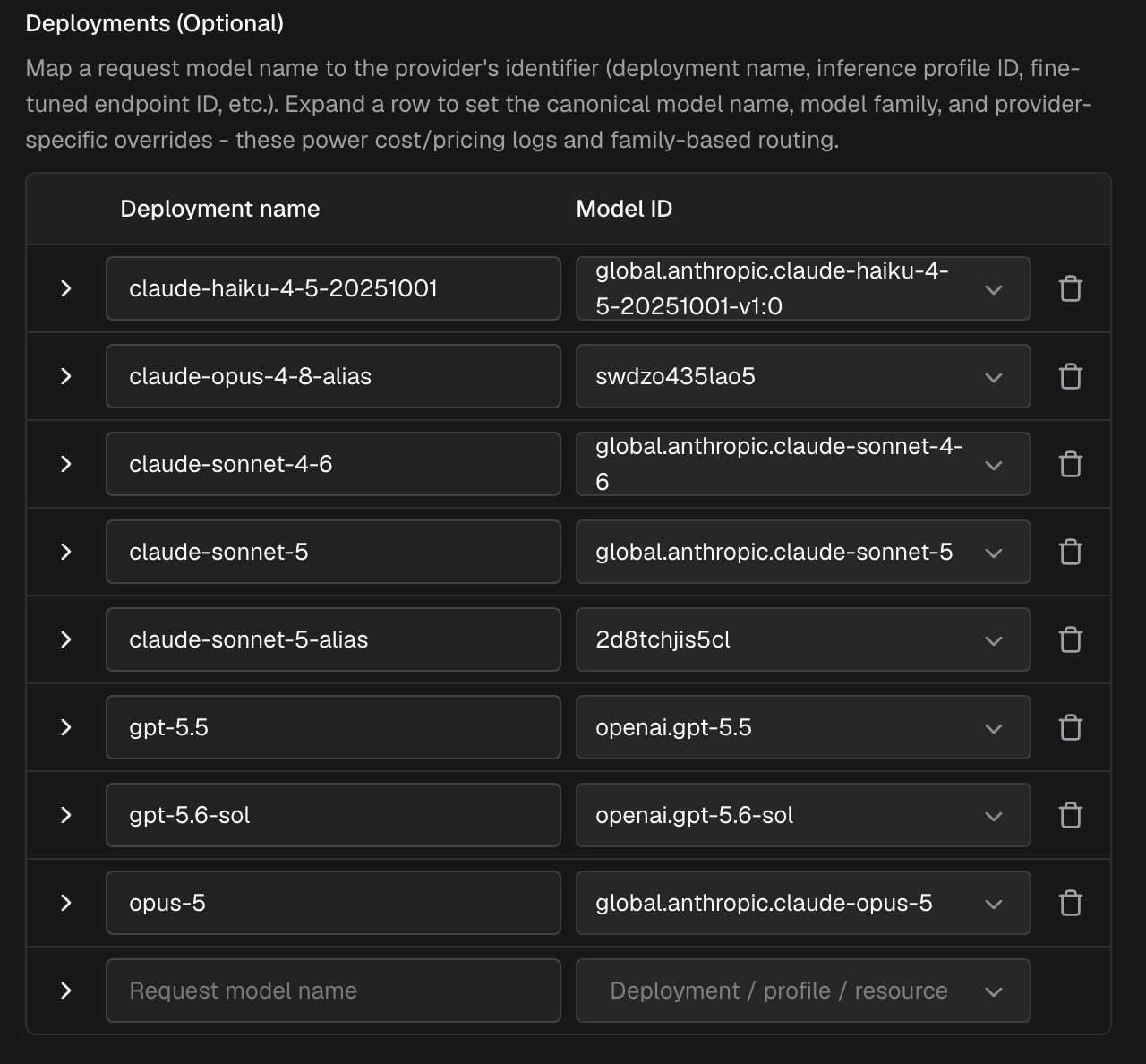
Map each Bifrost deployment name to its Bedrock model ID. Add only the models that you intend to expose to Claude Code.
Allow Claude Code headers
In Settings > Client Settings, set Allowed Headers to* or explicitly allow the headers Claude Code sends, including:
anthropic-beta as an open value because Claude Code adds capability values over time.
2. Configure the virtual key
Create or edit the virtual key used by Claude Code:- Allow the
bedrockprovider. - Confirm the virtual key is active and has sufficient budget and rate limits.
3. Setup harness
- With Edge installed
- Without Edge installed
Bifrost Edge provides the more seamless setup: it routes Claude Code traffic through Bifrost at the machine level, so you do not need to configure a gateway URL or virtual key in Claude Code.
- Install or deploy Bifrost Edge by following Deploy with MDM. If Edge is already installed, skip this step.
- Complete the one-time setup approval and sign in through your browser.
- Open Edge from the menu bar or system tray, select the virtual key configured in the previous step, and confirm that Edge is connected.
- Confirm that Claude Code is allowed by your organization’s AI app policy.
- Install Claude Code using Anthropic’s installation guide, then start it normally. No changes to
.claude/settings.json,ANTHROPIC_BASE_URL, orANTHROPIC_AUTH_TOKENare required.
4. Test Claude Code
Start Claude Code normally and run:- Discovery disabled: Select the built-in Claude tier that maps to the deployment you configured through
ANTHROPIC_MODELor the corresponding default tier variable. - Discovery enabled: Select either the configured
claude-*deployment under From gateway or the matching built-in Claude tier. - With Edge: Select the desired model as you normally would.
bedrock and resolved the expected deployment to its Bedrock model ID.