

What is MCP?
Model Context Protocol (MCP) is an open standard that enables AI models to seamlessly discover and execute external tools at runtime. Instead of being limited to text generation, AI models can interact with filesystems, search the web, query databases, and execute custom business logic through external MCP servers. Bifrost provides a comprehensive MCP integration that goes beyond simple tool execution:- MCP Client: Connect to any MCP-compatible server (filesystem tools, web search, databases, etc.)
- MCP Server: Expose your connected tools to external MCP clients (like Claude Desktop)
- Agent Mode: Autonomous tool execution with configurable auto-approval
- Code Mode: Let AI write and execute Python to orchestrate multiple tools
Security-First Design
By default, Bifrost does NOT automatically execute tool calls. All tool execution requires explicit API calls, ensuring human oversight for potentially dangerous operations. However, you can enable Agent Mode to allow automatic execution of specific tools via the
tools_to_auto_execute configuration.Key Capabilities
Connect to MCP Servers
Connect to external MCP servers via STDIO, HTTP, or SSE protocols with automatic retry logic
Authentication
Pick the right auth type for each MCP — None, Headers, OAuth, Per-User OAuth, Per-User Headers, Token Exchange
MCP Sessions
Inspect, re-authenticate, edit values, and revoke per-user MCP credentials
Tool Execution
Execute tools with full control over approval and conversation flow
Agent Mode
Enable autonomous tool execution with configurable auto-approval
Code Mode
Let AI write Python to orchestrate multiple tools in one request
Connection Resilience
Automatic exponential backoff retry logic handles transient failures gracefully
MCP Gateway Mode
Expose Bifrost as an MCP server for Claude Desktop and other clients
Tool Hosting
Register custom tools directly in your Go application
Tool Filtering
Control which tools are available per request or per virtual key
How MCP Works in Bifrost
Bifrost acts as both an MCP client (connecting to external tool servers) and optionally as an MCP server (exposing tools to external clients like Claude Desktop). For detailed architecture information, see the MCP Architecture documentation.Basic Tool Calling Flow
The default tool calling pattern in Bifrost is stateless with explicit execution:- No unintended API calls to external services
- No accidental data modification or deletion
- Full audit trail of all tool operations
- Human oversight for sensitive operations
Why Code Mode Matters
If you’re planning to use 3+ MCP servers, read the Code Mode documentation carefully. Code Mode reduces input token usage by up to 92.8% and estimated cost by up to 92.2% compared to classic MCP by having the AI write Python code to orchestrate tools in a sandbox, rather than exposing 100+ tool definitions directly to the LLM.This feature is only available on
v1.4.0-prerelease1 and above.This feature is only available in the Gateway deployment. It is not available when using Bifrost as a Go SDK.
Bifrost as an MCP Gateway
Bifrost can act as an MCP server, exposing all your connected MCP tools to external MCP clients like Claude Desktop, Cursor, or any other MCP-compatible application. This enables a powerful pattern:- Connect Bifrost to multiple MCP servers (filesystem, web search, databases, etc.)
- Expose all those tools through a single MCP endpoint
- External clients connect to Bifrost and get access to all aggregated tools
Endpoints
POST /mcp (JSON-RPC)
Handle JSON-RPC 2.0 messages for tool listing and execution:GET /mcp (SSE)
Establish a persistent SSE connection for real-time communication:connection/openedmessage on connect- Keeps connection alive until client disconnects
External MCP Client Integration
The/mcp endpoint supports any MCP-compatible client that can communicate via HTTP or SSE:
- Claude Desktop - macOS and Windows desktop application
- Cursor - IDE with MCP support
- Custom Applications - Any app implementing the MCP protocol
- Browser Extensions - Tools with MCP client capability
Virtual Key Authentication
Every request to/mcp is scoped to what its credentials allow, so different clients see different tools from the same endpoint.
Header credentials are one of two ways clients authenticate to
/mcp. Clients can also connect through a browser-based OAuth flow — see Gateway Authentication for the mcp_server_auth_mode setting and the OAuth connect flow.Anonymous Access (No Credentials)
Whenenforce_auth_on_inference is false, requests without credentials see all available tools.
Scoped by Virtual Key
With a Virtual Key,tools/list returns only the tools the key allows: the clients configured on the key (see Tool Filtering) plus any client marked Allow by Default. tools/call is checked against the same allow-list, and a key that is inactive or expired is refused with 403, exactly as on the inference endpoints. An x-bf-mcp-include-tools header can narrow the list further for a request, never widen it.
Authenticate with Virtual Key:
Tool Filtering for MCP Clients
Control which tools are exposed to MCP clients using Virtual Keys:Per-Virtual Key Tool Access
Configure which tools each Virtual Key can access:allow_by_default in its configuration) is available, with all of its tools, to every key that does not configure it explicitly. A key’s own configuration for that client takes precedence, including an empty tool list, which blocks it for that key.
Learn more about Virtual Key tool filtering in MCP Tool Filtering.
Tool Auto-Execution Is Client-Side in Gateway Mode
Thetools_to_auto_execute field on an MCP client config controls whether Bifrost auto-runs a tool call vs. surfacing it for manual approval. This setting only applies in Agent Mode — when Bifrost is also running the LLM loop and gating tool calls between model turns.
When you use Bifrost purely as an MCP Gateway (the setup this page covers — Claude Desktop, Cursor, Cline, or any other MCP host connecting to Bifrost over /mcp), Bifrost has no LLM loop and no concept of “auto-execute vs. wait for approval.” Bifrost just exposes tools over the MCP protocol; the host application is the one running the agent loop, deciding whether each tools/call requires user confirmation, and surfacing the approval UI.
Configure the auto-approval policy in your MCP client’s own settings:
- Claude Desktop: tool-approval is per-tool in the host’s settings.
- Cursor / Cline / Continue: each has its own “auto-approve” or “trust” lists in the MCP integration config.
- Custom MCP hosts: the SDK you’re using (mark3labs/mcp-go, @modelcontextprotocol/sdk-typescript, etc.) typically exposes a callback for tool-call confirmation that you wire up yourself.
tools_to_auto_execute set on the Bifrost MCP client config will be silently ignored in gateway mode — it isn’t an error, just a no-op.
Advanced Gateway Features
Health Monitoring
Bifrost automatically monitors the health of connected MCP clients: How it works:- Ping Mechanism: Every 10 seconds (configurable), sends a ping to each connected client
- Check Timeout: Each ping has a 5-second timeout
- Failure Threshold: After 5 consecutive failed pings, client is marked as
unstable - State Tracking: Real-time state updates (connected ↔ disconnected)
- Manual Reconnection: Once disconnected by failed health checks, requires manual reconnect via API or UI. One exception: when a live tool call hits a clean upstream auth rejection, Bifrost force-refreshes the credential and reconnects in the background on its own (see Auth failure recovery)
needs_reauthis sticky: clients whose OAuth credential permanently died are parked inneeds_reauth, health checks won’t flip them back, and Reconnect is disabled for them; an admin must reauthorize instead
Reconnection behavior
How a client reconnects, and whether tool calls are affected while it does, depends on its connection type:- HTTP and SSE clients reconnect make-before-break. Bifrost dials the new connection first; the existing connection keeps serving tool calls for the whole dial. Once the new connection is ready, the swap is atomic, and only then is the old connection closed. In practice this means credential rotation, reauthorization, and the automatic-refresh recycle described in Automatic refresh don’t cause downtime for these clients.
- STDIO and in-process clients reconnect close-first. The existing connection (and, for STDIO, its subprocess) is closed before the new one is dialed, so there’s a brief window where the client has no connection. This is deliberate: a STDIO reconnect spawns a new subprocess, and many STDIO servers hold exclusive resources (lockfiles, bound ports, singleton sockets) that a second instance can’t acquire while the first is still running. STDIO reconnects are also almost always crash recovery, where the existing connection is already dead and there’s nothing to keep serving.
Request ID Tracking
For Agent Mode operations, Bifrost can track intermediate tool executions:Dynamic Tool Discovery
Tools are discovered from MCP servers during:- Client Connection - Initial ListTools request
- Runtime Updates - When server tool list changes
- Configuration Changes - When tools_to_execute is updated
tool_sync_interval (minutes on the API; 0 or unset inherits the global mcp_tool_sync_interval client setting, default 10 minutes). Server-level clients sync over their live connection; per-user clients (per_user_oauth, per_user_headers) hold no persistent connection, so the syncer uses the retained admin discovery credential for a one-shot connect, tools/list, disconnect cycle (see Per-User OAuth and Per-User Headers). A failed sync keeps the existing tool set and retries on the next cycle.
Every discovered tool list — from the initial connect and from every periodic sync — persists to the database, so a restart doesn’t lose anything a running instance had already discovered. Persistence is skipped when a sync’s result is byte-identical to what’s already stored, so an unchanged tick doesn’t cause a write.
Per-User Auth on the Gateway
When at least one upstream MCP server is configured withper_user_oauth or per_user_headers, the /mcp endpoint serves per-user credentials lazily, keyed to the inbound caller’s identity. How that identity is established depends on the gateway auth mode: in the default headers mode, clients identify themselves via headers (below); in both / oauth mode, a Bifrost-issued JWT carries the identity instead.
In headers mode, inbound MCP clients identify themselves via headers:
x-bf-vk: <vk>(orAuthorization: Bearer <vk>/x-api-key: <vk>/x-goog-api-key: <vk>) — VK-mode identityx-bf-mcp-session-id: <opaque-string>— session-mode identity (client-asserted, must be re-sent on every call)- Enterprise SSO — user-mode identity, attached automatically by the auth middleware
mcp_auth_required tool result with an inline URL the user must visit. The payload carries a kind discriminator:
kind: "oauth"→authorize_urlpoints at the upstream provider’s consent page (via a Bifrost intermediate)kind: "headers"→submit_urlpoints at a Bifrost form where the user enters their header values
- User-mode flows require the bound SSO user — anyone else opening the URL gets a
403. User-owned VKs auto-promote to user-mode. - VK-mode and session-mode flows are openable by anyone holding the URL. By default they still require a Bifrost dashboard session in the browser; turn on
mcp_enable_temp_token_authto let anonymous browsers complete them via a short-lived#t=<temp-token>URL fragment.
In the default
headers auth mode, Claude Code may proactively POST /oauth2/register (RFC 7591 DCR) on claude mcp add and log SDK auth failed: … — discovery and registration aren’t served in that mode, so the probe has no endpoint to hit. The /mcp connection itself still works. In both / oauth mode the probe is handled by Bifrost’s authorization server and the message doesn’t appear. See the Claude Code bug report for context.Public URL configuration when behind a proxy
The URLs Bifrost surfaces (consent pages, header-submission pages, and theredirect_uri it registers with upstream OAuth providers) are derived from the request’s Host header by default. Behind a reverse proxy, that’s the proxy’s internal address rather than its public one. Override with:
mcp_external_client_url— what Bifrost registers as theredirect_uriwith upstream OAuth providers
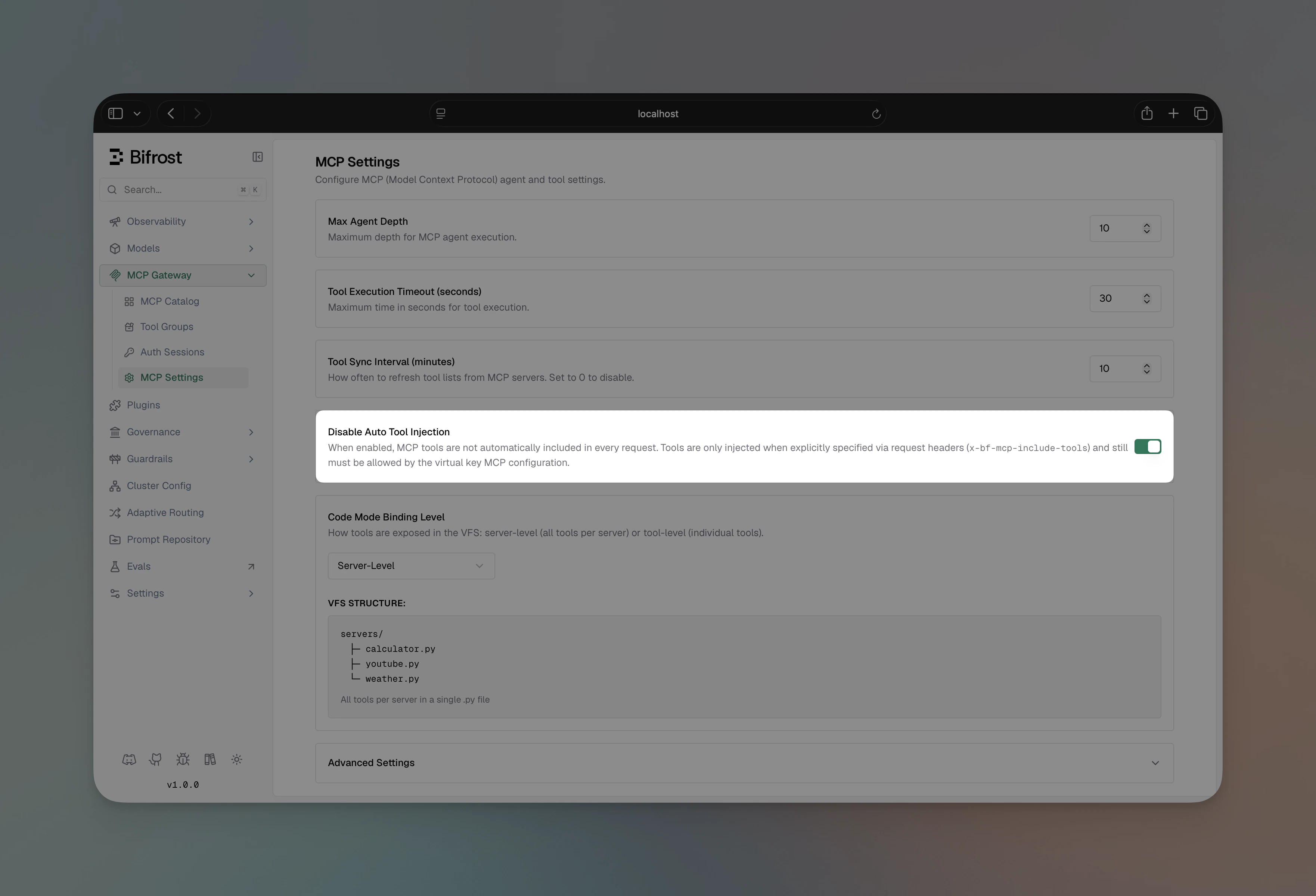
Recommended: disable auto tool injection
When Bifrost serves both inbound LLM requests and acts as an upstream MCP server (this page), the same tools can end up being injected twice — once because the LLM Gateway auto-includes every configured MCP tool on every inference request, and once because the inbound MCP client itself fetched the tool list from/mcp. The model sees the same tool name from two sources and may behave erratically (duplicate tool calls, refusal, or confused arguments).
Turn Disable Auto Tool Injection on in your client config. MCP tools will then only be attached to inference requests when the caller explicitly opts in via the x-bf-mcp-include-tools request header (and the calling Virtual Key still has to allow them). Outbound MCP clients (Claude Desktop, Cursor, etc.) keep working because they discover tools through /mcp directly.
- Web UI
- API
- config.json
- Navigate to Settings → MCP in the sidebar
- Toggle Disable Auto Tool Injection on
- Click Save
Security Considerations
1. Enable Virtual Key Enforcement
Always enableenforce_auth_on_inference in production:
2. Use HTTPS
Deploy Bifrost behind a reverse proxy (nginx, Cloudflare, etc.) with TLS enabled:3. Limit Tool Access
Use Virtual Keys to limit which tools each client can access. Follow the principle of least privilege.4. Network Restrictions
Consider network-level restrictions to limit which IPs can access the MCP endpoint.Troubleshooting
No tools showing up
No tools showing up
- Verify MCP clients are connected in Bifrost
- Check that
tools_to_executeincludes the expected tools - If using Virtual Keys, verify the VK has MCP tool access configured
Virtual Key authentication failing
Virtual Key authentication failing
- Ensure the Virtual Key exists and is active
- Check the header format (Bearer prefix for Authorization)
- Verify
enforce_auth_on_inferencesetting matches your setup
Next Steps
1
Connect to MCP Servers
2
Choose Authentication (if needed)
3
Enable Code Mode (for 3+ servers)
4
Execute Tools
5
Enable Agent Mode