

Overview
View as User lets an admin open the Bifrost dashboard as a chosen user and see what that user sees. The view opens in a new browser tab and is read-only. Your own dashboard is built from your role, your access profiles and your data access scope. A user with a different role sees a different set of models, logs, budgets and pages. View as User shows you that set directly, so you can answer “why can’t I see X?” without a screen share or a test account. In a view tab:- RBAC permissions, data access scope and
/meresolve as the viewed user. - Only
GET,HEADandOPTIONSrequests are allowed. Every write is refused with403. - Your original tab is unchanged and keeps your own access.
View as User is available in Bifrost Enterprise from v2.4.0.
Who can use it
Starting a view needs the Users → ViewAs permission. Theent_add_users_view_as_permission migration adds it and grants it to the Admin role only. To let another role use it, enable ViewAs on the Users resource in Governance → Roles & Permissions. See Managing Permissions.
The permission is checked on every request in a view tab, not only when the view starts. If you lose it, the next request in the view tab returns 403.
A local admin signed in with a password session can also start a view. The audit log records the actor as local-admin.
Start a view
You can start a view from three places:- Top bar: open the user menu, choose View as user, search by name or email, and pick the user.
- Users list: open the row menu (•••) on a user and choose View as user.
- User detail sheet: click View as user.
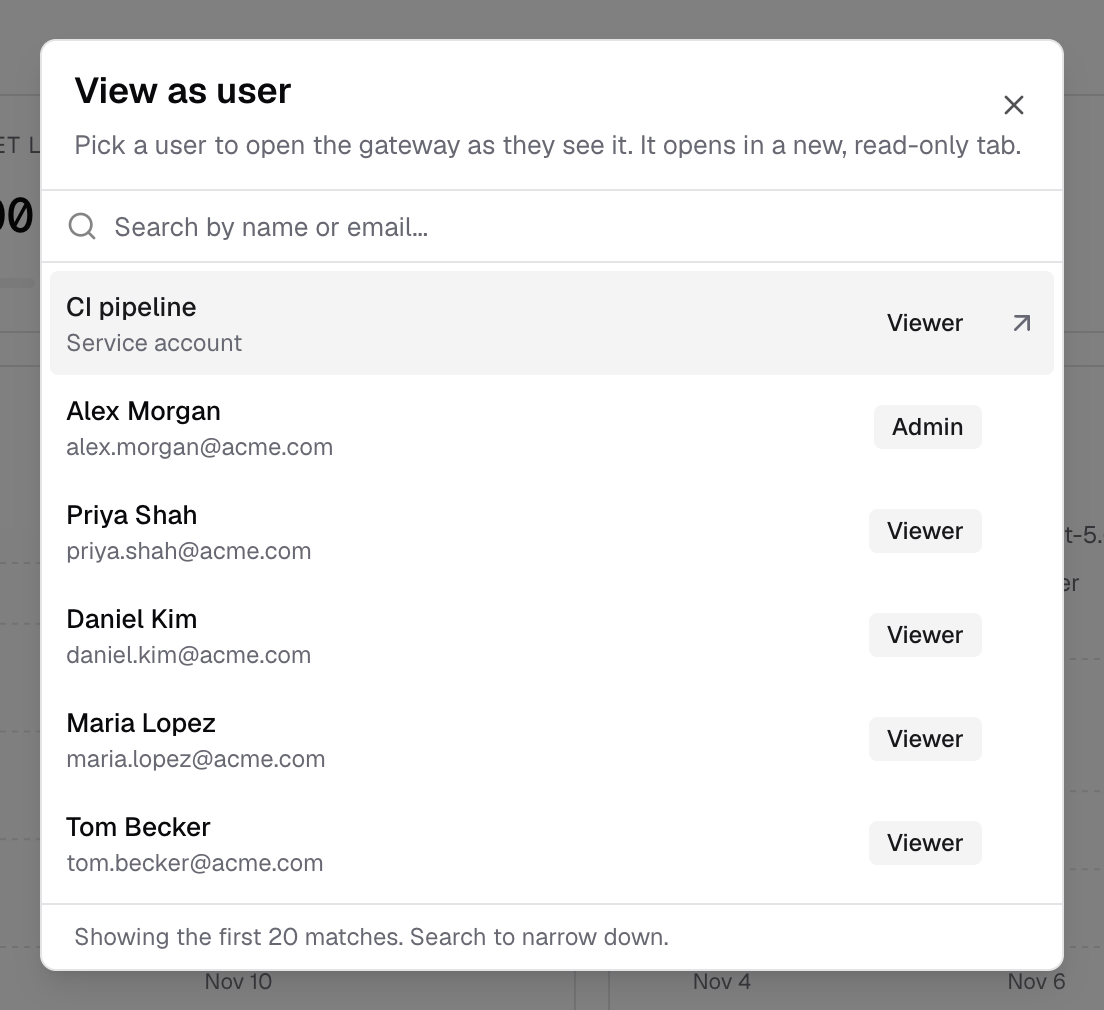
What the view tab shows
The view tab shows the dashboard as the viewed user gets it:- Pages and actions follow the user’s role. Pages they can’t open are hidden or show the same access message they would see.
- Data follows the user’s data access scope. Logs, MCP logs, virtual keys, users and dashboards list only the records that user can see.
- Home shows the user’s own usage, budgets, models and MCP servers.

End a view
Click Close view in the pill, or choose Close view from the user menu, or close the tab. Nothing is stored on the server, so there is nothing else to undo. If the browser doesn’t allow the tab to close itself, it returns to your own Home page.Limits
View as User is for reading. These limits are enforced by the gateway, not only by the UI:
Some behavior to expect in a view tab:
- Reads sent as
POSTare refused. A page that loads its data with aPOSTrequest shows an error in the view tab, even though the user can open it normally. - Live updates aren’t switched. Updates the dashboard receives over its WebSocket connection, such as new rows streaming into the logs table, are not scoped to the viewed user. Reload the page to see the user’s current list.
- Inference isn’t covered. View as User applies to dashboard sessions. It doesn’t let you send model, MCP or agent requests as another user.
Audit
Starting a view writes auser.view_as_started event to the audit log. The actor is the admin who started the view, and the resource is the viewed user, identified by ID and email.
Only the start is recorded. Individual pages read during the view are not audited one by one.
API
The dashboard uses two calls, which you can also make with a dashboard session token. Bifrost API keys can’t use them. Start a view. Confirms the user exists and writes the audit event. It changes nothing else.400 when user_id is missing and 404 when the user doesn’t exist.
Read as the user. Add the X-Bifrost-View-As header with the user’s ID to any read request:
Next steps
- Role-Based Access Control - Decide what each role can do
- Data Access Control - Decide which records each role can see
- Access Profiles - Attach provider, model and budget policies to users, teams and roles
- Audit Logs - Review who started a view and when