

Overview
Bifrost Enterprise connects your organization’s identity provider to Bifrost through OAuth 2.0 / OIDC login, provider-backed directory sync, and inbound SCIM 2.0 provisioning. A single configuration gives you:- Single sign-on (SSO) via OAuth 2.0 / OIDC with JWKS-based JWT validation
- Automatic role assignment using custom claims, app roles, or group-to-role mappings
- Team synchronization from IdP groups into Bifrost teams
- Business unit mapping from IdP attributes to Bifrost business units
- Access profile mapping from IdP attributes to Bifrost access profiles
- Project mapping from IdP attributes to Bifrost projects
- Bulk user provisioning with filter-preview before import
- Background directory sync on a schedule you choose (default every 24 hours) when SCIM Provisioning is off
- Silent session refresh using server-stored refresh tokens, so IdP changes land without a new sign-in
- Inbound SCIM 2.0 — IdPs can push user and group changes to Bifrost in real time via the
/scim/v2API
OIDC or SCIM satisfies dashboard authentication. Bifrost Enterprise treats the dashboard and admin API as
authenticated when OAuth 2.0 / OIDC login or inbound SCIM 2.0 provisioning is configured. You do not need to
additionally enable basic dashboard authentication with an admin username
and password. Anywhere the docs require “dashboard auth to be configured”, such as creating a custom-path plugin
in v2.0.0, an OIDC or SCIM deployment already meets that requirement.
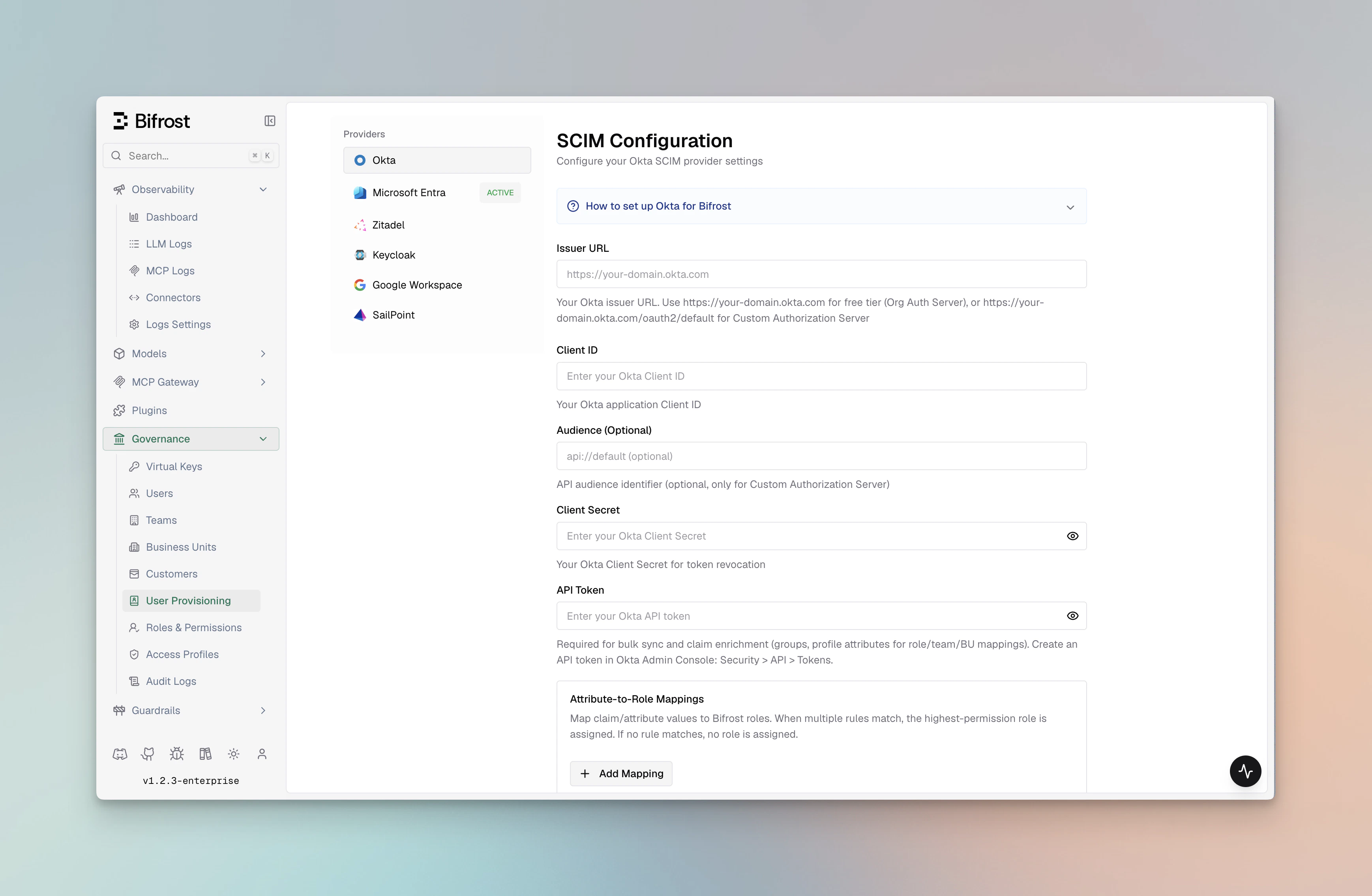
Supported Identity Providers
Pick your IdP to follow a step-by-step setup guide. All providers share the same Bifrost configuration surface — the only difference is how the OAuth client and role/group claims are created on the provider side.
Okta
OIDC with Org or Custom Authorization Servers, plus group-to-role mapping and API tokens for bulk user sync and 24-hour background reconciliation.
Microsoft Entra
Entra ID (Azure AD) with app roles, group claims, and v1.0 / v2.0 token support.

Keycloak
Self-hosted or managed Keycloak with OIDC login and Admin REST API based user provisioning.

Zitadel
Cloud or self-hosted Zitadel with project-scoped role claims and service-account-based provisioning.
Google Workspace
Google Workspace domains with OAuth login plus optional Directory API sync via a service account.

Auth0
Auth0 with Post Login Actions for custom claims, role-to-role mapping, and optional M2M app for bulk user sync.
Generic OIDC
Any standards-compliant OIDC provider — PingIdentity, ForgeRock, OneLogin, JumpCloud, and others not covered by a dedicated guide.
How it works
- Login — Bifrost redirects unauthenticated users to the provider’s authorization endpoint (Authorization Code flow).
- Token exchange — on callback, Bifrost exchanges the code for an access token and refresh token, stores them in an
HttpOnlycookie / server session, and validates the JWT against the provider’s JWKS. - Identity extraction — configurable JWT claims (
userIdField,rolesField,teamIdsField) are mapped to a Bifrost user, role, and teams. Provider-specific app roles or custom attributes override claim lookup. - Attribute mapping — optional
attributeRoleMappings,attributeTeamMappings,attributeBusinessUnitMappings,attributeAccessProfileMappings, andattributeProjectMappingstranslate claim values (e.g., a department string or Okta group name) into Bifrost roles, teams, business units, access profiles, or projects. A sign-in that resolves to no role is refused; there is no default role. - Session refresh — when a dashboard session expires, Bifrost silently refreshes it with the IdP and re-applies the fresh claims. If the refresh fails and the IdP reports the user is no longer active, the user is removed.
- Directory sync — when SCIM Provisioning is off and directory API credentials are configured, Bifrost re-reads users from the IdP every Directory sync interval (default 24 hours), updating and removing users.
- Bulk import — admins can preview users matching a filter and bulk-import them via the dashboard, which calls the provider’s user directory API. Unavailable while SCIM Provisioning is on.
- SCIM push — IdPs configured with a SCIM provisioning connector can push user creates, updates, deactivations, and deletes to Bifrost in real time via
/scim/v2. - Deprovisioning — a SCIM deactivation or DELETE, a failed session refresh for a user the IdP reports inactive, or directory sync no longer finding the user, removes the user locally. A refused sign-in never removes anyone.
Capabilities
Background lifecycle reconciliation
Bifrost’s lifecycle model combines session refresh, background directory sync, and real-time SCIM push.- Session refresh - When a user’s session expires, Bifrost refreshes it with the IdP and re-applies the fresh claims. If a refresh fails and the IdP reports the user inactive, Bifrost removes the user.
- Directory sync - With directory API credentials configured, Bifrost re-reads users from the IdP every Directory sync interval (
bulkSyncInterval, default24h, from1hto30d). It updates mapped roles, teams, business units, access profiles, and projects, and removes users that are disabled, unassigned, or no longer listed. - SCIM push - When SCIM Provisioning is on, your IdP pushes every change, including deactivations and deletes, in real time.
Configuration reference
All providers share the same outer config shape inconfig.json:
trusted_networks is the private IP/CIDR allowlist the SSRF guard consults before outbound discovery calls, so a self-hosted IdP on an internal network is reachable - see Generic OIDC for when you need it. Entries are { cidr, description }; a bare IP is a single host and hostnames are rejected. Declaring the key makes config.json own the whole list (an explicit [] clears ranges added from the dashboard); omit it to leave them untouched.
Shared fields across providers:
Provider-specific fields (domain, tenant ID, server URL, service-account credentials) are documented in each IdP’s setup guide.
Changing
scim_config at runtime through the UI is applied after saving. For file-based configuration, restart the Bifrost server to pick up changes.Environment variable support
Fields marked env.* supported accept"env.VAR_NAME" in addition to a literal value — Bifrost resolves the variable from the process environment at startup. Attribute mapping arrays are always plain JSON (they cannot reference env vars).
Okta
Microsoft Entra ID
Keycloak
Zitadel
Google Workspace
Configuring from the dashboard
- Navigate to Governance → User Provisioning in the Bifrost dashboard.
- Select your identity provider from the OIDC Provider dropdown.
- Fill in the provider-specific fields. Required fields are marked and validated on Verify.
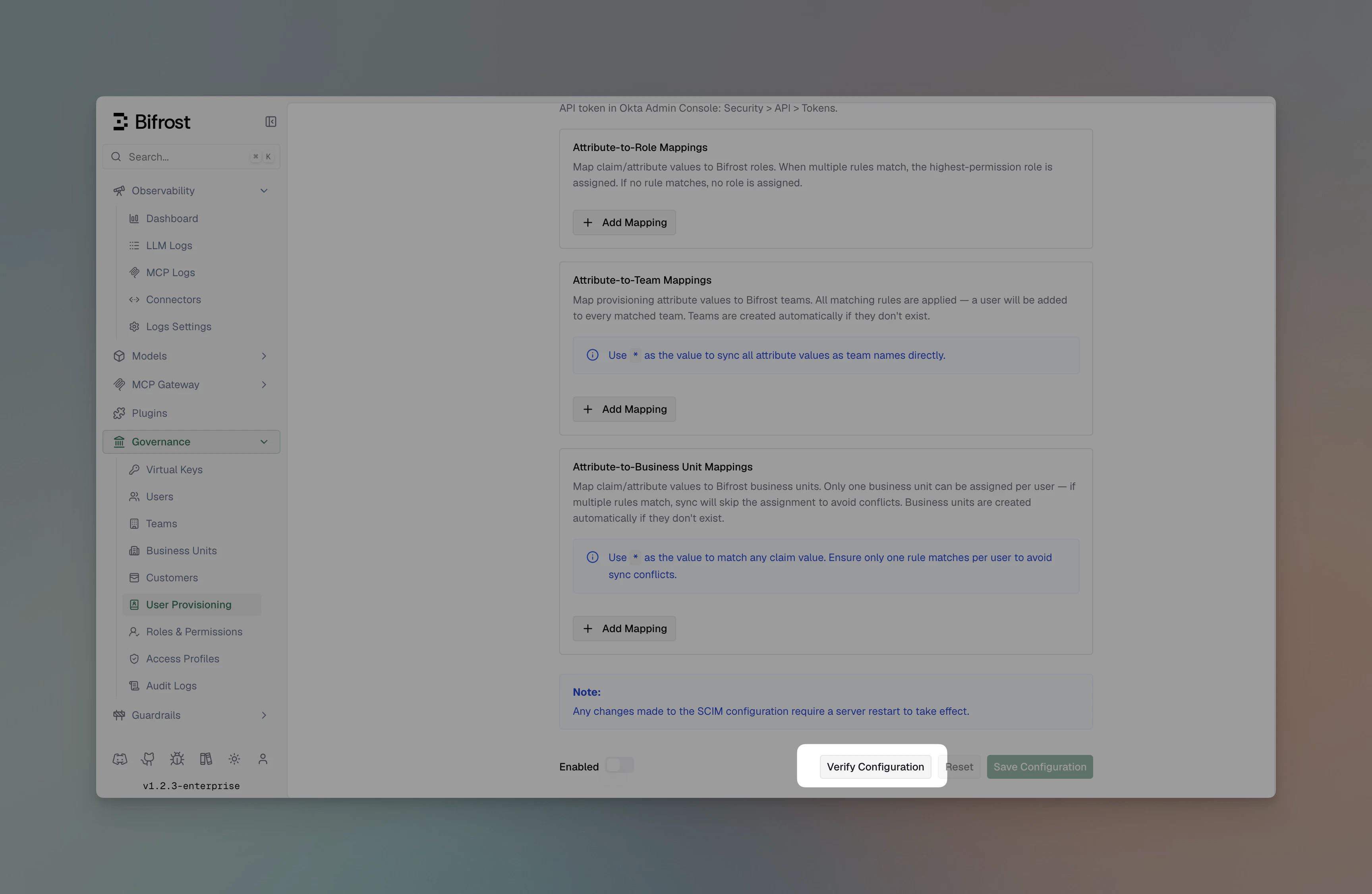
- Click Verify to test credentials end-to-end. Bifrost will reach the provider’s JWKS / directory endpoint and report any failures.
- Configure Attribute → Role / Team / Business Unit / Access Profile mappings as needed.
- Toggle Enabled and click Save Configuration.
Attribute mappings
Attribute mappings let you translate claim values into Bifrost roles, teams, or business units without forcing your IdP admins to restructure claim names.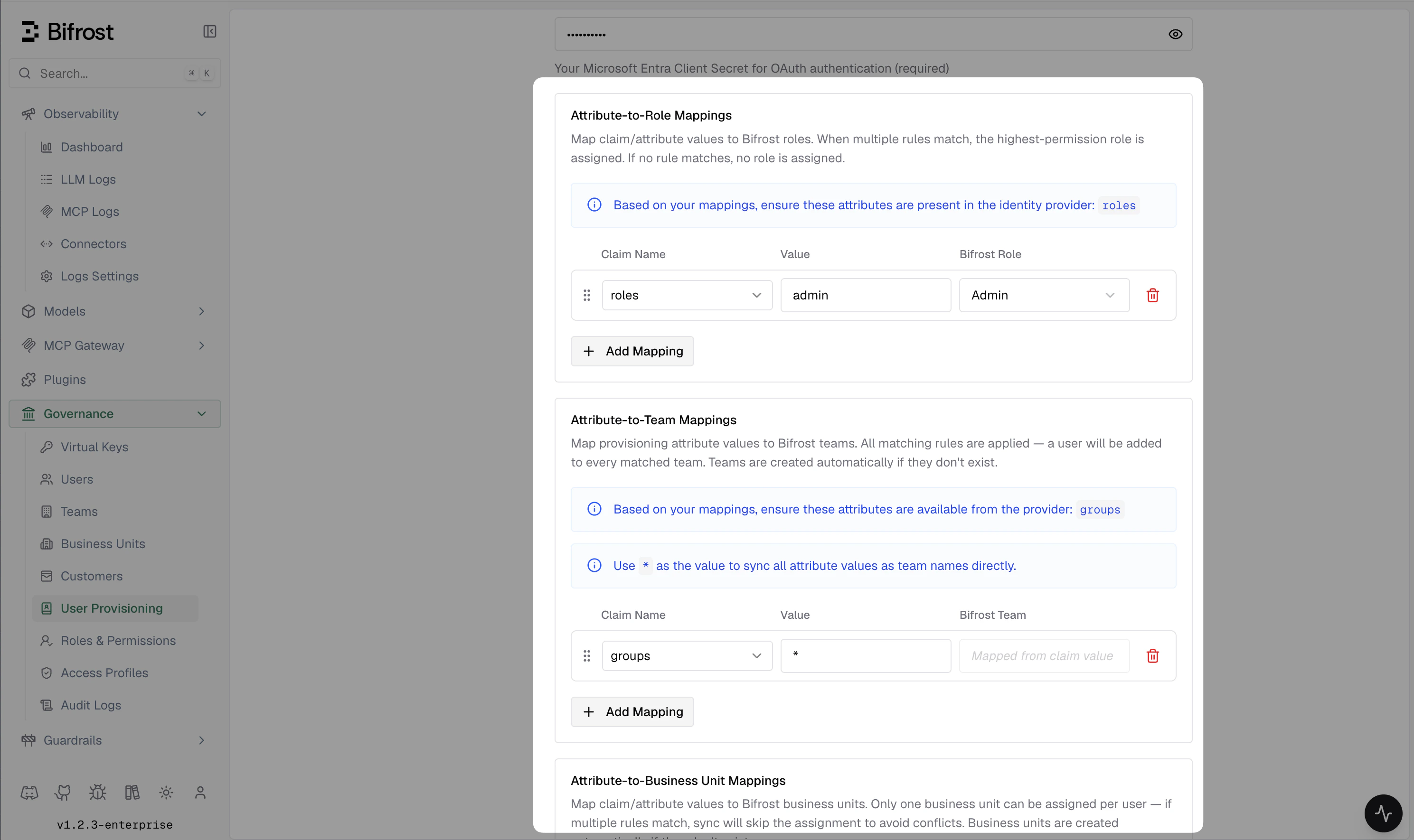
- Role mappings — a user holds exactly one role. By default the matching role with the most permissions wins, with ties going to the rule higher in the list; switch the role resolution setting to first matching role to make list order decide. A
"value": "*"rule matches any value of the attribute, but only when the attribute is present; it is not a fallback for users without it. There is no default role: a sign-in that matches no role rule is refused. - Team mappings, business unit mappings, access profile mappings, and project mappings — all matching rules apply, so a user with
department=Platformandgroup=srecan be placed on multiple teams, business units, and access profiles at once.
realm_access.roles).
Access profile mappings
attributeAccessProfileMappings grant access profiles from claim values, using the same rule shape as team and business unit mappings:
attribute and value and different accessProfile names. In the dashboard you do this in one row by picking several profiles; config.json stores them as separate rules, so the file will have more entries than the screen shows.
Every sync re-checks these rules. A profile the user still matches is left alone, keeping its budget and accumulated usage; newly matched profiles are added, and ones they no longer match are removed. Profiles they hold through their role are not affected. If an admin assigned the same profile by hand, the mapping takes it over, and from then on it is removed when the user stops matching. A profile granted this way cannot be detached from the user directly — change the mapping or the underlying attribute instead.
claimScimAttributes field
attribute in a role/team/business-unit mapping rule is always an OIDC JWT claim name, and supports dotted paths into nested objects (e.g. realm_access.roles). By default Bifrost also uses that same name to look up the attribute in a SCIM-provisioned user’s stored profile (a flat key-value map) — so for standard SCIM attributes (department, title, userType, costCenter, etc.) mapping rules work unchanged across both the OIDC and SCIM paths.
claimScimAttributes is a separate, top-level config field (a sibling of attributeTeamMappings / attributeBusinessUnitMappings, not a field on each rule) for the two cases where that default isn’t enough:
- The claim is sourced from a SCIM Group, not a SCIM User attribute — e.g. your IdP pushes group membership via SCIM rather than embedding group names in the user token.
- The OIDC claim path differs from the SCIM storage key — e.g. a custom attribute sent under
profile.jobFunctionin the JWT but stored asjobFunctionin the SCIM profile.
A role mapping can use
attributeType: "group" too, so you can assign a role from group membership alone. "value": "*" works here and matches any group, which is useful as a catch-all giving every SCIM-provisioned group member a baseline role:
attribute name — e.g. { "attribute": "groups", "value": "platform-team", "team": "Platform" } — and Bifrost consults claimScimAttributes["groups"] to know it should match SCIM Group displayName rather than a SCIM User attribute.
If you only use OIDC (no inbound SCIM push), claimScimAttributes has no effect.
Team and business unit membership
A user can belong to any number of teams and business units at once. Bifrost remembers how each membership was granted — by an admin, by SCIM, or from a sign-in claim — and uses that to decide what a later sync is allowed to change.
What this means in practice:
- Each sync keeps its own assignments up to date. Memberships the user still matches are kept, and ones they no longer match are removed.
- A missing attribute is not a removal. If a refreshed token leaves out the attribute entirely, Bifrost uses the value it last saw. Only an attribute that is present and no longer matches removes the membership.
- Your IdP takes over matching manual memberships. If an admin added a user to a business unit by hand and a mapping later grants the same one, the membership follows the IdP from then on, including removal.
- Turning SCIM on later is safe. SCIM takes over managing an assignment that came from a claim rather than adding a duplicate.
GET and POST /api/governance/business-units/{id}/users and DELETE /api/governance/business-units/{id}/users/{user_id}. The list response tells you how each member was granted, so you can tell an admin assignment from one your identity provider manages.
SCIM attribute suggestions
When configuring attribute mappings for SCIM-provisioned users, the following attributes are available from the user payload: Core attributes — sent by all SCIM-capable providers:
Enterprise extension attributes — sent by most providers via
urn:ietf:params:scim:schemas:extension:enterprise:2.0:User:
Custom extension attributes — any additional attributes sent under custom URNs are flattened and made available by their field name for use in mappings.
Authenticate inference requests
With a provider configured, inference requests can authenticate as an individual user, not only with a virtual key. Bifrost accepts these credentials on inference routes:
Bifrost validates an identity-provider token with the configured provider on every request. When
enforce_auth_on_inference is on:
- An invalid or expired token is rejected with
401. Bifrost does not refresh tokens sent in a header; the client must send a current one. - A valid token for a user Bifrost does not know yet provisions that user, the same way an SSO sign-in does. The request is rejected with
403if the token maps to no role or the user was deprovisioned.
Requests with both an identity token and a virtual key
A request can carry an identity-provider token inAuthorization and a virtual key in another header, for example x-bf-vk. Dual Credential Conflict Behavior decides which one Bifrost uses. Set it in the dashboard under Settings → Security, or with client.dual_credential_conflict_behavior in config.json.
bifrost.client.dualCredentialConflictBehavior.
Under
prefer_idp, the virtual key is not a fallback. If the identity token is invalid or expired and inference authentication is enforced, the request fails with 401 even though it also carries a valid virtual key.Authorization and x-bf-vk is not a conflict. Bifrost session tokens (ck-bf-agent-…) are also not subject to this setting.
You cannot choose error while any MCP client uses token_exchange authentication, because token exchange relies on requests that carry both credentials. Bifrost rejects the change until those clients are removed.
Inbound SCIM 2.0 provisioning
Bifrost exposes a SCIM 2.0 endpoint that identity providers can use to push user and group changes in real time, without waiting for the next 24-hour reconciliation cycle.Base URL
Authentication
All SCIM requests must include a bearer token:How SCIM writes trigger governance updates
Every SCIM create, replace, or patch immediately re-evaluates the user’s role, team, business unit, access profile, and project mappings against everything SCIM has pushed for that user. Changes are committed and broadcast to all cluster nodes before the SCIM response is returned. Group pushes with more than 500 members are applied in the background.- Roles follow SCIM: a matching rule sets the role, replacing the user’s current one. When nothing maps to a role, the role is removed.
- Teams and business units an admin assigned by hand are kept, unless SCIM grants the same one, in which case SCIM takes it over.
- Deactivation (
active: false) removes the user’s keys, access profiles, and memberships but keeps their stored profile, so reactivating restores them. DELETE also clears the stored profile.
Bulk user provisioning
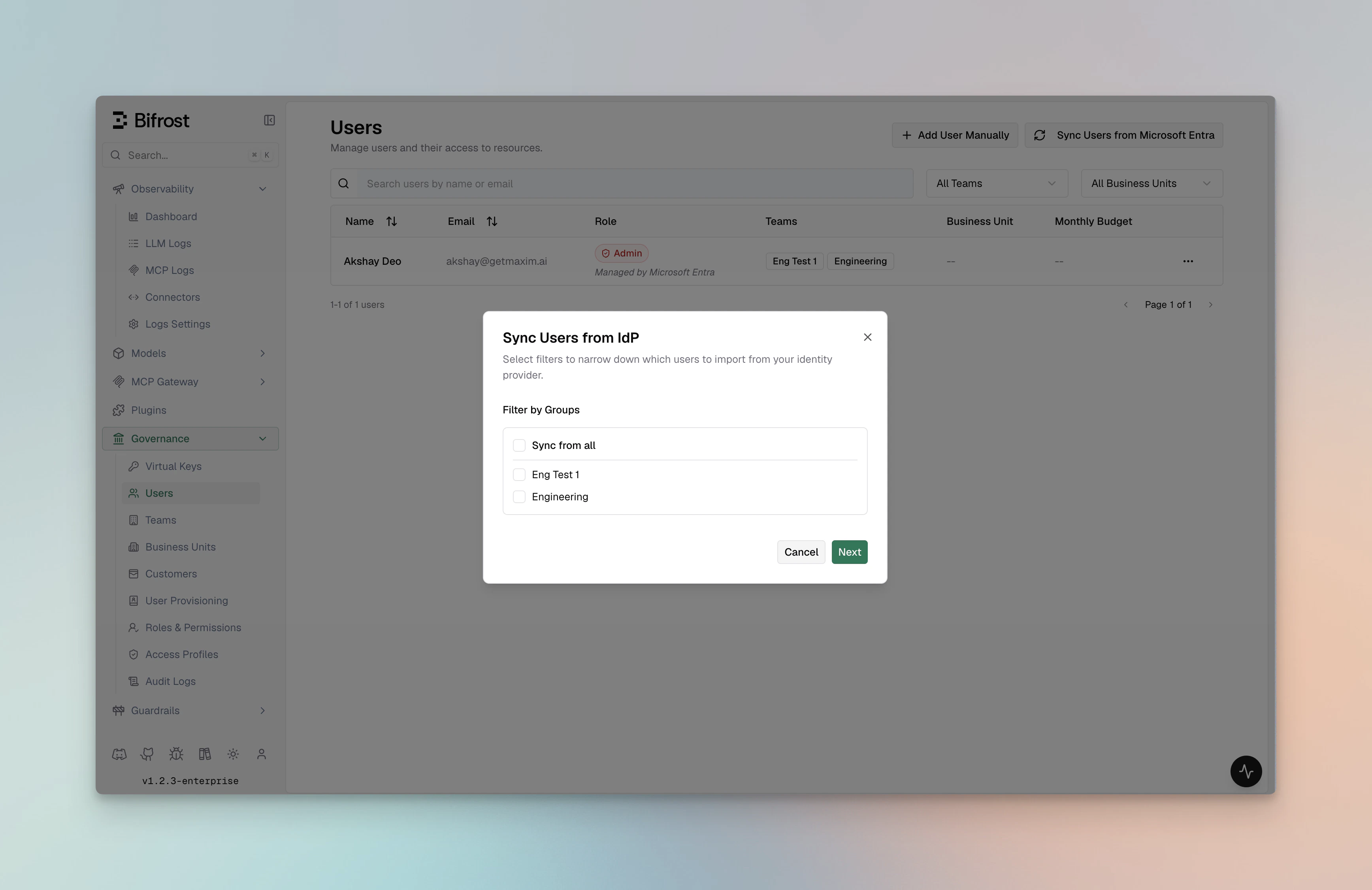
There are two ways to get users into Bifrost, depending on what your IdP supports: Via API token (bulk import): Providers that support a directory API (Okta, Entra, Keycloak, Zitadel, Google Workspace) allow you to preview and import users in bulk from the dashboard:- Go to Governance → User Provisioning → Import Users.
- Select a filter — groups, roles, departments, or a custom query depending on provider support.
- Click Preview to see up to 50 matching users.
- Click Import to create them in Bifrost with role / team / BU assignments applied.
Troubleshooting
Provider-specific troubleshooting lives in each IdP’s guide.
Related
- Role-Based Access Control — permissions model and custom roles
- How identity sync works — what each sync changes, and how removals work
- Access Profiles — what users get from their profiles
- Audit Logs — track authentication events and role changes