

Overview
An Access Profile is a reusable policy template that describes what a user,team or business unit is allowed to do once they are granted access. When you assign a profile to an entity (directly or by attaching it to a role they hold), Bifrost Enterprise creates a per-user copy of the policy and automatically issues a virtual key for them. Every request made with that key is governed by the profile’s provider list, model whitelist, budgets, rate limits, and MCP tool access. Because the profile is consulted on each request, editing it takes effect straight away - there is no need to reissue anyone’s key. Users never need to be handed raw keys, and operators never need to write keys by hand. A user can hold several access profiles at once. Together they decide what the user can reach, and one of them pays for each request - see Multiple profiles per user. Key benefits:- Reusable policy - Define a profile once (for example, “Engineering”) and apply it to every user in a role.
- Per-user enforcement - Each user gets an independent copy with isolated budget and rate-limit counters.
- Layered access - A user can hold several profiles at once. What they can reach adds up, and if one profile’s budget runs out another can cover their requests.
- Role auto-assignment - Attach profiles to a role and users gaining that role are provisioned automatically.
- Safe propagation - Edit the template, then push selected fields (budgets only, MCP only, and so on) to every user copy in one call.
- Managed virtual keys - Auto-issued keys are write-protected, so a user cannot weaken their own policy by editing the key directly.
- Govern user-created keys - Optionally bring every virtual key a member creates under the profile automatically, not just the auto-issued key.
- Audit and versioning - Every change to a profile is recorded with a full snapshot history.
For the full API contract (every endpoint, request and response shape, error codes), see the Access Profiles section of the API
Reference.
We are also adding access-profile support for teams and business units in upcoming releases.
How it works
Template, user copy, virtual key
- Template - The Access Profile is the policy you author. Each policy lives once in the workspace.
- How it is granted - A user gets a profile in one of three ways: you attach it to them by hand, their role grants it, or their identity provider attributes match a mapping rule. Bifrost remembers which, so removing one grant never disturbs the others.
- User copy - Bifrost copies the template to the user, with its own budget and rate-limit counters. Each user’s usage is tracked separately, and a user can hold several profiles at once.
- Virtual key - Bifrost issues a virtual key to the user. The key belongs to the user rather than to one profile, so it keeps working as their profiles change, and what it may do comes from whichever profiles they currently hold. It is locked against direct edits so the policy cannot be worked around.
- Per-model limits - Per-model budgets set on the profile appear for each assigned user as their own read-only limit. See Model Limits.
Multiple profiles per user
A user can hold more than one access profile at a time - one from their role, say, and another attached by hand. The profiles do not merge into a single blended policy. Instead: Access adds up. The user can use any provider and any model that any of their profiles allows. Giving someone an extra profile can only widen what they can reach; to narrow it, remove a profile or tighten the template. One profile pays for each request. Bifrost picks one of the profiles that allows the request and charges it - its budget, its rate limit, and any per-model limit it sets. The user’s other profiles are not charged, and their usage is unaffected. If one profile is out of budget, another covers the request. A user whose Engineering budget is spent keeps working if another of their profiles can still fund the request. Only when every profile that allows the request has run out is the request blocked, and the message names the profile that was tried. Usage is tracked per profile. Each profile has its own counters, so spending against one never eats into another’s remaining budget.Budgets on a user’s teams, customers, and business units are charged for every request they make,
no matter which profile paid for it. Those are separate from profile budgets, not an alternative
to them.
Role auto-assignment
A role can grant any number of access profiles. When a role is attached to one or more profiles, two flows kick in:- Existing users in that role - Optionally provisioned at attach time.
- Users gaining the role later - Automatically provisioned the moment their role changes.
Managed virtual keys
Virtual keys issued by an Access Profile are tagged as profile-managed. Direct edits to the key are blocked, except for cosmetic fields like name and description. To change what a managed key allows, edit the template and propagate. This prevents a user with key-edit permission from circumventing the profile.Govern virtual keys created by members
By default a profile only governs the virtual key Bifrost auto-issues when the profile is assigned; a member can still create their own standalone keys with any policy they choose. Turn on Govern virtual keys created by members to close that gap. With the toggle on, every virtual key a member of the profile creates is brought under the profile at create time: its providers, model whitelist, budgets, rate limits, and MCP access are replaced with the profile’s, the key is attached to the creator, and it becomes profile-managed (edit-locked) like an auto-issued key. All keys a user creates under the profile share the same per-user budget state; each configured budget line still applies separately. A few things to know:- Off by default, and set per profile — flipping it on one profile does not affect others.
- Applies to identified users only. The creator must sign in with their own identity (SSO/SCIM). Keys created from the local admin account or a raw API key are left as ordinary standalone keys.
- Create-time only. Turning the toggle on does not sweep up keys a member already created. To bring an existing key under the profile, assign it to the user from the key’s edit sheet — it is adopted into their profile on assignment.
Automatic virtual key rotation
A profile can rotate the virtual keys it manages on a schedule, so credentials expire without anyone remembering to call the rotate endpoint. Set an interval (for example30d) and, optionally, a first rotation time; after each run the next one is scheduled at run time + interval.
When a run comes due, Bifrost enqueues a background job that rotates every managed key in batches of 25. A key counts as managed when it is assigned to a user who holds this profile, which is the same rule that locks managed keys from direct edits. Each key gets a brand-new value exactly as if you had rotated it by hand:
- If
client.vk_rotation_cooldownis set (Config → Security), the previous value keeps authenticating until the cooldown expires, so callers have time to pick up the new key. - Leaving it unset, empty, or
0disables the grace period, so the previous value stops working immediately.
- A key is never rotated twice for one scheduled run. Rotating again would push the previous value out and end the cooldown early. Retries, resumed jobs, catch-up runs after downtime, and keys rotated manually after the schedule fired are all skipped for that run.
- Manual rotation still works. The manual endpoints stay available on managed keys; a key rotated manually inside the window is simply skipped by the scheduled run.
- Cluster-safe. Every node checks the schedule, but only one job is created per profile and due time, and rotated keys are gossiped to all nodes.
- Missed runs collapse into one. If the gateway was down past a due time, the next start performs a single catch-up rotation rather than one per missed period.
- Deactivated profiles pause. A deactivated profile is never rotated; reactivating it re-anchors an overdue schedule to now + interval so it does not fire immediately.
Configuration (Web UI)
Browse and create profiles
- Navigate to Workspace -> Governance & Access Control -> Access Profiles.
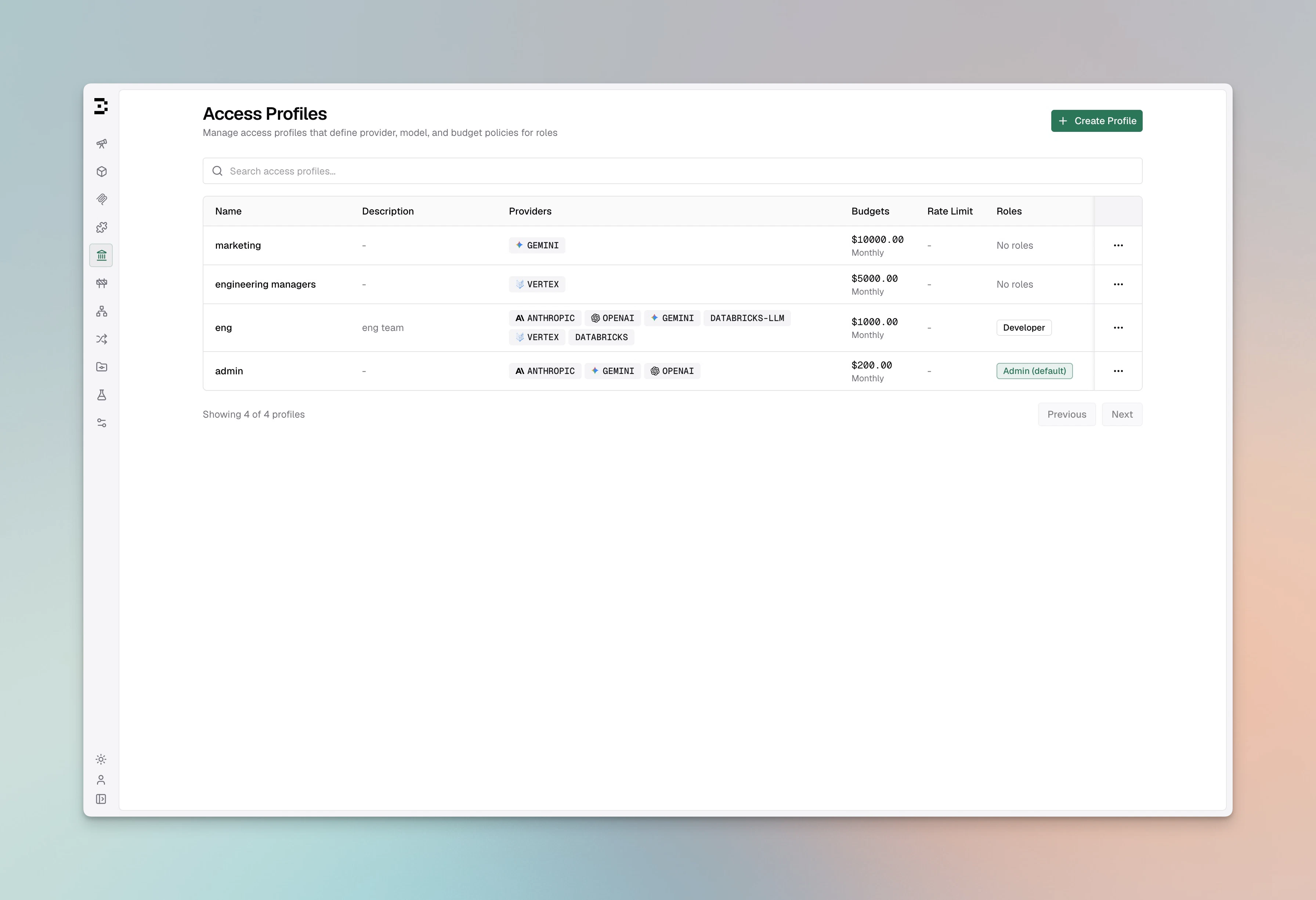
- Use Search or the active/inactive filter to narrow the list. Page size is 25.
- Click Create Profile. The create sheet opens.
Fill in the basics
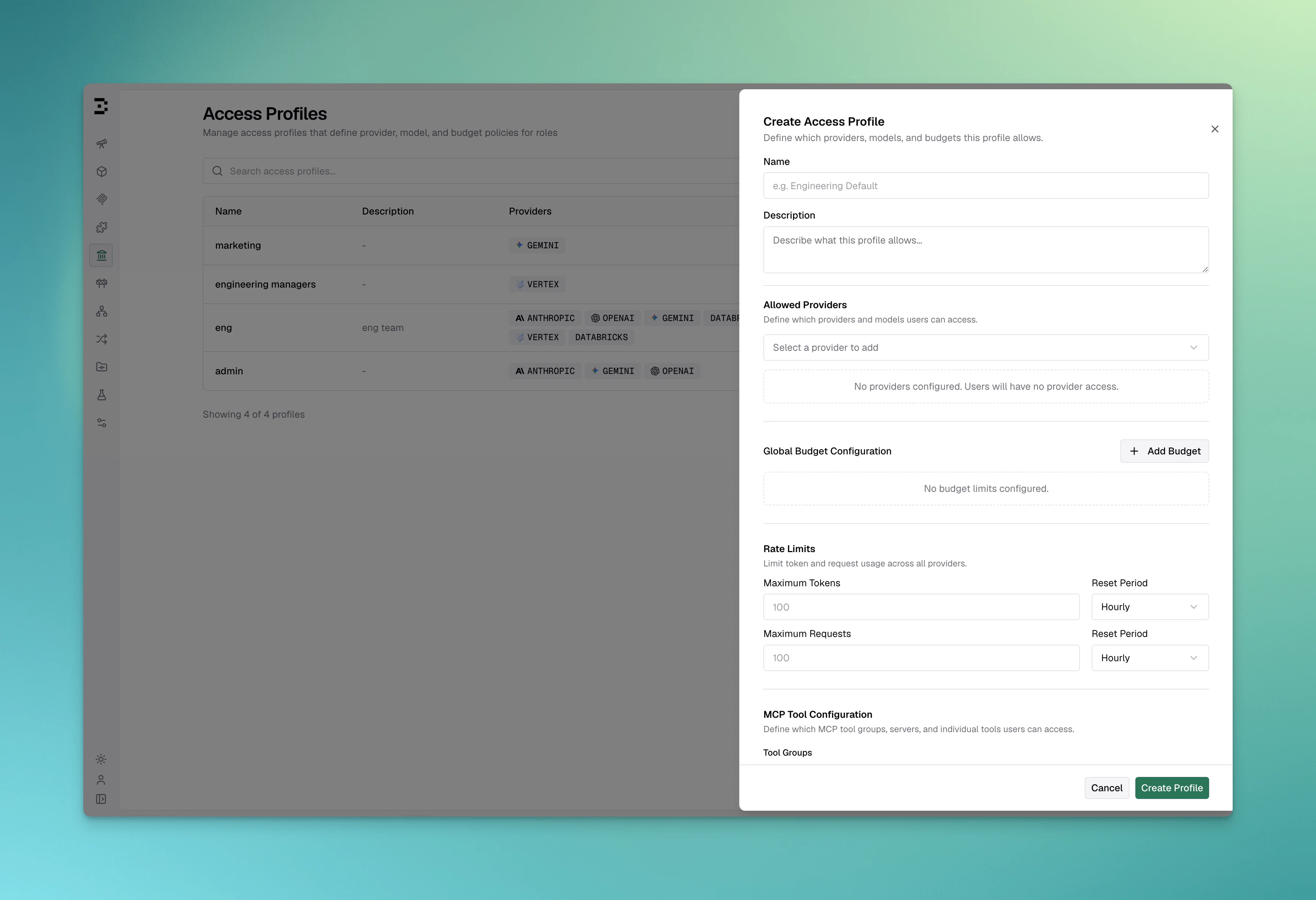
- Name - Required, unique, trimmed. Max 255 characters.
- Description - Optional, shown in the list view.
Configure provider access
In the Allowed Providers accordion, add providers from the multi-select. For each provider: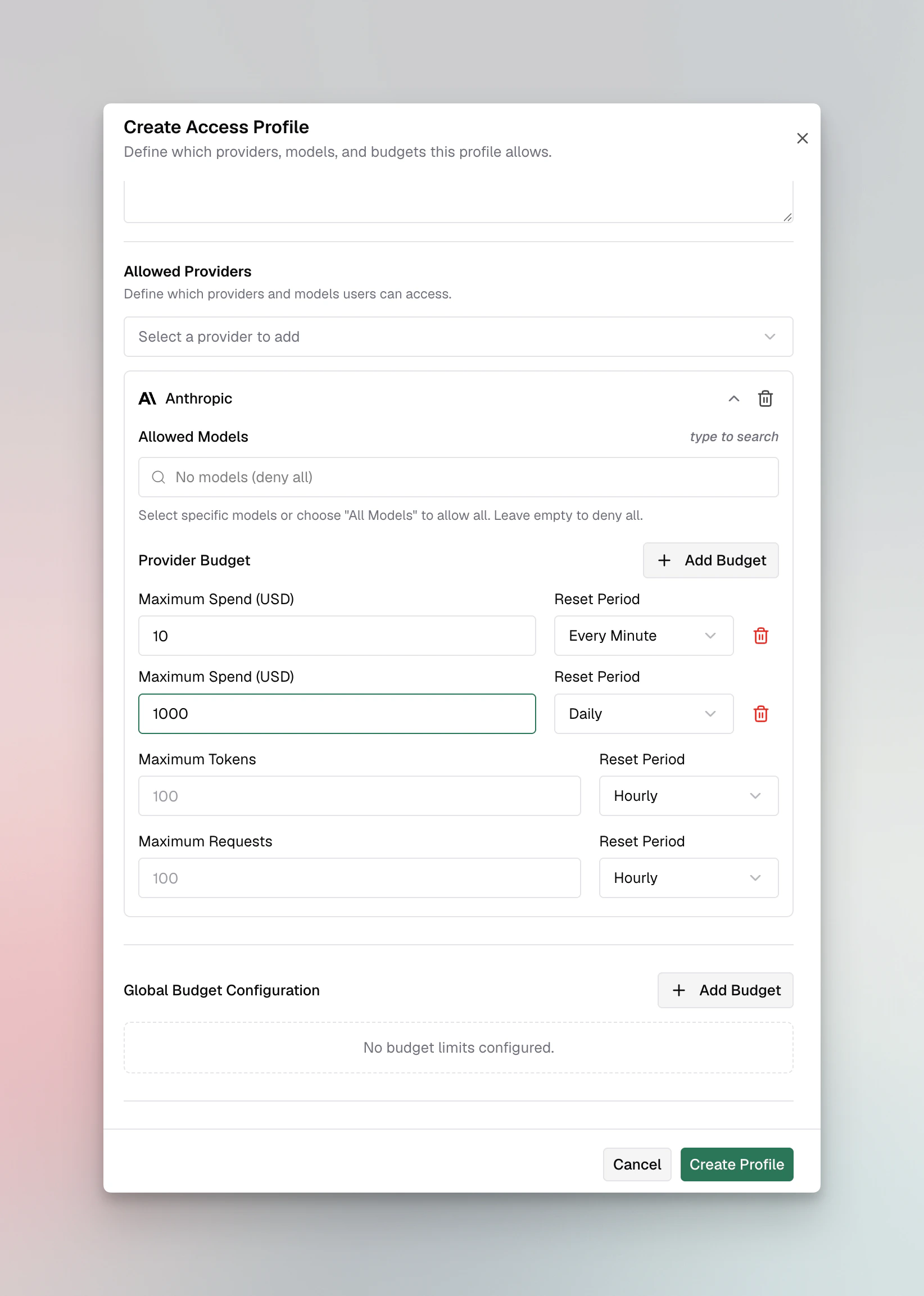
- Allowed Models - Toggle All Models to allow every model, or pick specific models from the search-filtered list. An empty selection denies every model from that provider.
- Provider Budget - Add one or more budget lines. Each line has a max limit and a reset duration (
1h,1d,1w,1M,1Q,1Y). You can stack multiple lines with different durations (for example, a hard hourly cap plus a softer monthly cap). A quarterly line can also carry a fiscal quarter start - see Quarterly budgets. - Maximum Tokens - Per-provider token rate limit.
- Maximum Requests - Per-provider request rate limit.
- Per-model budgets - Optionally cap individual models under this provider. These are separate from the provider budget above; each assigned user gets their own copy, counted separately. See Give one user a per-model budget.
Configure global budget and rate limits
Below the provider section, add Global Budget Configuration lines (these apply across all providers). Then set global rate limits for tokens and requests using the same number-plus-duration pattern.Toggle calendar alignment
Flip Align to calendar cycle to reset budgets and rate limits at the start of each calendar period (1st of the month, beginning of the week, midnight UTC for daily) instead of rolling from the creation time. This only applies to durations of one day or longer.Toggle member-key governance
Flip Govern virtual keys created by members so any virtual key a member of this profile creates is automatically placed under the profile - same providers, model whitelist, budgets, rate limits, and MCP access, attached to the creator, and locked from direct edits. Leave it off (default) to let members create standalone keys freely. See Govern virtual keys created by members for the full behavior and its limits.Schedule automatic key rotation
Under Automatic key rotation, pick Every 7 / 30 / 90 days or Custom and enter a whole number of days or hours (14d, 12h; minimum 1h, maximum 365d). Optionally set First rotation to control when the first run happens; leave it empty to start one interval from now. Choose Off to stop scheduling. The table and detail sheet show the schedule and the next run. See Automatic virtual key rotation for what a run does and its safety rules.

Configure MCP tool access
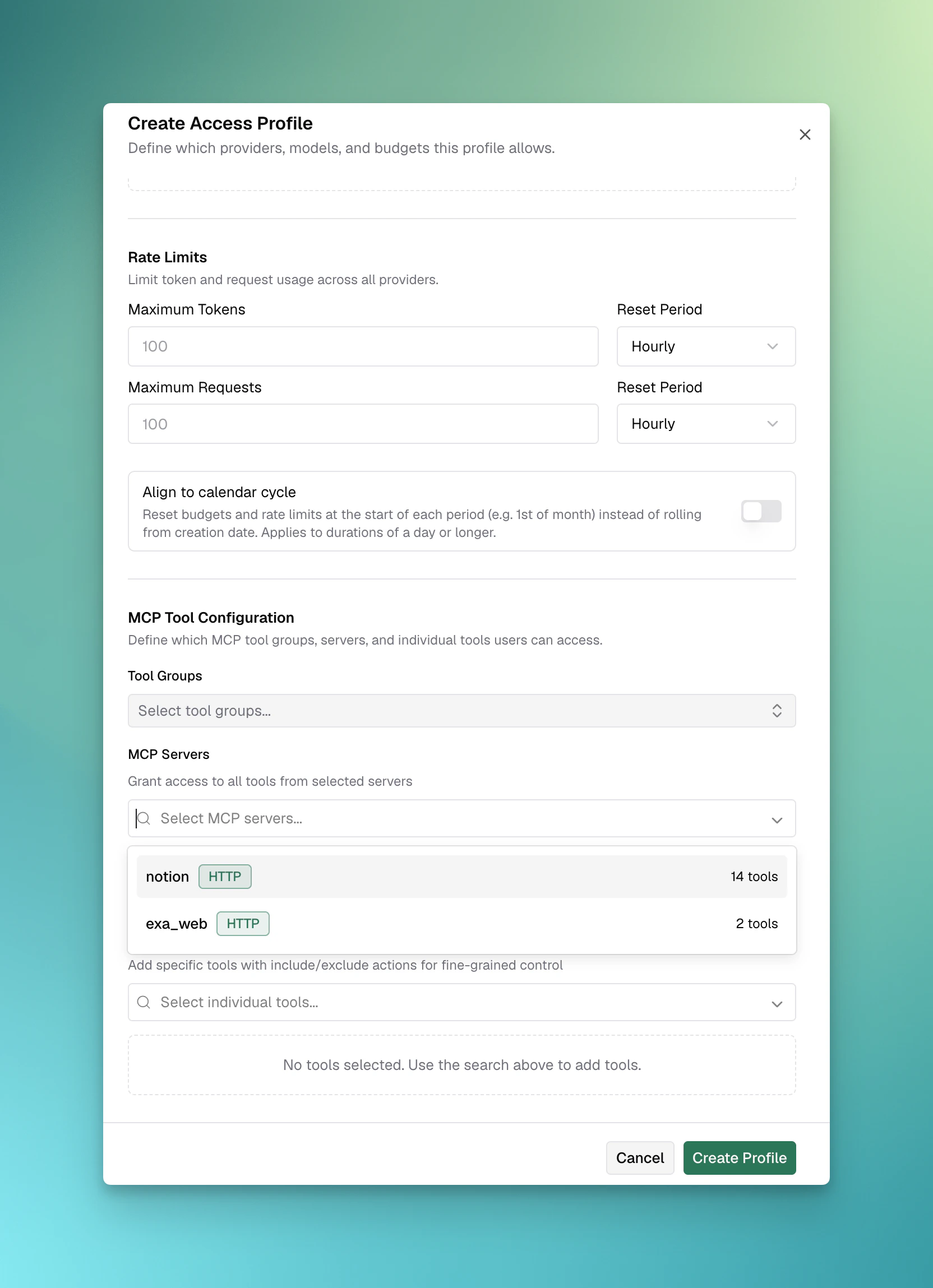
- Virtual MCPs - Multi-select existing Virtual MCPs to grant. Selected vMCPs appear as removable badges.
- MCP Servers - Multi-select MCP servers. Granting a server means “all tools from this server”.
- Individual Tool Overrides - Add specific tools with either
includeorexcludeaction. Use this for surgical adjustments that the group + server selection does not express.
Save and assign
Click Create. To make the profile take effect for users, attach it to one or more roles from the Roles page, attach it to a user directly from their User Detail Sheet, or map it from an IdP attribute (see Attribute mappings). A user can hold profiles from all three sources at once.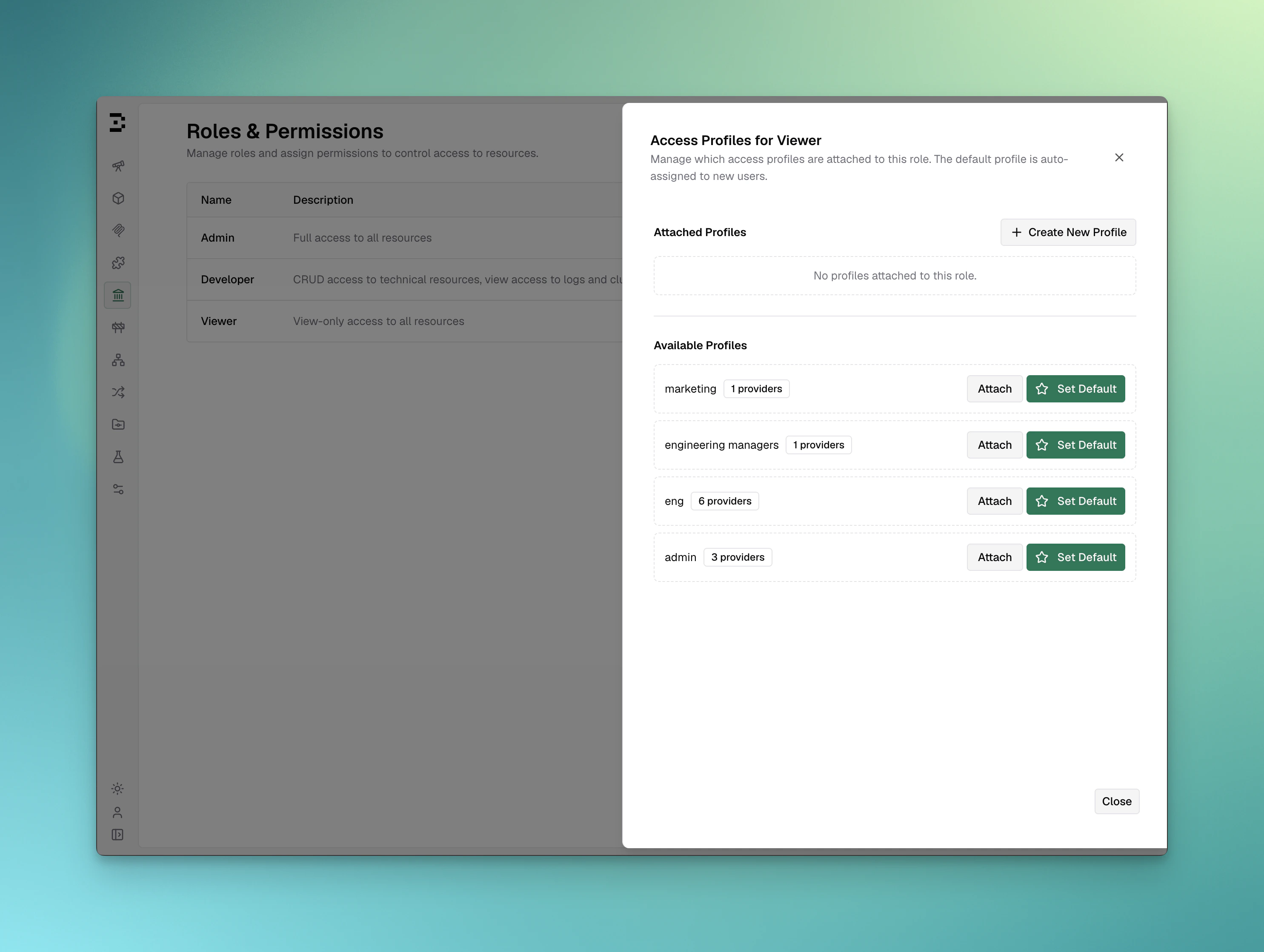
- Set as default for new users - Auto-assign the profile when users gain this role.
- Apply to existing users with this role - Provision the profile to everyone who already holds the role.
Propagate changes
When you edit an existing profile, the action bar shows Save (template-only edit) and Save and Propagate (template edit plus immediate propagation to all user copies). The propagate dialog lets you choose exactly which fields to push: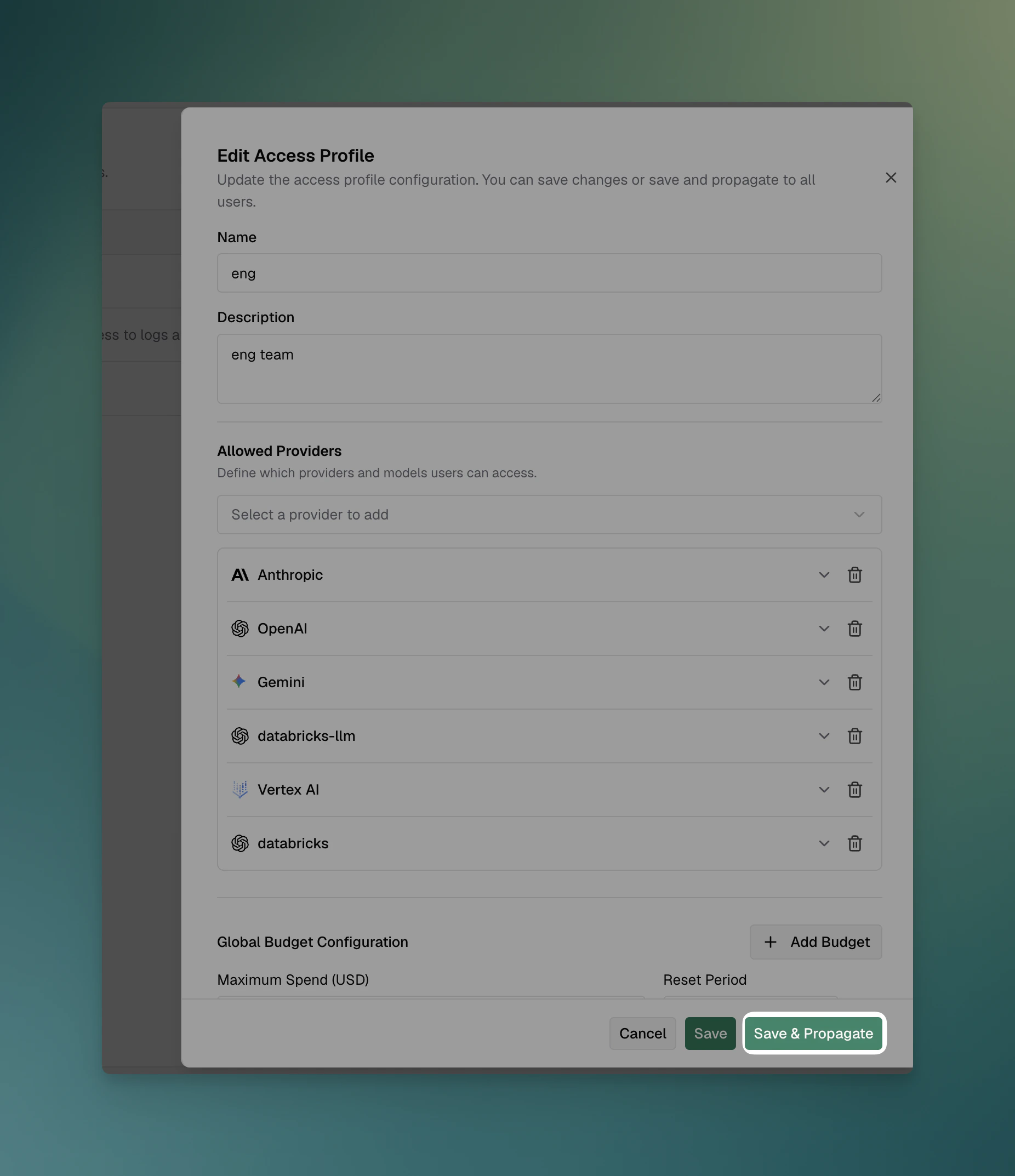
- Check the fields to propagate: Provider Configurations, Budgets, Rate Limit, Virtual MCPs, MCP Servers, MCP Tool Overrides. - Click Propagate to apply. The response reports how many users were updated, failed, or skipped.
Extend individual budgets for a user
Access profile budgets apply uniformly to everyone assigned the template. To make an exception for one person, add a budget override from the User Detail Sheet. An override is additive and leaves the base limit, current usage, and reset schedule untouched:AccessProfiles.Update permission. Programmatically:
"mode": "forever" (omitting cycles) to keep the override active until it is deleted. The response returns the persisted budget plus its effective_max_limit. For the equivalent on a standalone virtual key, see Budget Overrides.
Edit, duplicate, delete
Each row action exposes: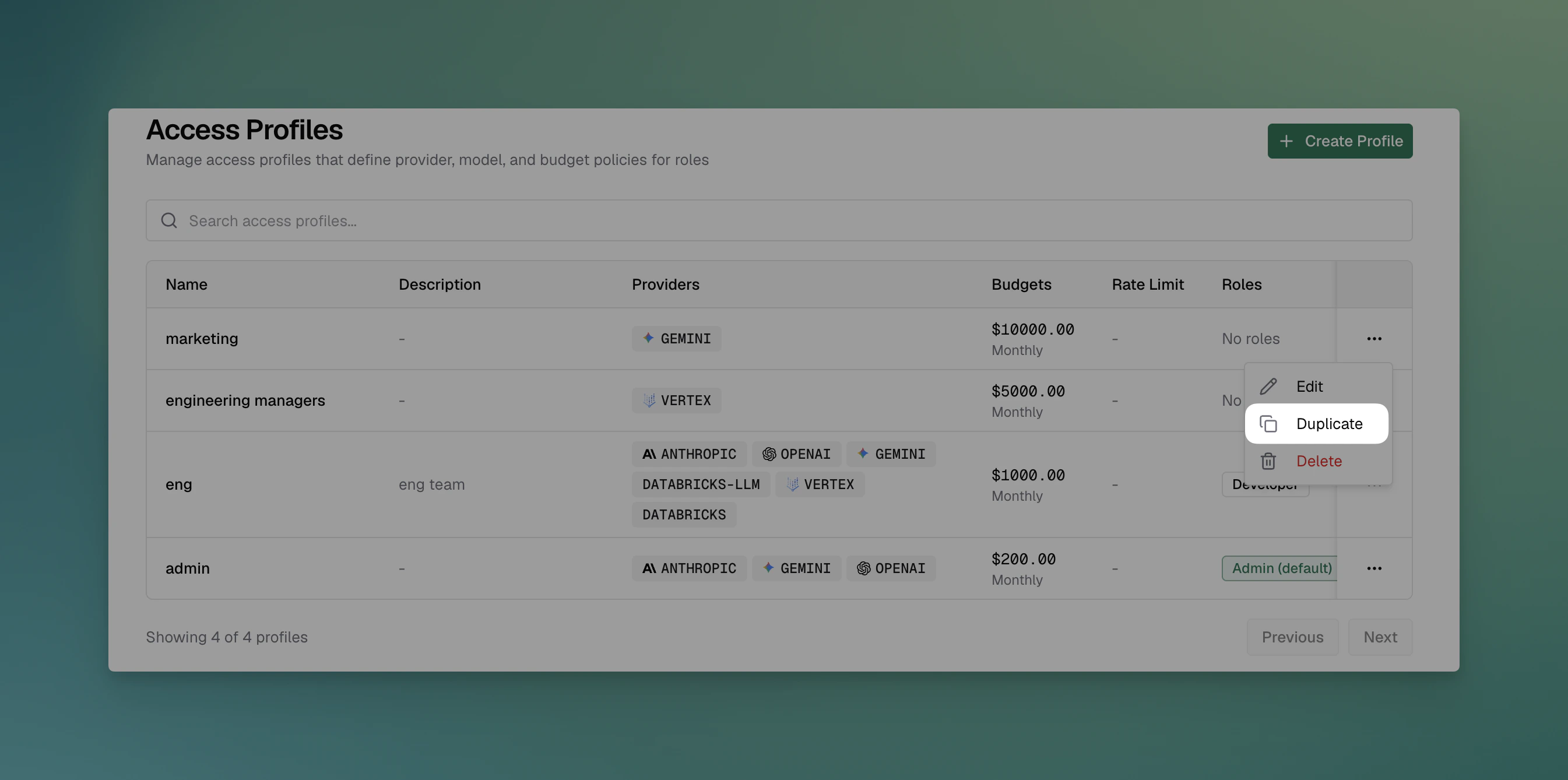
- Edit - Opens the same form in edit mode.
- Duplicate - Opens the form pre-populated with the original; budgets and rate limits get fresh identifiers on save.
- Delete - Asks to confirm. Blocked if any users still hold a copy; detach role attachments or remove user assignments first.
What you can configure
A profile carries the following pieces of policy. Use the UI walkthrough above for guidance and see the API Reference for exact field shapes.- Provider access - For each LLM provider: an allow-all toggle or an explicit model allowlist, plus optional per-provider budgets and rate limits.
- Global budgets - Workspace-wide spend caps with reset durations of
1h,1d,1w,1M, or1Y. Multiple budget lines can stack so you can combine a hard short-window cap with a softer long-window cap. - Global rate limits - Token and request caps with the same reset durations.
- Calendar alignment - When on, budgets and rate limits reset at the start of each calendar period (midnight UTC, week start, month start) instead of rolling from creation time. Applies to durations of one day or longer.
- Govern created keys - When on, every virtual key a member creates is adopted into the profile (same policy, attached to the user, profile-managed). Off by default. See Govern virtual keys created by members.
- MCP tool access - Reference Virtual MCPs, and give each MCP client a tool allowlist: every tool, none, or a named set.
- Automatic key rotation - An interval (
1hto365d, typically30d) and optional first-run time. When due, a background job rotates every managed key, honouringclient.vk_rotation_cooldown, and posts start/finish notifications. Off by default. See Automatic virtual key rotation. - Tags - Up to 50 free-form tags for filtering and grouping in the UI.
- Active flag - Activate or deactivate without deleting; deactivated profiles are hidden from selection but user copies stay intact.
Examples
Auto-assign Engineering profile to the Engineer role
- Create the profile through the UI or API with the desired provider configs, budgets, and MCP access.
- From the Engineer role, attach the profile. Toggle “Apply to existing users” to backfill current members.
- Bifrost issues a virtual key for every member of the Engineer role and continues to auto-issue for any user who later gains the role.
Force every key an Engineer creates onto the Engineering policy
Prerequisite: the Engineering profile is already assigned to the Engineer role (see the example above), so members have it to govern their keys.- Edit the Engineering profile and turn on Govern virtual keys created by members. Save.
- From now on, whenever an Engineer (signed in via SSO) creates a virtual key, it is placed under the Engineering profile automatically - same providers, model whitelist, budgets, rate limits, and MCP access - attached to them and locked from direct edits.
- To bring keys they created earlier under the policy too, open each key and assign it to the user; it is adopted into their profile on assignment.
Rotate every Engineering key monthly
- Under Config → Security, set Cooldown After Virtual Key Rotation to something like
1hso callers have time to switch keys. - Edit the Engineering profile, set Automatic key rotation to Every 30 days, and optionally pick a First rotation such as the next maintenance window. Save.
- When the run starts, a notification lists how many keys are rotating and until when the old values keep working; a second notification confirms how many rotated. The profile’s Next Rotation moves 30 days past the run.
config.json:
Raise the monthly budget without resetting accumulated usage
- Edit the template and set the new monthly budget.
- Open the propagate dialog. Check only Budgets.
- Click Propagate. The new budget is pushed to every assigned user; each user’s current month-to-date usage is preserved (default behavior).
Tighten MCP access only
- Edit the template and replace the Virtual MCP reference.
- Open the propagate dialog. Check Virtual MCPs, MCP Servers, and MCP Tool Overrides. Leave budgets and rate limits unchecked.
- Click Propagate. Budgets and rate limits are not touched; only MCP access changes flow through.
Give one user an individual per-model budget
- Navigate to Budget & Limits → Model Limits and click Add Model Limit.
- Select a Provider and Model Name, set Scope to
User, and pick the target user. - Add one or more budget lines and any rate limits. Click Create Limit.
Next steps
- Projects - Scope access and spend to a piece of work rather than to a person, chosen per request.
- Data Access Control - Scope which profiles each operator can see.
- RBAC - Define the roles that profiles auto-attach to.
- Virtual Keys - Understand the underlying virtual key concept.
- Virtual MCPs - Bundle MCP tools for reuse inside profiles.
- Model Limits - How a profile’s per-model budgets surface as per-user limits.
- Audit Logs - Cross-reference profile changes with downstream impact.