

Overview
Data Access Control (DAC) decides which rows a user is allowed to see and act on inside Bifrost Enterprise. It complements Role-Based Access Control: RBAC controls what operations a user can perform; DAC scopes the result set of those operations to the rows the user is entitled to view. Key benefits:- Row-level isolation - A developer on Team A cannot see virtual keys, prompts, or routing rules owned by Team B unless their role grants broader scope.
- Role-driven - Each role carries a data access scope that determines what its members see.
- Migration-safe - Rows created before DAC was adopted remain visible by default, so adopting DAC on an existing install does not silently hide data.
- Inference-aware - Inference requests authenticated with a virtual key are scoped to the virtual key’s owner, so per-key calls behave consistently with dashboard sessions.
DAC scope is configured on the role, not on individual users. For the underlying API contract
(create role, update role, assign role to user, manage permissions), see the API
Reference. All role and permission endpoints are tagged RBAC.
How it works
The three scopes
Every role in Bifrost Enterprise has a data access scope with one of three values:What gets scoped
DAC tracks ownership on every row created through the dashboard or API. When a user makes a request, Bifrost determines who is asking, looks up the membership context (team, business unit, customer), and filters every query so the result set matches the role’s scope. Resources that participate in scoping include virtual keys, prompts, teams, customers, routing rules, access profiles, guardrail configurations, business units, MCP clients, Virtual MCPs, projects, and API keys. Resources without an ownership concept (system-wide configuration, supported provider list) are not scoped.Identity resolution
Bifrost resolves the caller’s identity at two entry points:- Dashboard / API path (user authenticated) - The session or token carries the user’s ID. Their role, team memberships, and derived customer / business unit IDs are used to build the scope.
- Inference path - The request carries no dashboard session, only a credential. Bifrost accepts three credential types and resolves each to an identity, after which the same scope logic applies:
- Virtual key - looked up to its owner: if owned by a user, the user’s scope applies; if owned only by a team, a team-scoped view applies; if the key is global with no owner, no scoping is applied and the request behaves as workspace-wide.
- API key - resolved to the API key’s owner user, along with their role and team memberships.
- User token (JWT) - claims in the token identify the user directly; their role and team memberships drive the scope just like a dashboard session.
team-data user’s credential (virtual key, API key, or JWT), when called server-to-server, cannot see another team’s prompts even though no dashboard session is attached to the request.
Fail-closed defaults
- Invalid scope values are rejected at the API.
- A user with no resolved team list under
team-datasees an empty result set rather than falling back to all data. - Rows that pre-date DAC adoption (no ownership stamp) remain visible under every scope. This is intentional for safe rollouts; newly created rows always carry ownership.
- Background jobs and migration runners have no user identity attached. They run unscoped because there is no principal to filter by.
Configuring scope on a role (Web UI)
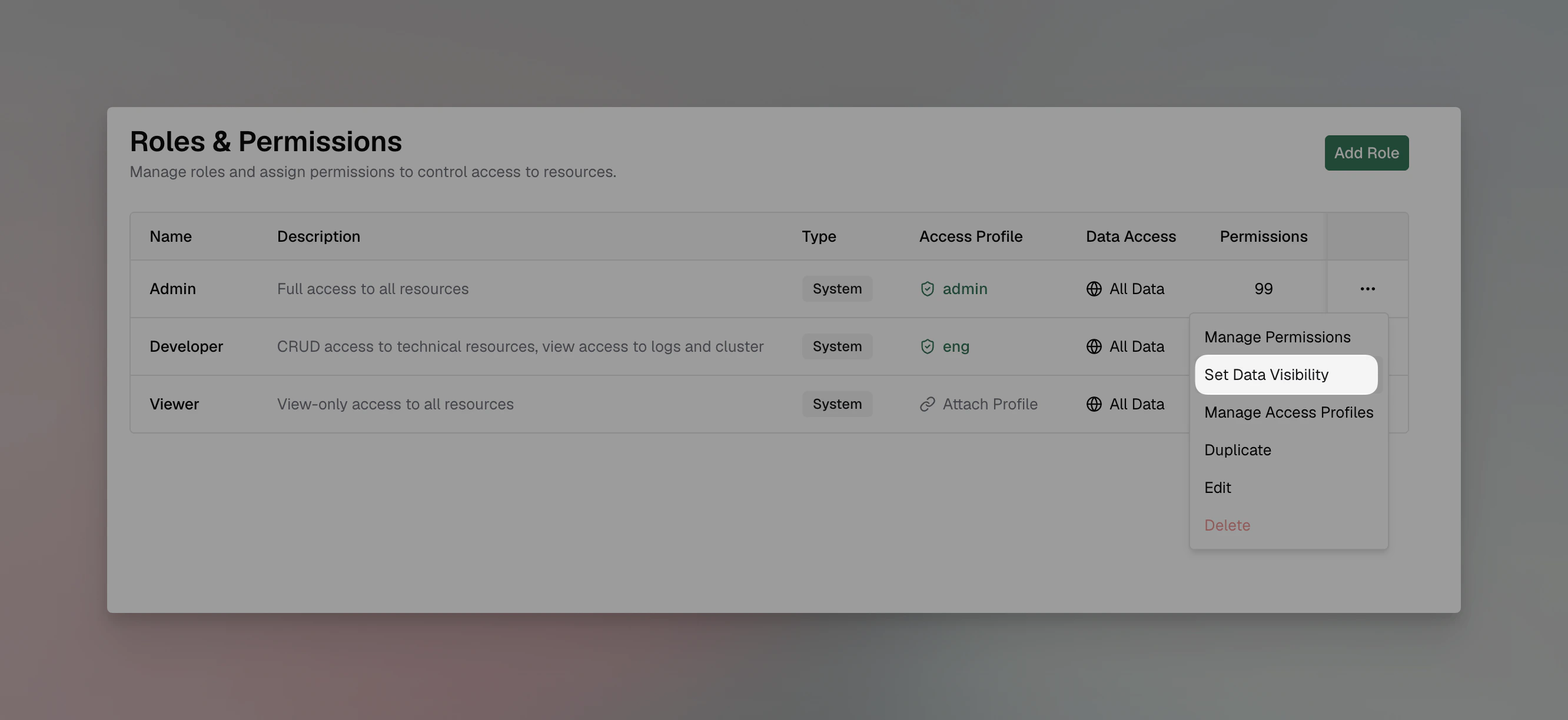
- Navigate to Workspace -> Governance & Access Control -> Roles.
- In the context menu, click Set data visibility.
Behavior matrix
The table below summarizes which rows a member sees under each scope. Resources not listed here are not row-scoped.Rows created before DAC was adopted remain visible under every scope. New rows always carry
ownership, so this fallback shrinks naturally as old data is replaced.
Next steps
- RBAC - Define the permissions whose results the data access scope filters.
- Access Profiles - Apply provider, model, and budget policies on top of scoped roles.
- User Provisioning - Use OIDC to populate the roles and team memberships that DAC depends on.
- Audit Logs - Audit entries are scoped the same way, so each operator only sees logs for resources they can see.