

Overview
auth_type: "per_user_oauth" lets each end-user connect to an upstream MCP service (Notion, GitHub, Sentry, etc.) under their own account. Bifrost stores one OAuth token per (identity, mcp_client) and reuses it on every later call.
If a single shared admin token is fine, use OAuth 2.0 instead.
This auth type is only valid for HTTP and SSE connections.
This page covers upstream per-user OAuth — Bifrost holding a token for an upstream MCP service on behalf of each end-user, resolved lazily on the first tool call that needs it. Identity is asserted by the caller via headers (or upstream SSO).This is separate from Bifrost acting as an OAuth 2.1 Authorization Server for inbound
/mcp clients (browser consent + .well-known discovery), which is covered in Gateway Authentication.Setup
Per-user OAuth needs a one-time admin test login so Bifrost can verify the OAuth configuration and discover the tool list from the upstream service. The admin’s bootstrap token is retained after verification as the admin discovery credential, used only to keep the tool list fresh; per-user tokens are minted lazily by end-users at runtime, and end-user traffic never uses the admin token. You can run the admin verification either from the Web UI during create, or from aconfig.json-declared client by clicking Verify in the UI after Bifrost boots.
- Web UI
- config.json
- Navigate to MCP Gateway in the sidebar
- Click New MCP Server
- Pick HTTP or SSE as the connection type, fill in the Connection URL
- Set Auth Type to Per-User OAuth 2.0
- Fill in the OAuth fields:
- Client ID (optional — leave blank for Dynamic Client Registration)
- Client Secret (optional — omit for PKCE public clients)
- Authorize URL / Token URL (optional — leave blank for OAuth discovery)
- Scopes (comma-separated)
- Click Create — Bifrost runs a test OAuth flow in a popup as the admin
- Complete the upstream sign-in
- The MCP client is persisted with the discovered tool list and made available for end-users
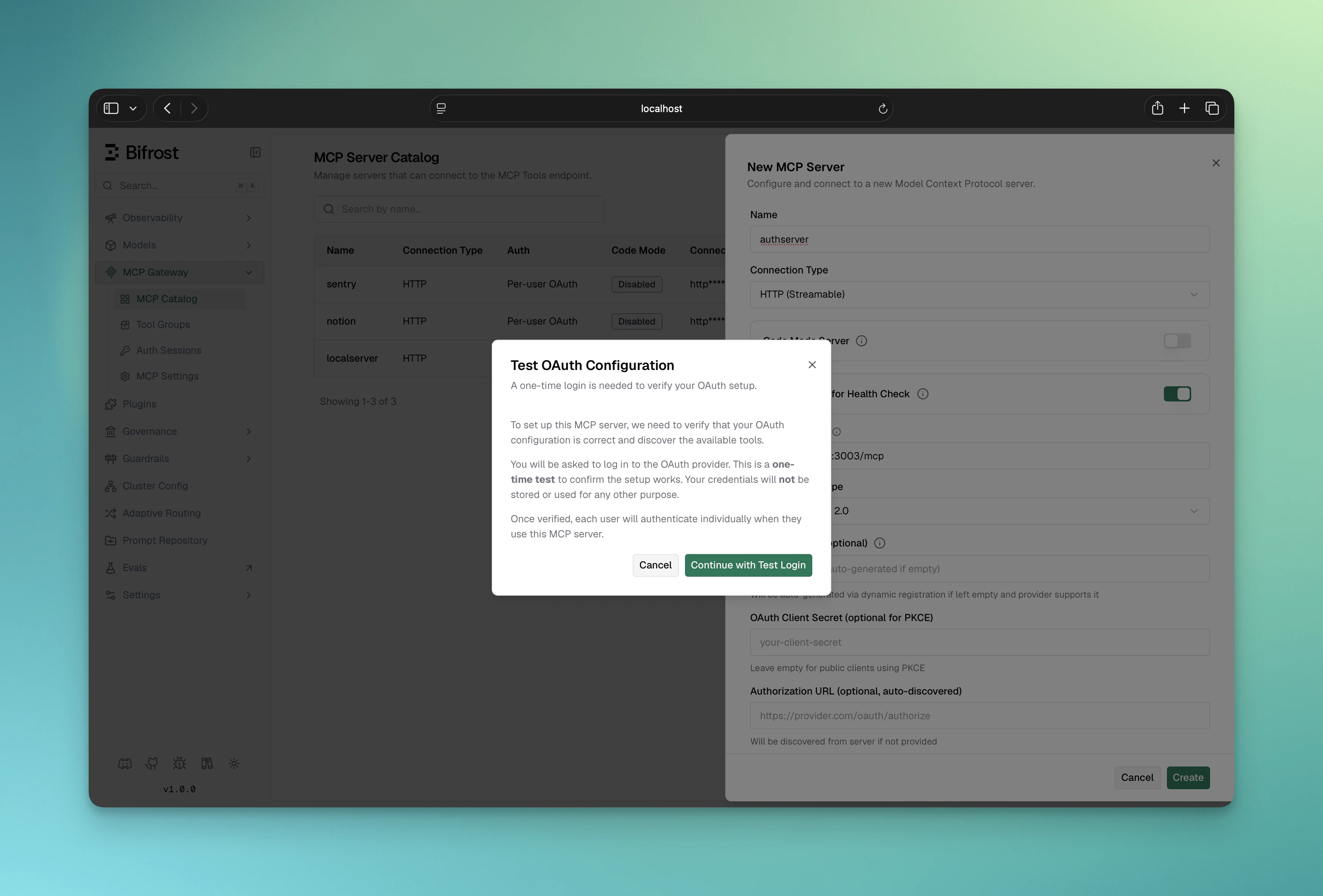
If the upstream server supports OAuth Discovery (RFC 8414), you can leave the authorize and token URLs blank and provide only the Connection URL plus client ID. Bifrost discovers the endpoints automatically.
How it works
The same lazy-auth pattern is used on both the MCP Gateway (/mcp) and the LLM Gateway (/v1/chat/completions):
- The caller sends a request with an identity (header or SSO).
- The LLM (or MCP client) asks to invoke a tool on a per-user OAuth service.
- Bifrost looks up an existing token for
(identity, mcp_client):- Token found and
active→ upstream call goes out transparently - Missing,
orphaned, orneeds_reauth→ Bifrost returns anmcp_auth_requiredpayload with an inlineauthorize_url. The tool is not executed.
- Token found and
- The user opens the URL, completes the upstream OAuth flow, and Bifrost stores the resulting token against their identity.
- The next request executes the tool normally.

What the auth URL looks like
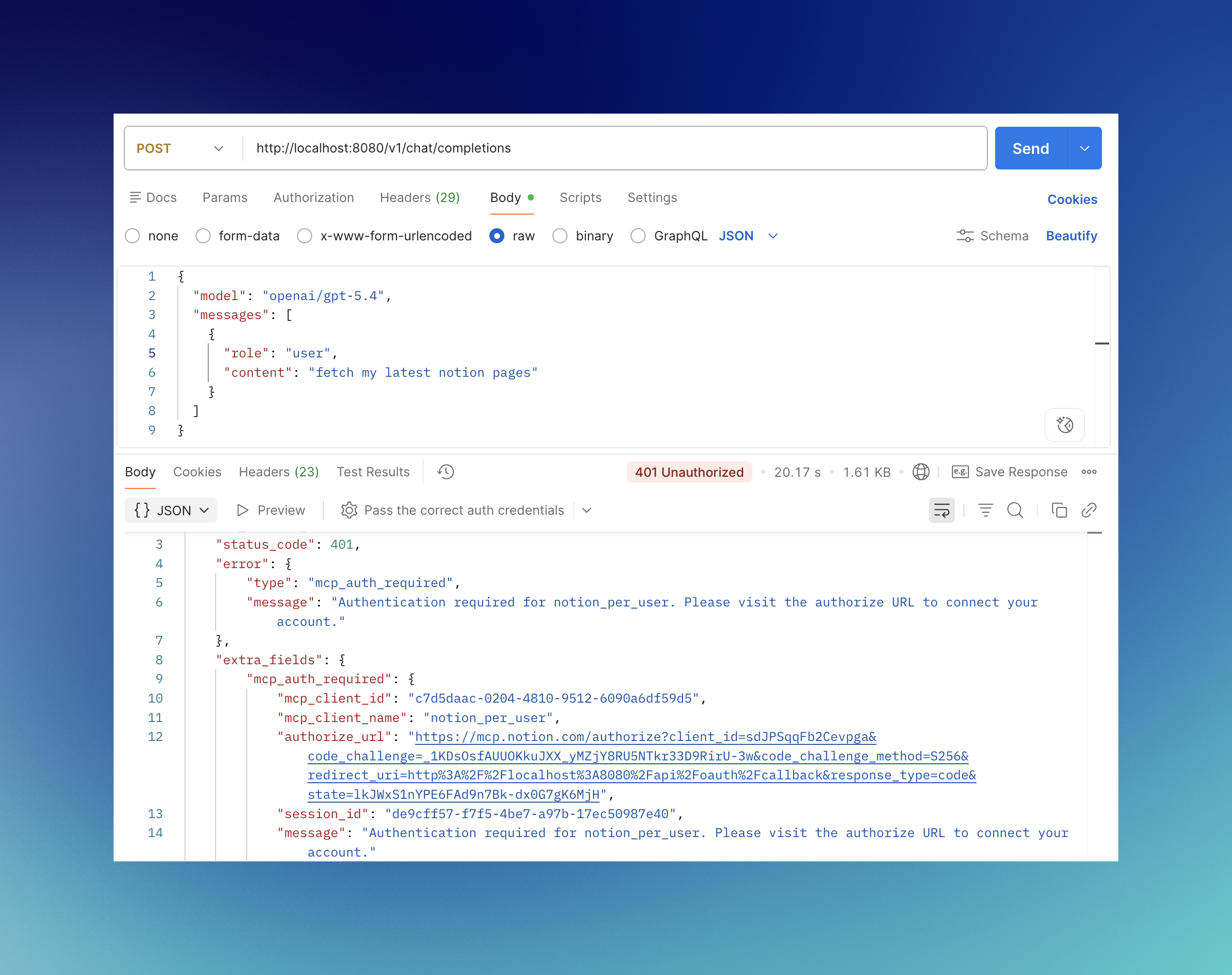
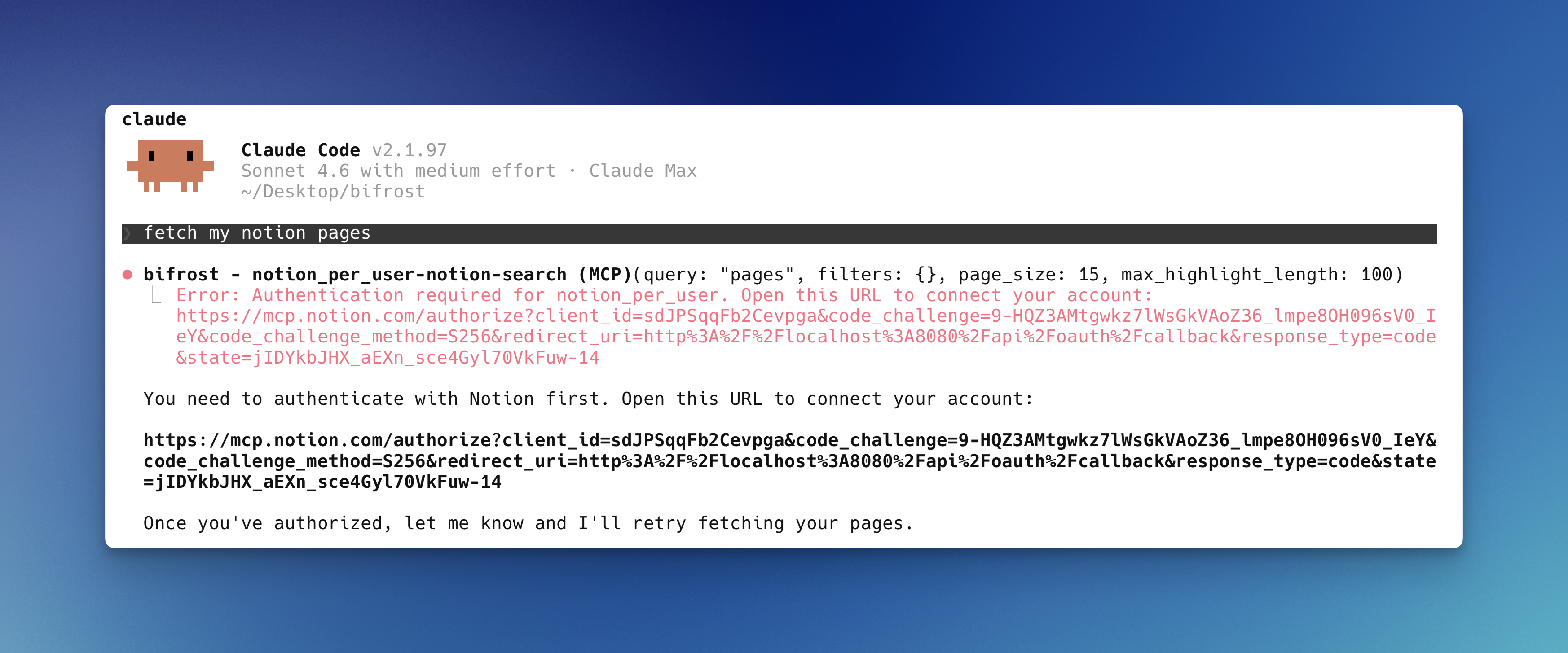
LLM Gateway —authorize_url is on the response’s extra_fields.mcp_auth_required block, and also embedded in the natural-language message so plain-text clients see it too:
#t=<temp-token> fragment when mcp_enable_temp_token_auth is turned on. User-mode URLs never do — they require SSO login regardless.
The consent page
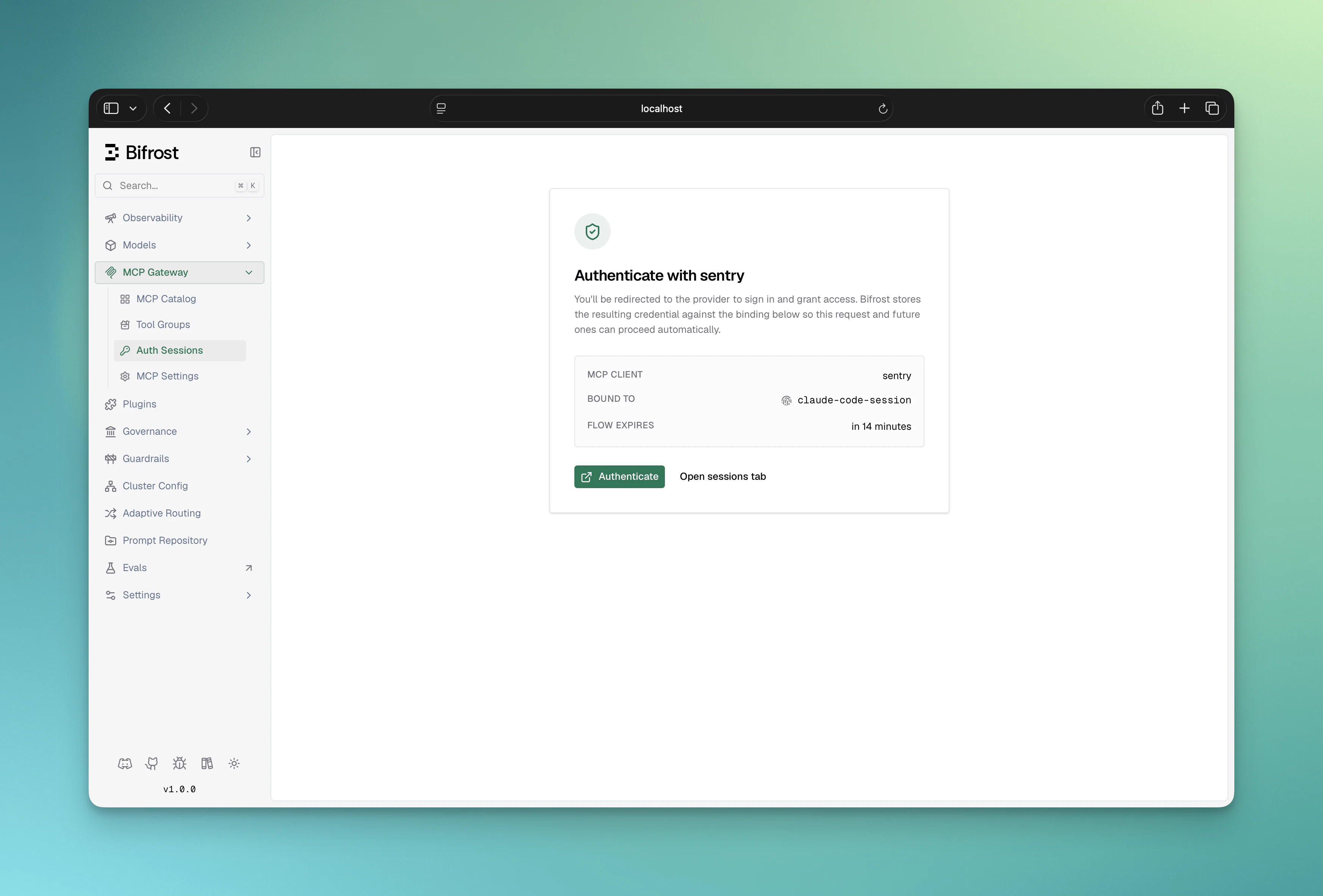
The URL points at a Bifrost dashboard page. It shows:- Which MCP server is asking for authentication
- Which identity the resulting token will be bound to (VK name, signed-in user, or session ID)
- An Authenticate button that redirects to the upstream provider
/api/oauth/callback, the code is exchanged for tokens server-side, and the token is stored against the identity.
#t=<temp-token> URL fragment is present, it authorizes anonymous browser visitors to complete the flow without a dashboard session. The fragment never reaches server logs (fragments are not sent in the request line). User-mode flow URLs never carry a temp token — visitors must complete SSO login first, and only the bound SSO user can finish the flow. See Flow mode and access rules for the per-mode behavior and how to enable temp tokens for VK/session flows.
Multi-server auth
If a single LLM turn triggers tool calls against multiple unauthenticated per-user MCP servers, the LLM only ever sees onemcp_auth_required at a time (the first un-authed service Bifrost hits). The user authenticates that one, retries, and the LLM is then prompted for the next un-authed service — until everything required for the turn is authenticated. There is no upfront “connect all your services” screen.
Identity modes
Every per-user OAuth row is bound to exactly one identity column. The mode is derived from request context at lookup time, with priorityuser > vk > session. See Identity modes on the Auth overview for the full table.
A per-user request without any identity is rejected with an mcp_auth_required payload that explains the caller must send a VK, sign in, or set x-bf-mcp-session-id.
Cross-gateway token sharing
Tokens are stored against an identity, not against a gateway. As long as the same identity reaches the gateway, the token is reused.- Authenticate via the LLM Gateway with
vk_xyz→ that token is immediately usable on the MCP Gateway as long as the inbound request also carriesvk_xyz. - Authenticate via the MCP Gateway with
x-bf-mcp-session-id=abc→ the LLM Gateway can reuse it by sending the samex-bf-mcp-session-idheader. - Authenticate via enterprise SSO as user
u_123on either gateway → the other gateway also reuses the token automatically (no header to set).
Configuration reference
After an MCP client is verified (via Web UI Create or via theconfig.json bootstrap flow), its auth_type is per_user_oauth with an oauth_config_id linking to the OAuth credentials Bifrost stored. You’ll see this shape in API responses:
MCP client names cannot contain hyphens — Bifrost prefixes tools as
<client>-<tool> and uses the hyphen to split the two halves at execution time.Managing user tokens
Every per-user OAuth token shows up on the MCP Sessions page. From there callers can re-authenticate stale tokens, revoke rows outright, and see status (active, orphaned, needs_reauth).
See MCP Sessions for the full lifecycle, the difference between orphaned and needs_reauth, and the auto-orphan-on-VK-change behavior.
Admin discovery credential
The admin’s one-time bootstrap token is not thrown away after verification: Bifrost retains it as a client-level admin discovery credential (auth modeadmin). Its role is deliberately narrow:
- Tool-list refresh only. The periodic tool syncer uses it for a one-shot connect,
tools/list, disconnect cycle on the client’s tool sync interval. It is never used for end-user tool calls; those always run under the caller’s own token. - Proactively refreshed. The background token refresh worker keeps it alive alongside shared-client tokens, so tool discovery keeps working without anyone logging in again.
- Invisible on the sessions page. Admin credentials are excluded from MCP Sessions; they are managed from the client sheet instead.
needs_reauth badge next to the client’s View sessions link. This is a display-level state: end-user credentials and tool calls keep working, only tool-list refresh pauses until an admin repairs it. Clients verified before Bifrost retained admin credentials have no admin row and simply stay healthy.
To repair it, open the client sheet and click Repair OAuth: Bifrost redoes the admin consent flow, verifies the fresh token upstream, re-discovers tools, and installs the token as the new admin credential. If verification fails, the fresh token is revoked and the previous credential and tool set are left untouched, so the repair is safely retryable.

POST /api/mcp/client/{id}/reauthorize ({id} = MCP client ID). For per_user_oauth clients the endpoint is strictly a repair surface: it returns 409 (“does not need repair or does not exist”) unless the admin credential actually sits in needs_reauth, so it can never churn a healthy credential. The response is the standard pending_oauth payload (authorize_url, status_url, complete_url); complete it the same way as the scriptable verification flow.
Periodic tool sync
Per-user clients hold no persistent upstream connection, but their tool list still refreshes on a schedule using the admin discovery credential. The cadence follows the per-clienttool_sync_interval (minutes, on the create/update API):
- Positive: sync every N minutes for this client
0/ unset: inherit the globalmcp_tool_sync_intervalclient setting (minutes, default 10)- Negative: disable periodic sync for this client
config.json, the field also accepts duration strings such as "10m" (recommended); a bare number there is a legacy nanosecond value, unlike the API which takes minutes.
Every sync’s result persists to the database (skipped when it’s byte-identical to what’s already stored), so a restart doesn’t revert the tool list to whatever was discovered at the client’s original bootstrap verification.
Public URL configuration
The consent page URL Bifrost builds (/workspace/mcp-sessions/auth?flow=…) and the redirect_uri Bifrost registers with upstream OAuth providers are both derived from the request Host header by default. Behind a reverse proxy, override them with:
mcp_external_client_url— public base URL for both the consent page and theredirect_uriBifrost registers with upstream providers
Next Steps
- Per-User Headers — when there’s no upstream OAuth, just per-user API keys
- OAuth 2.0 — admin authenticates once, shared token for all requests
- MCP Sessions — token states, re-authenticate, revoke
- MCP Gateway Mode — expose Bifrost as an MCP server for Claude Code / Cursor