Enable real-time user and group provisioning from Okta to Bifrost Enterprise using SCIM 2.0.
SCIM (System for Cross-domain Identity Management) keeps Bifrost in sync with Okta in real time - new users are provisioned, deactivated users are suspended, and group memberships are updated without waiting for the next login or background sync.
Complete SSO using OIDC before setting up SCIM. Okta does not support SCIM on a custom OIDC app, so SCIM runs as a separate app alongside your existing OIDC integration.
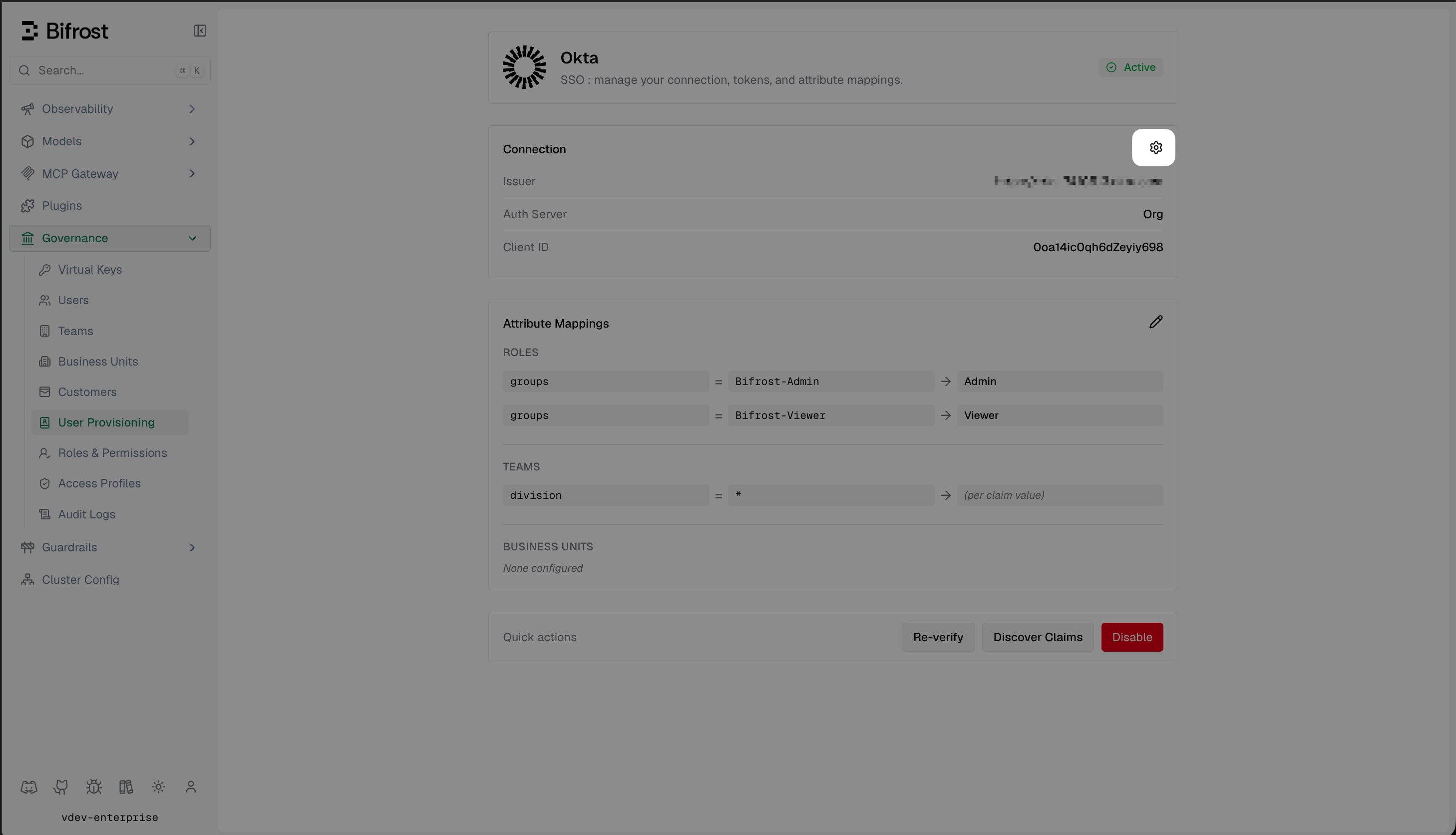
In your Bifrost dashboard, go to Governance → User Provisioning and open your configured Okta provider.
The Okta provider dashboard showing your connection details and attribute mappings.
2
Enable SCIM provisioning
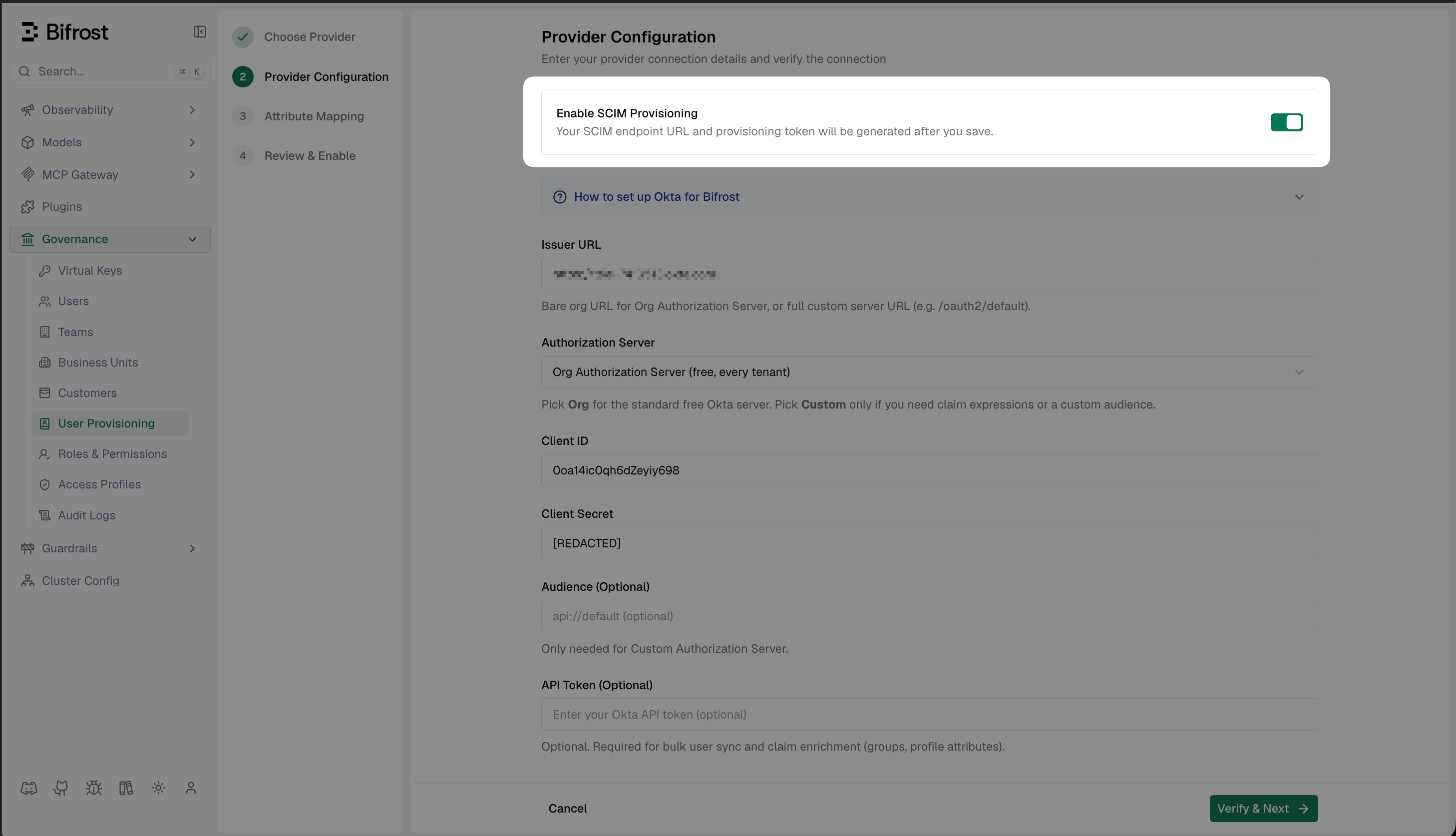
Click the settings icon to open Provider Configuration.Toggle on Enable SCIM Provisioning and click Save & Enable.
Enable SCIM Provisioning in Provider Configuration - the SCIM endpoint URL and token are generated after saving.
3
Copy the SCIM credentials
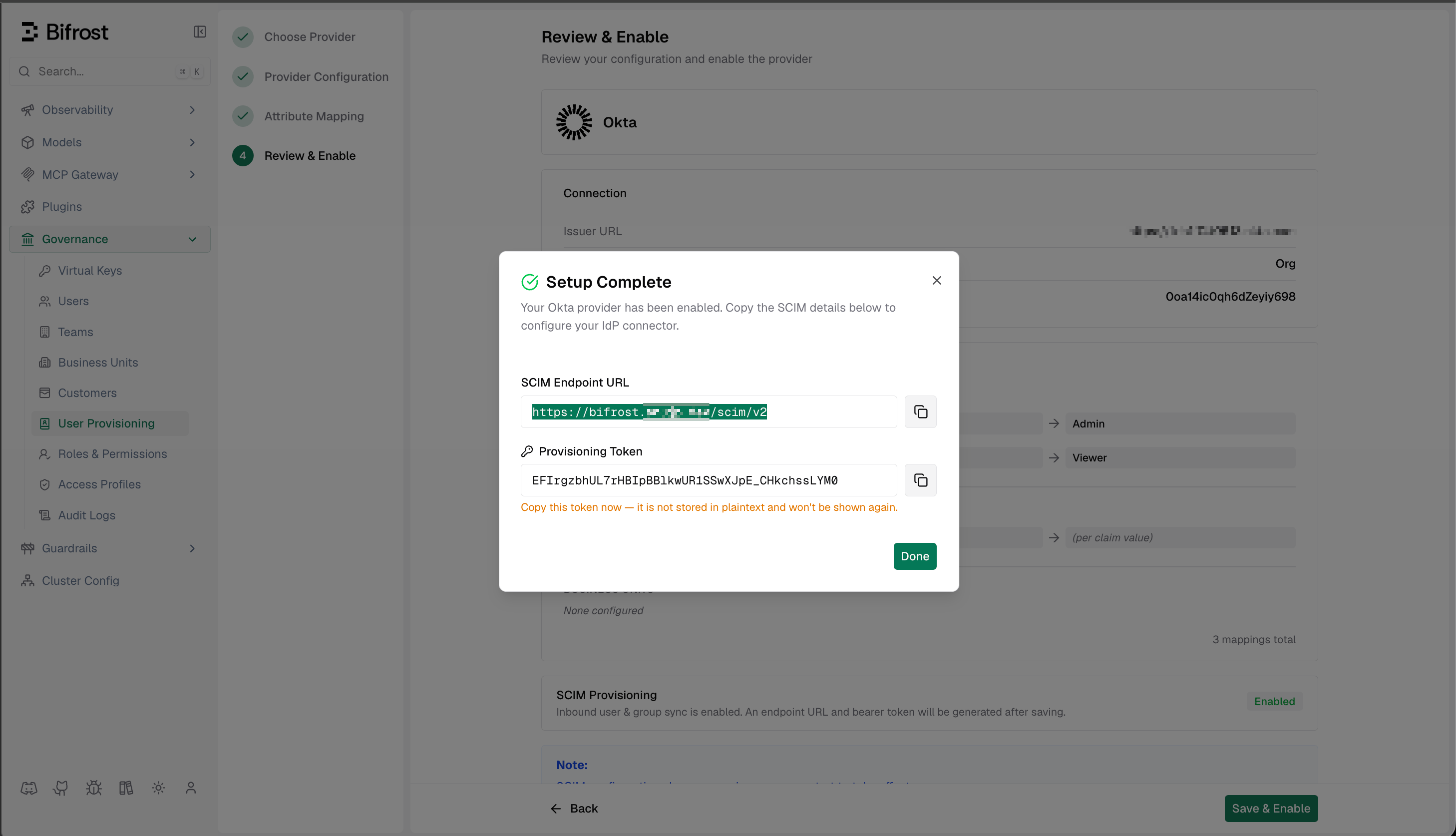
After saving, Bifrost shows a Setup Complete dialog with:
SCIM Endpoint URL - the base URL Okta will send provisioning requests to
Provisioning Token - the bearer token Okta uses to authenticate
Copy both values now - you will need them in Step 3.
Setup Complete dialog showing the SCIM Endpoint URL and Provisioning Token.
The provisioning token is only shown once. Store it somewhere safe before closing this dialog. You can always rotate it later, but the previous token will immediately become invalid.
Alternative: seed the token declaratively (Helm / config.json)
If you manage Bifrost with Helm or a static config.json (GitOps), you can seed the Provisioning Token yourself instead of generating it in the dashboard.
This produces a URL-safe token in the same format Bifrost mints internally.
2
Add it to your SCIM config
Helm values.yaml:
bifrost:
  scim:
    enabled: true
    provider: "okta"
    config:
      issuerUrl: "https://your-domain.okta.com/oauth2/default"
      clientId: "..."
      clientSecret: "env.OKTA_CLIENT_SECRET"
      apiToken: "env.OKTA_API_TOKEN"
      provisioningToken: "env.SCIM_PROVISIONING_TOKEN"   # or the literal token
      claimScimAttributes:                                # per-claim SCIM interpretation
        groups:
          attributeType: "group"        # "user" (SCIM User attribute) or "group" (match SCIM Group)
          attributeValue: "displayName"
      claimsSyncMode: "both"                                # provisioning source: "both" (SCIM + login claims) or "scim" (SCIM only - ignore login claims)
The same keys (provisioningToken, claimScimAttributes, claimsSyncMode) apply directly under scim_config.config in a raw config.json.
Keep the token in a Kubernetes Secret and reference it with the env. prefix - never commit the literal value. Rotating the token in the dashboard invalidates any value seeded here.
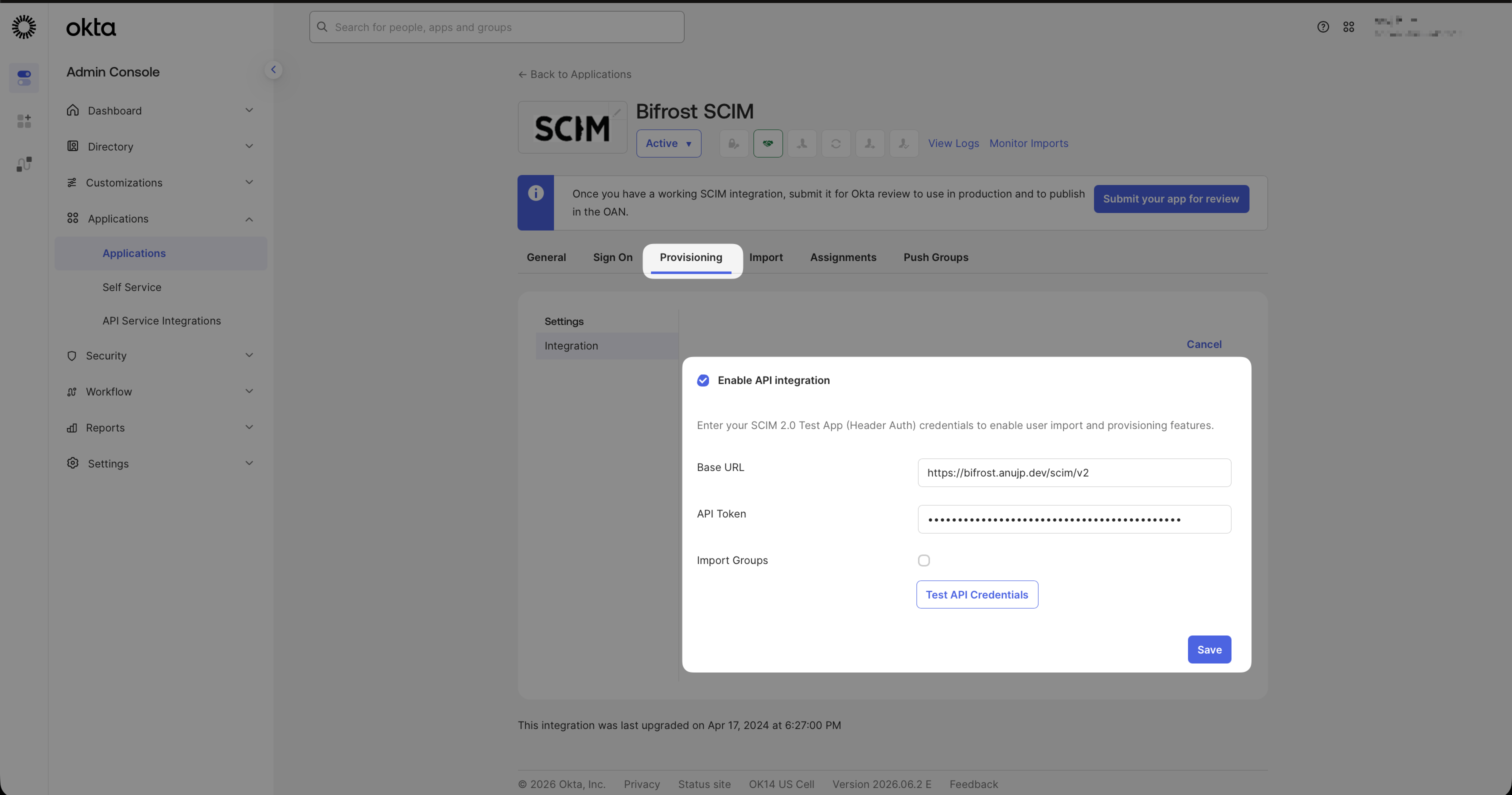
Then use this token as the API Token and your deployment’s SCIM endpoint as the SCIM 2.0 Base URL in Step 3 - the rest of the Okta setup is identical.
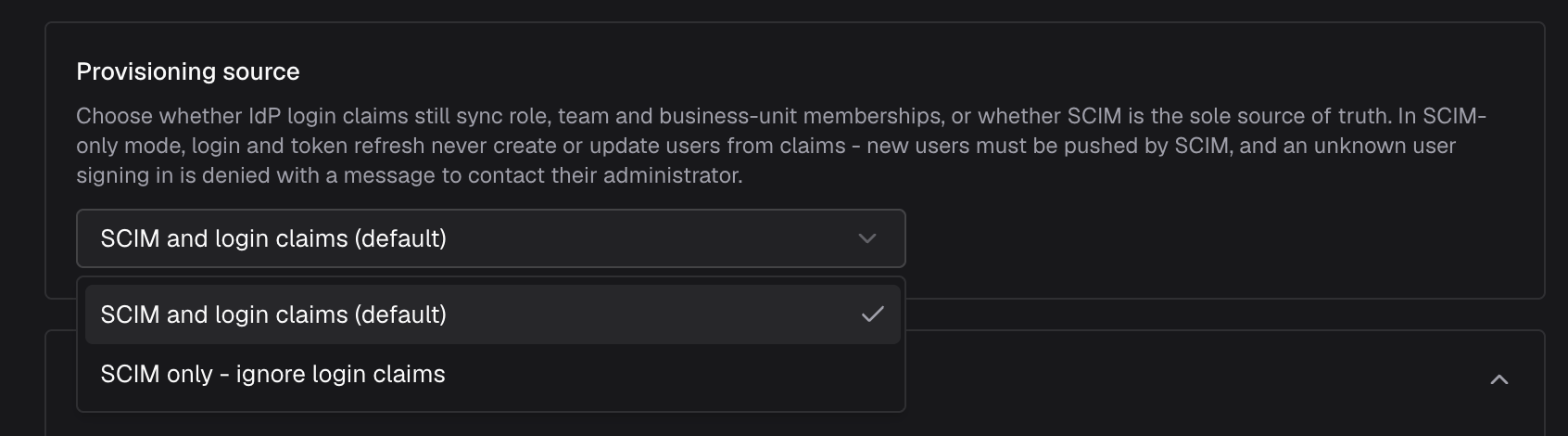
The provider configuration includes a Provisioning source setting that controls whether IdP login claims still provision users, or whether SCIM is the sole source of truth:
The Provisioning source setting in the provider configuration - choose between SCIM and login claims (default) or SCIM only.
Option
Config value
Behavior
SCIM and login claims (default)
both
Both SCIM and IdP login / token-refresh claims create and update users, roles, teams, and business units.
SCIM only - ignore login claims
scim
SCIM is the sole source of truth. OIDC claims will be ignored and will never create or update users from claims - new users must be pushed by SCIM. Users not already provisioned by SCIM are denied access at login.
Choose SCIM only when provisioning must be fully controlled by your IdP’s SCIM app and login-time claim changes should never alter membership. Leave it on the default SCIM and login claims if users are also provisioned just-in-time on first login.This maps to the claimsSyncMode config key (both or scim) and is inert when SCIM is disabled - claims always sync then.
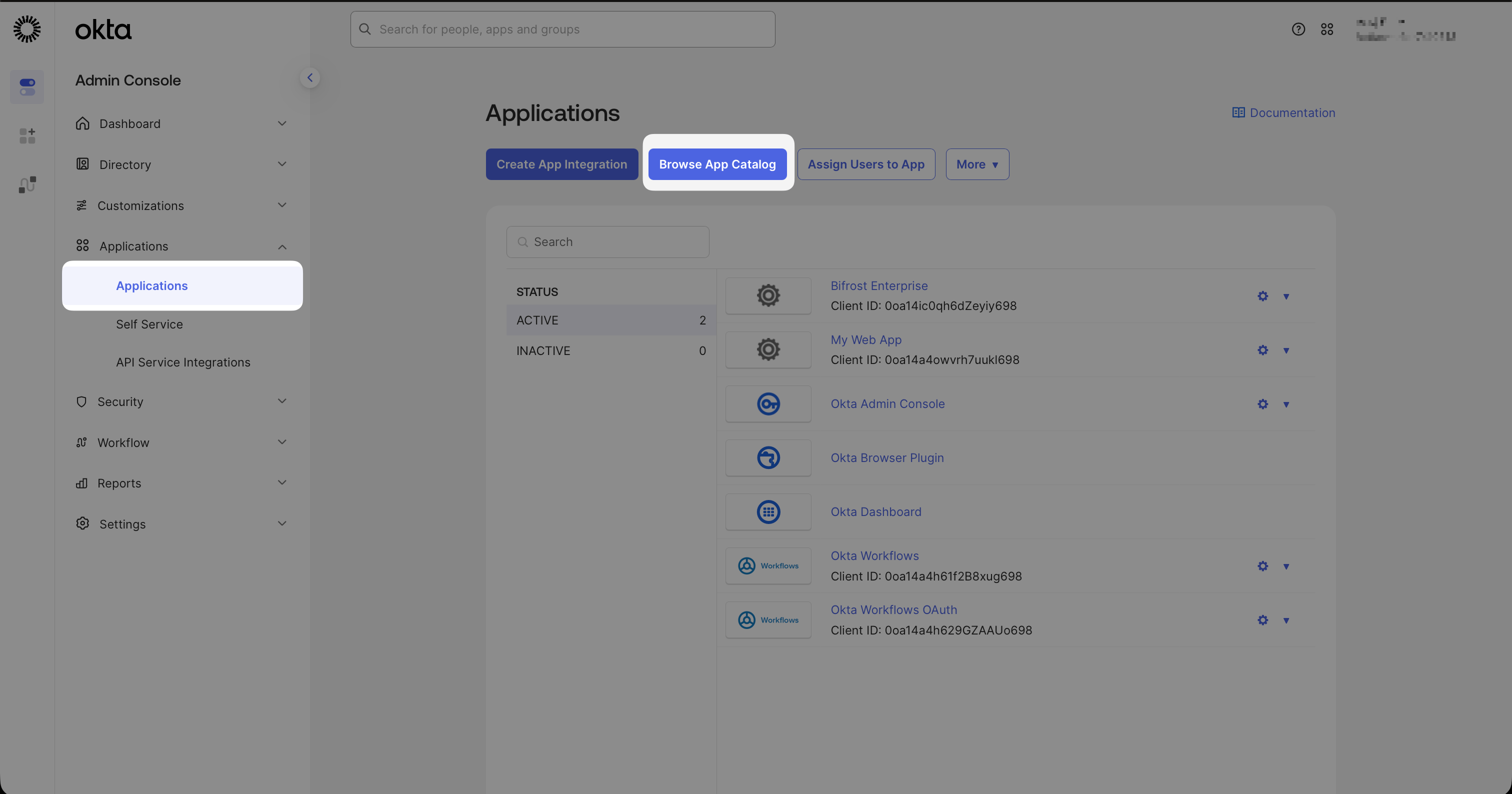
In the Okta Admin Console, go to Applications → Applications and click Browse App Catalog.
Click Browse App Catalog from the Applications page.
2
Add the SCIM 2.0 Test App
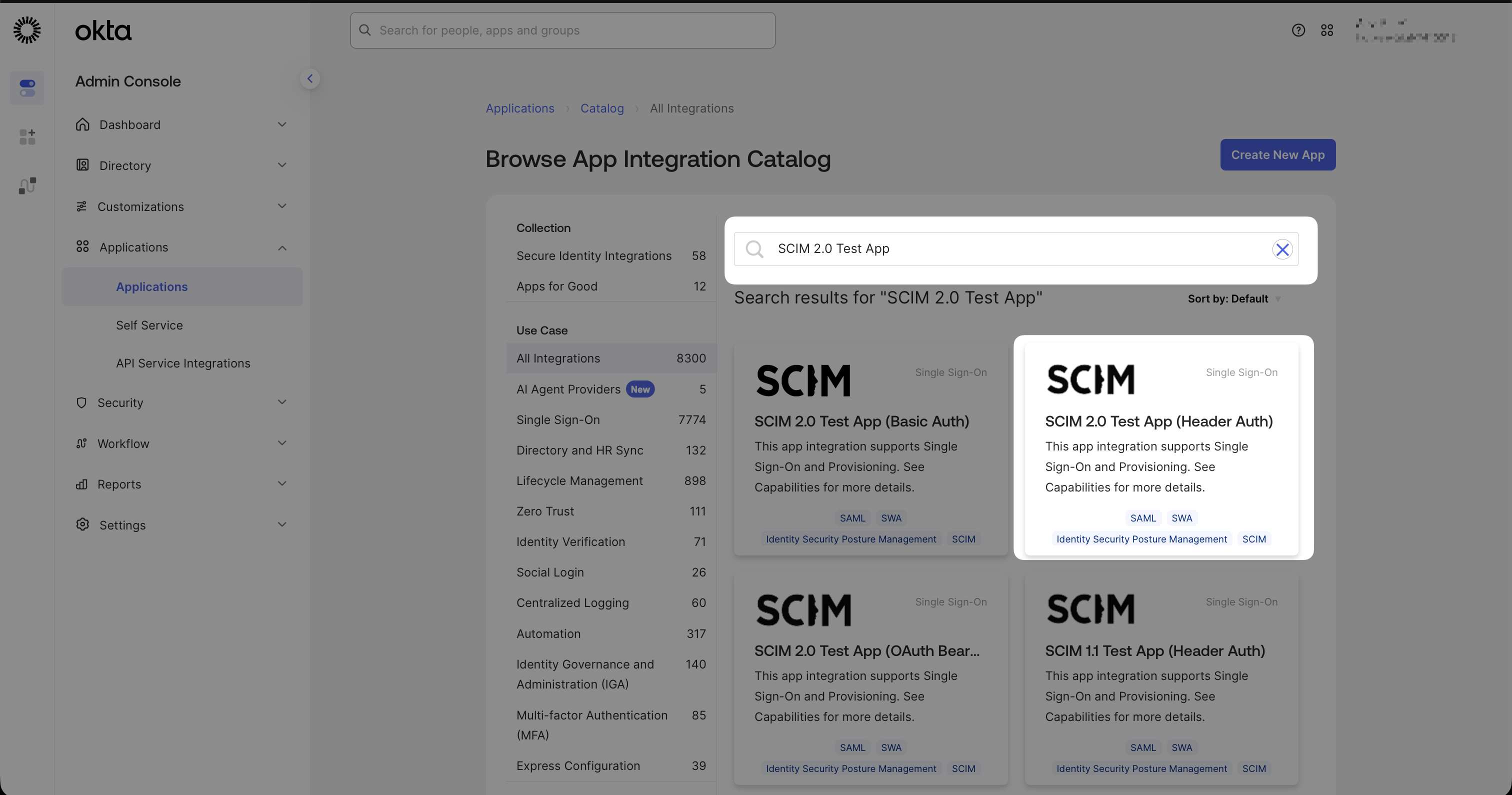
Search for SCIM 2.0 Test App (Header Auth) and add it.
Select SCIM 2.0 Test App (Header Auth) from the catalog.
Name the app Bifrost SCIM (or any label you prefer). On the sign-on options screen, skip everything and click Done - this app is used for SCIM provisioning only, not authentication.
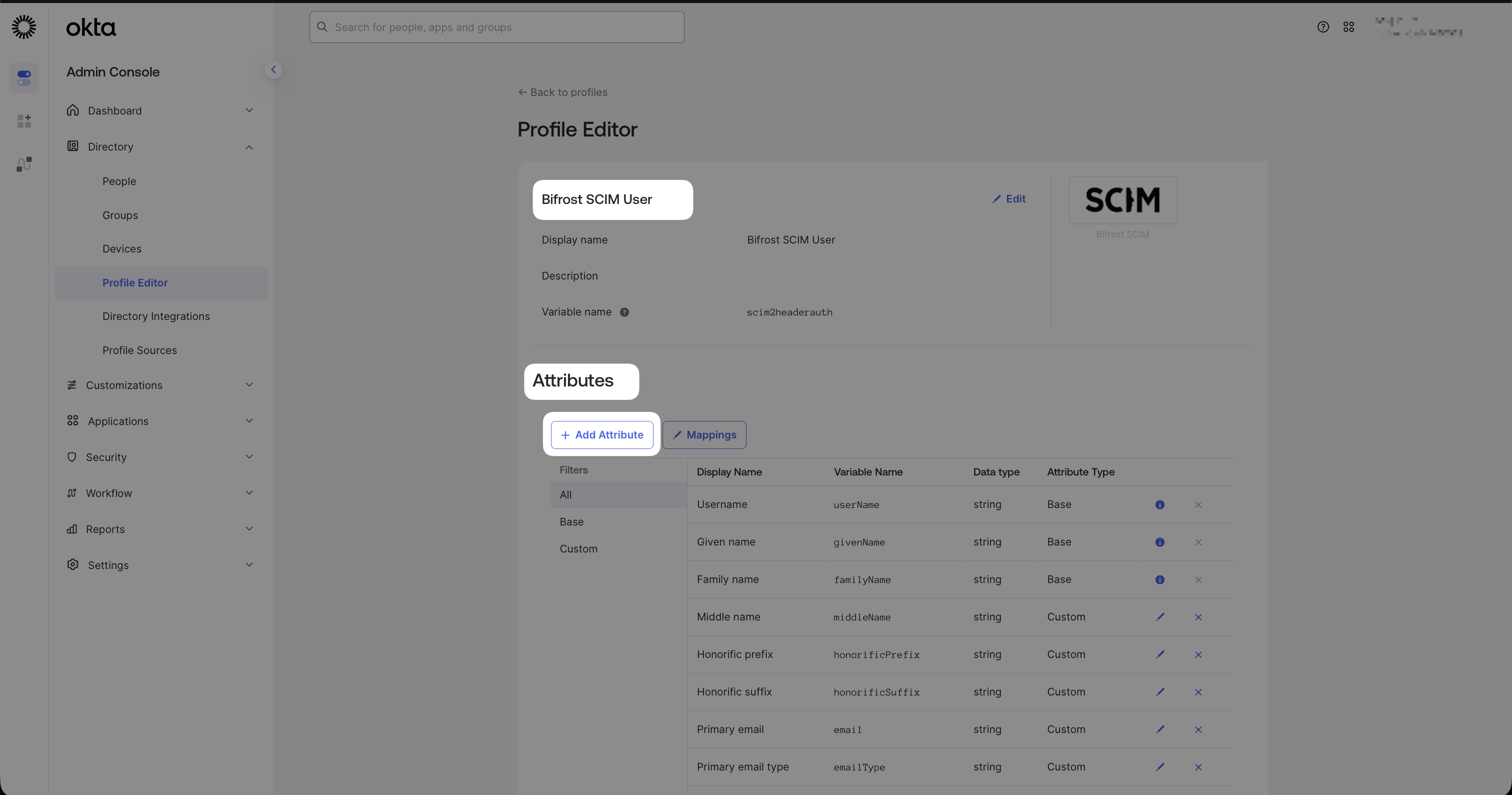
Custom attributes need to be declared in the SCIM app schema before Okta can include them in provisioning payloads.Go to Directory → Profile Editor and select the Bifrost SCIM app profile. Click Add Attribute.
Profile Editor for the Bifrost SCIM app - click Add Attribute to declare a new custom field.
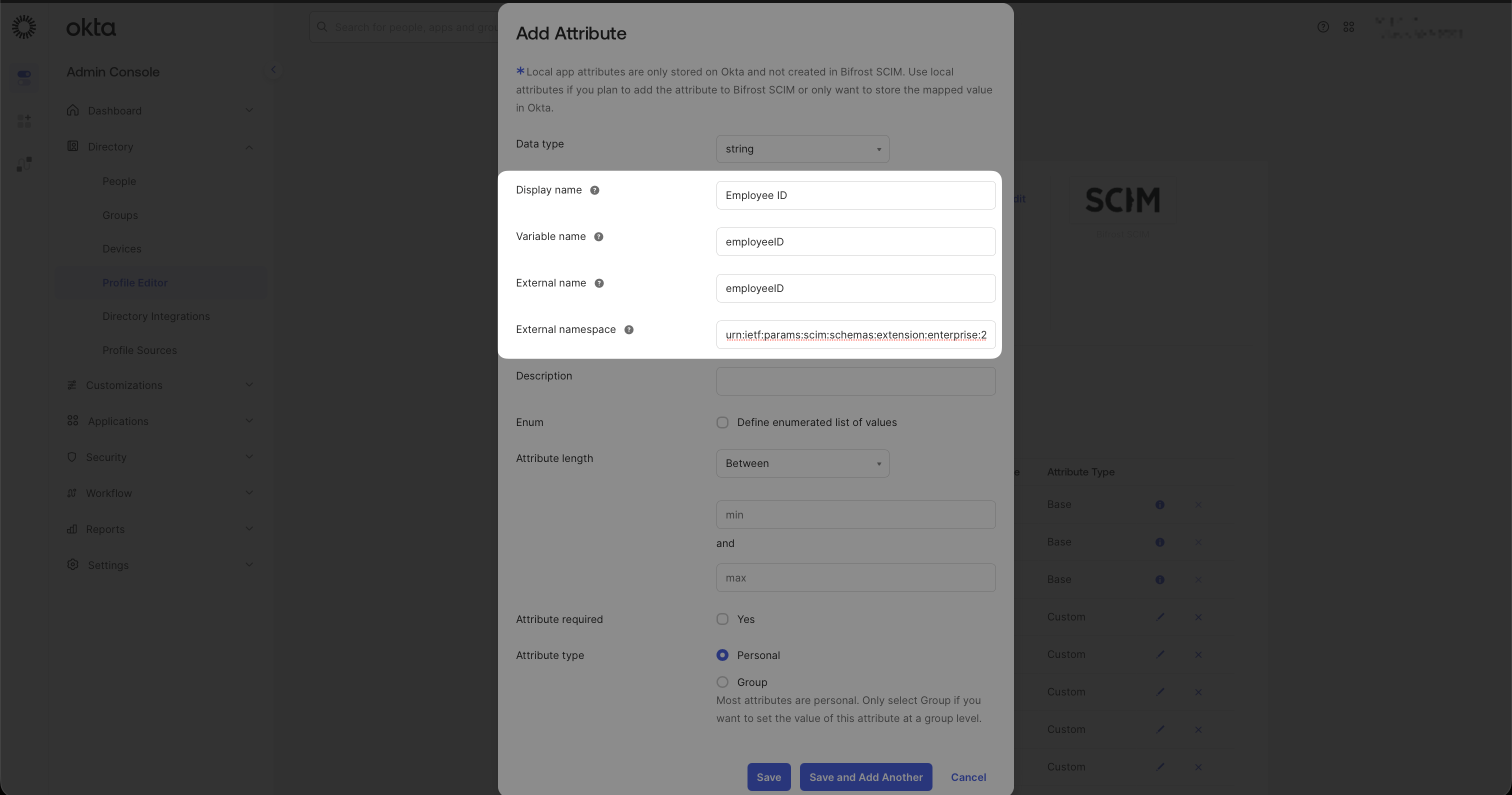
Configure the attribute - for example, for Employee ID:
Add Attribute dialog - the External name is what Bifrost receives and must match exactly what you configure in Bifrost's SCIM attribute settings.
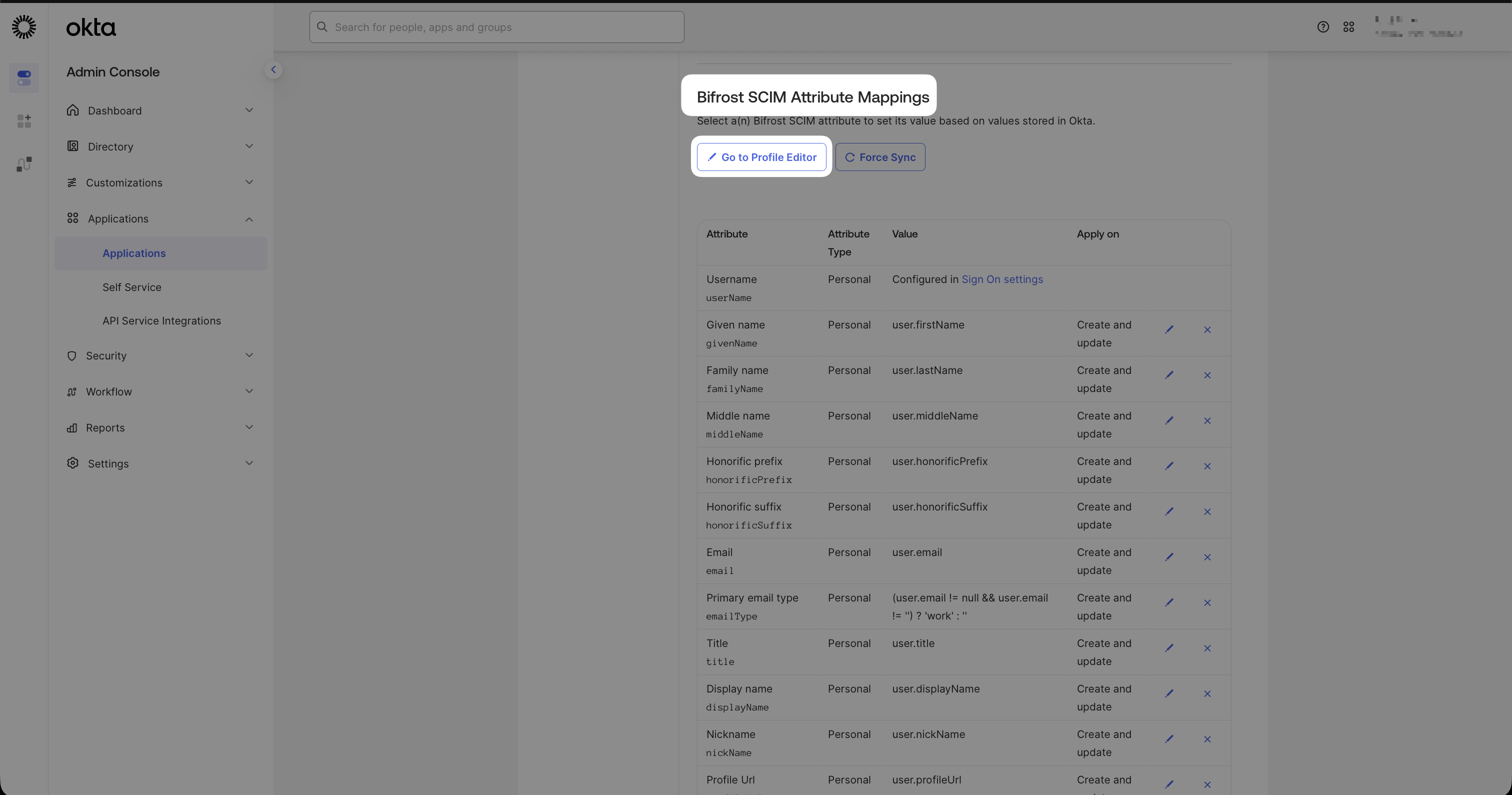
Click Save, then click Mappings on the Bifrost SCIM profile.
Click Mappings on the Bifrost SCIM profile to open the attribute mapping view.
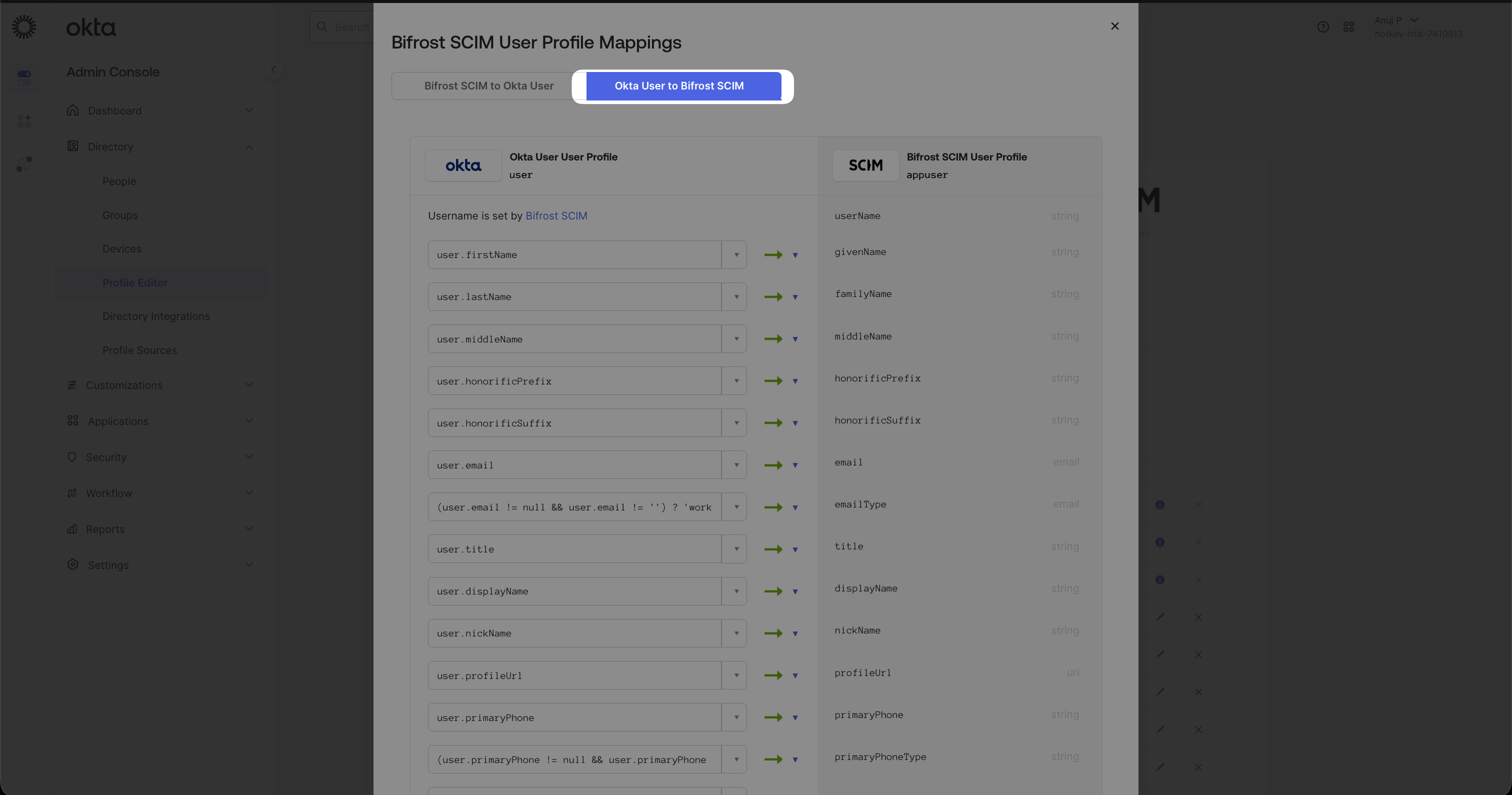
Select the Okta User → Bifrost SCIM tab.
Okta User to Bifrost SCIM mapping direction - map each Okta profile field to the corresponding SCIM attribute.
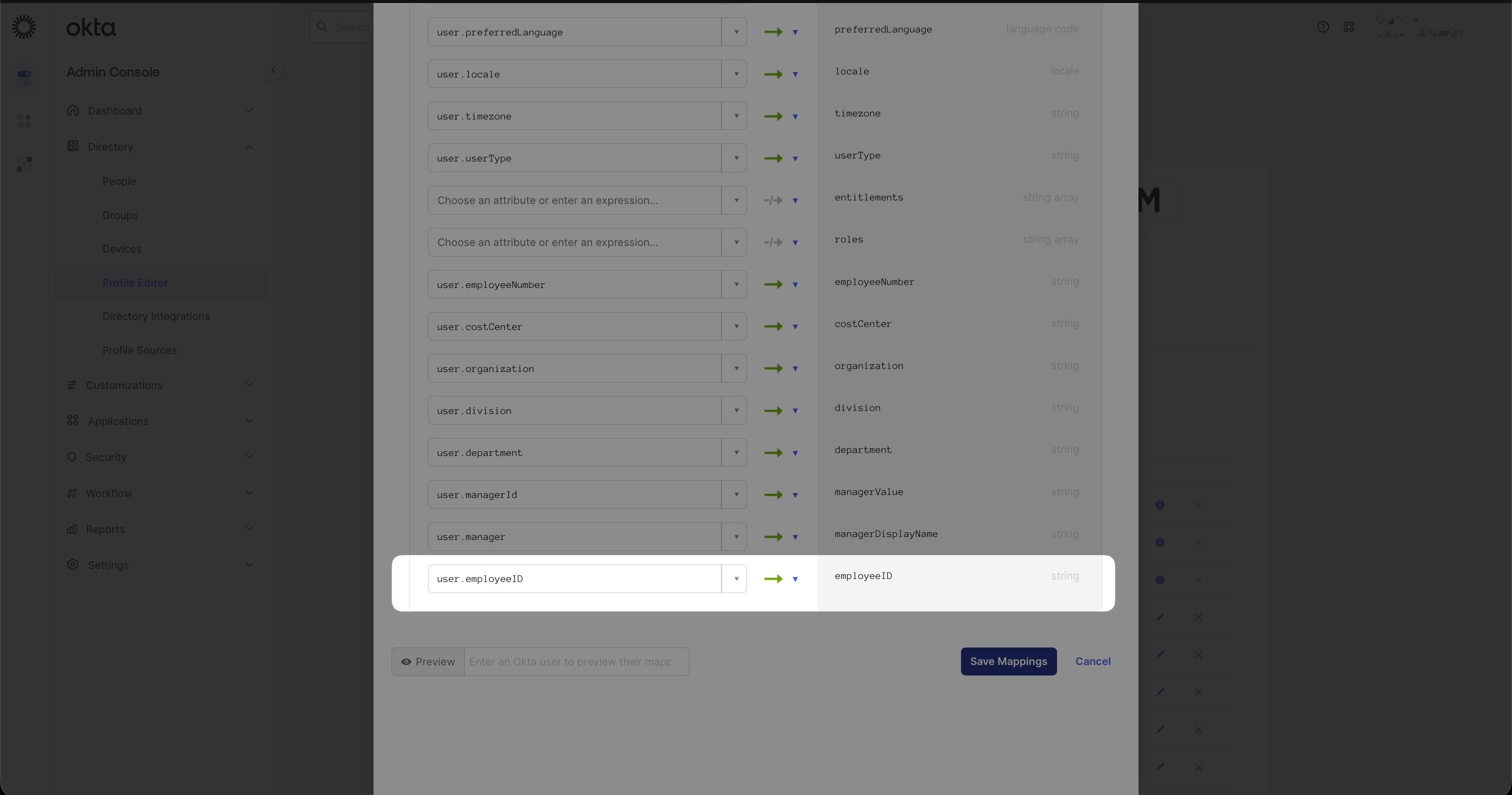
Scroll to find your attribute and set its source from the Okta user profile - e.g. user.employeeNumber → employeeID. Click Save Mappings.
Mapping user.employeeID from the Okta user profile to the employeeID SCIM attribute.
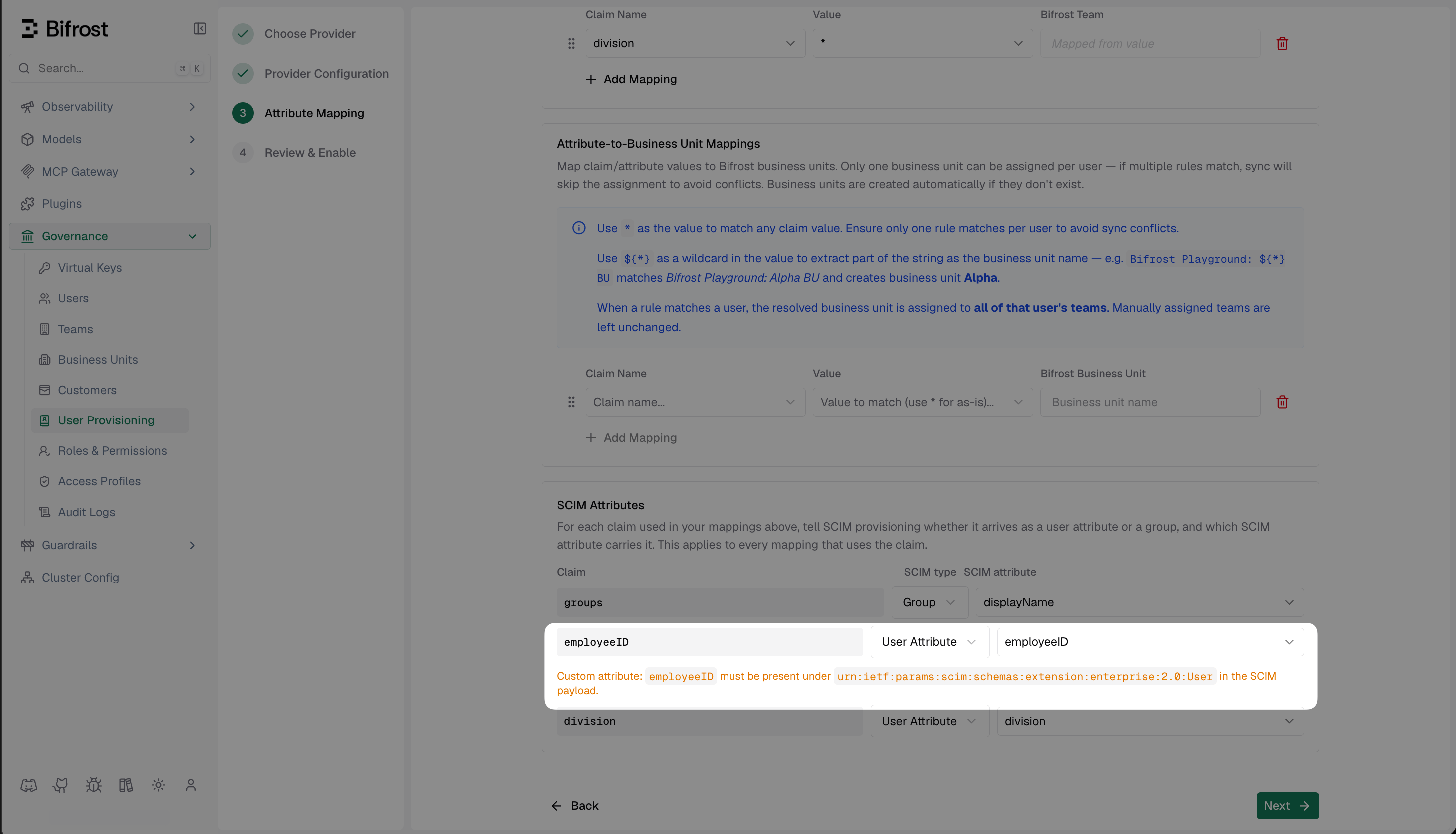
Back in Bifrost, go to Attribute Mapping in the provider setup and add a SCIM Attribute entry for employeeID. The External name you set in Okta must match this exactly.
In Bifrost's Attribute Mapping step, add the custom SCIM attribute using the same External name configured in Okta.
The External name in Okta’s Profile Editor and the SCIM attribute name in Bifrost must match exactly - including case.
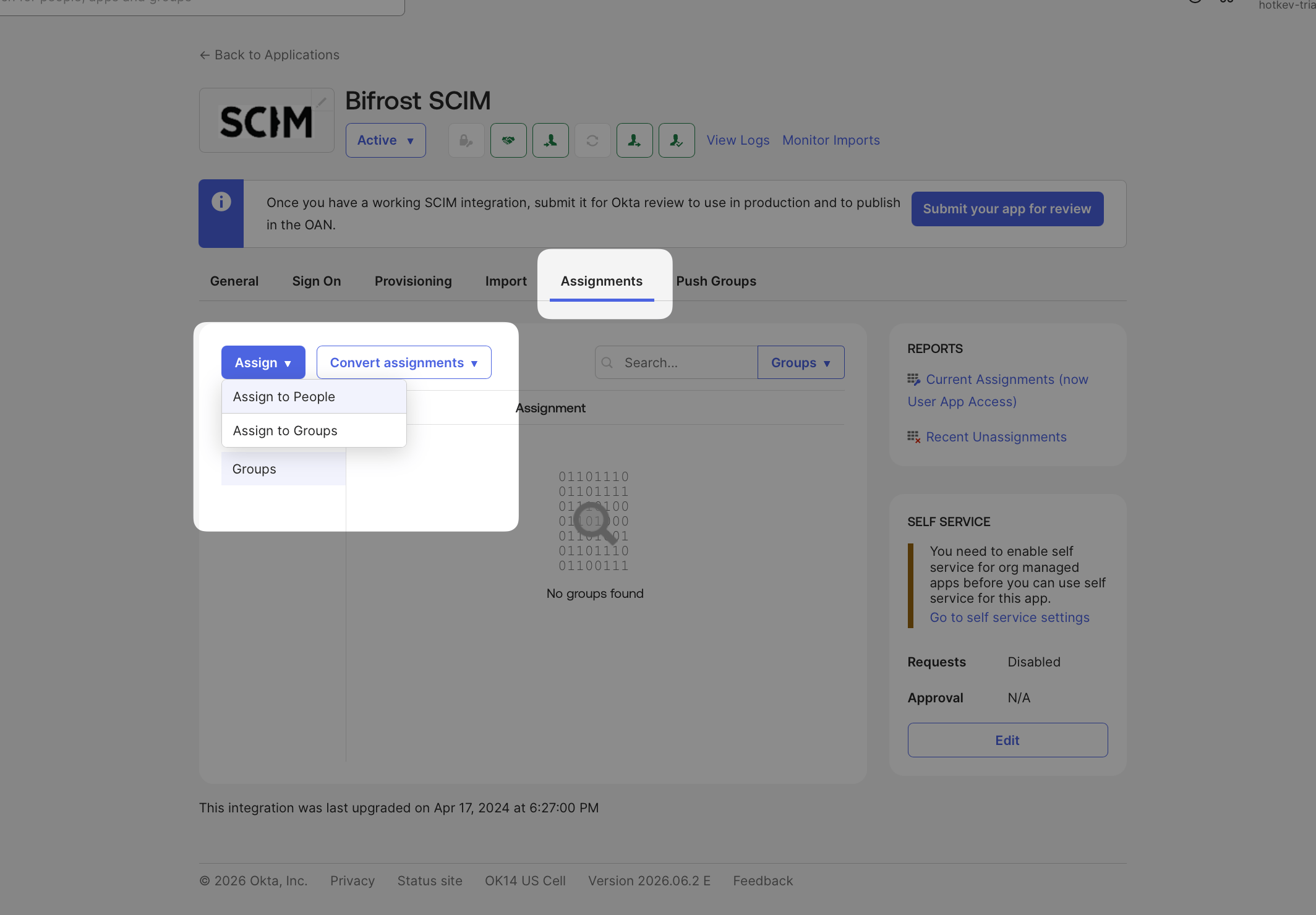
Go to the Assignments tab in the Bifrost SCIM app.Click Assign → Assign to People or Assign to Groups and select the users or groups to sync with Bifrost.
Assign users or groups from the Assignments tab - users are pushed to Bifrost immediately on assignment.
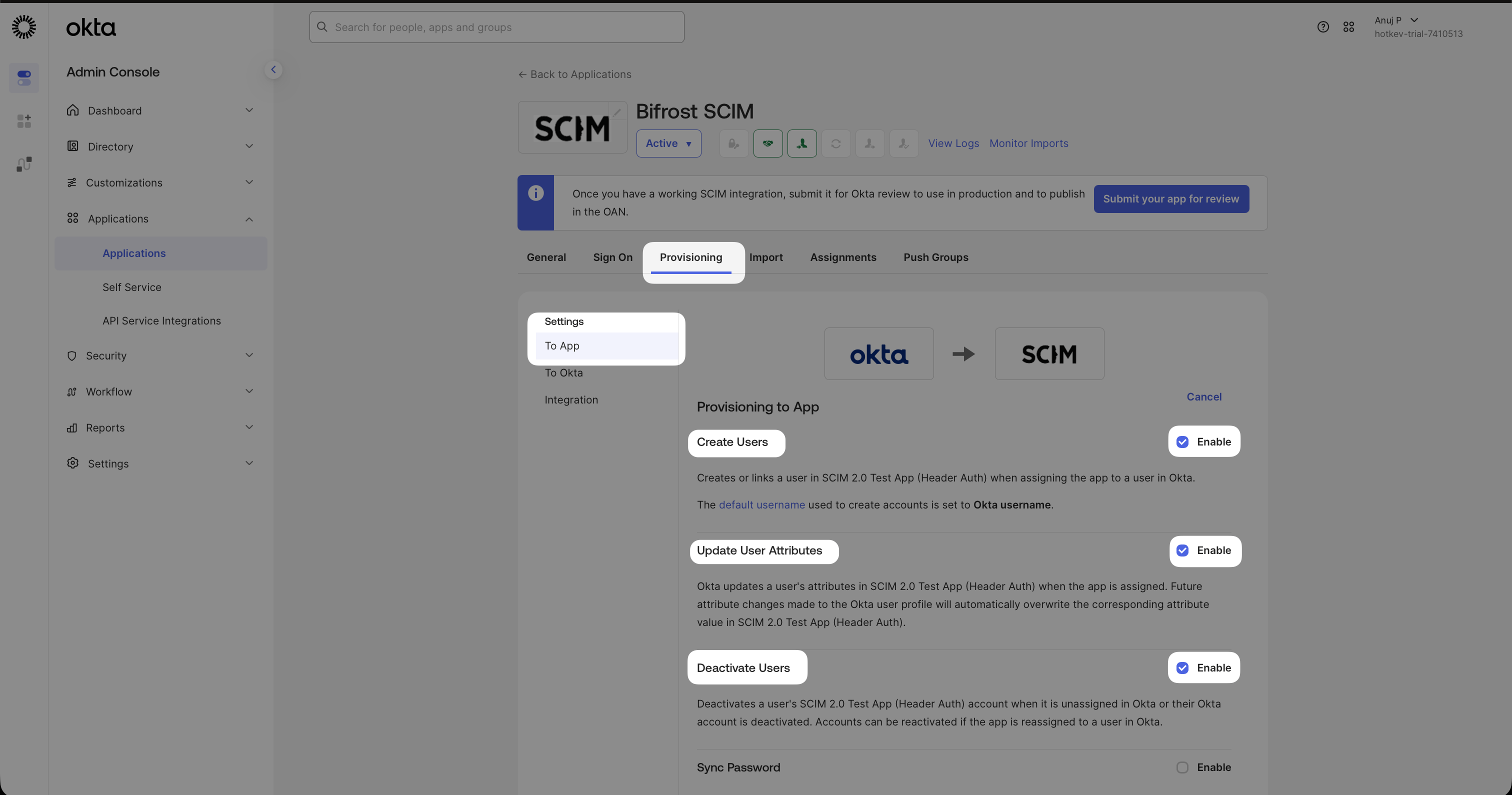
Assigned users are pushed to Bifrost immediately. When a user is unassigned or deactivated in Okta, Bifrost deactivates them in real time.
2
Push groups (for team and BU mapping)
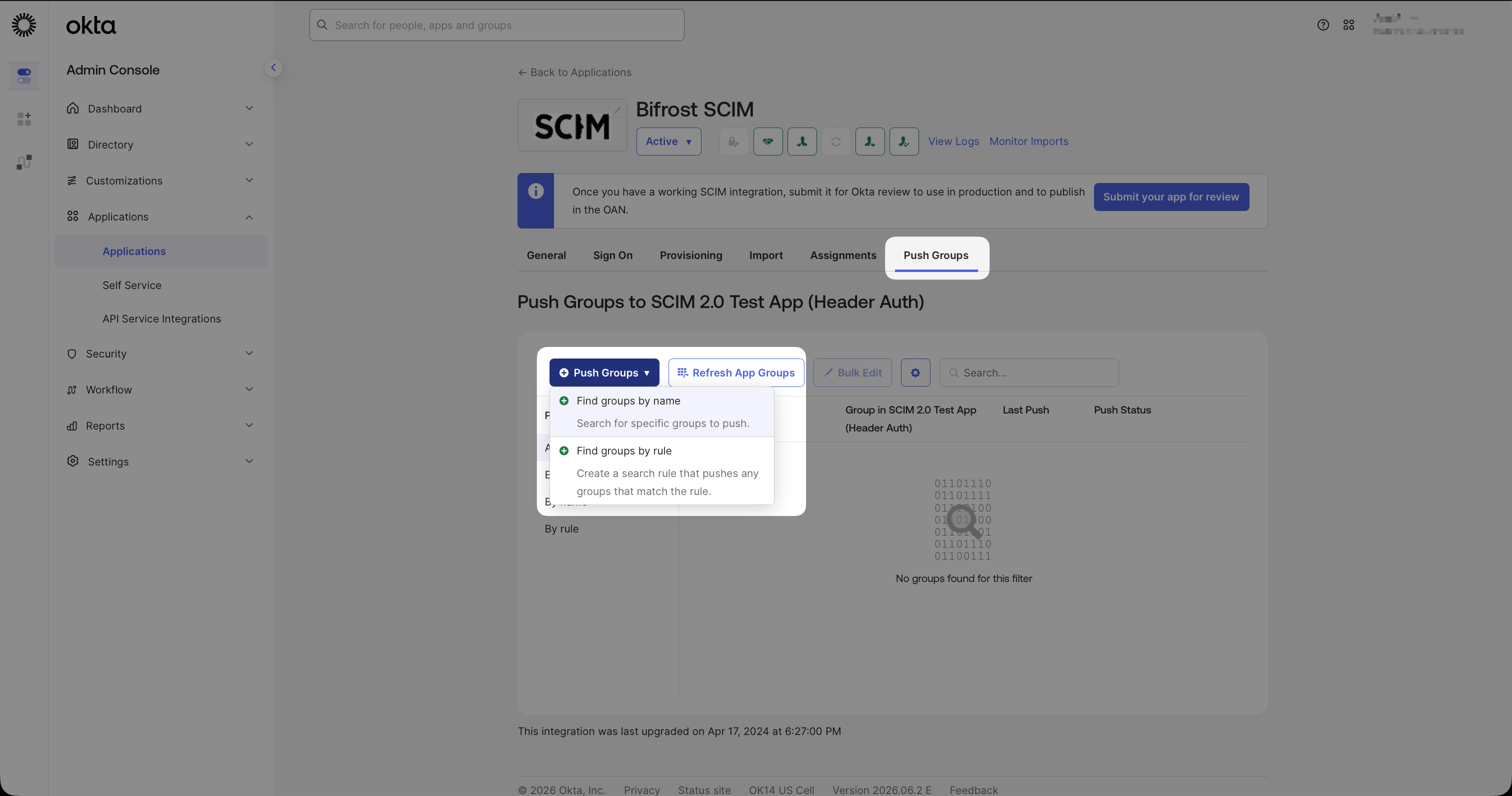
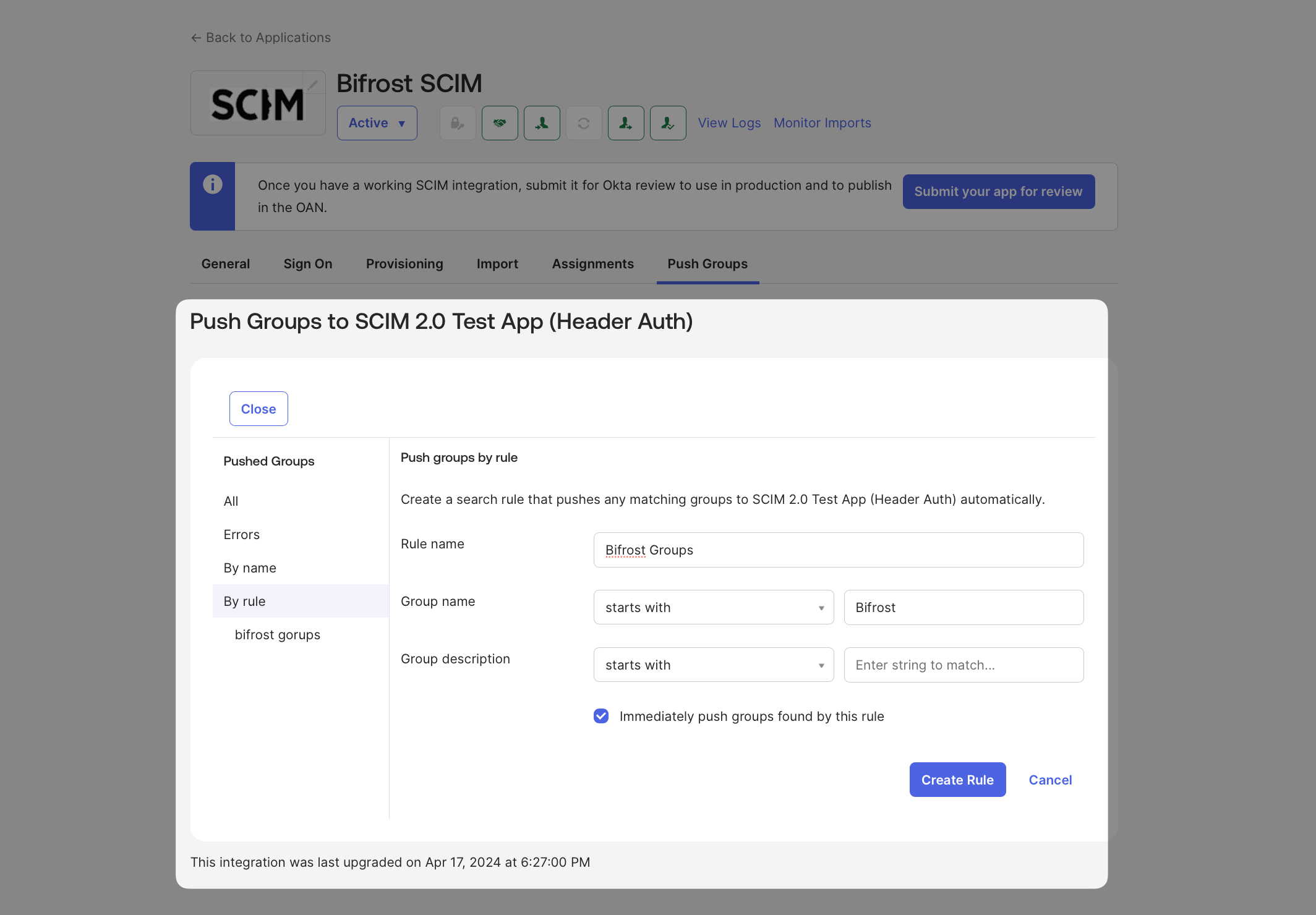
If you use group membership to drive Bifrost team or business unit assignments, you need to push the groups themselves - not just the users in them.Go to the Push Groups tab in the Bifrost SCIM app and click Push Groups.You can push groups by name (search for specific groups) or by rule (create a filter that automatically pushes any matching groups - useful if your groups follow a naming convention like Bifrost-*).
Push Groups tab - choose to find groups by name or create a rule to push all matching groups automatically.
Push by rule - set a filter (e.g. Group name starts with 'Bifrost') to automatically push all matching groups.
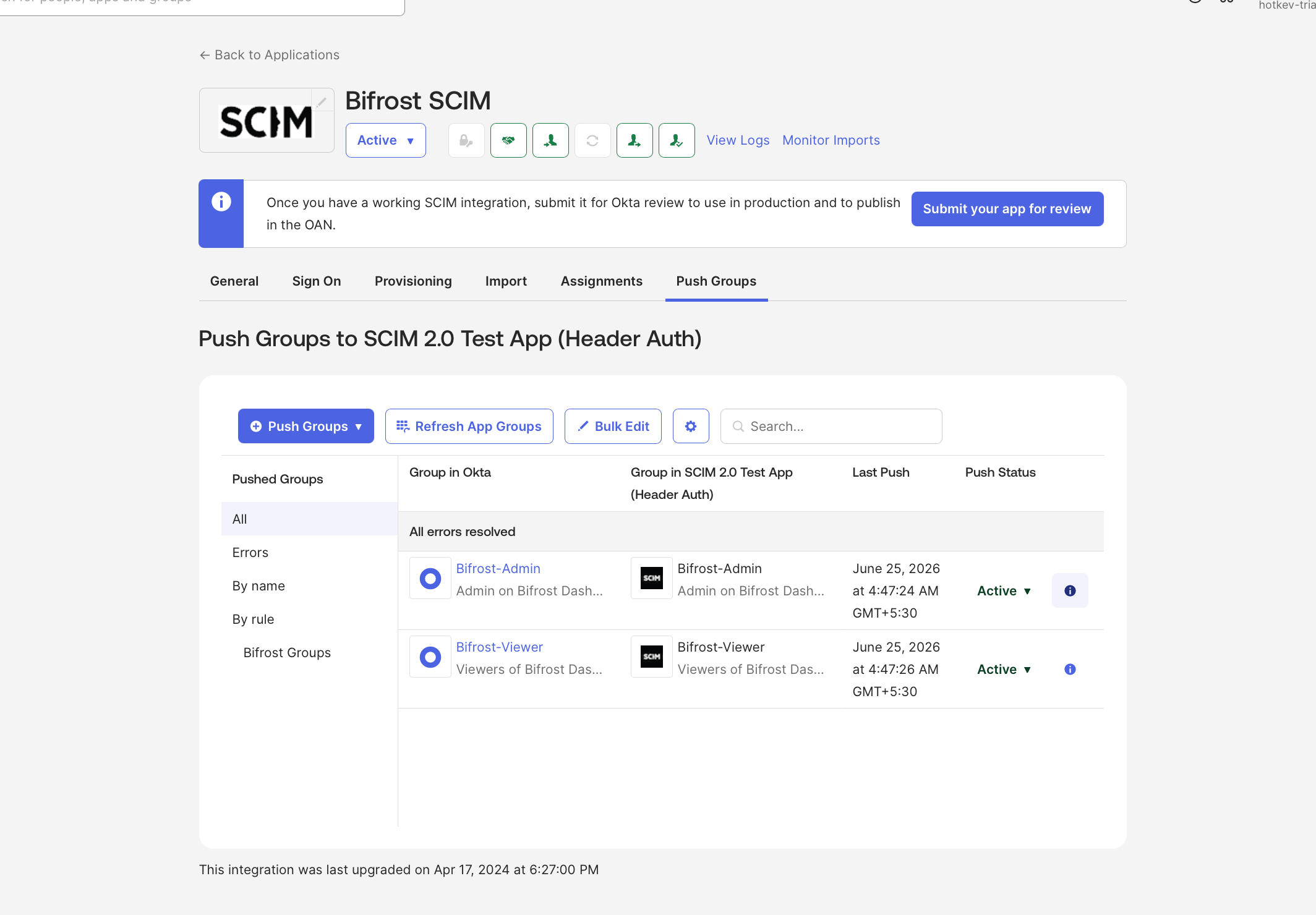
Once groups are pushed and showing as Active, Bifrost tracks their membership in real time.
Pushed groups showing as Active - Bifrost now tracks membership changes for these groups in real time.
In Bifrost, configure Attribute-to-Team or Attribute-to-Business Unit mappings using the group displayName as the match value to automatically assign users to teams or business units based on their group membership.
Real-time push - Okta pushes user and group changes to Bifrost immediately when they occur.Background reconciliation - if you configured an API token in SSO using OIDC Step 4, Bifrost also runs a full reconciliation every 24 hours to catch anything the SCIM push may have missed.
Test API Credentials fails - verify the SCIM Base URL has no trailing slash and the API token matches exactly what Bifrost generated. Rotate the token in Bifrost and update Okta if needed.Users are pushed but have no role - SCIM provisions the user record; role assignment comes from attribute mappings in the OIDC provider. Confirm your Attribute-to-Role mappings are set and the relevant claims are present in the JWT.Custom attribute is not arriving in Bifrost - confirm the External name in Okta’s Profile Editor matches the SCIM attribute name in Bifrost exactly (case-sensitive). Also verify the Okta User → Bifrost SCIM mapping direction is saved.Group membership is not syncing - ensure groups are added under Push Groups, not just Assignments. Assignments sync users; Push Groups syncs group membership.
Was this page helpful?
Assistant
Responses are generated using AI and may contain mistakes.