

Prerequisites
- An OIDC-capable identity provider with admin access
- Bifrost Enterprise deployed and accessible
- Your Bifrost callback URL:
https://<your-bifrost-domain>/login - The ability to create a confidential (client secret) OAuth 2.0 application in your IdP
- Bifrost roles created for the roles you plan to map
Step 1: Create an OIDC application in your IdP
Register a new application
Configure redirect URIs
Step 2: Configure token claims
Ensure the required scopes are requested
openid- required for OIDCprofile- providesname,given_name,family_nameemail- provides the user’s email addressoffline_access- provides a refresh token for session maintenance (if supported)
Include group or role claims
Step 3: Copy your credentials
Note the Issuer URL, Client ID, and Client Secret
https://auth.company.com or https://auth.company.com/realms/my-realm. Bifrost uses it to discover endpoints via <issuer>/.well-known/openid-configuration.Step 4: Assign users
Grant users access to the application
- Explicit assignment - add users directly to the application
- Group-based access - assign a group; all members get access
- Policy-based - configure an access policy
Step 5: Configure Bifrost
Open User Provisioning and choose Generic OIDC
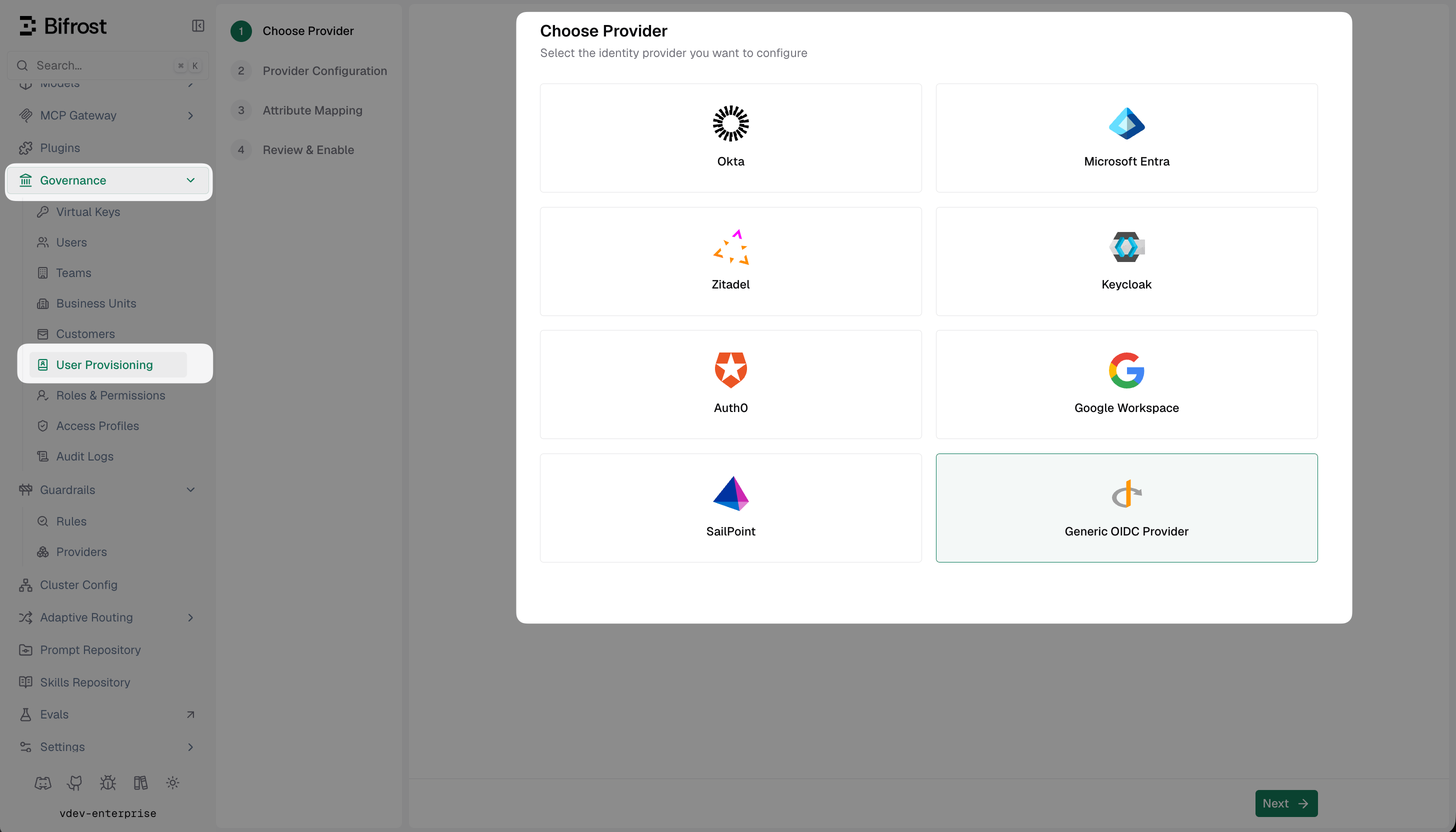
Select Generic OIDC Provider from the list of identity providers.
If your IdP is on a private network, add a trusted network
10.x, 172.16-31.x, or 192.168.x is blocked by that guard until you explicitly trust its range, and discovery fails with an error like: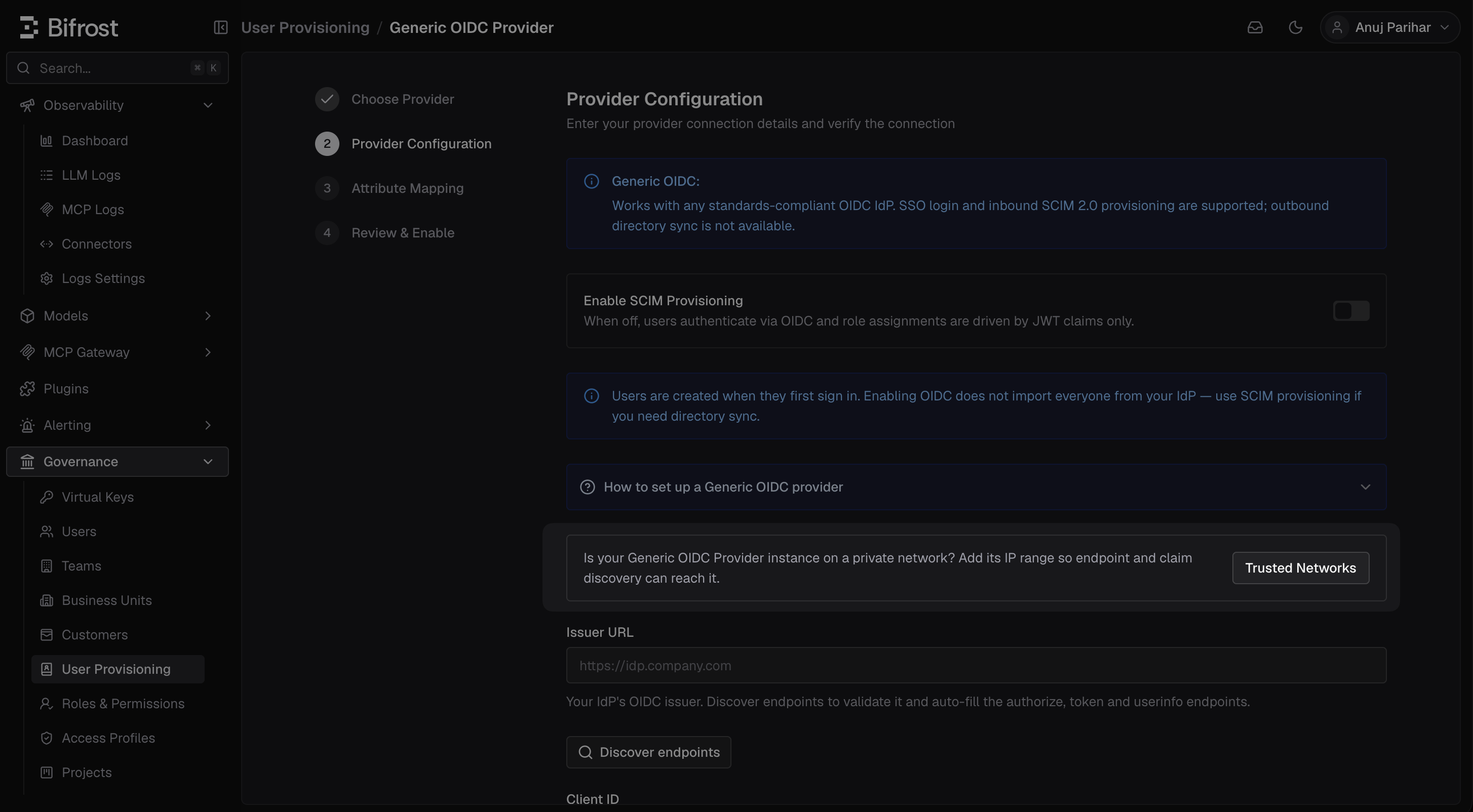
The Trusted Networks control on the Provider Configuration screen, shown for self-hostable providers.
config.json instead of the dashboard:[] clears ranges added from the dashboard. Omit the key entirely to leave dashboard-managed ranges alone.Fill in the provider configuration
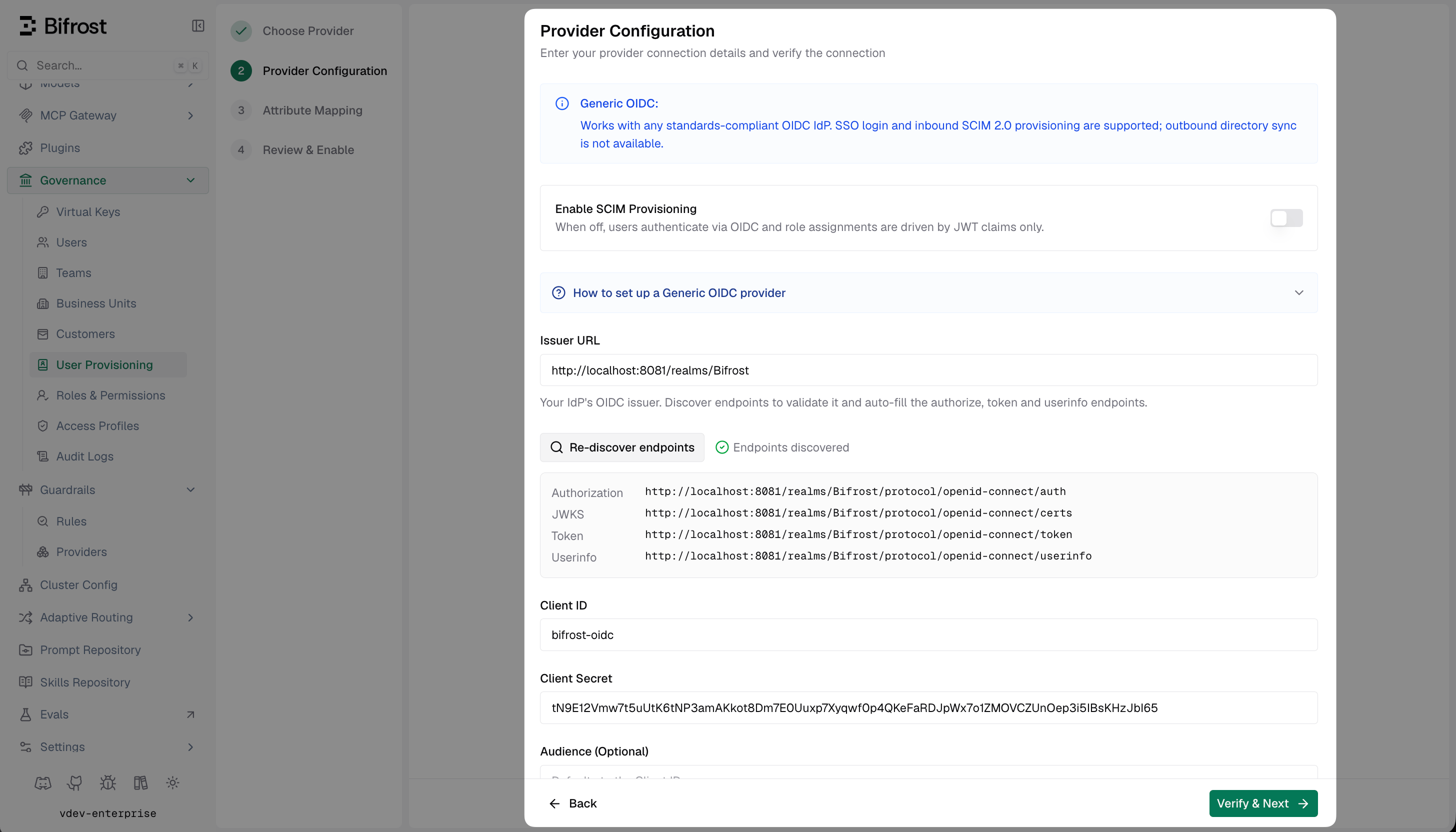
Provider Configuration - enter your OIDC issuer URL and client credentials, then Discover endpoints to validate.
Discover claims
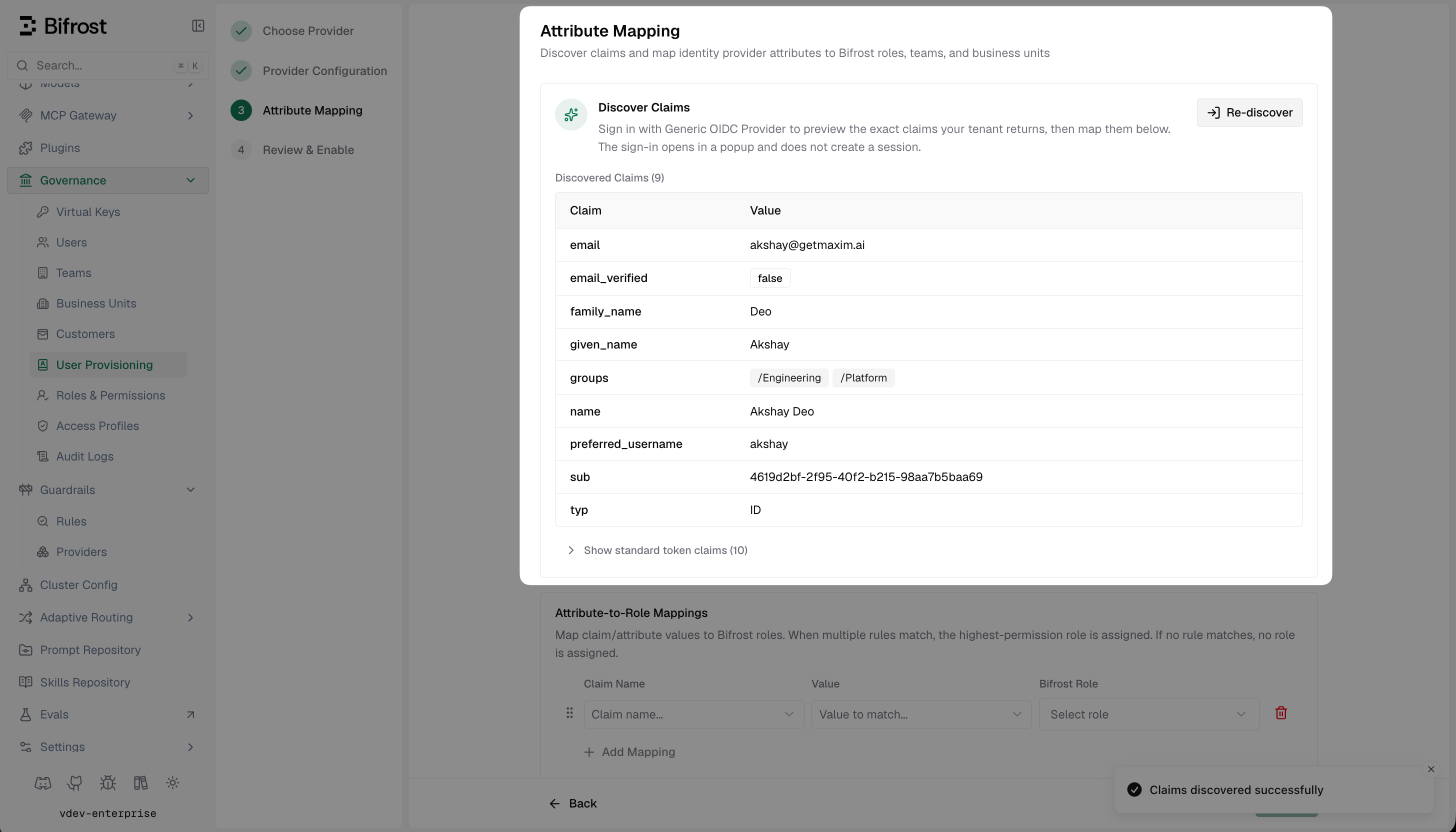
Discover Claims - shows all claims the IdP is returning in the JWT so you can reference exact names when building mappings.
openid, profile, and email scopes and that the discovery callback URI is registered.Set up attribute mappings
- The role with the most permissions (default)
- The first matching role, by list order (drag rows to set priority)
- Use a specific value (e.g.
engineering) to map that exact claim value to a named team - Use
*to sync the claim value directly as the team name - Use
${*}to extract part of the string - e.g./${*}matches/Engineeringand creates team Engineering
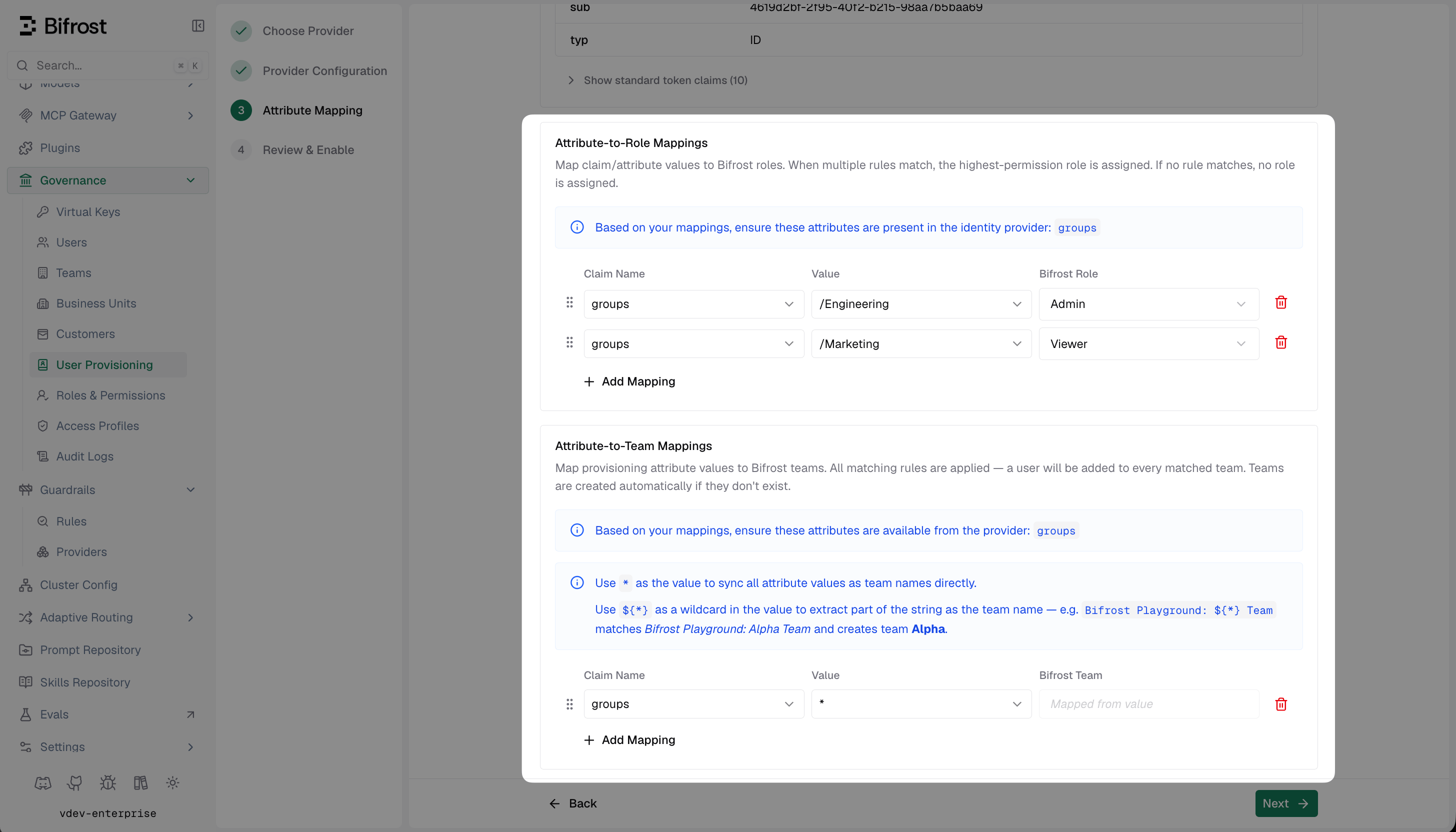
Attribute Mapping - configure role, team, and business unit rules based on the claims your IdP sends.
* maps the claim value directly as the entity name. Value comparisons are case-insensitive.Review and enable
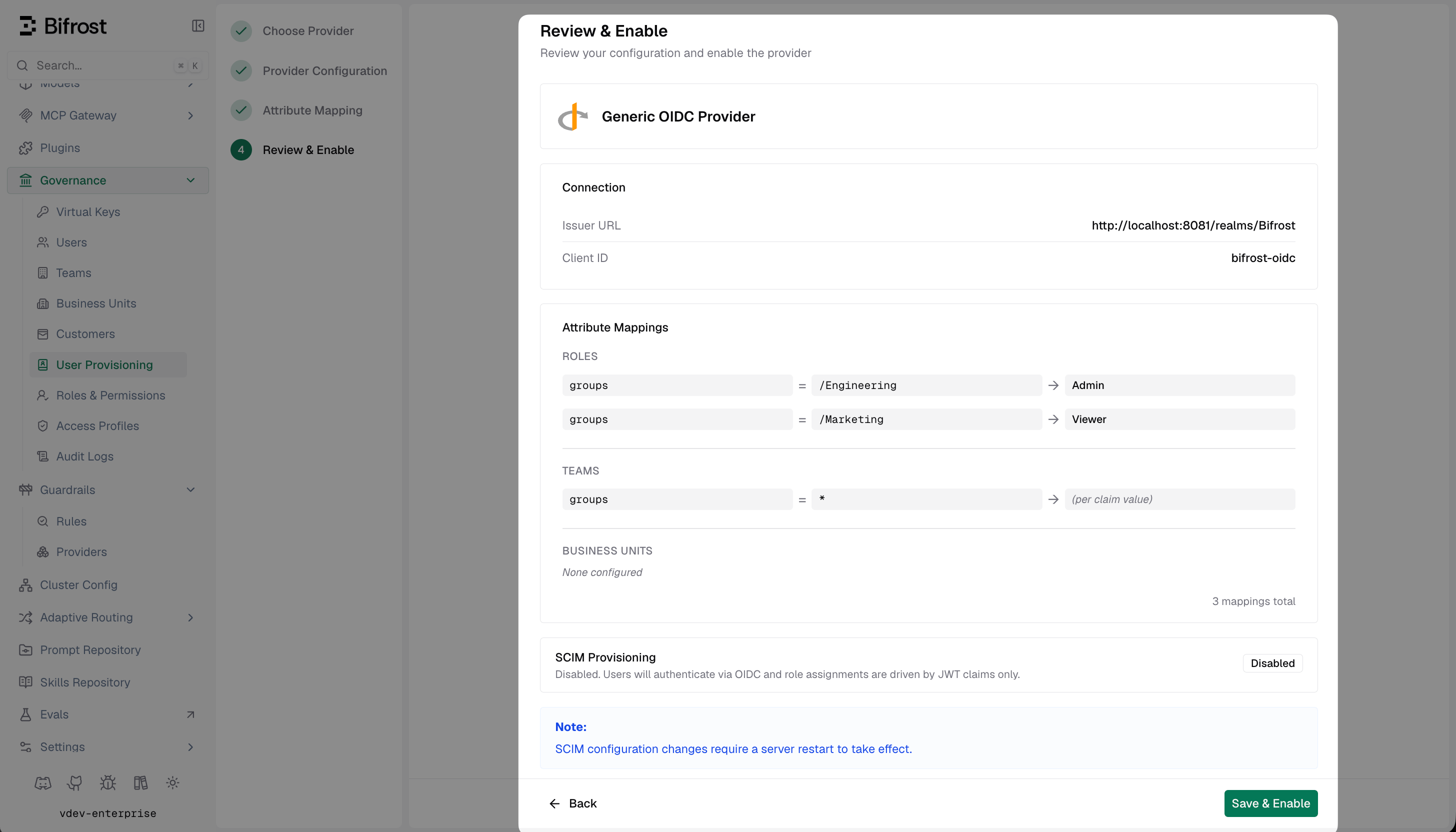
Review & Enable - confirm your connection and mappings before activating the provider.
How background sync works
Bifrost refreshes active OIDC sessions every 15 minutes. If a session cannot be refreshed, Bifrost checks with your IdP whether the user is still active; if the IdP reports the user as inactive, Bifrost decommissions that user locally. For providers that support it, see SCIM with Generic OIDC to enable real-time user and group provisioning.Troubleshooting
User is not redirected to the IdP - verify the provider is enabled in Bifrost and the server was restarted after saving. Confirm the Issuer URL has no trailing slash and is reachable from your Bifrost server. Discover endpoints or Discover Claims fails with “access to IP … is not allowed” or “resolves to a disallowed address” - your IdP is on a private network. Add its IP or CIDR range under Trusted Networks on the Provider Configuration screen (see Step 5), then retry. If the error nameslocalhost or metadata.google.internal, those hosts can never be trusted - use the IdP’s real private address or internal DNS name.
Discover endpoints fails with “URL scheme must be https” - the guard on discovery requires TLS even for internal issuers. Terminate HTTPS in front of your IdP with a certificate your Bifrost host trusts.
JWKS validation fails - Bifrost fetches <issuer>/.well-known/openid-configuration to discover the JWKS endpoint. Ensure this URL is reachable from your Bifrost host.
Audience mismatch - set the Audience field in Bifrost to match the aud claim in the JWT. Leave blank to default to the Client ID.
Claims are present in Discover Claims but role mapping is not working - confirm the claim name matches exactly what the IdP sends (case-sensitive, including namespacing). Dotted paths (e.g. realm_access.roles) are supported.
Login fails after successful IdP authentication - check that the redirect URI in your IdP exactly matches https://<your-bifrost-domain>/login. Trailing slashes and path differences are not allowed.