

1. Sign in
Open the Bifrost Edge tray or menu-bar icon and select Sign in. Edge opens the Bifrost login page in the default browser. Complete your organization’s SSO flow. When authorization succeeds, the browser hands the session back to the local Edge agent and the tray shows the signed-in user and Connected. If the tray reports User provisioning not set up - contact your Bifrost admin, the identity provider is not configured yet. Complete Prepare identity and access and sign in again.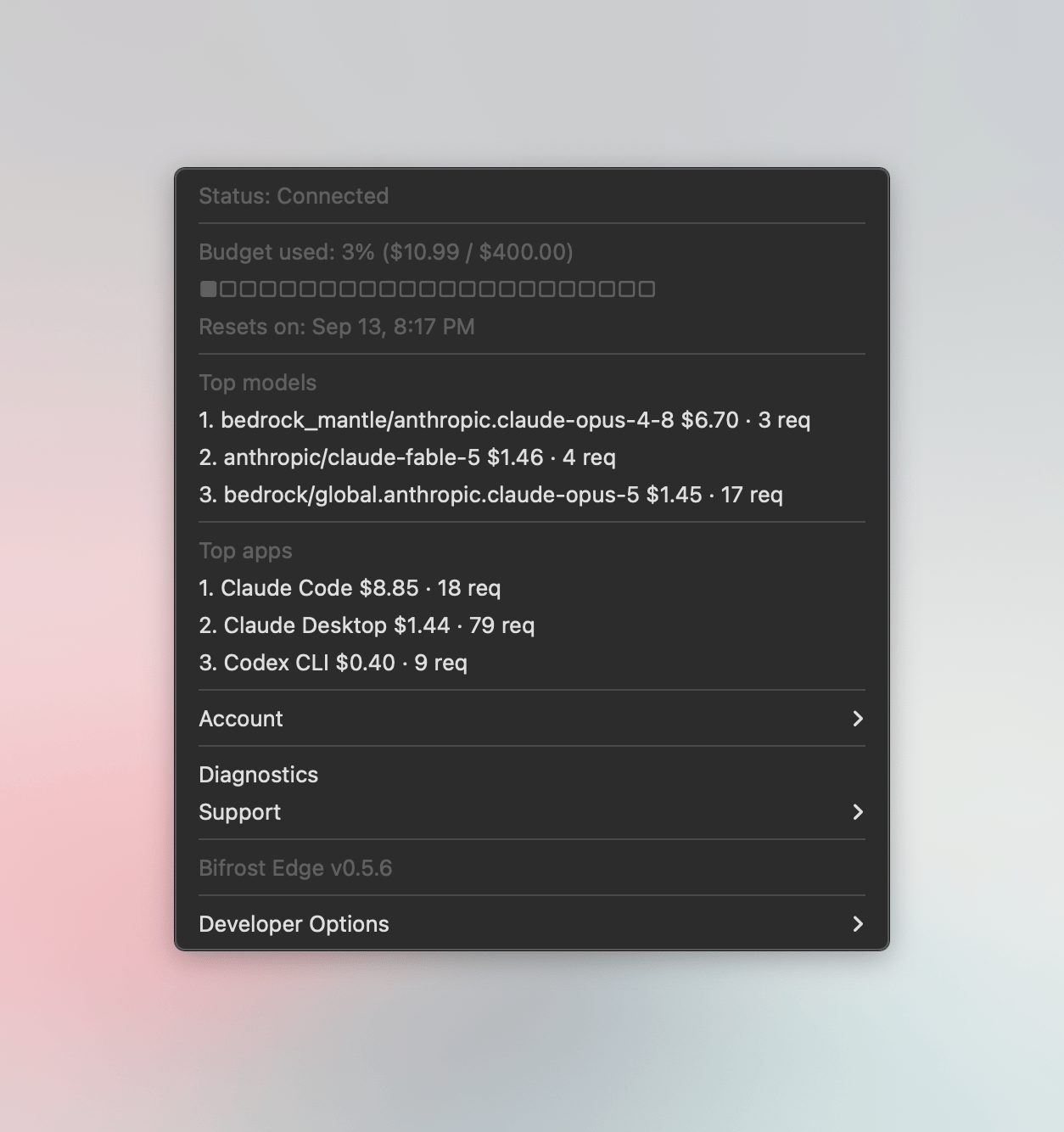
2. Complete certificate trust
On a direct macOS installation, approve the Bifrost certificate when prompted and complete the administrator authorization. A managed macOS device should already trust the CA through its device-scoped profile. Windows and Linux establish trust from the elevated agent. Until the certificate is trusted, Edge passes traffic through without inspecting it.3. Restart the computer
Restart the computer after the Edge certificate is trusted. The restart is required for the certificate change to take effect. If the certificate is replaced later, restart again after the device trusts the replacement. Do not continue to traffic verification until the computer has restarted.4. Run Diagnostics
Open Diagnostics from the Edge tray. The Overview should show a Healthy badge, with green status indicators for the checks shown below.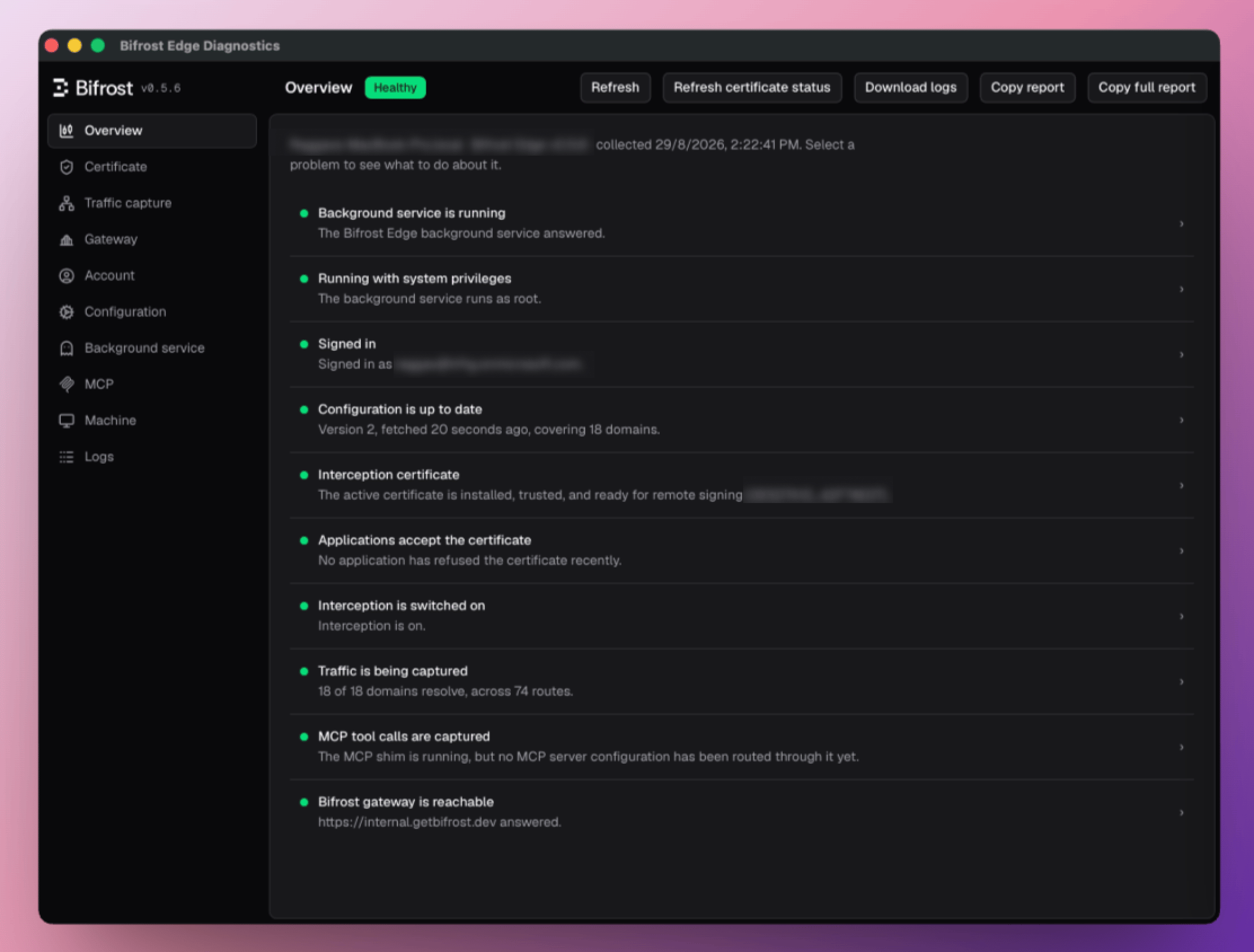
If a check is not green, select it to review its details before continuing. If Diagnostics offers Approve certificate, complete that action before testing traffic. After making a trust change and restarting the computer, use Refresh certificate status to confirm the updated state.
A healthy Diagnostics overview confirms the agent’s current checks, but it does not replace the test request later in this guide.
5. Confirm the device in Bifrost
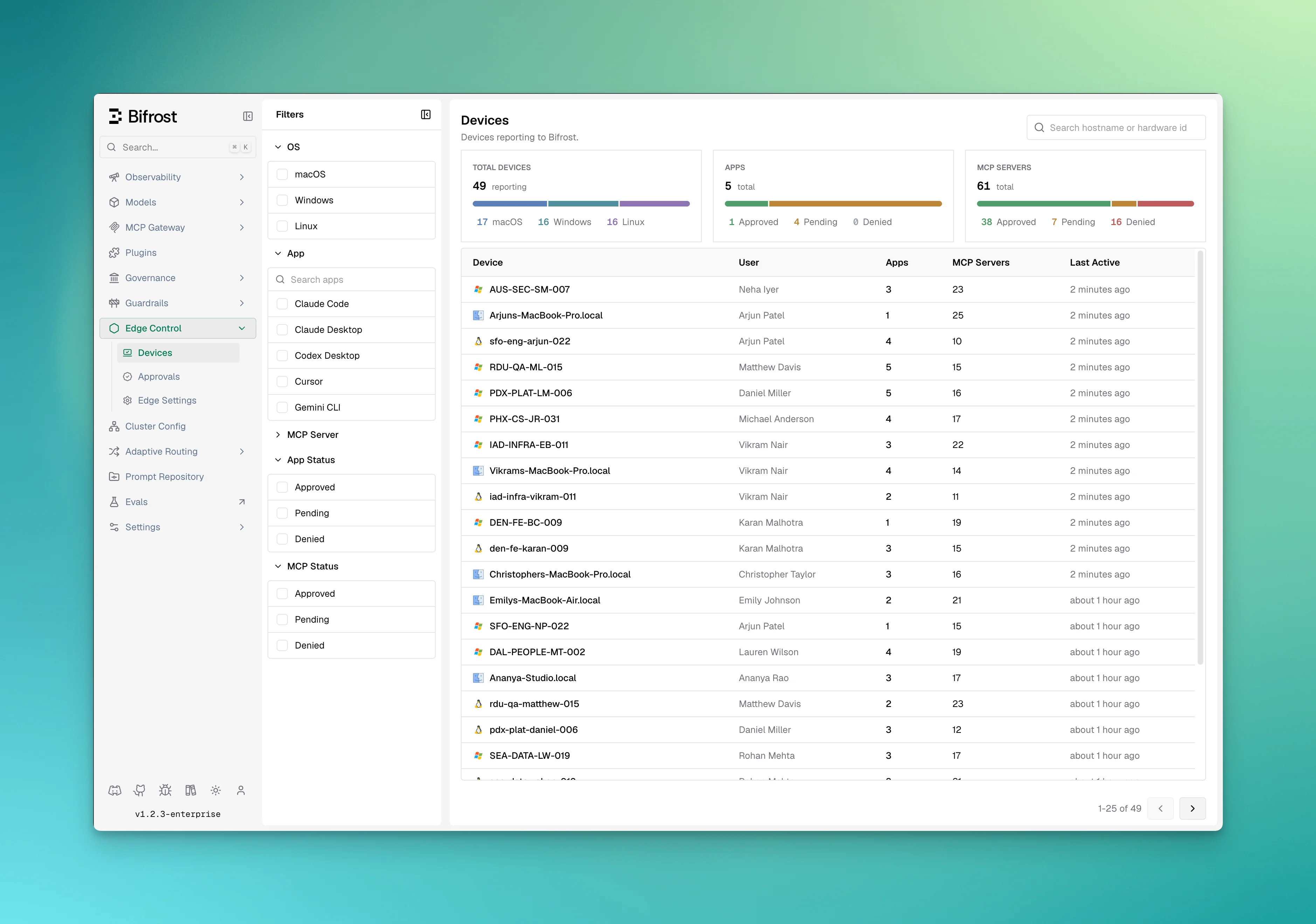
Go to Edge Control → Devices. Find the pilot device and confirm:- The owner matches the signed-in user.
- The hostname, platform, architecture, and agent version are correct.
- The device is online.
- The expected installed AI applications and MCP servers appear after inventory sync.
6. Send a test request
- After the computer restarts, open the test AI application.
- Use an application listed in Supported applications.
- Send a small test request.
- Confirm the request is visible in Bifrost logs, attributed to the signed-in user and their governed virtual key.
- Confirm the request receives the access-profile, budget, rate-limit, and guardrail behavior expected for that identity.
Only configured and supported AI domains are intercepted. Unrelated device traffic is not routed through Edge.