> ## Documentation Index
> Fetch the complete documentation index at: https://docs.getbifrost.ai/llms.txt
> Use this file to discover all available pages before exploring further.
# Set up Codex CLI with Amazon Bedrock
> Configure Bedrock-hosted GPT deployments in Bifrost and connect Codex CLI end to end.
This runbook connects Codex CLI to GPT models on Amazon Bedrock through Bifrost. The current Bedrock-hosted GPT models expose the Responses API through **Bedrock**, so this setup uses Bifrost's `bedrock` provider.
```text theme={null}
Codex model: bedrock/gpt-5.5
-> Bifrost deployment: gpt-5.5
-> Bedrock model ID: openai.gpt-5.5
```
Codex custom providers can technically send other model families through a compatible Responses endpoint. This runbook deliberately uses GPT models because they are the natural fit for Codex and Bedrock exposes their Responses API directly.
## Choose the model mappings
In this guide, a **deployment name** is the stable alias that you configure on a Bifrost provider key. Codex sends that name to Bifrost; Bifrost replaces it with the corresponding Bedrock model ID before inference.
| GPT model | Bedrock model ID | Recommended Bifrost deployment name |
| ------------- | ---------------------- | ----------------------------------- |
| GPT-5.6 Sol | `openai.gpt-5.6-sol` | `gpt-5.6-sol` |
| GPT-5.6 Terra | `openai.gpt-5.6-terra` | `gpt-5.6-terra` |
| GPT-5.6 Luna | `openai.gpt-5.6-luna` | `gpt-5.6-luna` |
| GPT-5.5 | `openai.gpt-5.5` | `gpt-5.5` |
| GPT-5.4 | `openai.gpt-5.4` | `gpt-5.4` |
Sources: [GPT-5.6 Sol](https://docs.aws.amazon.com/bedrock/latest/userguide/model-card-openai-gpt-56-sol.html), [GPT-5.6 Terra](https://docs.aws.amazon.com/bedrock/latest/userguide/model-card-openai-gpt-56-terra.html), [GPT-5.6 Luna](https://docs.aws.amazon.com/bedrock/latest/userguide/model-card-openai-gpt-56-luna.html), [GPT-5.5](https://docs.aws.amazon.com/bedrock/latest/userguide/model-card-openai-gpt-55.html), and [GPT-5.4](https://docs.aws.amazon.com/bedrock/latest/userguide/model-card-openai-gpt-54.html).
The recommended deployment names are Bifrost deployment mappings, not AWS-defined identifiers. You may choose another name, but the value selected in Codex must match the Bifrost deployment name exactly and should retain the `bedrock/` provider prefix.
## 1. Configure the Bedrock provider in Bifrost
In Bifrost, go to **Models > Model Providers > AWS Bedrock**, then add or edit the provider key that Codex will use.
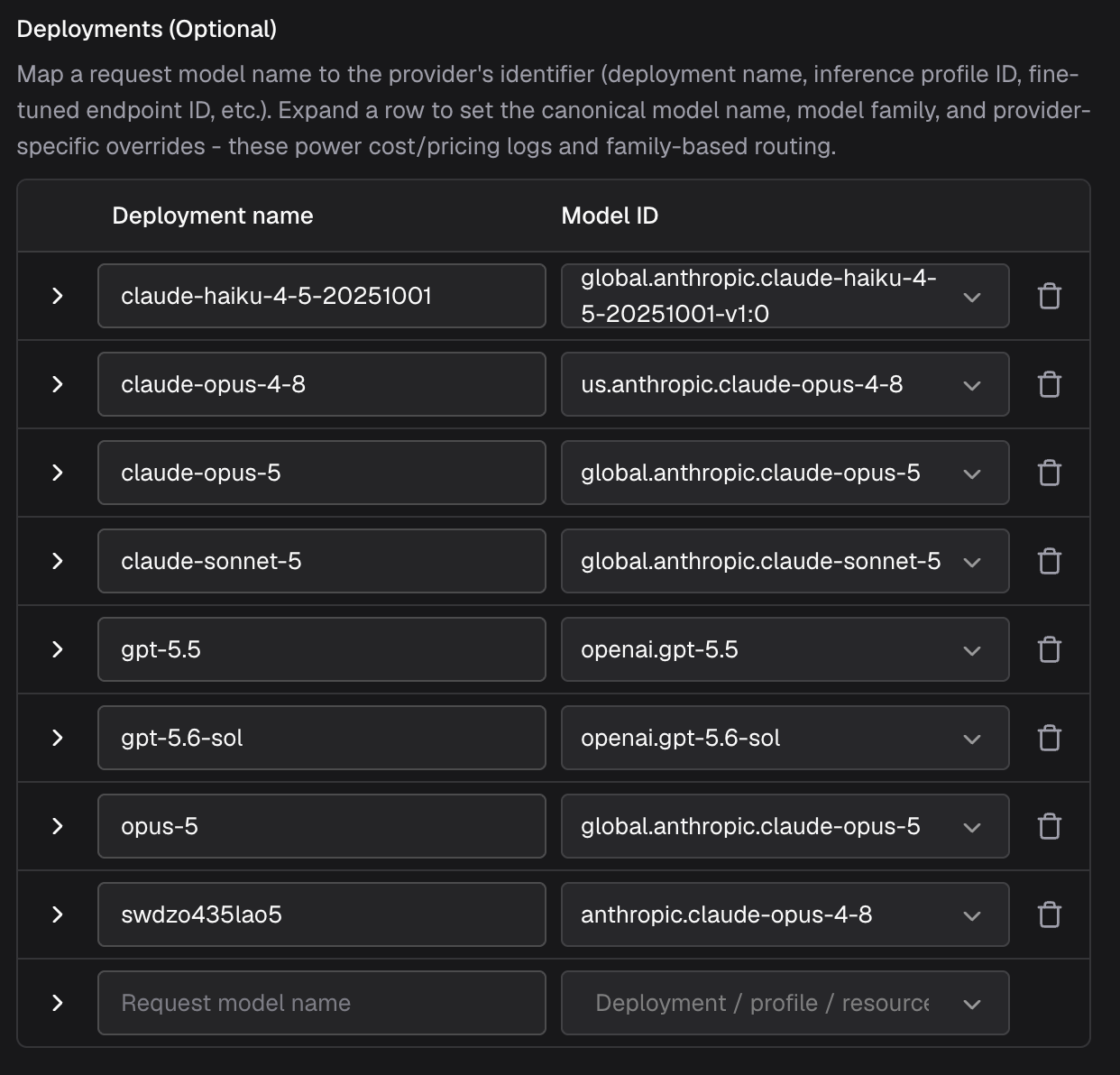 Deployment mappings do not automatically expand a restricted provider key's model allowlist. If `models` is not `*`, include every deployment name in `models` exactly as it appears in `deployments`.
See [AWS Bedrock](/providers/supported-providers/bedrock) for provider behavior.
## 2. Configure the virtual key
Create or edit the virtual key used by Codex:
1. Allow the `bedrock` provider.
2. Confirm the virtual key is active and has sufficient budget and rate limits.
## 3. Setup harness
Bifrost Edge provides the more seamless setup: it routes Codex CLI traffic through Bifrost at the machine level, so you do not need to configure a custom provider, gateway URL, or virtual key in Codex.
1. Install or deploy Bifrost Edge by following [Deploy with MDM](/edge/deployment-mdm). If Edge is already installed, skip this step.
2. Complete the one-time setup approval and sign in through your browser.
3. Open Edge from the menu bar or system tray, select the virtual key configured in the previous step, and confirm that Edge is connected.
4. Confirm that Codex CLI is allowed by your organization's [AI app policy](/edge/app-governance).
5. Install Codex using the [official Codex CLI guide](https://developers.openai.com/codex/cli/), then start it normally. No changes to `~/.codex/config.toml` or `BIFROST_API_KEY` are required.
Edge now routes Codex CLI requests through Bifrost in the background. For more detail about the user experience, see [How Edge works](/edge/how-it-works).
Install Codex using the [official Codex CLI guide](https://developers.openai.com/codex/cli/).
Put the provider configuration in the user-level `~/.codex/config.toml`:
```toml theme={null}
model = "bedrock/gpt-5.5"
model_provider = "bifrost_bedrock"
[model_providers.bifrost_bedrock]
name = "Bifrost - Amazon Bedrock"
base_url = "https://gateway.example.com/openai/v1"
env_key = "BIFROST_API_KEY"
wire_api = "responses"
supports_websockets = false
```
Replace only the gateway host; keep `/openai/v1` in the URL.
Provider and authentication settings must be in the user-level configuration. Codex ignores `model_provider` and `model_providers` in project-local `.codex/config.toml` files. See the [Codex configuration reference](https://learn.chatgpt.com/docs/config-file/config-reference#configtoml).
Export the virtual key in the shell that starts Codex:
```bash theme={null}
export BIFROST_API_KEY="your-bifrost-virtual-key"
```
Setting `supports_websockets = false` keeps Codex on HTTPS Responses requests for this custom provider.
The `bifrost_bedrock` provider ID is intentionally custom. `openai`, `ollama`, and `lmstudio` are reserved Codex provider IDs. See [Custom model providers](https://learn.chatgpt.com/docs/config-file/config-advanced#custom-model-providers).
## 4. Test Codex
With Edge, start Codex normally:
```bash theme={null}
codex
```
Without Edge, start Codex with the configured default, or select the model explicitly:
```bash theme={null}
codex --model bedrock/gpt-5.5
```
Inside Codex, run `/status`. Without Edge, confirm the provider is `bifrost_bedrock` and the model is `bedrock/gpt-5.5`. With Edge, no custom Bifrost provider appears in Codex; confirm that Edge is connected instead. Then send:
```text theme={null}
Reply with codex-bedrock-ok. Do not call any tools.
```
Open **Logs** in Bifrost and confirm the request used `bedrock` and resolved the expected deployment to its Bedrock model ID.
## Model listing and the Codex model picker
The behavior in this section applies when Codex is configured directly without Edge. Bifrost's model endpoint and Codex's interactive picker are separate behaviors:
* `GET /openai/v1/models` is the model list exposed by the Bifrost virtual key.
* The current Codex slash command is `/model`.
* Codex's `/model` picker is primarily populated from the Codex model catalog. A successful Bifrost model-list response does not guarantee that every Bifrost deployment will appear in the picker.
* Passing `bedrock/gpt-5.5` explicitly is the deterministic setup even when the picker does not list it.
Do not select an unrelated bundled model while `model_provider = "bifrost_bedrock"` is active. Codex sends the selected model through the same Bifrost provider. If Bifrost cannot map that model, the request can fail with `could not auto resolve a provider`.
### Show Bifrost deployments in the model picker
To make a Bifrost deployment appear in `/model`, copy a complete, compatible model entry from `~/.codex/models_cache.json` into a local catalog such as `~/.codex/bifrost_catalog.json`, then change its `slug` to the provider-qualified deployment name—for example, `bedrock/gpt-5.5`. Reference that catalog from the user-level `~/.codex/config.toml`:
```toml theme={null}
model_catalog_json = "/Users//.codex/bifrost_catalog.json"
```
Restart Codex after saving both files. The catalog schema and capability metadata are Codex-version-specific, so preserve the copied entry's remaining fields. For the complete entry shape and field-by-field guidance, see [Listing non-OpenAI models in the model picker](/cli-agents/codex-cli#listing-non-openai-models-in-the-model-picker).
## Switching models
Switch explicitly to another configured deployment:
```text theme={null}
/model bedrock/gpt-5.4
```
If the installed Codex version opens the picker instead of accepting the argument, restart with:
```bash theme={null}
codex --model bedrock/gpt-5.4
```
Deployment mappings do not automatically expand a restricted provider key's model allowlist. If `models` is not `*`, include every deployment name in `models` exactly as it appears in `deployments`.
See [AWS Bedrock](/providers/supported-providers/bedrock) for provider behavior.
## 2. Configure the virtual key
Create or edit the virtual key used by Codex:
1. Allow the `bedrock` provider.
2. Confirm the virtual key is active and has sufficient budget and rate limits.
## 3. Setup harness
Bifrost Edge provides the more seamless setup: it routes Codex CLI traffic through Bifrost at the machine level, so you do not need to configure a custom provider, gateway URL, or virtual key in Codex.
1. Install or deploy Bifrost Edge by following [Deploy with MDM](/edge/deployment-mdm). If Edge is already installed, skip this step.
2. Complete the one-time setup approval and sign in through your browser.
3. Open Edge from the menu bar or system tray, select the virtual key configured in the previous step, and confirm that Edge is connected.
4. Confirm that Codex CLI is allowed by your organization's [AI app policy](/edge/app-governance).
5. Install Codex using the [official Codex CLI guide](https://developers.openai.com/codex/cli/), then start it normally. No changes to `~/.codex/config.toml` or `BIFROST_API_KEY` are required.
Edge now routes Codex CLI requests through Bifrost in the background. For more detail about the user experience, see [How Edge works](/edge/how-it-works).
Install Codex using the [official Codex CLI guide](https://developers.openai.com/codex/cli/).
Put the provider configuration in the user-level `~/.codex/config.toml`:
```toml theme={null}
model = "bedrock/gpt-5.5"
model_provider = "bifrost_bedrock"
[model_providers.bifrost_bedrock]
name = "Bifrost - Amazon Bedrock"
base_url = "https://gateway.example.com/openai/v1"
env_key = "BIFROST_API_KEY"
wire_api = "responses"
supports_websockets = false
```
Replace only the gateway host; keep `/openai/v1` in the URL.
Provider and authentication settings must be in the user-level configuration. Codex ignores `model_provider` and `model_providers` in project-local `.codex/config.toml` files. See the [Codex configuration reference](https://learn.chatgpt.com/docs/config-file/config-reference#configtoml).
Export the virtual key in the shell that starts Codex:
```bash theme={null}
export BIFROST_API_KEY="your-bifrost-virtual-key"
```
Setting `supports_websockets = false` keeps Codex on HTTPS Responses requests for this custom provider.
The `bifrost_bedrock` provider ID is intentionally custom. `openai`, `ollama`, and `lmstudio` are reserved Codex provider IDs. See [Custom model providers](https://learn.chatgpt.com/docs/config-file/config-advanced#custom-model-providers).
## 4. Test Codex
With Edge, start Codex normally:
```bash theme={null}
codex
```
Without Edge, start Codex with the configured default, or select the model explicitly:
```bash theme={null}
codex --model bedrock/gpt-5.5
```
Inside Codex, run `/status`. Without Edge, confirm the provider is `bifrost_bedrock` and the model is `bedrock/gpt-5.5`. With Edge, no custom Bifrost provider appears in Codex; confirm that Edge is connected instead. Then send:
```text theme={null}
Reply with codex-bedrock-ok. Do not call any tools.
```
Open **Logs** in Bifrost and confirm the request used `bedrock` and resolved the expected deployment to its Bedrock model ID.
## Model listing and the Codex model picker
The behavior in this section applies when Codex is configured directly without Edge. Bifrost's model endpoint and Codex's interactive picker are separate behaviors:
* `GET /openai/v1/models` is the model list exposed by the Bifrost virtual key.
* The current Codex slash command is `/model`.
* Codex's `/model` picker is primarily populated from the Codex model catalog. A successful Bifrost model-list response does not guarantee that every Bifrost deployment will appear in the picker.
* Passing `bedrock/gpt-5.5` explicitly is the deterministic setup even when the picker does not list it.
Do not select an unrelated bundled model while `model_provider = "bifrost_bedrock"` is active. Codex sends the selected model through the same Bifrost provider. If Bifrost cannot map that model, the request can fail with `could not auto resolve a provider`.
### Show Bifrost deployments in the model picker
To make a Bifrost deployment appear in `/model`, copy a complete, compatible model entry from `~/.codex/models_cache.json` into a local catalog such as `~/.codex/bifrost_catalog.json`, then change its `slug` to the provider-qualified deployment name—for example, `bedrock/gpt-5.5`. Reference that catalog from the user-level `~/.codex/config.toml`:
```toml theme={null}
model_catalog_json = "/Users//.codex/bifrost_catalog.json"
```
Restart Codex after saving both files. The catalog schema and capability metadata are Codex-version-specific, so preserve the copied entry's remaining fields. For the complete entry shape and field-by-field guidance, see [Listing non-OpenAI models in the model picker](/cli-agents/codex-cli#listing-non-openai-models-in-the-model-picker).
## Switching models
Switch explicitly to another configured deployment:
```text theme={null}
/model bedrock/gpt-5.4
```
If the installed Codex version opens the picker instead of accepting the argument, restart with:
```bash theme={null}
codex --model bedrock/gpt-5.4
```