> ## Documentation Index
> Fetch the complete documentation index at: https://docs.getbifrost.ai/llms.txt
> Use this file to discover all available pages before exploring further.
# Setting Up
> Get Bifrost running as an HTTP API gateway in 30 seconds with zero configuration. Perfect for any programming language.
## 30-Second Setup
Get Bifrost running as a blazing-fast HTTP API gateway with **zero configuration**. Connect to any AI provider (OpenAI, Anthropic, Bedrock, and more) through a unified API that follows **OpenAI request/response format**.
### 1. Choose Your Setup Method
Both options work perfectly - choose what fits your workflow:
#### NPX Binary
```bash theme={null}
# Install and run locally
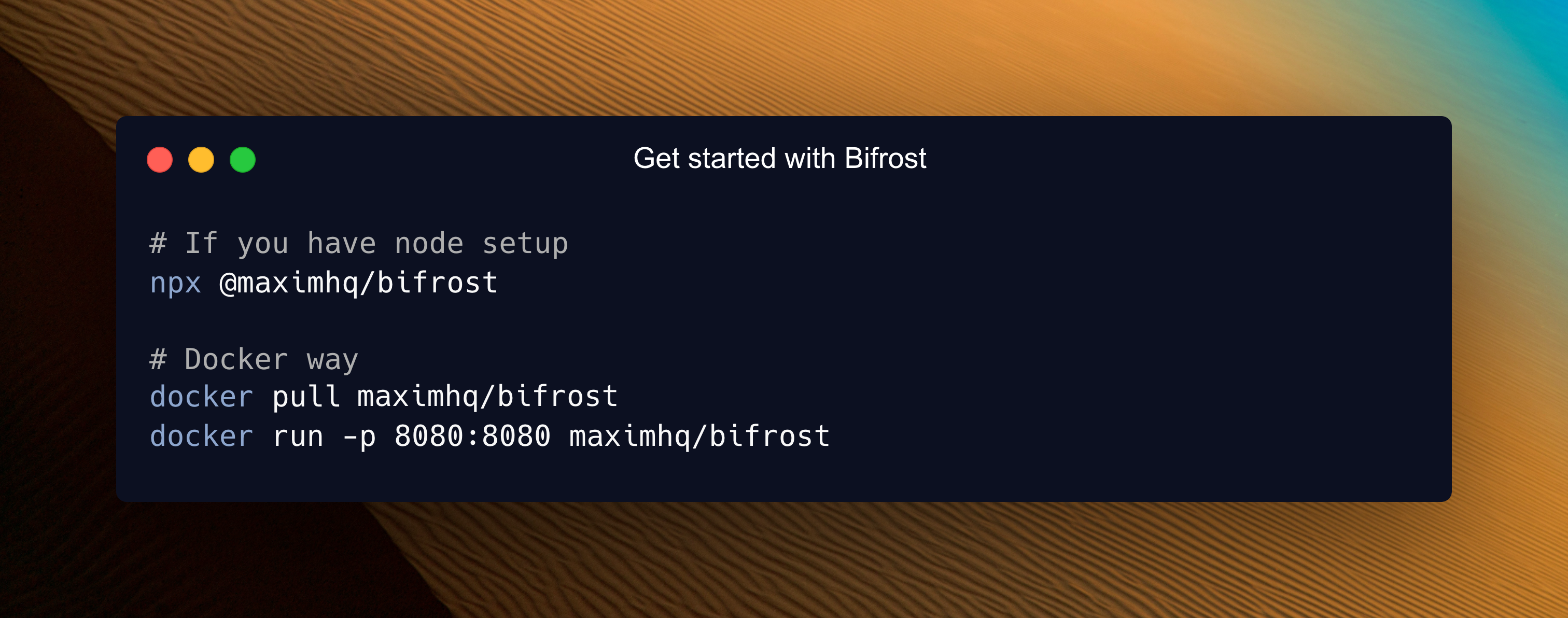
npx -y @maximhq/bifrost
# Install a specific version
npx -y @maximhq/bifrost --transport-version v1.3.9
```
#### Docker
```bash theme={null}
# Pull and run Bifrost HTTP API
docker pull maximhq/bifrost
docker run -p 8080:8080 maximhq/bifrost
# Pull a specific version
docker pull maximhq/bifrost:v1.3.9
docker pull maximhq/bifrost:v1.3.9-amd64
docker pull maximhq/bifrost:v1.3.9-arm64
```
**For Data Persistence**
```bash theme={null}
# For configuration persistence across restarts
docker run -p 8080:8080 -v $(pwd)/data:/app/data maximhq/bifrost
```
### 2. Configuration Flags
| Flag | Default | NPX | Docker | Description |
| --------- | --------- | ----------------- | ------------------------------- | ------------------------------------ |
| port | 8080 | `-port 8080` | `-e APP_PORT=8080 -p 8080:8080` | HTTP server port |
| host | localhost | `-host 0.0.0.0` | `-e APP_HOST=0.0.0.0` | Host to bind server to |
| log-level | info | `-log-level info` | `-e LOG_LEVEL=info` | Log level (debug, info, warn, error) |
| log-style | json | `-log-style json` | `-e LOG_STYLE=json` | Log style (pretty, json) |
**Understanding App Directory**
The `-app-dir` flag determines where Bifrost stores all its data:
```bash theme={null}
# Specify custom directory
npx -y @maximhq/bifrost -app-dir ./my-bifrost-data
# If not specified, creates in your OS config directory:
# • Linux/macOS: ~/.config/bifrost
# • Windows: %APPDATA%\bifrost
```
**What's stored in app-dir:**
* `config.json` - Configuration file (optional)
* `config.db` - SQLite database for UI configuration
* `logs.db` - Request logs database
**Note:** When using Bifrost via Docker, the volume you mount will be used as the app-dir.
### 3. Open the Web Interface
Navigate to **[http://localhost:8080](http://localhost:8080)** in your browser:
```bash theme={null}
# macOS
open http://localhost:8080
# Linux
xdg-open http://localhost:8080
# Windows
start http://localhost:8080
```
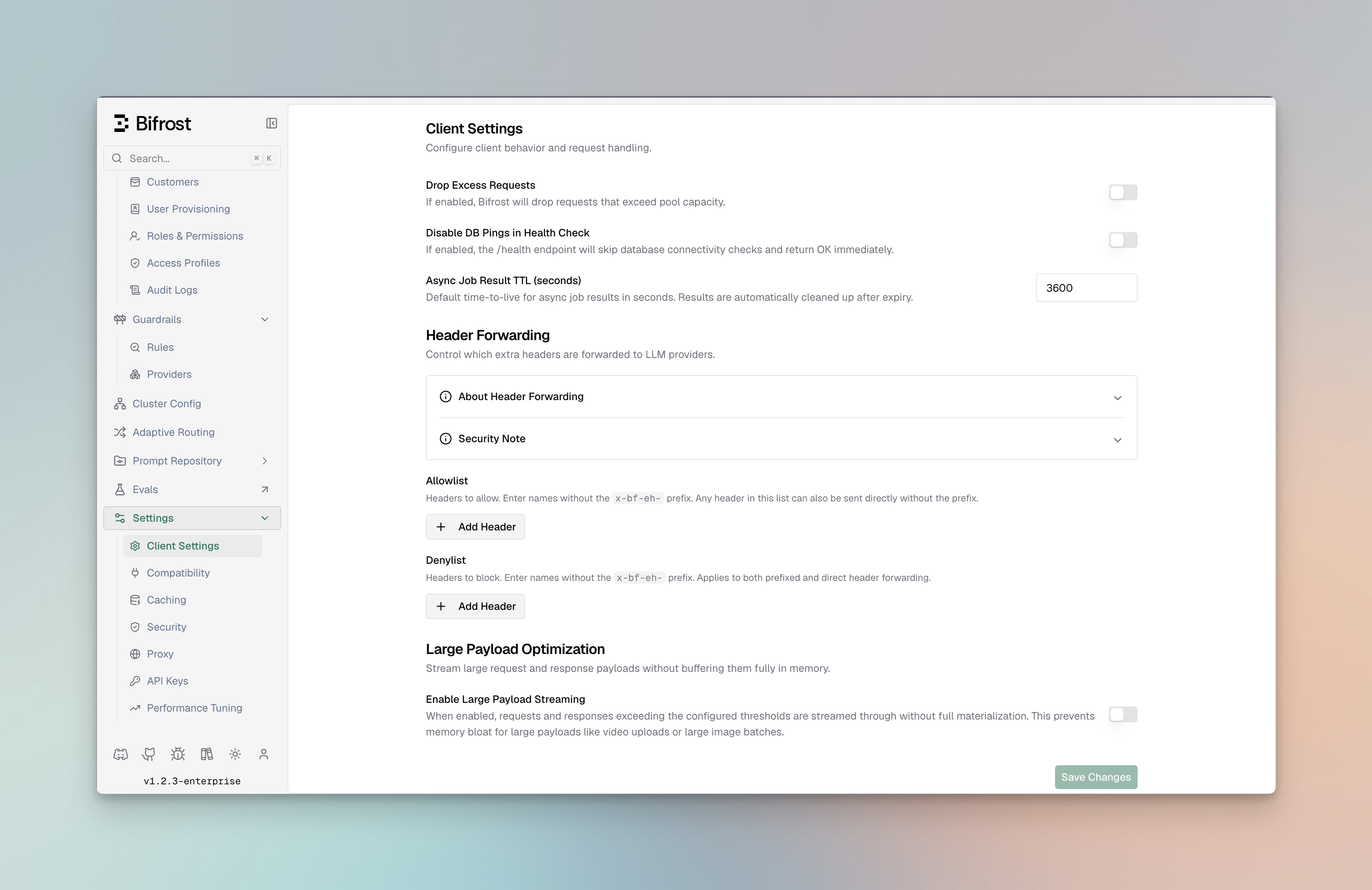
🖥️ **The Web UI provides:**
* **Visual provider setup** - Add API keys with clicks, not code
* **Real-time configuration** - Changes apply immediately
* **Live monitoring** - Request logs, metrics, and analytics
* **Governance management** - Virtual keys, usage budgets, and more
### 4. Test Your First API Call
```bash theme={null}
curl -X POST http://localhost:8080/v1/chat/completions \
-H "Content-Type: application/json" \
-d '{
"model": "openai/gpt-4o-mini",
"messages": [{"role": "user", "content": "Hello, Bifrost!"}]
}'
```
**🎉 That's it!** Bifrost is running and ready to route AI requests.
### What Just Happened?
1. **Zero Configuration Start**: Bifrost launched without any config files - everything can be configured through the Web UI or API
2. **OpenAI-Compatible API**: All Bifrost APIs follow OpenAI request/response format for seamless integration
3. **Unified API Endpoint**: `/v1/chat/completions` works with any provider (OpenAI, Anthropic, Bedrock, etc.)
4. **Provider Resolution**: `openai/gpt-4o-mini` tells Bifrost to use OpenAI's GPT-4o Mini model. You can also use bare model names like `gpt-4o-mini`, Bifrost will automatically resolve the provider via the [Model Catalog](/providers/provider-routing#default-provider-resolution)
5. **Automatic Routing**: Bifrost handles authentication, rate limiting, and request routing automatically
***
## Configuration Modes
Bifrost has two user-facing configuration modes:
| Mode | When to use it | Behavior |
| ----------------------- | ------------------------------------------------------------------------- | --------------------------------------------------------------------------------------------------------------------------------------- |
| Web UI / database | You want to manage configuration from the dashboard or management API | Bifrost stores configuration in SQLite or PostgreSQL. If `config.json` is also present, it seeds or reconciles the database at startup. |
| File-only `config.json` | You want declarative, restart-based configuration with no config database | Bifrost loads configuration from the file at startup. Config-backed UI/API edits are unavailable and file changes require restart. |
Omitting `config_store` does **not** mean file-only mode. If `config.json` exists and `config_store` is omitted, Bifrost creates the default SQLite config store and treats the file as DB-backed startup configuration. Set `config_store.enabled: false` only when the file should be the only configuration source.
**How DB-backed `config.json` interacts with database state:**
* Entities defined in `config.json` are stored with a
content-based hash on first load.
* Changes made later through the UI or API are persisted to the
database and survive pod restarts, scale-ups, and redeployments.
* Re-applying the same
`config.json` does not overwrite those database changes, because the content hash is unchanged. If
you edit an entity directly in `config.json`, its hash changes and the file-based definition
overwrites the database copy.
* Set `source_of_truth: "config.json"` only when explicitly present file sections should replace
matching DB state on startup. Missing sections leave DB rows untouched; present empty sections can
prune matching DB rows.
For the full reconciliation rules, see [Source of Truth & Reconciliation](/deployment-guides/config-json/source-of-truth).
### Mode 1: Web UI / Database Configuration
**When the UI is available:**
* No `config.json` file exists (Bifrost auto-creates SQLite database)
* `config.json` exists with `config_store` omitted or enabled
### Optional: DB-backed config.json
You can view entire config schema [here](https://www.getbifrost.ai/schema)
**When to use:** Bootstrap from file, then keep runtime UI/API configuration available.
Create `config.json` in your app directory:
```json theme={null}
{
"$schema": "https://www.getbifrost.ai/schema",
"client": {
"drop_excess_requests": false
},
"providers": {
"openai": {
"keys": [
{
"name": "openai-key-1",
"value": "env.OPENAI_API_KEY",
"models": ["gpt-4o-mini", "gpt-4o"],
"weight": 1.0
}
]
}
},
"config_store": {
"enabled": true,
"type": "sqlite",
"config": {
"path": "./config.db"
}
}
}
```
**With `config_store` omitted or enabled:**
* **UI is enabled** - full real-time configuration via web interface
* **Database check** - Bifrost reconciles `config.json` against the config store using a content-based hash per entity
* **Empty DB**: Bootstraps database with `config.json` settings, then uses DB for runtime reads
* **Existing DB**: Compares each entity's file hash to the stored `ConfigHash`. In default split mode, unchanged file-backed entities keep the DB copy so UI/API edits are preserved. If you edit that entity in `config.json`, the file definition overwrites the DB copy for that entity.
* **Persistent storage** - all changes saved to database immediately
### Mode 2: File-only config.json
**When to use:** Advanced setups, GitOps workflows, or when UI is not needed.
Set `config_store.enabled` to `false` when `config.json` should be the only configuration source:
```json theme={null}
{
"$schema": "https://www.getbifrost.ai/schema",
"providers": {
"openai": {
"keys": [
{
"name": "openai-key-1",
"value": "env.OPENAI_API_KEY",
"models": ["gpt-4o-mini", "gpt-4o"],
"weight": 1.0
}
]
}
},
"config_store": {
"enabled": false
}
}
```
* **Config UI/API edits are unavailable** - no config store is initialized
* **Read-only file** - Bifrost never modifies `config.json`
* **Memory-only config** - settings are loaded into memory at startup
* **Restart required** - changes to `config.json` apply after restart
**The Three Stores Explained:**
* **Config Store**: Stores provider configs, API keys, MCP settings - Required for UI functionality
* **Logs Store**: Stores request logs shown in UI - Optional, can be disabled
* **Vector Store**: Used for semantic caching - Optional, can be disabled
## PostgreSQL UTF8 Requirement
The minimum PostgreSQL version required is 16 or above.
For the log store, Bifrost creates materialized views to improve analytics performance. Ensure
that the PostgreSQL user has the necessary permissions to perform these operations on the target
schema.
If you are behind PgBouncer in transaction pooling mode, RDS Proxy or any proxy that does not guarantee session affinity, Bifrost migrations may fail due to concurrent session locking issues.
If you use PostgreSQL for `config_store` or `logs_store`, the target database must use `UTF8` encoding.
Use `template0` when creating the database so PostgreSQL applies UTF8 and locale settings explicitly:
```sql theme={null}
CREATE DATABASE bifrost
WITH TEMPLATE template0
ENCODING 'UTF8'
LC_COLLATE ''
LC_CTYPE '';
```
Use locale names that exist in your Postgres image/host (for example, `en_US.UTF-8`, `C.UTF-8`, or another installed UTF-8 locale).
Verify the database encoding:
```sql theme={null}
SELECT datname, pg_encoding_to_char(encoding) AS encoding
FROM pg_database
WHERE datname = 'bifrost';
```
If the database is not UTF8, Bifrost startup/migrations can fail with:
```text theme={null}
simple protocol queries must be run with client_encoding=UTF8
```
If you already created a SQL\_ASCII database, create a new UTF8 database and update your Bifrost DB config to point to it.
***
## Next Steps
Now that you have Bifrost running, explore these focused guides:
### Essential Topics
* **[Provider Configuration](./provider-configuration)** - Multiple providers, automatic failovers & load balancing
* **[Integrations](../../integrations/what-is-an-integration)** - Drop-in replacements for OpenAI, Anthropic, and GenAI SDKs
* **[Multimodal Support](./multimodal)** - Support for text, images, audio, and streaming, all behind a common interface.
### Advanced Topics
* **[Tracing](../../features/observability/default)** - Logging requests for monitoring and debugging
* **[MCP Tools](../../mcp/overview)** - Enable AI models to use external tools (filesystem, web search, databases)
* **[Governance](../../features/governance/virtual-keys)** - Usage tracking, rate limiting, and cost control
* **[Deployment](../../deployment-guides/k8s)** - Production setup and scaling
***
**Happy building with Bifrost!** 🚀
 ## 30-Second Setup
Get Bifrost running as a blazing-fast HTTP API gateway with **zero configuration**. Connect to any AI provider (OpenAI, Anthropic, Bedrock, and more) through a unified API that follows **OpenAI request/response format**.
### 1. Choose Your Setup Method
Both options work perfectly - choose what fits your workflow:
#### NPX Binary
```bash theme={null}
# Install and run locally
npx -y @maximhq/bifrost
# Install a specific version
npx -y @maximhq/bifrost --transport-version v1.3.9
```
#### Docker
```bash theme={null}
# Pull and run Bifrost HTTP API
docker pull maximhq/bifrost
docker run -p 8080:8080 maximhq/bifrost
# Pull a specific version
docker pull maximhq/bifrost:v1.3.9
docker pull maximhq/bifrost:v1.3.9-amd64
docker pull maximhq/bifrost:v1.3.9-arm64
```
**For Data Persistence**
```bash theme={null}
# For configuration persistence across restarts
docker run -p 8080:8080 -v $(pwd)/data:/app/data maximhq/bifrost
```
### 2. Configuration Flags
| Flag | Default | NPX | Docker | Description |
| --------- | --------- | ----------------- | ------------------------------- | ------------------------------------ |
| port | 8080 | `-port 8080` | `-e APP_PORT=8080 -p 8080:8080` | HTTP server port |
| host | localhost | `-host 0.0.0.0` | `-e APP_HOST=0.0.0.0` | Host to bind server to |
| log-level | info | `-log-level info` | `-e LOG_LEVEL=info` | Log level (debug, info, warn, error) |
| log-style | json | `-log-style json` | `-e LOG_STYLE=json` | Log style (pretty, json) |
**Understanding App Directory**
The `-app-dir` flag determines where Bifrost stores all its data:
```bash theme={null}
# Specify custom directory
npx -y @maximhq/bifrost -app-dir ./my-bifrost-data
# If not specified, creates in your OS config directory:
# • Linux/macOS: ~/.config/bifrost
# • Windows: %APPDATA%\bifrost
```
**What's stored in app-dir:**
* `config.json` - Configuration file (optional)
* `config.db` - SQLite database for UI configuration
* `logs.db` - Request logs database
**Note:** When using Bifrost via Docker, the volume you mount will be used as the app-dir.
### 3. Open the Web Interface
Navigate to **[http://localhost:8080](http://localhost:8080)** in your browser:
```bash theme={null}
# macOS
open http://localhost:8080
# Linux
xdg-open http://localhost:8080
# Windows
start http://localhost:8080
```
🖥️ **The Web UI provides:**
* **Visual provider setup** - Add API keys with clicks, not code
* **Real-time configuration** - Changes apply immediately
* **Live monitoring** - Request logs, metrics, and analytics
* **Governance management** - Virtual keys, usage budgets, and more
### 4. Test Your First API Call
```bash theme={null}
curl -X POST http://localhost:8080/v1/chat/completions \
-H "Content-Type: application/json" \
-d '{
"model": "openai/gpt-4o-mini",
"messages": [{"role": "user", "content": "Hello, Bifrost!"}]
}'
```
**🎉 That's it!** Bifrost is running and ready to route AI requests.
### What Just Happened?
1. **Zero Configuration Start**: Bifrost launched without any config files - everything can be configured through the Web UI or API
2. **OpenAI-Compatible API**: All Bifrost APIs follow OpenAI request/response format for seamless integration
3. **Unified API Endpoint**: `/v1/chat/completions` works with any provider (OpenAI, Anthropic, Bedrock, etc.)
4. **Provider Resolution**: `openai/gpt-4o-mini` tells Bifrost to use OpenAI's GPT-4o Mini model. You can also use bare model names like `gpt-4o-mini`, Bifrost will automatically resolve the provider via the [Model Catalog](/providers/provider-routing#default-provider-resolution)
5. **Automatic Routing**: Bifrost handles authentication, rate limiting, and request routing automatically
***
## Configuration Modes
Bifrost has two user-facing configuration modes:
| Mode | When to use it | Behavior |
| ----------------------- | ------------------------------------------------------------------------- | --------------------------------------------------------------------------------------------------------------------------------------- |
| Web UI / database | You want to manage configuration from the dashboard or management API | Bifrost stores configuration in SQLite or PostgreSQL. If `config.json` is also present, it seeds or reconciles the database at startup. |
| File-only `config.json` | You want declarative, restart-based configuration with no config database | Bifrost loads configuration from the file at startup. Config-backed UI/API edits are unavailable and file changes require restart. |
## 30-Second Setup
Get Bifrost running as a blazing-fast HTTP API gateway with **zero configuration**. Connect to any AI provider (OpenAI, Anthropic, Bedrock, and more) through a unified API that follows **OpenAI request/response format**.
### 1. Choose Your Setup Method
Both options work perfectly - choose what fits your workflow:
#### NPX Binary
```bash theme={null}
# Install and run locally
npx -y @maximhq/bifrost
# Install a specific version
npx -y @maximhq/bifrost --transport-version v1.3.9
```
#### Docker
```bash theme={null}
# Pull and run Bifrost HTTP API
docker pull maximhq/bifrost
docker run -p 8080:8080 maximhq/bifrost
# Pull a specific version
docker pull maximhq/bifrost:v1.3.9
docker pull maximhq/bifrost:v1.3.9-amd64
docker pull maximhq/bifrost:v1.3.9-arm64
```
**For Data Persistence**
```bash theme={null}
# For configuration persistence across restarts
docker run -p 8080:8080 -v $(pwd)/data:/app/data maximhq/bifrost
```
### 2. Configuration Flags
| Flag | Default | NPX | Docker | Description |
| --------- | --------- | ----------------- | ------------------------------- | ------------------------------------ |
| port | 8080 | `-port 8080` | `-e APP_PORT=8080 -p 8080:8080` | HTTP server port |
| host | localhost | `-host 0.0.0.0` | `-e APP_HOST=0.0.0.0` | Host to bind server to |
| log-level | info | `-log-level info` | `-e LOG_LEVEL=info` | Log level (debug, info, warn, error) |
| log-style | json | `-log-style json` | `-e LOG_STYLE=json` | Log style (pretty, json) |
**Understanding App Directory**
The `-app-dir` flag determines where Bifrost stores all its data:
```bash theme={null}
# Specify custom directory
npx -y @maximhq/bifrost -app-dir ./my-bifrost-data
# If not specified, creates in your OS config directory:
# • Linux/macOS: ~/.config/bifrost
# • Windows: %APPDATA%\bifrost
```
**What's stored in app-dir:**
* `config.json` - Configuration file (optional)
* `config.db` - SQLite database for UI configuration
* `logs.db` - Request logs database
**Note:** When using Bifrost via Docker, the volume you mount will be used as the app-dir.
### 3. Open the Web Interface
Navigate to **[http://localhost:8080](http://localhost:8080)** in your browser:
```bash theme={null}
# macOS
open http://localhost:8080
# Linux
xdg-open http://localhost:8080
# Windows
start http://localhost:8080
```
🖥️ **The Web UI provides:**
* **Visual provider setup** - Add API keys with clicks, not code
* **Real-time configuration** - Changes apply immediately
* **Live monitoring** - Request logs, metrics, and analytics
* **Governance management** - Virtual keys, usage budgets, and more
### 4. Test Your First API Call
```bash theme={null}
curl -X POST http://localhost:8080/v1/chat/completions \
-H "Content-Type: application/json" \
-d '{
"model": "openai/gpt-4o-mini",
"messages": [{"role": "user", "content": "Hello, Bifrost!"}]
}'
```
**🎉 That's it!** Bifrost is running and ready to route AI requests.
### What Just Happened?
1. **Zero Configuration Start**: Bifrost launched without any config files - everything can be configured through the Web UI or API
2. **OpenAI-Compatible API**: All Bifrost APIs follow OpenAI request/response format for seamless integration
3. **Unified API Endpoint**: `/v1/chat/completions` works with any provider (OpenAI, Anthropic, Bedrock, etc.)
4. **Provider Resolution**: `openai/gpt-4o-mini` tells Bifrost to use OpenAI's GPT-4o Mini model. You can also use bare model names like `gpt-4o-mini`, Bifrost will automatically resolve the provider via the [Model Catalog](/providers/provider-routing#default-provider-resolution)
5. **Automatic Routing**: Bifrost handles authentication, rate limiting, and request routing automatically
***
## Configuration Modes
Bifrost has two user-facing configuration modes:
| Mode | When to use it | Behavior |
| ----------------------- | ------------------------------------------------------------------------- | --------------------------------------------------------------------------------------------------------------------------------------- |
| Web UI / database | You want to manage configuration from the dashboard or management API | Bifrost stores configuration in SQLite or PostgreSQL. If `config.json` is also present, it seeds or reconciles the database at startup. |
| File-only `config.json` | You want declarative, restart-based configuration with no config database | Bifrost loads configuration from the file at startup. Config-backed UI/API edits are unavailable and file changes require restart. |
 **When the UI is available:**
* No `config.json` file exists (Bifrost auto-creates SQLite database)
* `config.json` exists with `config_store` omitted or enabled
### Optional: DB-backed config.json
**When the UI is available:**
* No `config.json` file exists (Bifrost auto-creates SQLite database)
* `config.json` exists with `config_store` omitted or enabled
### Optional: DB-backed config.json