> ## Documentation Index
> Fetch the complete documentation index at: https://docs.getbifrost.ai/llms.txt
> Use this file to discover all available pages before exploring further.
# Bifrost as an MCP Gateway
> Expose Bifrost as an MCP server for Claude Desktop and other MCP clients.
This feature is only available on `v1.4.0-prerelease1` and above.
This feature is only available in the **Gateway** deployment. It is not available when using Bifrost as a Go SDK.
## Overview
Bifrost can act as an **MCP server**, exposing all your connected MCP tools to external MCP clients like Claude Desktop, Cursor, or any other MCP-compatible application.
This enables a powerful pattern:
* Connect Bifrost to multiple MCP servers (filesystem, web search, databases, etc.)
* Expose all those tools through a single MCP endpoint
* External clients connect to Bifrost and get access to all aggregated tools
```mermaid theme={null}
graph TD
Clients["External MCP Clients
Claude Desktop, Cursor
Custom Apps"]
Gateway["Bifrost Gateway"]
Endpoints["Endpoints
POST /mcp: JSON-RPC
GET /mcp: SSE Stream"]
Registry["Aggregated Tool Registry
filesystem • web search
databases • custom tools"]
Servers["External MCP Servers
filesystem • web-search
databases • custom"]
Clients -->|MCP Protocol
HTTP/SSE| Gateway
Gateway --> Endpoints
Gateway --> Registry
Gateway -->|MCP Protocol| Servers
style Clients fill:#F3E5F5,stroke:#4A148C,stroke-width:2.5px,color:#1A1A1A
style Gateway fill:#E8F5E9,stroke:#1B5E20,stroke-width:2.5px,color:#1A1A1A
style Endpoints fill:#E3F2FD,stroke:#0D47A1,stroke-width:2.5px,color:#1A1A1A
style Registry fill:#FFF3E0,stroke:#BF360C,stroke-width:2.5px,color:#1A1A1A
style Servers fill:#FFFDE7,stroke:#F57F17,stroke-width:2.5px,color:#1A1A1A
```
***
## Endpoints
| Endpoint | Method | Purpose |
| -------- | ------ | ------------------------------------------------------ |
| `/mcp` | POST | JSON-RPC 2.0 messages for tool discovery and execution |
| `/mcp` | GET | Server-Sent Events (SSE) for persistent connections |
### POST /mcp (JSON-RPC)
Handle JSON-RPC 2.0 messages for tool listing and execution:
```bash theme={null}
# List available tools
curl -X POST http://localhost:8080/mcp \
-H "Content-Type: application/json" \
-d '{
"jsonrpc": "2.0",
"id": 1,
"method": "tools/list"
}'
# Call a tool
curl -X POST http://localhost:8080/mcp \
-H "Content-Type: application/json" \
-d '{
"jsonrpc": "2.0",
"id": 2,
"method": "tools/call",
"params": {
"name": "filesystem_read_file",
"arguments": {
"path": "/tmp/test.txt"
}
}
}'
```
### GET /mcp (SSE)
Establish a persistent SSE connection for real-time communication:
```bash theme={null}
curl -N http://localhost:8080/mcp \
-H "Accept: text/event-stream"
```
The SSE endpoint sends:
* `connection/opened` message on connect
* Keeps connection alive until client disconnects
***
## External MCP Client Integration
The `/mcp` endpoint supports any MCP-compatible client that can communicate via HTTP or SSE:
* **Claude Desktop** - macOS and Windows desktop application
* **Cursor** - IDE with MCP support
* **Custom Applications** - Any app implementing the MCP protocol
* **Browser Extensions** - Tools with MCP client capability
To connect an external MCP client, configure it to connect to:
```
http://your-bifrost-gateway/mcp
```
Include any required Virtual Key authentication headers if governance is enabled.
***
## Virtual Key Authentication
Bifrost supports per-Virtual Key MCP servers, allowing you to expose different tools to different clients.
Header credentials are one of two ways clients authenticate to `/mcp`. Clients can also connect through a browser-based OAuth flow — see [Gateway Authentication](./gateway-auth) for the `mcp_server_auth_mode` setting and the OAuth connect flow.
### Global Server (No Virtual Key)
When `enforce_auth_on_inference` is `false`, requests without a Virtual Key use the global MCP server with all available tools.
### Virtual Key-Specific Servers
When using Virtual Keys, each VK gets its own MCP server with filtered tools based on its configuration.
**Authenticate with Virtual Key:**
```bash theme={null}
# Via x-bf-vk header
curl -X POST http://localhost:8080/mcp \
-H "x-bf-vk: vk_your_virtual_key" \
-H "Content-Type: application/json" \
-d '{"jsonrpc": "2.0", "id": 1, "method": "tools/list"}'
# Via Authorization header
curl -X POST http://localhost:8080/mcp \
-H "Authorization: Bearer vk_your_virtual_key" \
-H "Content-Type: application/json" \
-d '{"jsonrpc": "2.0", "id": 1, "method": "tools/list"}'
# Via X-Api-Key header
curl -X POST http://localhost:8080/mcp \
-H "X-Api-Key: vk_your_virtual_key" \
-H "Content-Type: application/json" \
-d '{"jsonrpc": "2.0", "id": 1, "method": "tools/list"}'
# Via x-goog-api-key header
curl -X POST http://localhost:8080/mcp \
-H "x-goog-api-key: vk_your_virtual_key" \
-H "Content-Type: application/json" \
-d '{"jsonrpc": "2.0", "id": 1, "method": "tools/list"}'
```
**Claude Desktop with Virtual Key:**
```json theme={null}
{
"mcpServers": {
"bifrost-production": {
"url": "http://localhost:8080/mcp",
"headers": {
"Authorization": "Bearer vk_your_production_key"
}
},
"bifrost-development": {
"url": "http://localhost:8080/mcp",
"headers": {
"Authorization": "Bearer vk_your_development_key"
}
}
}
}
```
***
## Tool Filtering for MCP Clients
Control which tools are exposed to MCP clients using Virtual Keys:
### Per-Virtual Key Tool Access
Configure which tools each Virtual Key can access:
```json theme={null}
{
"governance": {
"virtual_keys": [
{
"name": "production-key",
"mcp_configs": [
{
"mcp_client_name": "filesystem",
"tools_to_execute": ["read_file", "list_directory"]
},
{
"mcp_client_name": "web_search",
"tools_to_execute": ["*"]
}
]
},
{
"name": "admin-key",
"mcp_configs": [
{
"mcp_client_name": "filesystem",
"tools_to_execute": ["*"]
},
{
"mcp_client_name": "database",
"tools_to_execute": ["*"]
}
]
}
]
}
}
```
Learn more about Virtual Key tool filtering in [MCP Tool Filtering](../features/governance/mcp-tools).
***
## Tool Auto-Execution Is Client-Side in Gateway Mode
The `tools_to_auto_execute` field on an MCP client config controls whether Bifrost auto-runs a tool call vs. surfacing it for manual approval. **This setting only applies in [Agent Mode](./agent-mode)** — when Bifrost is also running the LLM loop and gating tool calls between model turns.
When you use Bifrost purely as an MCP Gateway (the setup this page covers — Claude Desktop, Cursor, Cline, or any other MCP host connecting to Bifrost over `/mcp`), Bifrost has no LLM loop and no concept of "auto-execute vs. wait for approval." Bifrost just exposes tools over the MCP protocol; the host application is the one running the agent loop, deciding whether each `tools/call` requires user confirmation, and surfacing the approval UI.
Configure the auto-approval policy in your MCP client's own settings:
* **Claude Desktop**: tool-approval is per-tool in the host's settings.
* **Cursor / Cline / Continue**: each has its own "auto-approve" or "trust" lists in the MCP integration config.
* **Custom MCP hosts**: the SDK you're using (mark3labs/mcp-go, @modelcontextprotocol/sdk-typescript, etc.) typically exposes a callback for tool-call confirmation that you wire up yourself.
`tools_to_auto_execute` set on the Bifrost MCP client config will be silently ignored in gateway mode — it isn't an error, just a no-op.
***
## Advanced Gateway Features
### Health Monitoring
Bifrost automatically monitors the health of connected MCP clients:
**How it works:**
* **Ping Mechanism:** Every 10 seconds (configurable), sends a ping to each connected client
* **Check Timeout:** Each ping has a 5-second timeout
* **Failure Threshold:** After 5 consecutive failed pings, client is marked as `disconnected`
* **State Tracking:** Real-time state updates (connected ↔ disconnected)
* **Manual Reconnection:** Once disconnected, requires manual reconnect via API or UI
**Configuration:**
```json theme={null}
{
"mcp": {
"health_monitor_config": {
"check_interval": "10s",
"check_timeout": "5s",
"max_consecutive_failures": 5
}
}
}
```
When a client is disconnected after 5 consecutive failed health checks, tools from that client become unavailable. You can manually reconnect using the API or Go SDK:
**Gateway API:**
```bash theme={null}
POST /api/mcp/client/{id}/reconnect
```
**Go SDK:**
```go theme={null}
// Reconnect a disconnected MCP client
err := client.ReconnectMCPClient(context.Background(), clientID)
if err != nil {
// Handle reconnection error
log.Printf("Failed to reconnect client: %v", err)
}
```
### Request ID Tracking
For Agent Mode operations, Bifrost can track intermediate tool executions:
```go theme={null}
mcpConfig := &schemas.MCPConfig{
FetchNewRequestIDFunc: func(ctx context.Context) string {
// Generate unique ID per agent iteration
return fmt.Sprintf("agent-%s-%d", ctx.Value("original-id"), time.Now().UnixMilli())
},
}
```
This enables detailed audit trails for autonomous tool execution.
### Dynamic Tool Discovery
Tools are discovered from MCP servers during:
1. **Client Connection** - Initial ListTools request
2. **Runtime Updates** - When server tool list changes
3. **Configuration Changes** - When tools\_to\_execute is updated
The MCP Server dynamically updates its tool registry from the tool manager.
***
## Per-User Auth on the Gateway
When at least one upstream MCP server is configured with `per_user_oauth` or `per_user_headers`, the `/mcp` endpoint serves per-user credentials lazily, keyed to the inbound caller's identity. How that identity is established depends on the [gateway auth mode](./gateway-auth): in the default `headers` mode, clients identify themselves via headers (below); in `both` / `oauth` mode, a Bifrost-issued JWT carries the identity instead.
In `headers` mode, inbound MCP clients identify themselves via headers:
* `x-bf-vk: ` (or `Authorization: Bearer ` / `x-api-key: ` / `x-goog-api-key: `) — VK-mode identity
* `x-bf-mcp-session-id: ` — session-mode identity (client-asserted, must be re-sent on every call)
* Enterprise SSO — user-mode identity, attached automatically by the auth middleware
When a tool call hits an MCP server the caller hasn't authenticated against, Bifrost returns an `mcp_auth_required` tool result with an inline URL the user must visit. The payload carries a `kind` discriminator:
* `kind: "oauth"` → `authorize_url` points at the upstream provider's consent page (via a Bifrost intermediate)
* `kind: "headers"` → `submit_url` points at a Bifrost form where the user enters their header values
The natural-language message also embeds the URL so plain-text MCP clients (curl, basic SDK wrappers) see it without having to parse the structured payload. Once the user completes the URL action, Bifrost stores the credential against the caller's identity and the next tool call executes normally.
Who can open and complete that URL depends on the flow's identity mode (frozen when the URL is minted):
* **User-mode flows** require the bound SSO user — anyone else opening the URL gets a `403`. User-owned VKs auto-promote to user-mode.
* **VK-mode and session-mode flows** are openable by anyone holding the URL. By default they still require a Bifrost dashboard session in the browser; turn on [`mcp_enable_temp_token_auth`](./auth/overview#the-mcp_enable_temp_token_auth-toggle) to let anonymous browsers complete them via a short-lived `#t=` URL fragment.
See [Flow mode and access rules →](./auth/overview#flow-mode-and-access-rules) for the full per-mode behavior.
In the default `headers` [auth mode](./gateway-auth), Claude Code may proactively POST `/oauth2/register` (RFC 7591 DCR) on `claude mcp add` and log `SDK auth failed: …` — discovery and registration aren't served in that mode, so the probe has no endpoint to hit. The `/mcp` connection itself still works. In `both` / `oauth` mode the probe is handled by Bifrost's authorization server and the message doesn't appear. See the [Claude Code bug report](https://github.com/anthropics/claude-code/issues/46640) for context.
See [Per-User OAuth →](./auth/per-user-oauth) and [Per-User Headers →](./auth/per-user-headers) for the full flows and identity options, and [MCP Sessions →](./sessions) for managing the resulting credentials.
### Public URL configuration when behind a proxy
The URLs Bifrost surfaces (consent pages, header-submission pages, and the `redirect_uri` it registers with upstream OAuth providers) are derived from the request's `Host` header by default. Behind a reverse proxy, that's the proxy's internal address rather than its public one. Override with:
* `mcp_external_client_url` — what Bifrost registers as the `redirect_uri` with upstream OAuth providers
See [Reverse Proxy configuration →](../deployment-guides/config-json/client#reverse-proxy) for the full reference and examples.
**Changing `mcp_external_client_url` breaks already-connected per-user OAuth clients.** Upstream OAuth providers lock the `redirect_uri` to whatever was registered during Dynamic Client Registration (RFC 7591). If you change this URL afterwards, existing clients fail with **"Invalid redirect URI"** at the authorize step. To recover, clear the stored OAuth client credentials for the affected MCP server and re-authorize so Bifrost re-registers with the new URL.
***
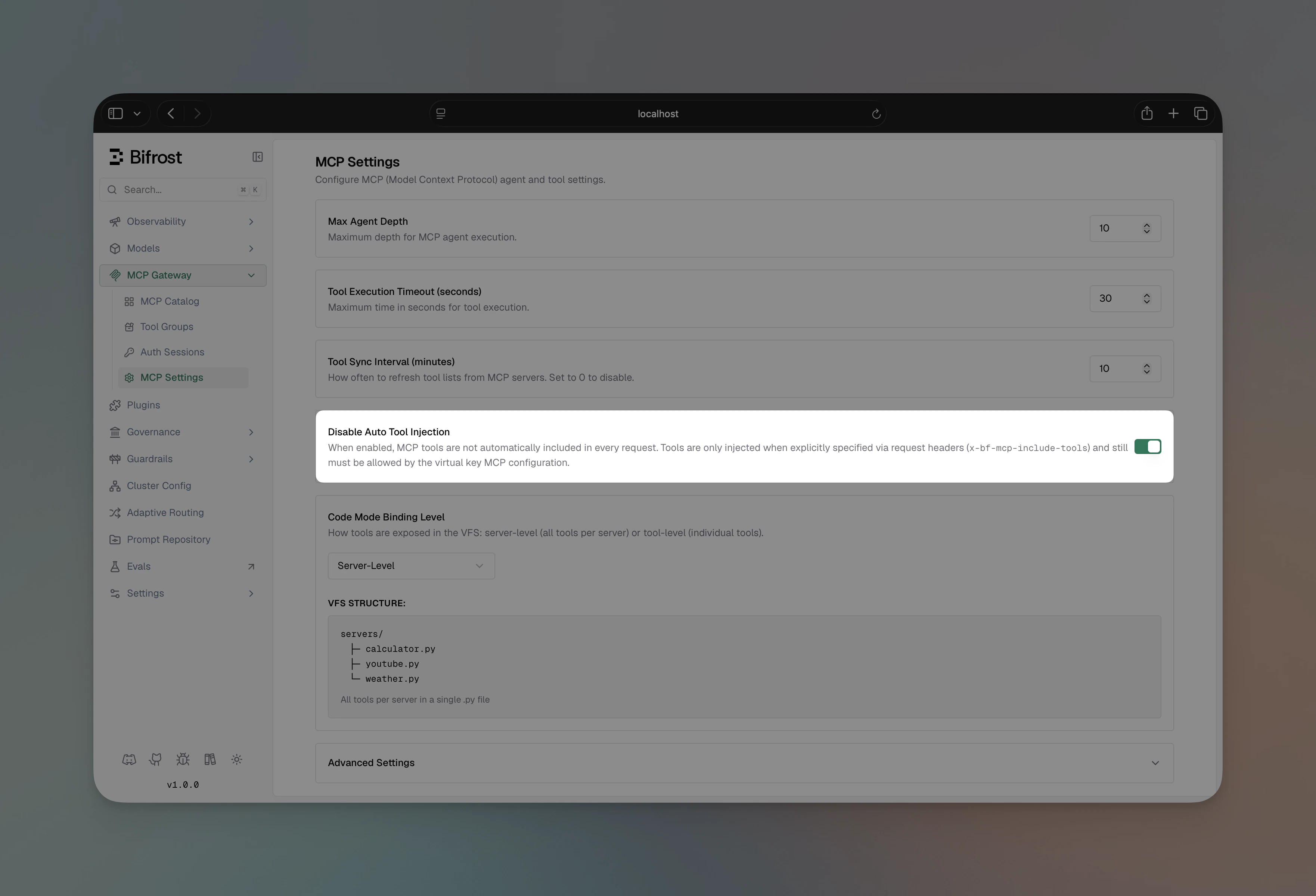
## Recommended: disable auto tool injection
When Bifrost serves both inbound LLM requests **and** acts as an upstream MCP server (this page), the same tools can end up being injected twice — once because the LLM Gateway auto-includes every configured MCP tool on every inference request, and once because the inbound MCP client itself fetched the tool list from `/mcp`. The model sees the same tool name from two sources and may behave erratically (duplicate tool calls, refusal, or confused arguments).
Turn **Disable Auto Tool Injection** on in your client config. MCP tools will then only be attached to inference requests when the caller explicitly opts in via the `x-bf-mcp-include-tools` request header (and the calling Virtual Key still has to allow them). Outbound MCP clients (Claude Desktop, Cursor, etc.) keep working because they discover tools through `/mcp` directly.
1. Navigate to **Settings → MCP** in the sidebar
2. Toggle **Disable Auto Tool Injection** on
3. Click **Save**
 ```bash theme={null}
curl -X PUT http://localhost:8080/api/config \
-H "Content-Type: application/json" \
-d '{
"client_config": {
"mcp_disable_auto_tool_inject": true
}
}'
```
`PUT /api/config` merges the supplied `client_config` into the existing one — other fields are unchanged.
```json theme={null}
{
"client": {
"mcp_disable_auto_tool_inject": true
}
}
```
After flipping it on, callers that still want auto-injected tools on the inference path can opt in per-request:
```bash theme={null}
curl -X POST http://localhost:8080/v1/chat/completions \
-H "Content-Type: application/json" \
-H "x-bf-mcp-include-tools: filesystem-*,github-create_issue" \
-d '{ "model": "openai/gpt-4o", "messages": [...] }'
```
***
## Security Considerations
The MCP Gateway exposes tools to external clients. Consider these security measures:
### 1. Enable Virtual Key Enforcement
Always enable `enforce_auth_on_inference` in production:
```json theme={null}
{
"client": {
"enforce_auth_on_inference": true
}
}
```
This ensures all MCP requests require a valid Virtual Key.
### 2. Use HTTPS
Deploy Bifrost behind a reverse proxy (nginx, Cloudflare, etc.) with TLS enabled:
```
MCP Client → HTTPS → Reverse Proxy → HTTP → Bifrost Gateway
```
### 3. Limit Tool Access
Use Virtual Keys to limit which tools each client can access. Follow the principle of least privilege.
### 4. Network Restrictions
Consider network-level restrictions to limit which IPs can access the MCP endpoint.
***
## Troubleshooting
1. Verify MCP clients are connected in Bifrost
2. Check that `tools_to_execute` includes the expected tools
3. If using Virtual Keys, verify the VK has MCP tool access configured
1. Ensure the Virtual Key exists and is active
2. Check the header format (Bearer prefix for Authorization)
3. Verify `enforce_auth_on_inference` setting matches your setup
***
## Next Steps
Control which tools are available per request
Configure per-VK tool access
```bash theme={null}
curl -X PUT http://localhost:8080/api/config \
-H "Content-Type: application/json" \
-d '{
"client_config": {
"mcp_disable_auto_tool_inject": true
}
}'
```
`PUT /api/config` merges the supplied `client_config` into the existing one — other fields are unchanged.
```json theme={null}
{
"client": {
"mcp_disable_auto_tool_inject": true
}
}
```
After flipping it on, callers that still want auto-injected tools on the inference path can opt in per-request:
```bash theme={null}
curl -X POST http://localhost:8080/v1/chat/completions \
-H "Content-Type: application/json" \
-H "x-bf-mcp-include-tools: filesystem-*,github-create_issue" \
-d '{ "model": "openai/gpt-4o", "messages": [...] }'
```
***
## Security Considerations
The MCP Gateway exposes tools to external clients. Consider these security measures:
### 1. Enable Virtual Key Enforcement
Always enable `enforce_auth_on_inference` in production:
```json theme={null}
{
"client": {
"enforce_auth_on_inference": true
}
}
```
This ensures all MCP requests require a valid Virtual Key.
### 2. Use HTTPS
Deploy Bifrost behind a reverse proxy (nginx, Cloudflare, etc.) with TLS enabled:
```
MCP Client → HTTPS → Reverse Proxy → HTTP → Bifrost Gateway
```
### 3. Limit Tool Access
Use Virtual Keys to limit which tools each client can access. Follow the principle of least privilege.
### 4. Network Restrictions
Consider network-level restrictions to limit which IPs can access the MCP endpoint.
***
## Troubleshooting
1. Verify MCP clients are connected in Bifrost
2. Check that `tools_to_execute` includes the expected tools
3. If using Virtual Keys, verify the VK has MCP tool access configured
1. Ensure the Virtual Key exists and is active
2. Check the header format (Bearer prefix for Authorization)
3. Verify `enforce_auth_on_inference` setting matches your setup
***
## Next Steps
Control which tools are available per request
Configure per-VK tool access