> ## Documentation Index
> Fetch the complete documentation index at: https://docs.getbifrost.ai/llms.txt
> Use this file to discover all available pages before exploring further.
# Tool Filtering
> Control which MCP tools are available at the client, request, and virtual key levels.
## Overview
Bifrost provides **three levels of tool filtering** to control which MCP tools are available:
1. **Client Configuration** - Set which tools a client can execute (`tools_to_execute`)
2. **Request Headers** - Filter tools per-request via HTTP headers or context
3. **Virtual Key Configuration** - Control tools per-VK (Gateway only)
These levels stack: a tool must pass all applicable filters to be available.
```mermaid theme={null}
graph LR
All["Available
Tools"]
Client["Client Config
tools_to_execute"]
Request["Request
Headers"]
VK["Virtual Key
Filter"]
Final["Tools
for LLM"]
All --> Client
Client --> Request
Request --> VK
VK --> Final
style All fill:#EEEEEE,stroke:#424242,stroke-width:2.5px,color:#1A1A1A
style Client fill:#E3F2FD,stroke:#0D47A1,stroke-width:2.5px,color:#1A1A1A
style Request fill:#F3E5F5,stroke:#4A148C,stroke-width:2.5px,color:#1A1A1A
style VK fill:#E8F5E9,stroke:#1B5E20,stroke-width:2.5px,color:#1A1A1A
style Final fill:#FFFDE7,stroke:#F57F17,stroke-width:2.5px,color:#1A1A1A
```
***
## Level 1: Client Configuration
The `tools_to_execute` field on each MCP client config defines the **baseline** of available tools.
### Semantics
| Value | Behavior |
| -------------------- | ---------------------------------------- |
| `["*"]` | All tools from this client are available |
| `[]` or omitted | No tools available (deny-by-default) |
| `["tool1", "tool2"]` | Only specified tools are available |
### Configuration
```bash theme={null}
curl -X POST http://localhost:8080/api/mcp/client \
-H "Content-Type: application/json" \
-d '{
"name": "filesystem",
"connection_type": "stdio",
"stdio_config": {
"command": "npx",
"args": ["-y", "@anthropic/mcp-filesystem"]
},
"tools_to_execute": ["read_file", "list_directory"]
}'
```
```go theme={null}
mcpConfig := &schemas.MCPConfig{
ClientConfigs: []schemas.MCPClientConfig{
{
Name: "filesystem",
ConnectionType: schemas.MCPConnectionTypeSTDIO,
StdioConfig: &schemas.MCPStdioConfig{
Command: "npx",
Args: []string{"-y", "@anthropic/mcp-filesystem"},
},
ToolsToExecute: []string{"read_file", "list_directory"}, // Only these tools
},
},
}
```
```json theme={null}
{
"mcp": {
"client_configs": [
{
"name": "filesystem",
"connection_type": "stdio",
"stdio_config": {
"command": "npx",
"args": ["-y", "@anthropic/mcp-filesystem"]
},
"tools_to_execute": ["read_file", "list_directory"]
}
]
}
}
```
***
## Level 2: Request-Level Filtering
Filter tools dynamically on a per-request basis using headers (Gateway) or context values (SDK).
### Available Filters
| Filter | Purpose |
| --------------------- | ------------------------------------------------------------ |
| `mcp-include-clients` | Only include tools from specified clients |
| `mcp-include-tools` | Only include specified tools (format: `clientName-toolName`) |
### Gateway Headers
```bash theme={null}
# Include only specific clients
curl -X POST http://localhost:8080/v1/chat/completions \
-H "x-bf-mcp-include-clients: filesystem,web_search" \
-d '...'
# Include only specific tools
curl -X POST http://localhost:8080/v1/chat/completions \
-H "x-bf-mcp-include-tools: filesystem-read_file,web_search-search" \
-d '...'
# Include all tools from one client, specific tools from another
curl -X POST http://localhost:8080/v1/chat/completions \
-H "x-bf-mcp-include-tools: filesystem-*,web_search-search" \
-d '...'
# Include internal tools registered via RegisterTool()
curl -X POST http://localhost:8080/v1/chat/completions \
-H "x-bf-mcp-include-tools: bifrostInternal-echo,bifrostInternal-calculator" \
-d '...'
# Empty clients filter blocks ALL tools - no tools available to LLM
curl -X POST http://localhost:8080/v1/chat/completions \
-H "x-bf-mcp-include-clients:" \
-d '...'
# Result: No MCP tools available (deny-all)
# Empty tools filter also blocks ALL tools
curl -X POST http://localhost:8080/v1/chat/completions \
-H "x-bf-mcp-include-tools:" \
-d '...'
# Result: No MCP tools available (deny-all)
```
### Go SDK Context Values
```go theme={null}
// Include only specific clients
ctx := context.WithValue(context.Background(),
schemas.BifrostContextKey("mcp-include-clients"),
[]string{"filesystem", "web_search"})
// Include only specific tools
ctx = context.WithValue(ctx,
schemas.BifrostContextKey("mcp-include-tools"),
[]string{"filesystem-read_file", "web_search-search"})
// Wildcard for all tools from a client
ctx = context.WithValue(ctx,
schemas.BifrostContextKey("mcp-include-tools"),
[]string{"filesystem-*", "web_search-search"})
// Include all internal tools (registered via RegisterTool)
ctx = context.WithValue(ctx,
schemas.BifrostContextKey("mcp-include-tools"),
[]string{"bifrostInternal-*"})
response, err := client.ChatCompletionRequest(schemas.NewBifrostContext(ctx, schemas.NoDeadline), request)
// Empty include-clients blocks ALL tools - no tools available
ctx = context.WithValue(context.Background(),
schemas.BifrostContextKey("mcp-include-clients"),
[]string{}) // Empty slice = deny-all
// Result: No MCP tools available to LLM
// Empty include-tools also blocks ALL tools
ctx = context.WithValue(context.Background(),
schemas.BifrostContextKey("mcp-include-tools"),
[]string{}) // Empty slice = deny-all
// Result: No MCP tools available to LLM
```
### Wildcard Support
| Pattern | Meaning |
| --------------------------------- | ---------------------------------- |
| `*` (in include-clients) | Include all clients |
| `clientName-*` (in include-tools) | Include all tools from that client |
| `clientName-toolName` | Include specific tool |
### Tool Naming Convention
**Important:** All MCP tools follow a consistent naming convention using the **prefixed format** `clientName-toolName`:
* **External MCP Clients** (HTTP, SSE, STDIO): Tools use the format `clientName-toolName`
* Example: `filesystem-read_file`, `web_search-search`
* The `clientName` is the name configured for the MCP client
* **Internal (In-Process) Tools**: Tools registered via `RegisterTool()` use the prefix `bifrostInternal-`
* Example: `bifrostInternal-echo`, `bifrostInternal-my_custom_tool`
* These tools are registered via `RegisterTool()` in the SDK
This consistent naming convention ensures clear separation between tools from different clients and prevents naming conflicts across all MCP client types.
***
## Level 3: Virtual Key Filtering (Gateway Only)
Virtual Keys can have their own MCP tool access configuration, which **takes precedence** over request-level headers.
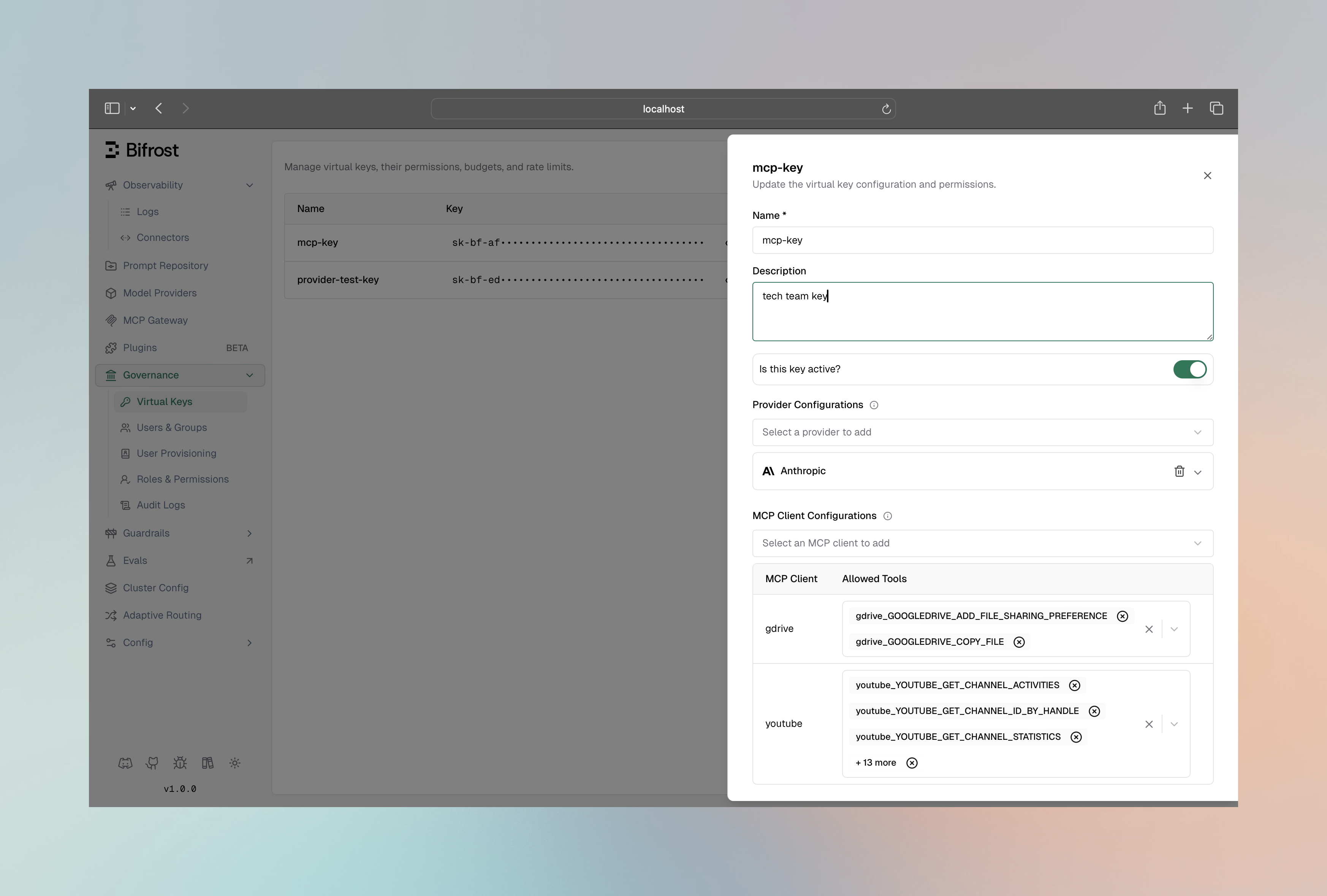
When a Virtual Key has no MCP configurations, **no MCP tools are available** (deny-by-default). You must explicitly add MCP client configurations to allow tools. When a Virtual Key has MCP configurations, it generates the `x-bf-mcp-include-tools` header automatically, overriding any manually sent header.
### Configuration
1. Navigate to **Virtual Keys** in the governance section
2. Create or edit a Virtual Key
3. In **MCP Client Configurations**, add the clients and tools this VK can access
 ```bash theme={null}
curl -X POST http://localhost:8080/api/governance/virtual-keys \
-H "Content-Type: application/json" \
-d '{
"name": "support-team-key",
"mcp_configs": [
{
"mcp_client_name": "knowledge_base",
"tools_to_execute": ["search", "get_article"]
},
{
"mcp_client_name": "ticketing",
"tools_to_execute": ["*"]
}
]
}'
```
```json theme={null}
{
"governance": {
"virtual_keys": [
{
"name": "support-team-key",
"mcp_configs": [
{
"mcp_client_name": "knowledge_base",
"tools_to_execute": ["search", "get_article"]
},
{
"mcp_client_name": "ticketing",
"tools_to_execute": ["*"]
}
]
}
]
}
}
```
### Virtual Key MCP Config Semantics
| Configuration | Result |
| ------------------------------ | ---------------------------------- |
| `tools_to_execute: ["*"]` | All tools from this client |
| `tools_to_execute: []` | No tools from this client |
| `tools_to_execute: ["a", "b"]` | Only specified tools |
| Client not configured | All tools blocked from that client |
Learn more in [MCP Tool Filtering for Virtual Keys](../features/governance/mcp-tools).
***
## Filtering Logic
### How Filters Combine
1. **Client config** is the baseline (must include the tool)
2. **Request filters** further narrow down (if specified)
3. **VK filters** override request filters (if VK has MCP configs)
### Example Scenario
**Setup:**
* Client `filesystem` has `tools_to_execute: ["read_file", "write_file", "delete_file"]`
* Virtual Key `prod-key` has `mcp_configs: [{ mcp_client_name: "filesystem", tools_to_execute: ["read_file"] }]`
**Request with `prod-key`:**
```bash theme={null}
curl -X POST http://localhost:8080/v1/chat/completions \
-H "Authorization: Bearer vk_prod_key" \
-H "x-bf-mcp-include-tools: filesystem-write_file" \ # This is IGNORED
-d '...'
```
**Result:** Only `read_file` is available (VK config overrides request header)
**Request without VK (if allowed):**
```bash theme={null}
curl -X POST http://localhost:8080/v1/chat/completions \
-H "x-bf-mcp-include-tools: filesystem-write_file" \
-d '...'
```
**Result:** Only `write_file` is available (request header applies)
***
## Common Patterns
### Read-Only Access
Allow only read operations:
```json theme={null}
{
"tools_to_execute": ["read_file", "list_directory", "get_file_info"]
}
```
### Environment-Based Filtering
Use different VKs for different environments:
```json theme={null}
{
"virtual_keys": [
{
"name": "development",
"mcp_configs": [
{ "mcp_client_name": "filesystem", "tools_to_execute": ["*"] },
{ "mcp_client_name": "database", "tools_to_execute": ["*"] }
]
},
{
"name": "production",
"mcp_configs": [
{ "mcp_client_name": "filesystem", "tools_to_execute": ["read_file"] },
{ "mcp_client_name": "database", "tools_to_execute": ["query"] }
]
}
]
}
```
### Per-User Tool Access
Create VKs for different user roles:
```json theme={null}
{
"virtual_keys": [
{
"name": "viewer-role",
"mcp_configs": [
{ "mcp_client_name": "documents", "tools_to_execute": ["view", "search"] }
]
},
{
"name": "editor-role",
"mcp_configs": [
{ "mcp_client_name": "documents", "tools_to_execute": ["view", "search", "edit", "create"] }
]
},
{
"name": "admin-role",
"mcp_configs": [
{ "mcp_client_name": "documents", "tools_to_execute": ["*"] }
]
}
]
}
```
***
## Advanced: Context-Based Filtering
For SDK users, filtering can be applied at the context level, enabling per-request tool customization:
### Go SDK Context Filtering
```go theme={null}
import (
"context"
"github.com/maximhq/bifrost/core/schemas"
)
// Filter to specific clients
ctx := context.WithValue(
context.Background(),
schemas.BifrostContextKey("mcp-include-clients"),
[]string{"filesystem", "web_search"},
)
// Or filter to specific tools
ctx = context.WithValue(
ctx,
schemas.BifrostContextKey("mcp-include-tools"),
[]string{"filesystem-read_file", "web_search-search"},
)
// Request will only see filtered tools
response, _ := client.ChatCompletionRequest(schemas.NewBifrostContext(ctx, schemas.NoDeadline), request)
```
### Filter Precedence
When multiple filters apply, they combine as an intersection (AND logic):
```
Client Config Tools ∩ Request Filters ∩ VK Filters = Available Tools
```
**Example:**
* Client config allows: \[read\_file, write\_file, delete\_file]
* Request header specifies: \[read\_file, write\_file]
* VK config restricts to: \[read\_file]
* **Result:** Only \[read\_file] available
***
## Debugging Tool Availability
### Check Available Tools
**Gateway API:**
```bash theme={null}
curl http://localhost:8080/api/mcp/clients
```
**Response shows tools per client:**
```json theme={null}
[
{
"config": { "name": "filesystem", "tools_to_execute": ["read_file", "write_file"] },
"tools": [
{ "name": "read_file", "description": "Read file contents" },
{ "name": "write_file", "description": "Write to file" }
],
"state": "connected"
}
]
```
### Check What LLM Receives
The tools included in a chat request depend on all active filters. To see what tools are available for a specific request, check the request body sent to the LLM provider in your logs or observability platform.
***
## Next Steps
Detailed VK tool configuration
Configure auto-execution for filtered tools
```bash theme={null}
curl -X POST http://localhost:8080/api/governance/virtual-keys \
-H "Content-Type: application/json" \
-d '{
"name": "support-team-key",
"mcp_configs": [
{
"mcp_client_name": "knowledge_base",
"tools_to_execute": ["search", "get_article"]
},
{
"mcp_client_name": "ticketing",
"tools_to_execute": ["*"]
}
]
}'
```
```json theme={null}
{
"governance": {
"virtual_keys": [
{
"name": "support-team-key",
"mcp_configs": [
{
"mcp_client_name": "knowledge_base",
"tools_to_execute": ["search", "get_article"]
},
{
"mcp_client_name": "ticketing",
"tools_to_execute": ["*"]
}
]
}
]
}
}
```
### Virtual Key MCP Config Semantics
| Configuration | Result |
| ------------------------------ | ---------------------------------- |
| `tools_to_execute: ["*"]` | All tools from this client |
| `tools_to_execute: []` | No tools from this client |
| `tools_to_execute: ["a", "b"]` | Only specified tools |
| Client not configured | All tools blocked from that client |
Learn more in [MCP Tool Filtering for Virtual Keys](../features/governance/mcp-tools).
***
## Filtering Logic
### How Filters Combine
1. **Client config** is the baseline (must include the tool)
2. **Request filters** further narrow down (if specified)
3. **VK filters** override request filters (if VK has MCP configs)
### Example Scenario
**Setup:**
* Client `filesystem` has `tools_to_execute: ["read_file", "write_file", "delete_file"]`
* Virtual Key `prod-key` has `mcp_configs: [{ mcp_client_name: "filesystem", tools_to_execute: ["read_file"] }]`
**Request with `prod-key`:**
```bash theme={null}
curl -X POST http://localhost:8080/v1/chat/completions \
-H "Authorization: Bearer vk_prod_key" \
-H "x-bf-mcp-include-tools: filesystem-write_file" \ # This is IGNORED
-d '...'
```
**Result:** Only `read_file` is available (VK config overrides request header)
**Request without VK (if allowed):**
```bash theme={null}
curl -X POST http://localhost:8080/v1/chat/completions \
-H "x-bf-mcp-include-tools: filesystem-write_file" \
-d '...'
```
**Result:** Only `write_file` is available (request header applies)
***
## Common Patterns
### Read-Only Access
Allow only read operations:
```json theme={null}
{
"tools_to_execute": ["read_file", "list_directory", "get_file_info"]
}
```
### Environment-Based Filtering
Use different VKs for different environments:
```json theme={null}
{
"virtual_keys": [
{
"name": "development",
"mcp_configs": [
{ "mcp_client_name": "filesystem", "tools_to_execute": ["*"] },
{ "mcp_client_name": "database", "tools_to_execute": ["*"] }
]
},
{
"name": "production",
"mcp_configs": [
{ "mcp_client_name": "filesystem", "tools_to_execute": ["read_file"] },
{ "mcp_client_name": "database", "tools_to_execute": ["query"] }
]
}
]
}
```
### Per-User Tool Access
Create VKs for different user roles:
```json theme={null}
{
"virtual_keys": [
{
"name": "viewer-role",
"mcp_configs": [
{ "mcp_client_name": "documents", "tools_to_execute": ["view", "search"] }
]
},
{
"name": "editor-role",
"mcp_configs": [
{ "mcp_client_name": "documents", "tools_to_execute": ["view", "search", "edit", "create"] }
]
},
{
"name": "admin-role",
"mcp_configs": [
{ "mcp_client_name": "documents", "tools_to_execute": ["*"] }
]
}
]
}
```
***
## Advanced: Context-Based Filtering
For SDK users, filtering can be applied at the context level, enabling per-request tool customization:
### Go SDK Context Filtering
```go theme={null}
import (
"context"
"github.com/maximhq/bifrost/core/schemas"
)
// Filter to specific clients
ctx := context.WithValue(
context.Background(),
schemas.BifrostContextKey("mcp-include-clients"),
[]string{"filesystem", "web_search"},
)
// Or filter to specific tools
ctx = context.WithValue(
ctx,
schemas.BifrostContextKey("mcp-include-tools"),
[]string{"filesystem-read_file", "web_search-search"},
)
// Request will only see filtered tools
response, _ := client.ChatCompletionRequest(schemas.NewBifrostContext(ctx, schemas.NoDeadline), request)
```
### Filter Precedence
When multiple filters apply, they combine as an intersection (AND logic):
```
Client Config Tools ∩ Request Filters ∩ VK Filters = Available Tools
```
**Example:**
* Client config allows: \[read\_file, write\_file, delete\_file]
* Request header specifies: \[read\_file, write\_file]
* VK config restricts to: \[read\_file]
* **Result:** Only \[read\_file] available
***
## Debugging Tool Availability
### Check Available Tools
**Gateway API:**
```bash theme={null}
curl http://localhost:8080/api/mcp/clients
```
**Response shows tools per client:**
```json theme={null}
[
{
"config": { "name": "filesystem", "tools_to_execute": ["read_file", "write_file"] },
"tools": [
{ "name": "read_file", "description": "Read file contents" },
{ "name": "write_file", "description": "Write to file" }
],
"state": "connected"
}
]
```
### Check What LLM Receives
The tools included in a chat request depend on all active filters. To see what tools are available for a specific request, check the request body sent to the LLM provider in your logs or observability platform.
***
## Next Steps
Detailed VK tool configuration
Configure auto-execution for filtered tools