> ## Documentation Index
> Fetch the complete documentation index at: https://docs.getbifrost.ai/llms.txt
> Use this file to discover all available pages before exploring further.
# Code Mode
> AI writes Python to orchestrate tools. Reduces input token usage by up to 92.8% when using multiple MCP servers.
This feature is only available on `v1.4.0-prerelease1` and above.
## Overview
**Code Mode** is a transformative approach to using MCP that solves a critical problem at scale:
> **The Problem:** When you connect 8-10 MCP servers (150+ tools), every single request includes all tool definitions in the context. The LLM spends most of its budget reading tool catalogs instead of doing actual work.
**The Solution:** Instead of exposing 150 tools directly, Code Mode exposes just **four generic tools**. The LLM uses those tools to write Python code (Starlark) that orchestrates everything else in a sandbox.
### The Impact
Compare a workflow across 5 MCP servers with \~100 tools:
**Classic MCP Flow:**
* 6 LLM turns
* 100 tools in context **every turn** (600 tool-definition tokens)
* All intermediate results flow through the model
**Code Mode Flow:**
* 3-4 LLM turns
* Only 4 tools + definitions on-demand
* Intermediate results processed in sandbox
**Result: Up to 92.8% fewer input tokens, 92.2% lower estimated cost, and around 40% faster execution in large MCP deployments.**
### Benchmark Results
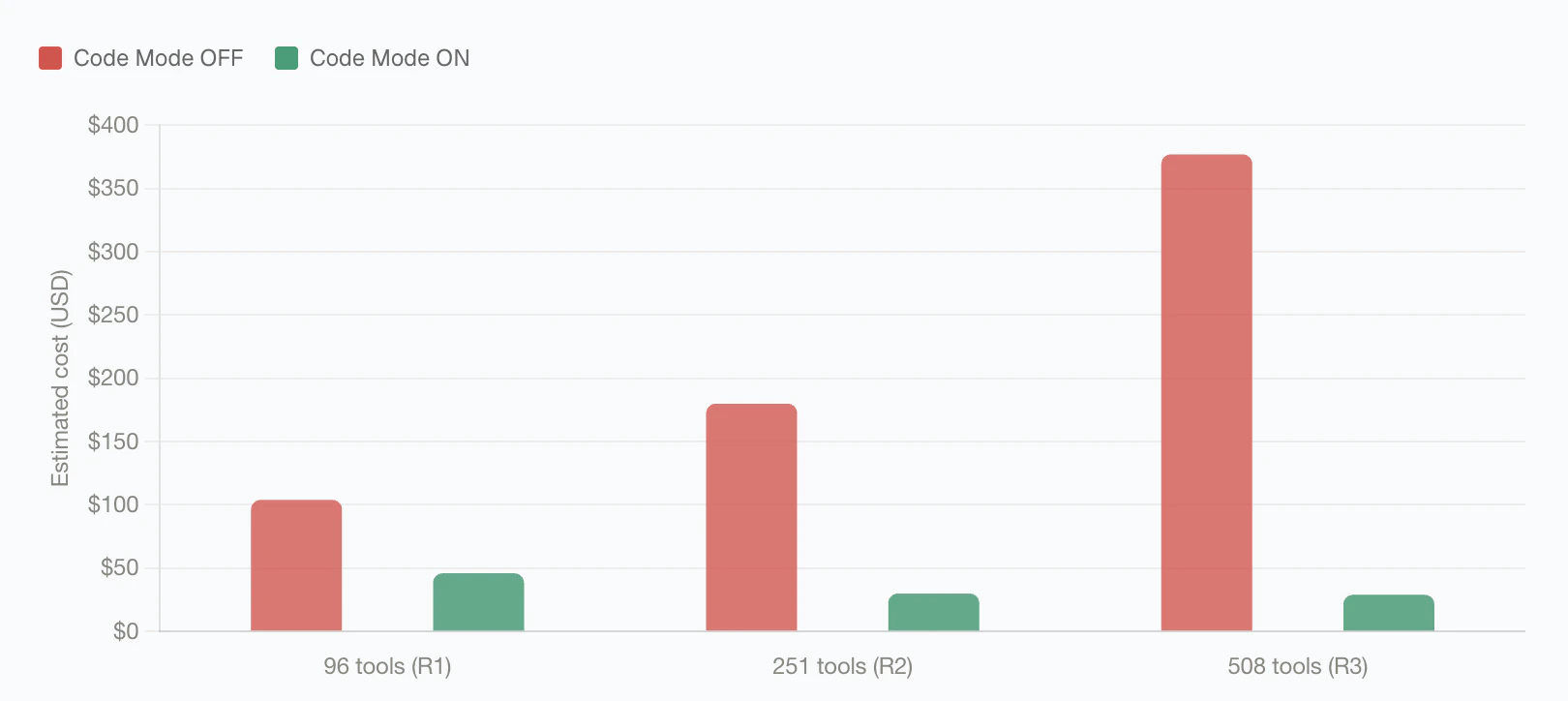
Bifrost Code Mode was benchmarked against classic MCP across three controlled rounds with increasing MCP footprint. Each round used the same query set with Code Mode off and on.
| Round | MCP footprint | Pass rate, classic MCP | Pass rate, Code Mode | Input tokens, classic MCP | Input tokens, Code Mode | Input token change | Est. cost, classic MCP | Est. cost, Code Mode | Cost change |
| ----- | ---------------------- | ---------------------- | -------------------- | ------------------------- | ----------------------- | ------------------ | ---------------------- | -------------------- | ----------- |
| 1 | 96 tools / 6 servers | 64/64 (100%) | 64/64 (100%) | 19.9M | 8.3M | -58.2% | \$104.04 | \$46.06 | -55.7% |
| 2 | 251 tools / 11 servers | 64/65 (98.5%) | 65/65 (100%) | 35.7M | 5.5M | -84.5% | \$180.07 | \$29.80 | -83.4% |
| 3 | 508 tools / 16 servers | 65/65 (100%) | 65/65 (100%) | 75.1M | 5.4M | -92.8% | \$377.00 | \$29.00 | -92.2% |
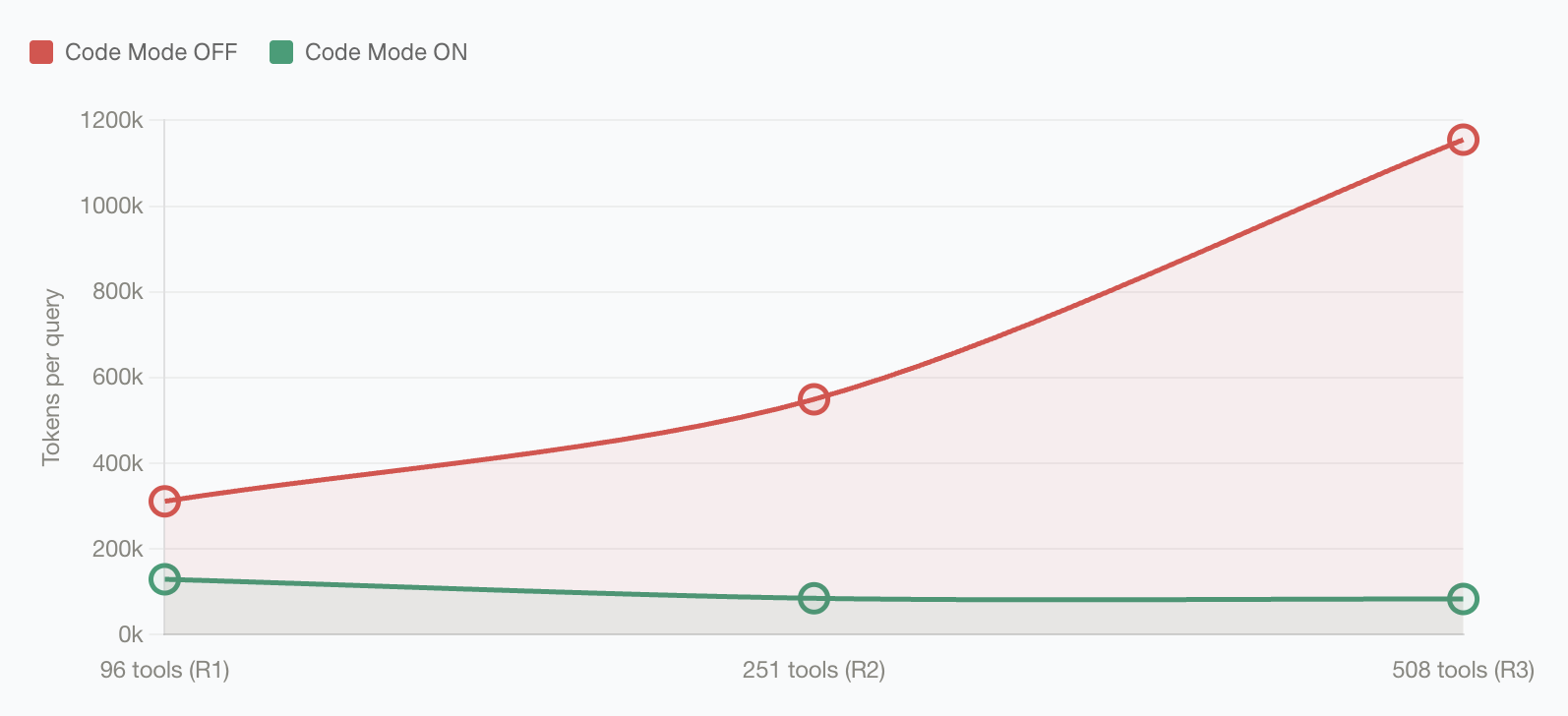 At around 500 tools, Code Mode reduced average input tokens per query by roughly **14x**: from **1.15M** tokens to **83K** tokens. See the [Bifrost MCP Gateway benchmark writeup](https://www.getmaxim.ai/bifrost/blog/bifrost-mcp-gateway-access-control-cost-governance-and-92-lower-token-costs-at-scale), or explore the [complete benchmark report](https://github.com/maximhq/bifrost-benchmarking/blob/main/mcp-code-mode-benchmark/benchmark_report.md).
 Code Mode provides four meta-tools to the AI:
1. **`listToolFiles`** - Discover available MCP servers
2. **`readToolFile`** - Load Python stub signatures on-demand
3. **`getToolDocs`** - Get detailed documentation for a specific tool
4. **`executeToolCode`** - Execute Python code with full tool bindings
## When to Use Code Mode
**Enable Code Mode if you have:**
* ✅ 3+ MCP servers connected
* ✅ Complex multi-step workflows
* ✅ Concerned about token costs or latency
* ✅ Tools that need to interact with each other
**Keep Classic MCP if you have:**
* ✅ Only 1-2 small MCP servers
* ✅ Simple, direct tool calls
* ✅ Very latency-sensitive use cases (though Code Mode is usually faster)
**You can mix both:** Enable Code Mode for "heavy" servers (web, documents, databases) and keep small utilities as direct tools.
***
## How Code Mode Works
### The Four Tools
Instead of seeing 150+ tool definitions, the model sees four generic tools:
```mermaid theme={null}
graph LR
LLM["LLM Context
Code Mode provides four meta-tools to the AI:
1. **`listToolFiles`** - Discover available MCP servers
2. **`readToolFile`** - Load Python stub signatures on-demand
3. **`getToolDocs`** - Get detailed documentation for a specific tool
4. **`executeToolCode`** - Execute Python code with full tool bindings
## When to Use Code Mode
**Enable Code Mode if you have:**
* ✅ 3+ MCP servers connected
* ✅ Complex multi-step workflows
* ✅ Concerned about token costs or latency
* ✅ Tools that need to interact with each other
**Keep Classic MCP if you have:**
* ✅ Only 1-2 small MCP servers
* ✅ Simple, direct tool calls
* ✅ Very latency-sensitive use cases (though Code Mode is usually faster)
**You can mix both:** Enable Code Mode for "heavy" servers (web, documents, databases) and keep small utilities as direct tools.
***
## How Code Mode Works
### The Four Tools
Instead of seeing 150+ tool definitions, the model sees four generic tools:
```mermaid theme={null}
graph LR
LLM["LLM Context
Compact & Efficient"]
List["listToolFiles
Discover servers"]
Read["readToolFile
Load signatures"]
Docs["getToolDocs
Get detailed docs"]
Execute["executeToolCode
Run code with bindings"]
Hidden["All other MCP servers
hidden behind these 4 tools"]
LLM --> List
LLM --> Read
LLM --> Docs
LLM --> Execute
List -.-> Hidden
Read -.-> Hidden
Docs -.-> Hidden
Execute -.-> Hidden
style LLM fill:#E3F2FD,stroke:#0D47A1,stroke-width:2.5px,color:#1A1A1A
style List fill:#E8F5E9,stroke:#1B5E20,stroke-width:2.5px,color:#1A1A1A
style Read fill:#FFF3E0,stroke:#BF360C,stroke-width:2.5px,color:#1A1A1A
style Docs fill:#E1F5FE,stroke:#0288D1,stroke-width:2.5px,color:#1A1A1A
style Execute fill:#F3E5F5,stroke:#4A148C,stroke-width:2.5px,color:#1A1A1A
style Hidden fill:#EEEEEE,stroke:#424242,stroke-width:1.5px,stroke-dasharray: 5 5,color:#1A1A1A
```
### The Execution Flow
```mermaid theme={null}
graph LR
User["1. User Request
Search YouTube
& save to file"]
Discover["2. Discover Tools
listToolFiles()"]
GetDefs["3. Load Definitions
readToolFile()"]
Write["4. Write Code
Python
in sandbox"]
Execute["5. Execute
Real MCP calls
contained in VM"]
Result["6. Compact Result
{saved:10}"]
Response["7. Final Response
Found & saved
10 videos"]
User --> Discover
Discover --> GetDefs
GetDefs --> Write
Write --> Execute
Execute --> Result
Result --> Response
style User fill:#E3F2FD,stroke:#0D47A1,stroke-width:2.5px,color:#1A1A1A
style Discover fill:#F3E5F5,stroke:#4A148C,stroke-width:2.5px,color:#1A1A1A
style GetDefs fill:#F3E5F5,stroke:#4A148C,stroke-width:2.5px,color:#1A1A1A
style Write fill:#FFF3E0,stroke:#BF360C,stroke-width:2.5px,color:#1A1A1A
style Execute fill:#E8F5E9,stroke:#1B5E20,stroke-width:3px,color:#1A1A1A
style Result fill:#FFFDE7,stroke:#F57F17,stroke-width:2.5px,color:#1A1A1A
style Response fill:#E8F5E9,stroke:#1B5E20,stroke-width:2.5px,color:#1A1A1A
```
**Key insight:** All the complex orchestration happens inside the sandbox. The LLM only receives the final, compact result, not every intermediate step.
***
## Why This Matters at Scale
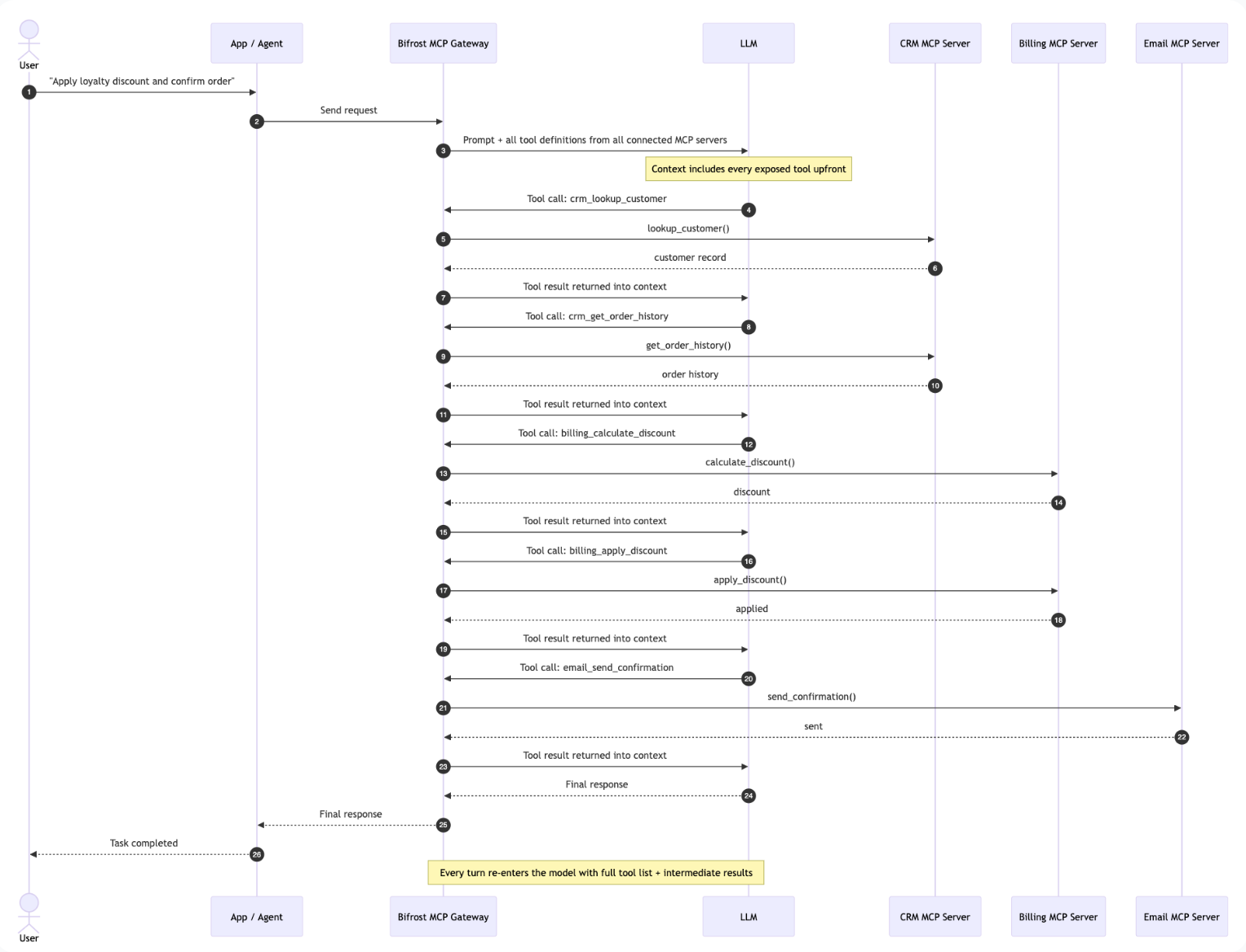
Take a multi-step workflow such as looking up a customer, checking their order history, applying a discount, and sending a confirmation.
### Classic MCP: every turn carries the full tool list
With classic MCP, every intermediate result returns to the model, and every next turn includes the complete set of available tool definitions again. As the number of connected MCP servers grows, the model keeps paying to reread the same tool catalog.
 ### Code Mode: discover, write once, execute once
With Code Mode, the model discovers the relevant stubs, writes a short orchestration script, and Bifrost runs the tool calls inside the Starlark sandbox. The intermediate tool results stay inside the sandbox, and the model receives the compact final output.
### Code Mode: discover, write once, execute once
With Code Mode, the model discovers the relevant stubs, writes a short orchestration script, and Bifrost runs the tool calls inside the Starlark sandbox. The intermediate tool results stay inside the sandbox, and the model receives the compact final output.
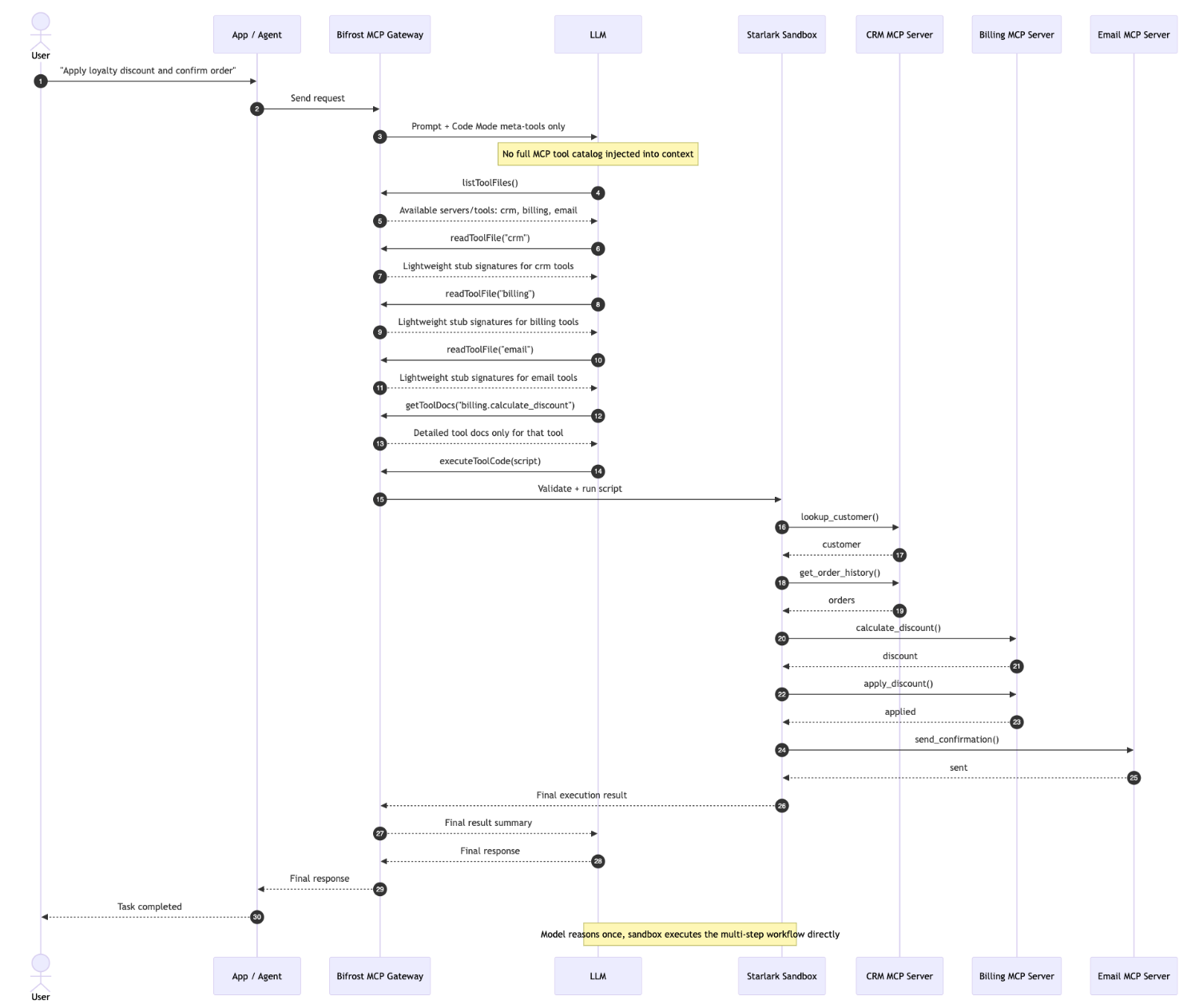 This is why the savings grow with scale: classic MCP cost grows with every connected tool, while Code Mode cost is bounded by the files and documentation the model actually reads. In the benchmark rounds, this produced 3-4x fewer LLM round trips and input-token savings from **58.2%** to **92.8%** as tool count increased.
***
## Enabling Code Mode
Code Mode must be enabled **per MCP client**. Once enabled, that client's tools are accessed through the four meta-tools rather than exposed directly.
**Best practice:** Enable Code Mode for 3+ servers or any "heavy" server (web search, documents, databases).
### Enable Code Mode for a Client
1. Navigate to **MCP Gateway** in the sidebar
2. Click on a client row to open the configuration sheet
This is why the savings grow with scale: classic MCP cost grows with every connected tool, while Code Mode cost is bounded by the files and documentation the model actually reads. In the benchmark rounds, this produced 3-4x fewer LLM round trips and input-token savings from **58.2%** to **92.8%** as tool count increased.
***
## Enabling Code Mode
Code Mode must be enabled **per MCP client**. Once enabled, that client's tools are accessed through the four meta-tools rather than exposed directly.
**Best practice:** Enable Code Mode for 3+ servers or any "heavy" server (web search, documents, databases).
### Enable Code Mode for a Client
1. Navigate to **MCP Gateway** in the sidebar
2. Click on a client row to open the configuration sheet
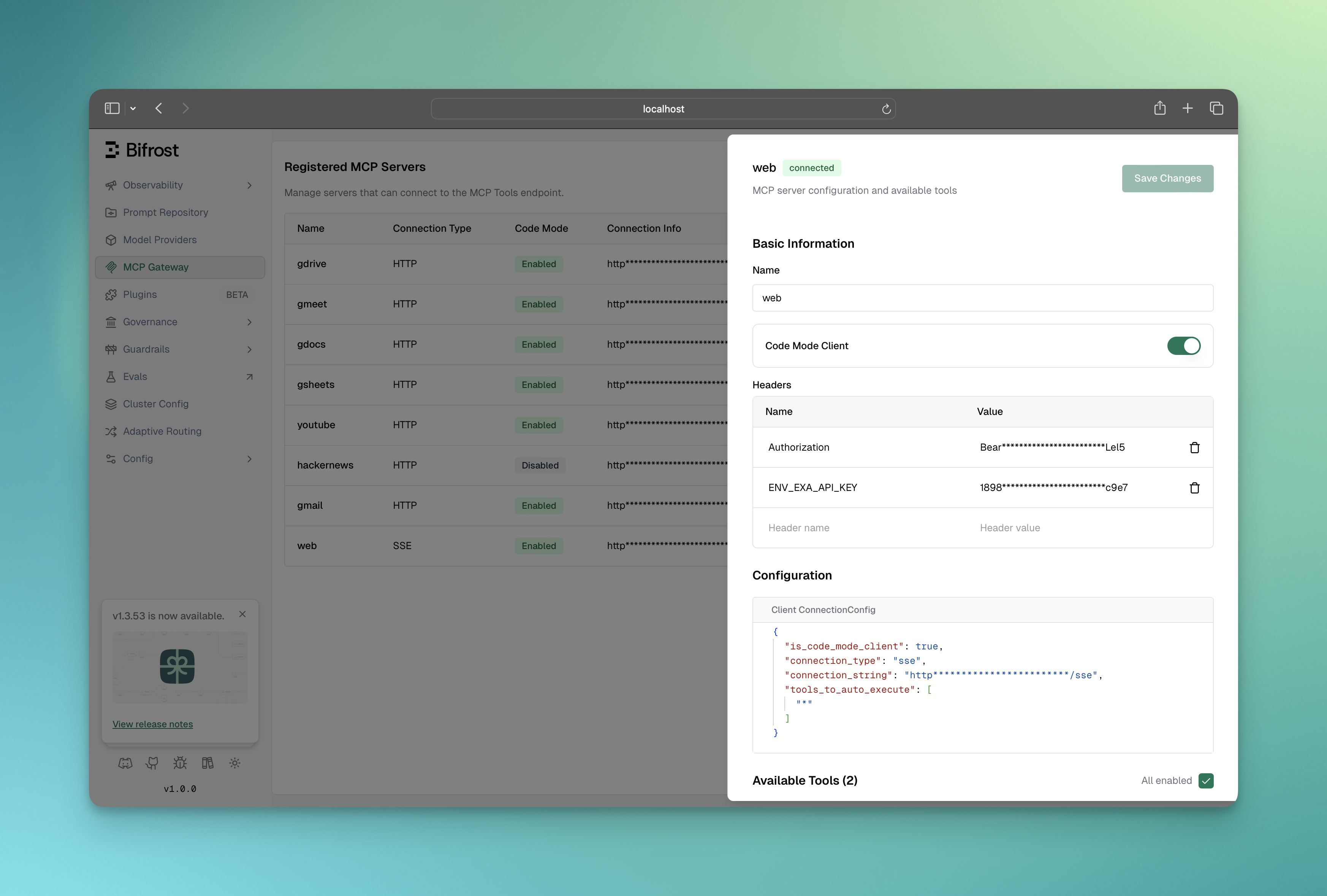 3. In the **Basic Information** section, toggle **Code Mode Server** to enabled
4. Click **Save Changes**
Once enabled:
* This client's tools are no longer in the default tool list
* They become accessible through `listToolFiles()` and `readToolFile()`
* The AI can write code using `executeToolCode()` to call them
```bash theme={null}
# When adding a new client
curl -X POST http://localhost:8080/api/mcp/client \
-H "Content-Type: application/json" \
-d '{
"name": "youtube",
"connection_type": "http",
"connection_string": "http://localhost:3001/mcp",
"tools_to_execute": ["*"],
"is_code_mode_client": true
}'
# Or update an existing client
curl -X PUT http://localhost:8080/api/mcp/client/{id} \
-H "Content-Type: application/json" \
-d '{
"name": "youtube",
"connection_type": "http",
"connection_string": "http://localhost:3001/mcp",
"tools_to_execute": ["*"],
"is_code_mode_client": true
}'
```
```json theme={null}
{
"mcp": {
"client_configs": [
{
"name": "youtube",
"connection_type": "http",
"connection_string": "http://localhost:3001/mcp",
"tools_to_execute": ["*"],
"is_code_mode_client": true
},
{
"name": "filesystem",
"connection_type": "stdio",
"stdio_config": {
"command": "npx",
"args": ["-y", "@anthropic/mcp-filesystem"]
},
"tools_to_execute": ["*"],
"is_code_mode_client": true
}
]
}
}
```
### Go SDK Setup
```go theme={null}
mcpConfig := &schemas.MCPConfig{
ClientConfigs: []schemas.MCPClientConfig{
{
Name: "youtube",
ConnectionType: schemas.MCPConnectionTypeHTTP,
ConnectionString: bifrost.Ptr("http://localhost:3001/mcp"),
ToolsToExecute: []string{"*"},
IsCodeModeClient: true, // Enable code mode
},
{
Name: "filesystem",
ConnectionType: schemas.MCPConnectionTypeSTDIO,
StdioConfig: &schemas.MCPStdioConfig{
Command: "npx",
Args: []string{"-y", "@anthropic/mcp-filesystem"},
},
ToolsToExecute: []string{"*"},
IsCodeModeClient: true, // Enable code mode
},
},
}
```
***
## The Four Code Mode Tools
When Code Mode clients are connected, Bifrost automatically adds four meta-tools to every request:
### 1. listToolFiles
Lists all available virtual `.pyi` stub files for connected code mode servers.
**Example output (Server-level binding):**
```
servers/
youtube.pyi
filesystem.pyi
```
**Example output (Tool-level binding):**
```
servers/
youtube/
search.pyi
get_video.pyi
filesystem/
read_file.pyi
write_file.pyi
```
### 2. readToolFile
Reads a virtual `.pyi` file to get compact Python function signatures for tools.
**Parameters:**
* `fileName` (required): Path like `servers/youtube.pyi` or `servers/youtube/search.pyi`
* `startLine` (optional): 1-based starting line for partial reads
* `endLine` (optional): 1-based ending line for partial reads
**Example output:**
```python theme={null}
# youtube server tools
# Usage: youtube.tool_name(param=value)
# For detailed docs: use getToolDocs(server="youtube", tool="tool_name")
def search(query: str, maxResults: int = None) -> dict: # Search for videos
def get_video(id: str) -> dict: # Get video details
```
### 3. getToolDocs
Get detailed documentation for a specific tool when the compact signature from `readToolFile` is not sufficient.
**Parameters:**
* `server` (required): The server name (e.g., `"youtube"`)
* `tool` (required): The tool name (e.g., `"search"`)
**Example output:**
```python theme={null}
# ============================================================================
# Documentation for youtube.search tool
# ============================================================================
#
# USAGE INSTRUCTIONS:
# Call tools using: result = youtube.tool_name(param=value)
# No async/await needed - calls are synchronous.
#
# CRITICAL - HANDLING RESPONSES:
# Tool responses are dicts. To avoid runtime errors:
# 1. Use print(result) to inspect the response structure first
# 2. Access dict values with brackets: result["key"] NOT result.key
# 3. Use .get() for safe access: result.get("key", default)
# ============================================================================
def search(query: str, maxResults: int = None) -> dict:
"""
Search for videos on YouTube.
Args:
query (str): Search query (required)
maxResults (int): Max results to return (optional)
Returns:
dict: Response from the tool. Structure varies by tool.
Use print(result) to inspect the actual structure.
Example:
result = youtube.search(query="...")
print(result) # Always inspect response first!
value = result.get("key", default) # Safe access
"""
...
```
### 4. executeToolCode
Executes Python code in a sandboxed Starlark interpreter with access to all code mode server tools.
**Parameters:**
* `code` (required): Python code to execute
**Execution Environment:**
* Python code runs in a Starlark interpreter (Python subset)
* All code mode servers are exposed as global objects (e.g., `youtube`, `filesystem`)
* Tool calls are **synchronous** - no async/await needed
* Use `print()` for logging (output captured in logs)
* Assign to `result` variable to return a value
* Tool execution timeout applies (default 30s)
**Syntax notes:**
* Use keyword arguments: `server.tool(param="value")` NOT `server.tool({"param": "value"})`
* Access dict values with brackets: `result["key"]` NOT `result.key`
* List comprehensions work: `[x for x in items if x["active"]]`
**Example code:**
```python theme={null}
# Search YouTube and return formatted results
results = youtube.search(query="AI news", maxResults=5)
titles = [item["snippet"]["title"] for item in results["items"]]
print("Found", len(titles), "videos")
result = {"titles": titles, "count": len(titles)}
```
***
## Binding Levels
Code Mode supports two binding levels that control how tools are organized in the virtual file system:
### Server-Level Binding (Default)
All tools from a server are grouped into a single `.pyi` file.
```
servers/
youtube.pyi ← Contains all youtube tools
filesystem.pyi ← Contains all filesystem tools
```
**Best for:**
* Servers with few tools
* When you want to see all tools at once
* Simpler discovery workflow
### Tool-Level Binding
Each tool gets its own `.pyi` file.
```
servers/
youtube/
search.pyi
get_video.pyi
get_channel.pyi
filesystem/
read_file.pyi
write_file.pyi
list_directory.pyi
```
**Best for:**
* Servers with many tools
* When tools have large/complex schemas
* More focused documentation per tool
### Configuring Binding Level
Binding level is a **global setting** that controls how Code Mode's virtual file system is organized. It affects how the AI discovers and loads tool definitions.
Binding level can be viewed in the MCP configuration overview:
3. In the **Basic Information** section, toggle **Code Mode Server** to enabled
4. Click **Save Changes**
Once enabled:
* This client's tools are no longer in the default tool list
* They become accessible through `listToolFiles()` and `readToolFile()`
* The AI can write code using `executeToolCode()` to call them
```bash theme={null}
# When adding a new client
curl -X POST http://localhost:8080/api/mcp/client \
-H "Content-Type: application/json" \
-d '{
"name": "youtube",
"connection_type": "http",
"connection_string": "http://localhost:3001/mcp",
"tools_to_execute": ["*"],
"is_code_mode_client": true
}'
# Or update an existing client
curl -X PUT http://localhost:8080/api/mcp/client/{id} \
-H "Content-Type: application/json" \
-d '{
"name": "youtube",
"connection_type": "http",
"connection_string": "http://localhost:3001/mcp",
"tools_to_execute": ["*"],
"is_code_mode_client": true
}'
```
```json theme={null}
{
"mcp": {
"client_configs": [
{
"name": "youtube",
"connection_type": "http",
"connection_string": "http://localhost:3001/mcp",
"tools_to_execute": ["*"],
"is_code_mode_client": true
},
{
"name": "filesystem",
"connection_type": "stdio",
"stdio_config": {
"command": "npx",
"args": ["-y", "@anthropic/mcp-filesystem"]
},
"tools_to_execute": ["*"],
"is_code_mode_client": true
}
]
}
}
```
### Go SDK Setup
```go theme={null}
mcpConfig := &schemas.MCPConfig{
ClientConfigs: []schemas.MCPClientConfig{
{
Name: "youtube",
ConnectionType: schemas.MCPConnectionTypeHTTP,
ConnectionString: bifrost.Ptr("http://localhost:3001/mcp"),
ToolsToExecute: []string{"*"},
IsCodeModeClient: true, // Enable code mode
},
{
Name: "filesystem",
ConnectionType: schemas.MCPConnectionTypeSTDIO,
StdioConfig: &schemas.MCPStdioConfig{
Command: "npx",
Args: []string{"-y", "@anthropic/mcp-filesystem"},
},
ToolsToExecute: []string{"*"},
IsCodeModeClient: true, // Enable code mode
},
},
}
```
***
## The Four Code Mode Tools
When Code Mode clients are connected, Bifrost automatically adds four meta-tools to every request:
### 1. listToolFiles
Lists all available virtual `.pyi` stub files for connected code mode servers.
**Example output (Server-level binding):**
```
servers/
youtube.pyi
filesystem.pyi
```
**Example output (Tool-level binding):**
```
servers/
youtube/
search.pyi
get_video.pyi
filesystem/
read_file.pyi
write_file.pyi
```
### 2. readToolFile
Reads a virtual `.pyi` file to get compact Python function signatures for tools.
**Parameters:**
* `fileName` (required): Path like `servers/youtube.pyi` or `servers/youtube/search.pyi`
* `startLine` (optional): 1-based starting line for partial reads
* `endLine` (optional): 1-based ending line for partial reads
**Example output:**
```python theme={null}
# youtube server tools
# Usage: youtube.tool_name(param=value)
# For detailed docs: use getToolDocs(server="youtube", tool="tool_name")
def search(query: str, maxResults: int = None) -> dict: # Search for videos
def get_video(id: str) -> dict: # Get video details
```
### 3. getToolDocs
Get detailed documentation for a specific tool when the compact signature from `readToolFile` is not sufficient.
**Parameters:**
* `server` (required): The server name (e.g., `"youtube"`)
* `tool` (required): The tool name (e.g., `"search"`)
**Example output:**
```python theme={null}
# ============================================================================
# Documentation for youtube.search tool
# ============================================================================
#
# USAGE INSTRUCTIONS:
# Call tools using: result = youtube.tool_name(param=value)
# No async/await needed - calls are synchronous.
#
# CRITICAL - HANDLING RESPONSES:
# Tool responses are dicts. To avoid runtime errors:
# 1. Use print(result) to inspect the response structure first
# 2. Access dict values with brackets: result["key"] NOT result.key
# 3. Use .get() for safe access: result.get("key", default)
# ============================================================================
def search(query: str, maxResults: int = None) -> dict:
"""
Search for videos on YouTube.
Args:
query (str): Search query (required)
maxResults (int): Max results to return (optional)
Returns:
dict: Response from the tool. Structure varies by tool.
Use print(result) to inspect the actual structure.
Example:
result = youtube.search(query="...")
print(result) # Always inspect response first!
value = result.get("key", default) # Safe access
"""
...
```
### 4. executeToolCode
Executes Python code in a sandboxed Starlark interpreter with access to all code mode server tools.
**Parameters:**
* `code` (required): Python code to execute
**Execution Environment:**
* Python code runs in a Starlark interpreter (Python subset)
* All code mode servers are exposed as global objects (e.g., `youtube`, `filesystem`)
* Tool calls are **synchronous** - no async/await needed
* Use `print()` for logging (output captured in logs)
* Assign to `result` variable to return a value
* Tool execution timeout applies (default 30s)
**Syntax notes:**
* Use keyword arguments: `server.tool(param="value")` NOT `server.tool({"param": "value"})`
* Access dict values with brackets: `result["key"]` NOT `result.key`
* List comprehensions work: `[x for x in items if x["active"]]`
**Example code:**
```python theme={null}
# Search YouTube and return formatted results
results = youtube.search(query="AI news", maxResults=5)
titles = [item["snippet"]["title"] for item in results["items"]]
print("Found", len(titles), "videos")
result = {"titles": titles, "count": len(titles)}
```
***
## Binding Levels
Code Mode supports two binding levels that control how tools are organized in the virtual file system:
### Server-Level Binding (Default)
All tools from a server are grouped into a single `.pyi` file.
```
servers/
youtube.pyi ← Contains all youtube tools
filesystem.pyi ← Contains all filesystem tools
```
**Best for:**
* Servers with few tools
* When you want to see all tools at once
* Simpler discovery workflow
### Tool-Level Binding
Each tool gets its own `.pyi` file.
```
servers/
youtube/
search.pyi
get_video.pyi
get_channel.pyi
filesystem/
read_file.pyi
write_file.pyi
list_directory.pyi
```
**Best for:**
* Servers with many tools
* When tools have large/complex schemas
* More focused documentation per tool
### Configuring Binding Level
Binding level is a **global setting** that controls how Code Mode's virtual file system is organized. It affects how the AI discovers and loads tool definitions.
Binding level can be viewed in the MCP configuration overview:
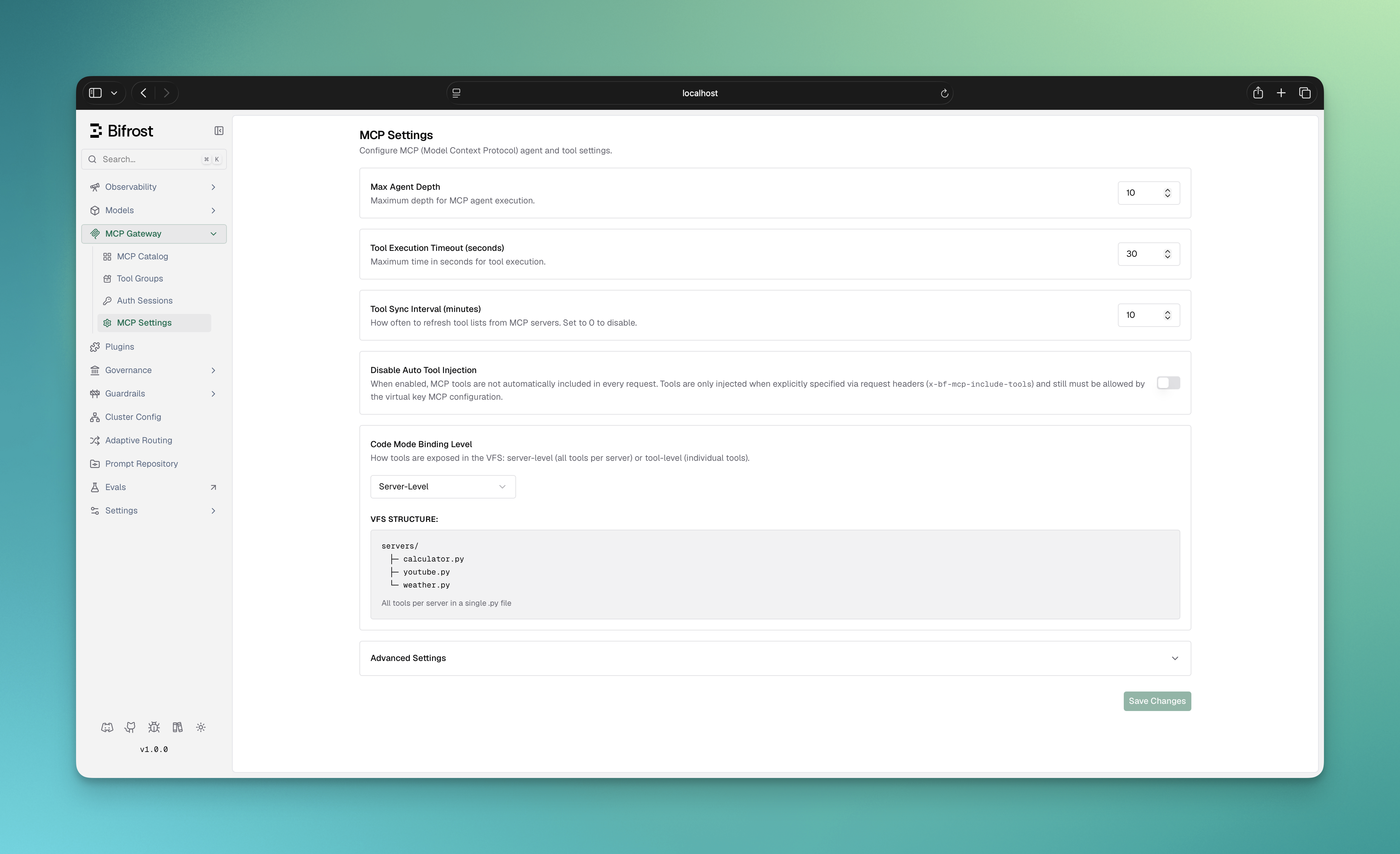 * **Server-level (default)**: One `.pyi` file per MCP server
* Use when: 5-20 tools per server, want simple discovery
* Example: `servers/youtube.pyi` contains all YouTube tools
* **Tool-level**: One `.pyi` file per individual tool
* Use when: 30+ tools per server, want minimal context bloat
* Example: `servers/youtube/search.pyi`, `servers/youtube/list_channels.pyi`
Both modes use the same four-tool interface (`listToolFiles`, `readToolFile`, `getToolDocs`, `executeToolCode`). The choice is purely about **context efficiency per read operation**.
```json theme={null}
{
"mcp": {
"tool_manager_config": {
"code_mode_binding_level": "server"
}
}
}
```
Options: `"server"` (default) or `"tool"`
```go theme={null}
mcpConfig := &schemas.MCPConfig{
ToolManagerConfig: &schemas.MCPToolManagerConfig{
CodeModeBindingLevel: schemas.CodeModeBindingLevelTool, // or CodeModeBindingLevelServer
},
ClientConfigs: []schemas.MCPClientConfig{
// ... clients
},
}
```
***
## Auto-Execution with Code Mode
Code Mode tools can be auto-executed in [Agent Mode](./agent-mode), but with **additional validation**:
1. The `listToolFiles` and `readToolFile` tools are always auto-executable (they're read-only)
2. The `executeToolCode` tool is auto-executable **only if** all tool calls within the code are allowed
### How Validation Works
When `executeToolCode` is called in agent mode:
1. Bifrost parses the Python code
2. Extracts all `serverName.toolName()` calls
3. Checks each call against `tools_to_auto_execute` for that server
4. If ALL calls are allowed → auto-execute
5. If ANY call is not allowed → return to user for approval
**Example:**
```json theme={null}
{
"name": "youtube",
"tools_to_execute": ["*"],
"tools_to_auto_execute": ["search"],
"is_code_mode_client": true
}
```
```python theme={null}
# This code WILL auto-execute (only uses search)
results = youtube.search(query="AI")
result = results
# This code will NOT auto-execute (uses delete_video which is not in auto-execute list)
youtube.delete_video(id="abc123")
```
***
## Code Execution Environment
### Available APIs
| Available | Not Available |
| ---------------------- | ------------------------ |
| Python-like syntax | `import` statements |
| Synchronous tool calls | Classes (use dicts) |
| `print()` for logging | File I/O |
| Dict/List operations | Network access |
| List comprehensions | `random`, `time` modules |
### Runtime Environment Details
**Engine:** Starlark interpreter (Python subset)
**Tool Exposure:** Tools from code mode clients are exposed as global objects:
```python theme={null}
# If you have a 'youtube' code mode client with a 'search' tool
results = youtube.search(query="AI news")
```
**Code Processing:**
1. Code is validated for syntax errors
2. Tool calls are extracted and validated
3. Code executes in isolated Starlark context
4. Result variable is automatically serialized to JSON
**Execution Limits:**
* Default timeout: 30 seconds per tool execution
* Memory isolation: Each execution gets its own context
* No access to host file system or network
* Logs captured from print() calls
### Error Handling
Bifrost provides detailed error messages with hints:
```python theme={null}
# Error: youtube is not defined
# Hints:
# - Variable or identifier 'youtube' is not defined
# - Available server keys: youtubeAPI, filesystem
# - Use one of the available server keys as the object name
```
### Timeouts
* Default: 30 seconds per tool call
* Configure via `tool_execution_timeout` in `tool_manager_config`
* Long-running operations are interrupted with timeout error
***
## Why Savings Grow with Tool Count
Classic MCP injects every available tool definition on every model turn. As you connect more servers, the repeated tool catalog dominates the input context, so cost rises with the size of your MCP footprint.
Code Mode keeps that catalog behind four meta-tools. The model discovers the relevant stub files, reads only the signatures and docs it needs, and executes the multi-tool workflow inside the sandbox. In the benchmark rounds above, that kept Code Mode input usage nearly flat while classic MCP grew from 19.9M to 75.1M input tokens.
The effect is most visible at large scale: with **508 tools across 16 servers**, Code Mode cut input tokens from **75.1M to 5.4M** and estimated cost from **$377.00 to $29.00**, while preserving a **65/65 (100%)** pass rate.
***
## Next Steps
Combine Code Mode with auto-execution
Expose your tools to external clients
* **Server-level (default)**: One `.pyi` file per MCP server
* Use when: 5-20 tools per server, want simple discovery
* Example: `servers/youtube.pyi` contains all YouTube tools
* **Tool-level**: One `.pyi` file per individual tool
* Use when: 30+ tools per server, want minimal context bloat
* Example: `servers/youtube/search.pyi`, `servers/youtube/list_channels.pyi`
Both modes use the same four-tool interface (`listToolFiles`, `readToolFile`, `getToolDocs`, `executeToolCode`). The choice is purely about **context efficiency per read operation**.
```json theme={null}
{
"mcp": {
"tool_manager_config": {
"code_mode_binding_level": "server"
}
}
}
```
Options: `"server"` (default) or `"tool"`
```go theme={null}
mcpConfig := &schemas.MCPConfig{
ToolManagerConfig: &schemas.MCPToolManagerConfig{
CodeModeBindingLevel: schemas.CodeModeBindingLevelTool, // or CodeModeBindingLevelServer
},
ClientConfigs: []schemas.MCPClientConfig{
// ... clients
},
}
```
***
## Auto-Execution with Code Mode
Code Mode tools can be auto-executed in [Agent Mode](./agent-mode), but with **additional validation**:
1. The `listToolFiles` and `readToolFile` tools are always auto-executable (they're read-only)
2. The `executeToolCode` tool is auto-executable **only if** all tool calls within the code are allowed
### How Validation Works
When `executeToolCode` is called in agent mode:
1. Bifrost parses the Python code
2. Extracts all `serverName.toolName()` calls
3. Checks each call against `tools_to_auto_execute` for that server
4. If ALL calls are allowed → auto-execute
5. If ANY call is not allowed → return to user for approval
**Example:**
```json theme={null}
{
"name": "youtube",
"tools_to_execute": ["*"],
"tools_to_auto_execute": ["search"],
"is_code_mode_client": true
}
```
```python theme={null}
# This code WILL auto-execute (only uses search)
results = youtube.search(query="AI")
result = results
# This code will NOT auto-execute (uses delete_video which is not in auto-execute list)
youtube.delete_video(id="abc123")
```
***
## Code Execution Environment
### Available APIs
| Available | Not Available |
| ---------------------- | ------------------------ |
| Python-like syntax | `import` statements |
| Synchronous tool calls | Classes (use dicts) |
| `print()` for logging | File I/O |
| Dict/List operations | Network access |
| List comprehensions | `random`, `time` modules |
### Runtime Environment Details
**Engine:** Starlark interpreter (Python subset)
**Tool Exposure:** Tools from code mode clients are exposed as global objects:
```python theme={null}
# If you have a 'youtube' code mode client with a 'search' tool
results = youtube.search(query="AI news")
```
**Code Processing:**
1. Code is validated for syntax errors
2. Tool calls are extracted and validated
3. Code executes in isolated Starlark context
4. Result variable is automatically serialized to JSON
**Execution Limits:**
* Default timeout: 30 seconds per tool execution
* Memory isolation: Each execution gets its own context
* No access to host file system or network
* Logs captured from print() calls
### Error Handling
Bifrost provides detailed error messages with hints:
```python theme={null}
# Error: youtube is not defined
# Hints:
# - Variable or identifier 'youtube' is not defined
# - Available server keys: youtubeAPI, filesystem
# - Use one of the available server keys as the object name
```
### Timeouts
* Default: 30 seconds per tool call
* Configure via `tool_execution_timeout` in `tool_manager_config`
* Long-running operations are interrupted with timeout error
***
## Why Savings Grow with Tool Count
Classic MCP injects every available tool definition on every model turn. As you connect more servers, the repeated tool catalog dominates the input context, so cost rises with the size of your MCP footprint.
Code Mode keeps that catalog behind four meta-tools. The model discovers the relevant stub files, reads only the signatures and docs it needs, and executes the multi-tool workflow inside the sandbox. In the benchmark rounds above, that kept Code Mode input usage nearly flat while classic MCP grew from 19.9M to 75.1M input tokens.
The effect is most visible at large scale: with **508 tools across 16 servers**, Code Mode cut input tokens from **75.1M to 5.4M** and estimated cost from **$377.00 to $29.00**, while preserving a **65/65 (100%)** pass rate.
***
## Next Steps
Combine Code Mode with auto-execution
Expose your tools to external clients