> ## Documentation Index
> Fetch the complete documentation index at: https://docs.getbifrost.ai/llms.txt
> Use this file to discover all available pages before exploring further.
# MCP Tool Filtering
> Control which MCP tools are available for each Virtual Key.
## Overview
MCP Tool Filtering allows you to control which tools are available to AI models on a per-request basis using Virtual Keys (VKs). By configuring a VirtualKey, you can create a strict allow-list of MCP clients and tools, ensuring that only approved tools can be executed.
Make sure you have at least one MCP client set up. Read more about it [here](../../mcp/overview).
## How It Works
The filtering logic is determined by the Virtual Key's configuration:
1. **No MCP Configuration on Virtual Key (Default)**
* If a Virtual Key has no specific MCP configurations, **no MCP tools are available** (deny-by-default).
* You must explicitly add MCP client configurations to allow tools.
2. **With MCP Configuration on Virtual Key**
* When you configure MCP clients on a Virtual Key, its settings take full precedence.
* Bifrost automatically generates an `x-bf-mcp-include-tools` header based on your VK configuration (unless `disable_auto_tool_inject` is enabled or the caller already sent the header). This acts as a strict allow-list for the request.
* If the caller already includes an `x-bf-mcp-include-tools` header, auto-injection is skipped - but the VK allow-list is enforced at inference time and still enforced again at MCP tool execution time.
For each MCP client associated with a Virtual Key, you can specify the allowed tools:
* **Select specific tools**: Only the chosen tools from that client will be available.
* **Use `*` wildcard**: All available tools from that client will be permitted.
* **Leave tool list empty**: All tools from that client will be **blocked**.
* **Do not configure a client**: All tools from that client will be **blocked** (if other clients are configured).
Inactive or [expired](./virtual-keys#key-expiry) Virtual Keys are rejected at MCP tool execution time with a `403`, regardless of their tool configuration.
## Setting MCP Tool Restrictions
You can configure which tools a Virtual Key has access to via the UI.
1. Go to **Virtual Keys** page.
2. Create/Edit virtual key
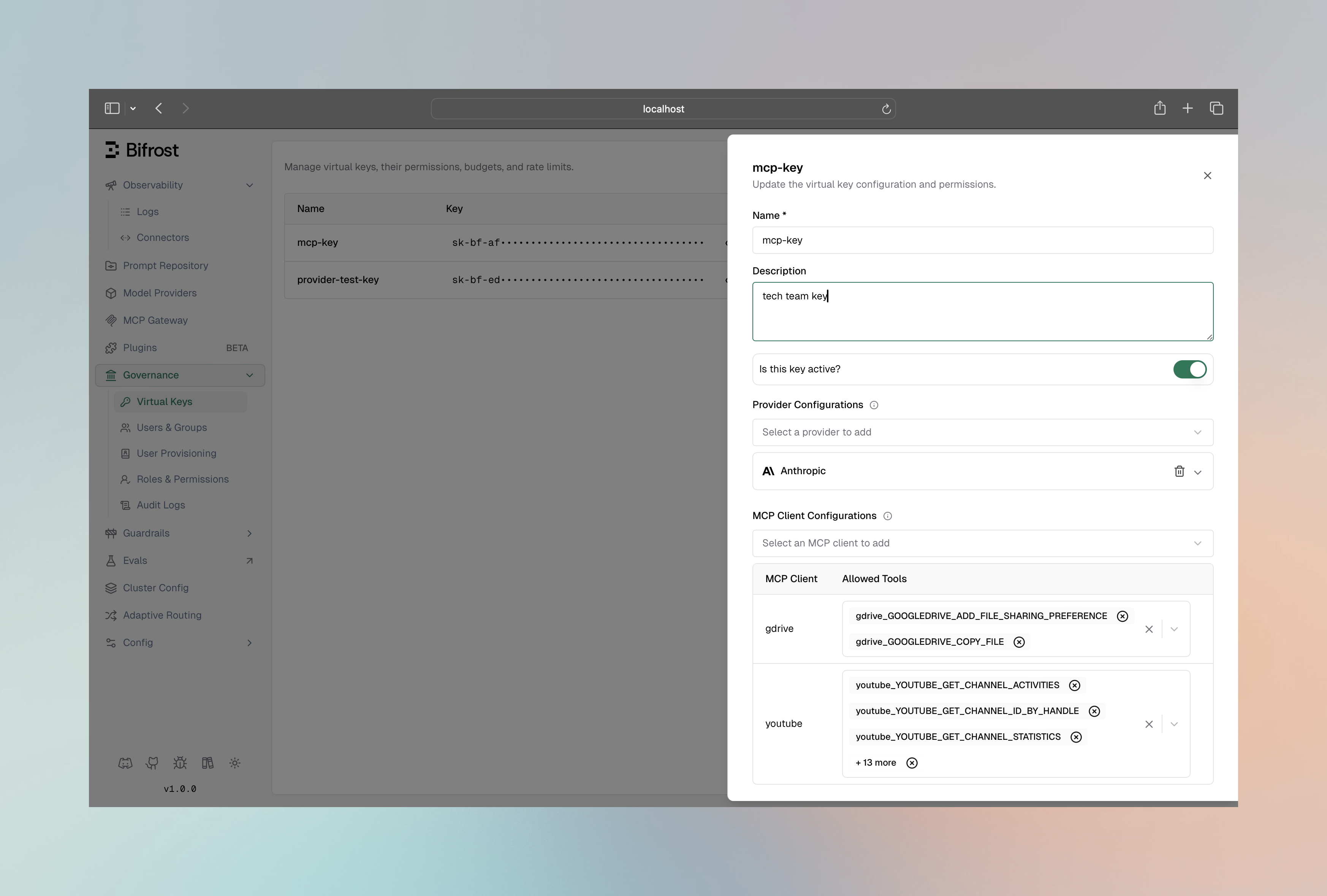 3. In **MCP Client Configurations** section, add the MCP client you want to restrict the VK to
4. Select the specific tools to allow, or choose **Allow All Tools** to permit all current and future tools from that client (stored as `*`). Leaving the list empty blocks all tools for that client.
5. Click on the **Save** button
You can configure this via the REST API when creating (`POST`) or updating (`PUT`) a virtual key.
**Create Virtual Key:**
```bash theme={null}
curl -X POST http://localhost:8080/api/governance/virtual-keys \
-H "Content-Type: application/json" \
-d '{
"name": "vk-for-billing-support",
"mcp_configs": [
{
"mcp_client_name": "billing-client",
"tools_to_execute": ["check-status"]
},
{
"mcp_client_name": "support-client",
"tools_to_execute": ["*"]
}
]
}'
```
**Update Virtual Key:**
```bash theme={null}
curl -X PUT http://localhost:8080/api/governance/virtual-keys/{vk_id} \
-H "Content-Type: application/json" \
-d '{
"mcp_configs": [
{
"mcp_client_name": "billing-client",
"tools_to_execute": ["check-status"]
},
{
"mcp_client_name": "support-client",
"tools_to_execute": ["*"]
}
]
}'
```
**Behavior:**
* The virtual key can only access the `check-status` tool from `billing-client`.
* It can access all tools from `support-client`.
* Any other MCP client is implicitly blocked for this key.
You can also define MCP tool restrictions directly in your `config.json` file. The `mcp_configs` array under a virtual key should reference the MCP client by name.
```json theme={null}
{
"governance": {
"virtual_keys": [
{
"id": "vk-billing-support-only",
"name": "VK for Billing and Support",
"mcp_configs": [
{
"mcp_client_name": "billing-client",
"tools_to_execute": ["check-status"]
},
{
"mcp_client_name": "support-client",
"tools_to_execute": ["*"]
}
]
}
]
}
}
```
## Example Scenario
**Available MCP Clients & Tools:**
* **`billing-client`**: with tools `[create-invoice, check-status]`
* **`support-client`**: with tools `[create-ticket, get-faq]`
**Configuration:**
* `billing-client` -> Allowed Tools: `[*]` (wildcard)
* `support-client` -> Allowed Tools: `[*]` (wildcard)
**Result:**
A request with this Virtual Key can access all four tools: `create-invoice`, `check-status`, `create-ticket`, and `get-faq`.
**Configuration:**
* `billing-client` -> Allowed Tools: `[check-status]`
* `support-client` -> Not configured
**Result:**
A request with this Virtual Key can only access the `check-status` tool. All other tools are blocked.
**Configuration:**
* `billing-client` -> Allowed Tools: `[]` (empty list)
**Result:**
A request with this Virtual Key cannot access any tools. All tools from all clients are blocked.
When a Virtual Key has MCP configurations, Bifrost enforces the allow-list at both inference time and MCP tool execution time. Auto-injection of the `x-bf-mcp-include-tools` header is skipped if the caller already provides it or if `disable_auto_tool_inject` is enabled - but the VK's restrictions are always applied regardless. You can still use the `x-bf-mcp-include-clients` header to filter MCP clients per request.
3. In **MCP Client Configurations** section, add the MCP client you want to restrict the VK to
4. Select the specific tools to allow, or choose **Allow All Tools** to permit all current and future tools from that client (stored as `*`). Leaving the list empty blocks all tools for that client.
5. Click on the **Save** button
You can configure this via the REST API when creating (`POST`) or updating (`PUT`) a virtual key.
**Create Virtual Key:**
```bash theme={null}
curl -X POST http://localhost:8080/api/governance/virtual-keys \
-H "Content-Type: application/json" \
-d '{
"name": "vk-for-billing-support",
"mcp_configs": [
{
"mcp_client_name": "billing-client",
"tools_to_execute": ["check-status"]
},
{
"mcp_client_name": "support-client",
"tools_to_execute": ["*"]
}
]
}'
```
**Update Virtual Key:**
```bash theme={null}
curl -X PUT http://localhost:8080/api/governance/virtual-keys/{vk_id} \
-H "Content-Type: application/json" \
-d '{
"mcp_configs": [
{
"mcp_client_name": "billing-client",
"tools_to_execute": ["check-status"]
},
{
"mcp_client_name": "support-client",
"tools_to_execute": ["*"]
}
]
}'
```
**Behavior:**
* The virtual key can only access the `check-status` tool from `billing-client`.
* It can access all tools from `support-client`.
* Any other MCP client is implicitly blocked for this key.
You can also define MCP tool restrictions directly in your `config.json` file. The `mcp_configs` array under a virtual key should reference the MCP client by name.
```json theme={null}
{
"governance": {
"virtual_keys": [
{
"id": "vk-billing-support-only",
"name": "VK for Billing and Support",
"mcp_configs": [
{
"mcp_client_name": "billing-client",
"tools_to_execute": ["check-status"]
},
{
"mcp_client_name": "support-client",
"tools_to_execute": ["*"]
}
]
}
]
}
}
```
## Example Scenario
**Available MCP Clients & Tools:**
* **`billing-client`**: with tools `[create-invoice, check-status]`
* **`support-client`**: with tools `[create-ticket, get-faq]`
**Configuration:**
* `billing-client` -> Allowed Tools: `[*]` (wildcard)
* `support-client` -> Allowed Tools: `[*]` (wildcard)
**Result:**
A request with this Virtual Key can access all four tools: `create-invoice`, `check-status`, `create-ticket`, and `get-faq`.
**Configuration:**
* `billing-client` -> Allowed Tools: `[check-status]`
* `support-client` -> Not configured
**Result:**
A request with this Virtual Key can only access the `check-status` tool. All other tools are blocked.
**Configuration:**
* `billing-client` -> Allowed Tools: `[]` (empty list)
**Result:**
A request with this Virtual Key cannot access any tools. All tools from all clients are blocked.
When a Virtual Key has MCP configurations, Bifrost enforces the allow-list at both inference time and MCP tool execution time. Auto-injection of the `x-bf-mcp-include-tools` header is skipped if the caller already provides it or if `disable_auto_tool_inject` is enabled - but the VK's restrictions are always applied regardless. You can still use the `x-bf-mcp-include-clients` header to filter MCP clients per request.