> ## Documentation Index
> Fetch the complete documentation index at: https://docs.getbifrost.ai/llms.txt
> Use this file to discover all available pages before exploring further.
# Setup SCIM
> Enable real-time user and group provisioning from any SCIM 2.0-capable identity provider to Bifrost Enterprise.
Bifrost exposes a SCIM 2.0 endpoint that any compatible identity provider can push user and group changes to in real time — new users are provisioned, deactivated users are suspended, and group memberships are updated without waiting for the next background sync cycle.
Complete [SSO using OIDC](./oidc) before setting up SCIM. SCIM provisioning runs alongside your OIDC integration — it does not replace it.
***
## Step 1: Enable SCIM in Bifrost
In your Bifrost dashboard, go to **Governance** → **User Provisioning** and open your configured Generic OIDC provider.
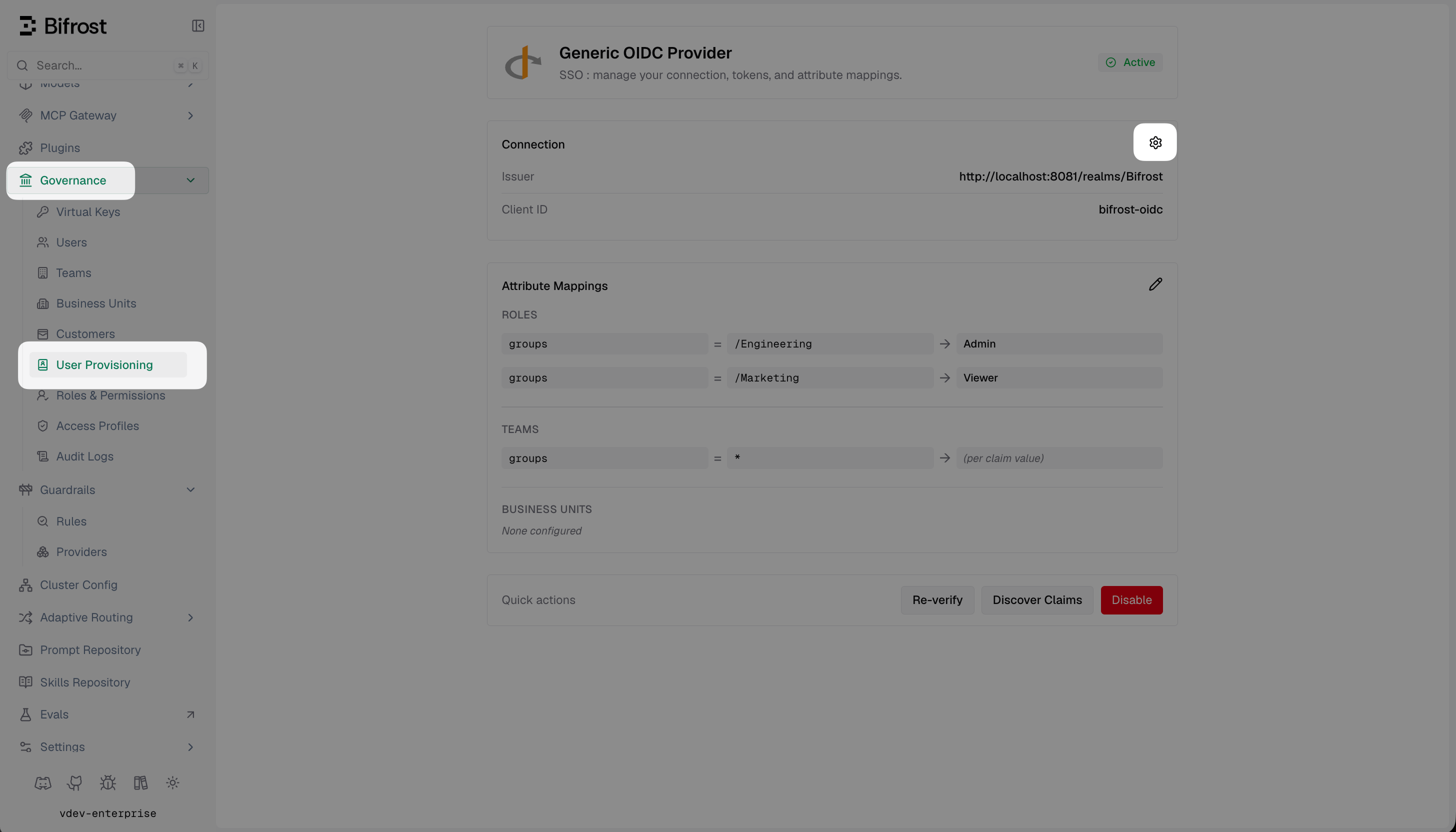 Click the settings icon to open **Provider Configuration**.
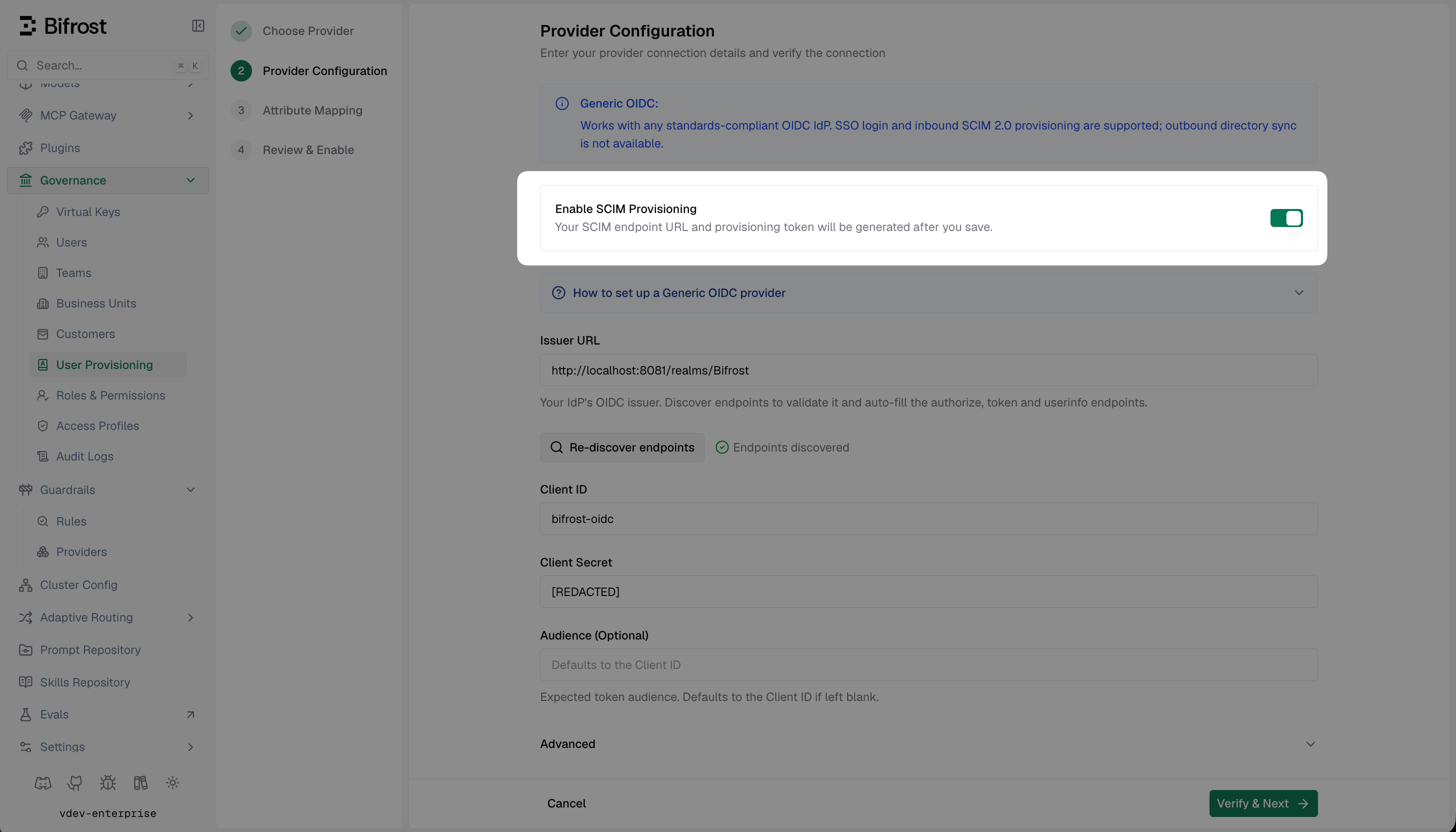
Toggle on **Enable SCIM Provisioning** and click **Verify & Next**.
Click the settings icon to open **Provider Configuration**.
Toggle on **Enable SCIM Provisioning** and click **Verify & Next**.
 After saving, Bifrost shows a **Setup Complete** dialog with:
* **SCIM Endpoint URL** — the base URL your IdP will send provisioning requests to (e.g. `https:///scim/v2`)
* **Provisioning Token** — the bearer token your IdP uses to authenticate requests
After saving, Bifrost shows a **Setup Complete** dialog with:
* **SCIM Endpoint URL** — the base URL your IdP will send provisioning requests to (e.g. `https:///scim/v2`)
* **Provisioning Token** — the bearer token your IdP uses to authenticate requests
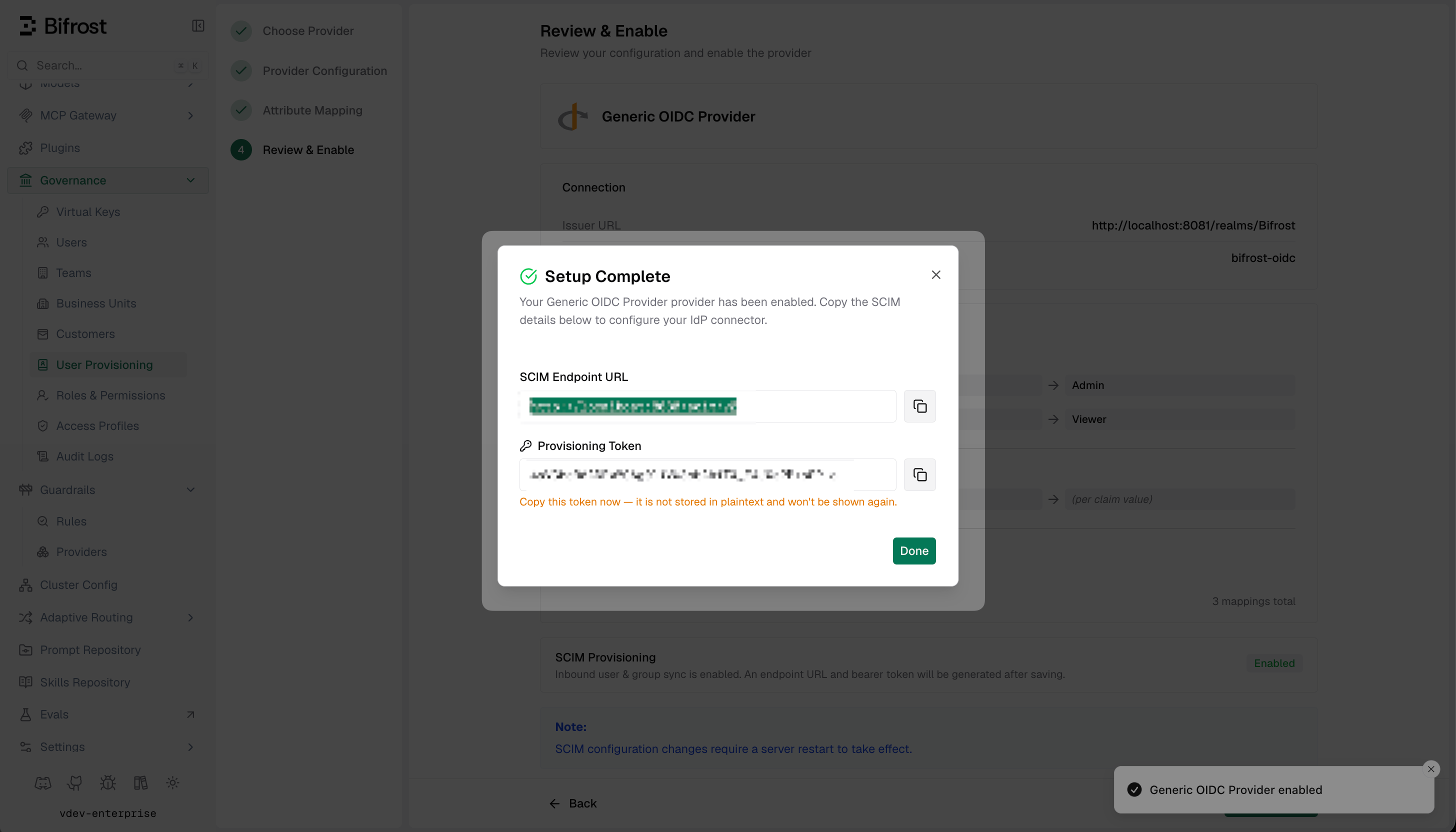 The provisioning token is only shown once. Store it somewhere safe before closing. You can rotate it later, but the previous token becomes invalid immediately.
***
## Step 2: Configure your IdP to push SCIM to Bifrost
The exact steps vary by provider. Most SCIM-capable IdPs follow this general pattern:
In your IdP admin console, look for:
* **Provisioning** tab on your application
* **SCIM** settings in the application integration
* **Outbound provisioning** or **User sync** settings
| Setting | Value |
| ------------------------------- | ----------------------------------------------------- |
| **SCIM Base URL / Tenant URL** | The SCIM Endpoint URL from Step 1 — no trailing slash |
| **Bearer Token / Secret Token** | The Provisioning Token from Step 1 |
Most IdPs provide a **Test Connection** or **Verify Credentials** button. Click it to confirm Bifrost is reachable and the token is valid.
Enable the following operations if available:
* **Create Users** — provision new users when added in the IdP
* **Update User Attributes** — sync profile changes to Bifrost
* **Deactivate Users** — suspend users when deactivated or deleted in the IdP
* **Push Groups** — sync group memberships so Bifrost team mappings stay current
***
## Step 3: Assign users and groups
In your IdP, assign the users or groups you want to provision into Bifrost. Only users within the provisioning scope are pushed.
Changes — new assignments, deactivations, group membership updates — will reflect in Bifrost within the next provisioning cycle. Most IdPs offer an on-demand sync option for immediate provisioning.
***
## Step 4: Verify in Bifrost
Once provisioning is active, confirm everything is syncing correctly:
* **Governance → Users** — provisioned users and their assigned roles
* **Governance → Teams** — teams populated from pushed groups
* **Governance → Business Units** — business units resolved from group or attribute mappings
***
## Bifrost SCIM API reference
| Method | Endpoint | Description |
| -------- | ---------------------- | -------------------------------- |
| `GET` | `/scim/v2/Users` | List users |
| `GET` | `/scim/v2/Users/{id}` | Get a user |
| `POST` | `/scim/v2/Users` | Provision a new user |
| `PUT` | `/scim/v2/Users/{id}` | Replace a user |
| `PATCH` | `/scim/v2/Users/{id}` | Update user attributes or status |
| `DELETE` | `/scim/v2/Users/{id}` | Deprovision a user |
| `GET` | `/scim/v2/Groups` | List groups |
| `GET` | `/scim/v2/Groups/{id}` | Get a group |
| `POST` | `/scim/v2/Groups` | Create a group |
| `PUT` | `/scim/v2/Groups/{id}` | Replace a group |
| `PATCH` | `/scim/v2/Groups/{id}` | Update group members |
| `DELETE` | `/scim/v2/Groups/{id}` | Delete a group |
All requests must include an `Authorization: Bearer ` header using the Provisioning Token.
***
## How sync works
**Real-time push** — your IdP pushes user and group changes to Bifrost immediately when they occur.
**OIDC session refresh** — every 15 minutes, Bifrost refreshes active OIDC sessions. If a user has been deactivated, their Bifrost session is terminated.
***
## Troubleshooting
**Test Connection fails** — verify the SCIM Base URL has no trailing slash and the token matches exactly what Bifrost generated. Rotate the token in Bifrost and update your IdP.
**Users are provisioned but have no role** — SCIM provisions the user record; role assignment comes from attribute mappings in the OIDC provider. Confirm your Attribute-to-Role mappings are set and the relevant claims appear in the JWT at login time.
**Groups are not syncing** — confirm group push is enabled in your IdP's provisioning settings. Some IdPs require groups to be enabled separately from user sync.
**`401 Unauthorized` from Bifrost SCIM endpoint** — the provisioning token is incorrect or has been rotated. Generate a new token in Bifrost (**Provider Configuration → Rotate Token**) and update your IdP.
**`409 Conflict` when provisioning a user** — the user already exists in Bifrost (provisioned via OIDC login). Bifrost will merge the records on the next PATCH request from your IdP.
The provisioning token is only shown once. Store it somewhere safe before closing. You can rotate it later, but the previous token becomes invalid immediately.
***
## Step 2: Configure your IdP to push SCIM to Bifrost
The exact steps vary by provider. Most SCIM-capable IdPs follow this general pattern:
In your IdP admin console, look for:
* **Provisioning** tab on your application
* **SCIM** settings in the application integration
* **Outbound provisioning** or **User sync** settings
| Setting | Value |
| ------------------------------- | ----------------------------------------------------- |
| **SCIM Base URL / Tenant URL** | The SCIM Endpoint URL from Step 1 — no trailing slash |
| **Bearer Token / Secret Token** | The Provisioning Token from Step 1 |
Most IdPs provide a **Test Connection** or **Verify Credentials** button. Click it to confirm Bifrost is reachable and the token is valid.
Enable the following operations if available:
* **Create Users** — provision new users when added in the IdP
* **Update User Attributes** — sync profile changes to Bifrost
* **Deactivate Users** — suspend users when deactivated or deleted in the IdP
* **Push Groups** — sync group memberships so Bifrost team mappings stay current
***
## Step 3: Assign users and groups
In your IdP, assign the users or groups you want to provision into Bifrost. Only users within the provisioning scope are pushed.
Changes — new assignments, deactivations, group membership updates — will reflect in Bifrost within the next provisioning cycle. Most IdPs offer an on-demand sync option for immediate provisioning.
***
## Step 4: Verify in Bifrost
Once provisioning is active, confirm everything is syncing correctly:
* **Governance → Users** — provisioned users and their assigned roles
* **Governance → Teams** — teams populated from pushed groups
* **Governance → Business Units** — business units resolved from group or attribute mappings
***
## Bifrost SCIM API reference
| Method | Endpoint | Description |
| -------- | ---------------------- | -------------------------------- |
| `GET` | `/scim/v2/Users` | List users |
| `GET` | `/scim/v2/Users/{id}` | Get a user |
| `POST` | `/scim/v2/Users` | Provision a new user |
| `PUT` | `/scim/v2/Users/{id}` | Replace a user |
| `PATCH` | `/scim/v2/Users/{id}` | Update user attributes or status |
| `DELETE` | `/scim/v2/Users/{id}` | Deprovision a user |
| `GET` | `/scim/v2/Groups` | List groups |
| `GET` | `/scim/v2/Groups/{id}` | Get a group |
| `POST` | `/scim/v2/Groups` | Create a group |
| `PUT` | `/scim/v2/Groups/{id}` | Replace a group |
| `PATCH` | `/scim/v2/Groups/{id}` | Update group members |
| `DELETE` | `/scim/v2/Groups/{id}` | Delete a group |
All requests must include an `Authorization: Bearer ` header using the Provisioning Token.
***
## How sync works
**Real-time push** — your IdP pushes user and group changes to Bifrost immediately when they occur.
**OIDC session refresh** — every 15 minutes, Bifrost refreshes active OIDC sessions. If a user has been deactivated, their Bifrost session is terminated.
***
## Troubleshooting
**Test Connection fails** — verify the SCIM Base URL has no trailing slash and the token matches exactly what Bifrost generated. Rotate the token in Bifrost and update your IdP.
**Users are provisioned but have no role** — SCIM provisions the user record; role assignment comes from attribute mappings in the OIDC provider. Confirm your Attribute-to-Role mappings are set and the relevant claims appear in the JWT at login time.
**Groups are not syncing** — confirm group push is enabled in your IdP's provisioning settings. Some IdPs require groups to be enabled separately from user sync.
**`401 Unauthorized` from Bifrost SCIM endpoint** — the provisioning token is incorrect or has been rotated. Generate a new token in Bifrost (**Provider Configuration → Rotate Token**) and update your IdP.
**`409 Conflict` when provisioning a user** — the user already exists in Bifrost (provisioned via OIDC login). Bifrost will merge the records on the next PATCH request from your IdP.