> ## Documentation Index
> Fetch the complete documentation index at: https://docs.getbifrost.ai/llms.txt
> Use this file to discover all available pages before exploring further.
# Cloudflare ZTNA (Access)
> Front Bifrost Enterprise with Cloudflare Access (Zero Trust) as an identity-aware proxy that authenticates every request before it reaches Bifrost.
An **identity-aware proxy (IAP)** sits in front of Bifrost and authenticates the user *before* the request ever reaches it. The proxy validates identity, then injects a signed token header on every request. Bifrost verifies that token against the proxy's own keys and authenticates the user from its claims — no interactive login redirect happens at Bifrost itself.
This guide covers [Cloudflare Access](https://www.cloudflare.com/zero-trust/products/access/) (part of Cloudflare's Zero Trust / ZTNA platform). Cloudflare authenticates users against your identity provider and forwards a signed `Cf-Access-Jwt-Assertion` header (an RS256 JWT) to Bifrost. Bifrost validates it against your Cloudflare team domain's JWKS and binds it to your application's audience (AUD) tag.
The auth proxy **fronts an existing identity provider** already configured in Bifrost. Set up your IdP first ([Okta](../setting-up-okta/oidc), [Entra](../setting-up-entra/oidc), [Generic OIDC](../setting-up-generic-oidc/oidc), etc.), then enable the Identity-Aware Proxy on that same provider.
***
## How it works
1. A user requests a Bifrost URL protected by a Cloudflare Access application.
2. Cloudflare authenticates the user against your configured identity provider and enforces your Access policies.
3. Cloudflare forwards the request to Bifrost with the `Cf-Access-Jwt-Assertion` header — a short-lived RS256 JWT signed by your team domain.
4. Bifrost validates the token's signature against `https://.cloudflareaccess.com/cdn-cgi/access/certs`, checks the audience (AUD) tag, and resolves the user from the token's identity claim (`email` by default).
Because Bifrost validates the proxy's token (not the IdP's), both the dashboard and the inference APIs are protected by the same upstream authentication layer.
When the proxy header is absent, Bifrost falls back to the IDP login - so if Bifrost is reachable directly (bypassing Cloudflare), a client can skip your Access policies. Restrict network access so Bifrost is only reachable through Cloudflare (e.g. via a [Cloudflare Tunnel](https://developers.cloudflare.com/cloudflare-one/connections/connect-networks/) or by allowlisting Cloudflare IPs), and ensure the proxy strips any client-supplied `Cf-Access-Jwt-Assertion` header before injecting its own.
***
## Modes
The auth proxy runs in one of two modes:
| Mode | What it does | When to use |
| -------------------------- | --------------------------------------------------------------------------------------------------------------------------------------------------------------------------------------------------------------------------------------------------------------------- | ------------------------------------------------------------------------------------------------------------------- |
| **Login only** *(default)* | Validates identity and authenticates an **already-provisioned** user (looked up by the configured identity claim, `email` by default). No role, team, or business unit is derived from the token. The user's existing role (e.g. from SCIM) governs dashboard access. | You provision users and roles via SCIM or interactive OIDC login, and only want the proxy to handle authentication. |
| **Full** | Validates the token **and** runs attribute → role / team / business-unit mapping from its claims, exactly like an interactive login. | You want role and team assignments derived from the proxy token itself. |
**Login-only** never creates users and rejects an identity that isn't already provisioned. A user without a role can't sign in to the dashboard but remains a valid authenticated identity for inference endpoints.
**Full mode** requires the IdP claims used for mapping (e.g. `groups`) to be **passed through** into the Cloudflare Access token. If those claims aren't present in the proxy token, role and team mapping will not match and login will be denied. Configure claim pass-through in your Cloudflare Access application before using full mode.
***
## Prerequisites
* A **Cloudflare Zero Trust** account with Access enabled
* Your Bifrost deployment reachable through Cloudflare (proxied DNS / tunnel)
* An identity provider already configured in Bifrost under **User Provisioning**
* Bifrost [roles](../rbac) created for any roles you plan to map (full mode)
* For **login-only** mode: users already provisioned in Bifrost (via SCIM or a prior interactive login)
***
## Step 1: Create a Cloudflare Access application
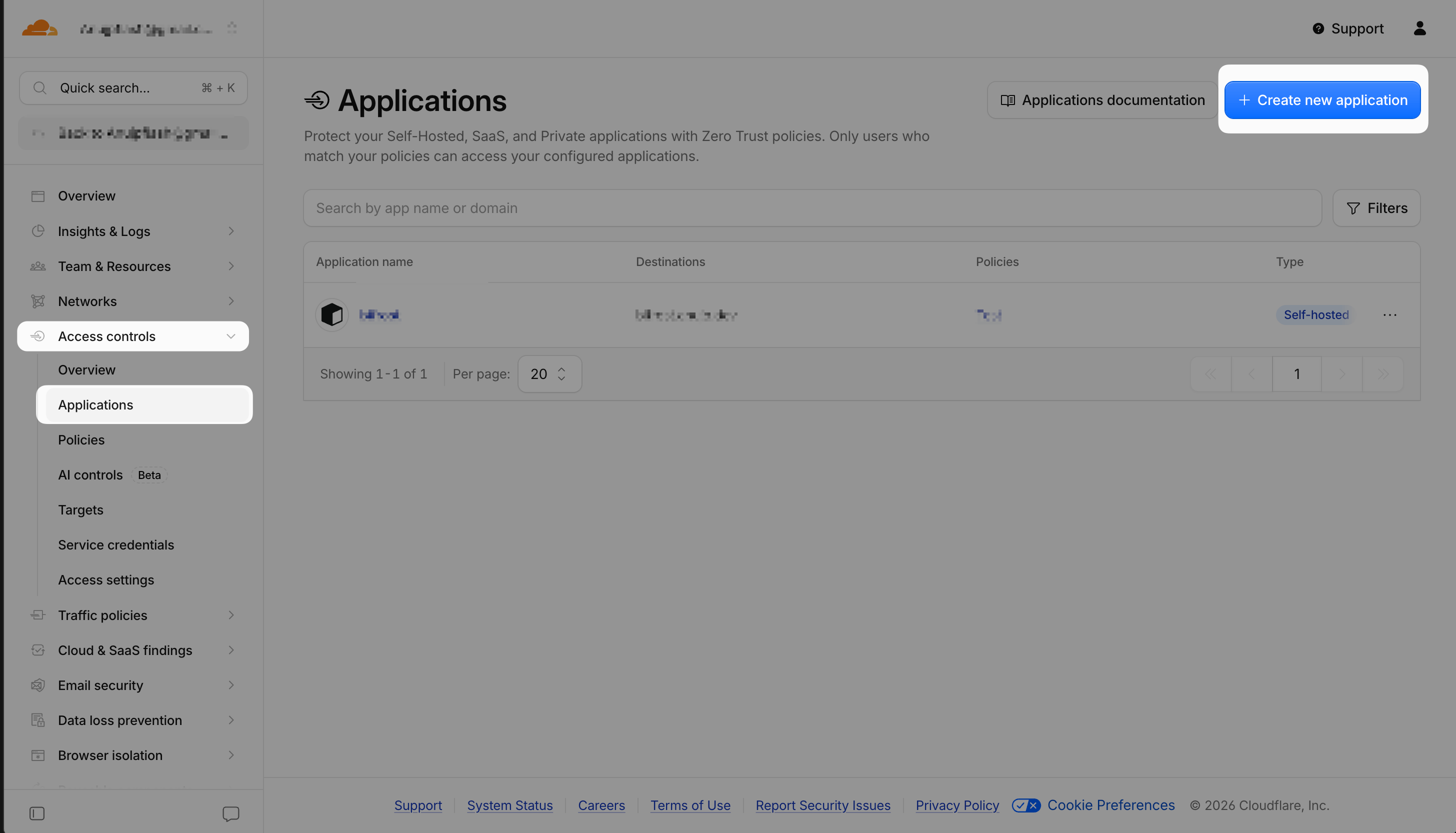
In the Cloudflare **Zero Trust** dashboard, go to **Access controls** → **Applications**, click **Create new application**, and choose **Self-hosted**.
Set the application domain to your Bifrost hostname (e.g. `bifrost.yourcompany.com`) so Access protects the entire dashboard and API surface.
 Under the application's **Authentication** settings, select the identity provider(s) Cloudflare should use to authenticate users. Add **Access policies** that decide who is allowed through (by email domain, group, IdP claim, etc.).
Only users who pass your Cloudflare Access policies will ever reach Bifrost.
You need two values from Cloudflare:
| Value | Where to find it |
| ---------------------------------- | ----------------------------------------------------------------------------------------------------------------------------------------------------------------------------- |
| **Team domain (issuer)** | Your Zero Trust team domain, e.g. `https://.cloudflareaccess.com`. This is your team's account URL. |
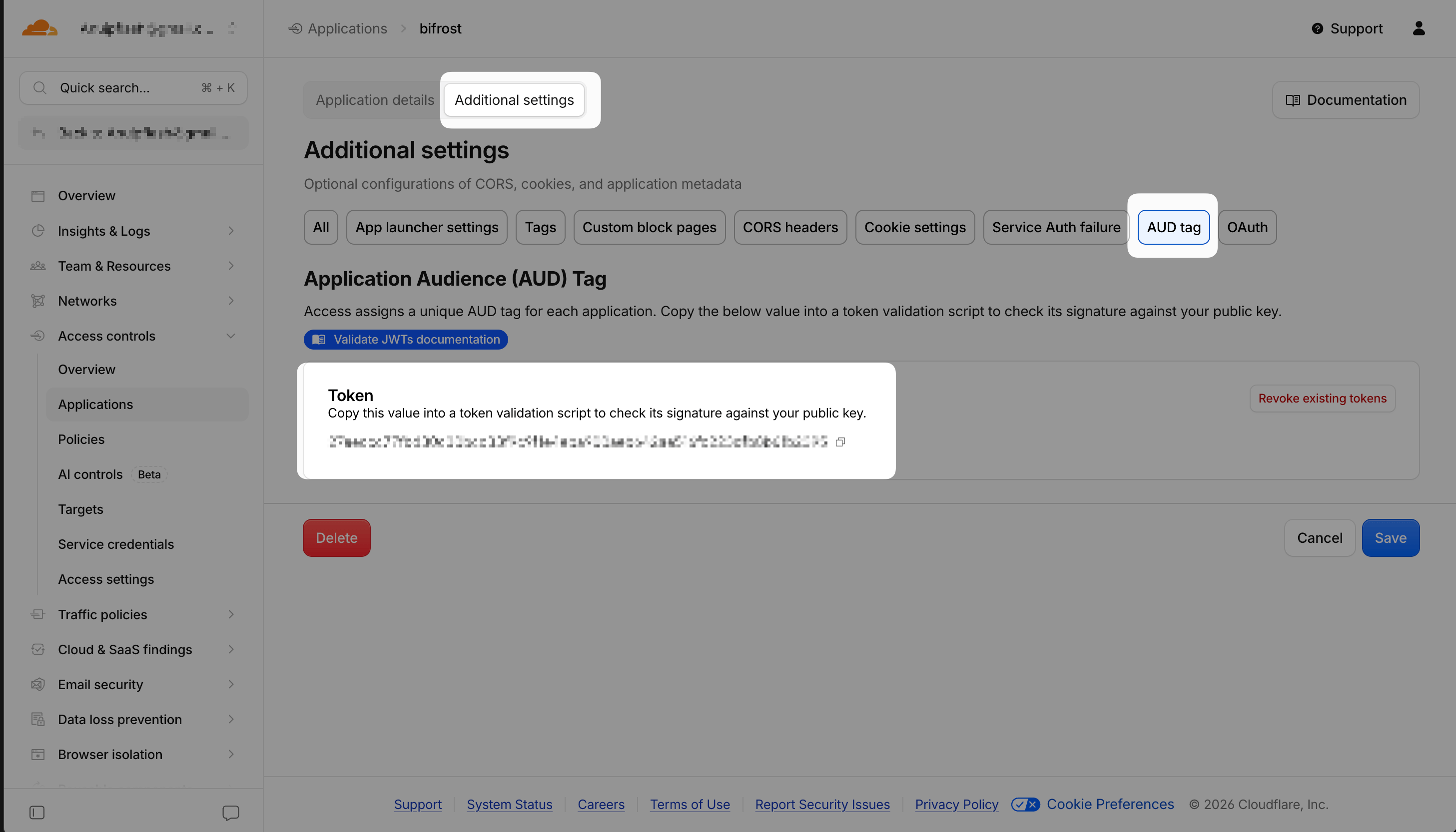
| **Application Audience (AUD) tag** | Open your application, go to the **Additional settings** tab, and select **AUD tag**. Copy the **Token** value — a long hex string that uniquely identifies this application. |
Under the application's **Authentication** settings, select the identity provider(s) Cloudflare should use to authenticate users. Add **Access policies** that decide who is allowed through (by email domain, group, IdP claim, etc.).
Only users who pass your Cloudflare Access policies will ever reach Bifrost.
You need two values from Cloudflare:
| Value | Where to find it |
| ---------------------------------- | ----------------------------------------------------------------------------------------------------------------------------------------------------------------------------- |
| **Team domain (issuer)** | Your Zero Trust team domain, e.g. `https://.cloudflareaccess.com`. This is your team's account URL. |
| **Application Audience (AUD) tag** | Open your application, go to the **Additional settings** tab, and select **AUD tag**. Copy the **Token** value — a long hex string that uniquely identifies this application. |
 ***
## Step 2: Pass through IdP claims (full mode only)
Skip this step if you're using **login-only** mode.
For **full** mode, the IdP attributes you map on (groups, roles, department, etc.) must be present in the Cloudflare Access token. In your Cloudflare Access identity provider settings, enable the relevant OIDC / SAML claims and confirm the group or role claim is included in the token Cloudflare issues.
Any claim Cloudflare includes in the `Cf-Access-Jwt-Assertion` token becomes available for attribute mapping in Bifrost.
***
## Step 3: Enable the Identity-Aware Proxy in Bifrost
In the Bifrost dashboard, go to **Governance** → **User Provisioning** and open the identity provider you want to front with Cloudflare Access. Continue to the **Provider Configuration** step, where the **Identity-Aware Proxy (IAP)** section appears.
Toggle **Identity-Aware Proxy (IAP)** on, then set **Proxy** to **Cloudflare Access**. The **Team domain (issuer)** and **Application AUD tag** fields appear below, along with the **Mode** selector.
***
## Step 2: Pass through IdP claims (full mode only)
Skip this step if you're using **login-only** mode.
For **full** mode, the IdP attributes you map on (groups, roles, department, etc.) must be present in the Cloudflare Access token. In your Cloudflare Access identity provider settings, enable the relevant OIDC / SAML claims and confirm the group or role claim is included in the token Cloudflare issues.
Any claim Cloudflare includes in the `Cf-Access-Jwt-Assertion` token becomes available for attribute mapping in Bifrost.
***
## Step 3: Enable the Identity-Aware Proxy in Bifrost
In the Bifrost dashboard, go to **Governance** → **User Provisioning** and open the identity provider you want to front with Cloudflare Access. Continue to the **Provider Configuration** step, where the **Identity-Aware Proxy (IAP)** section appears.
Toggle **Identity-Aware Proxy (IAP)** on, then set **Proxy** to **Cloudflare Access**. The **Team domain (issuer)** and **Application AUD tag** fields appear below, along with the **Mode** selector.
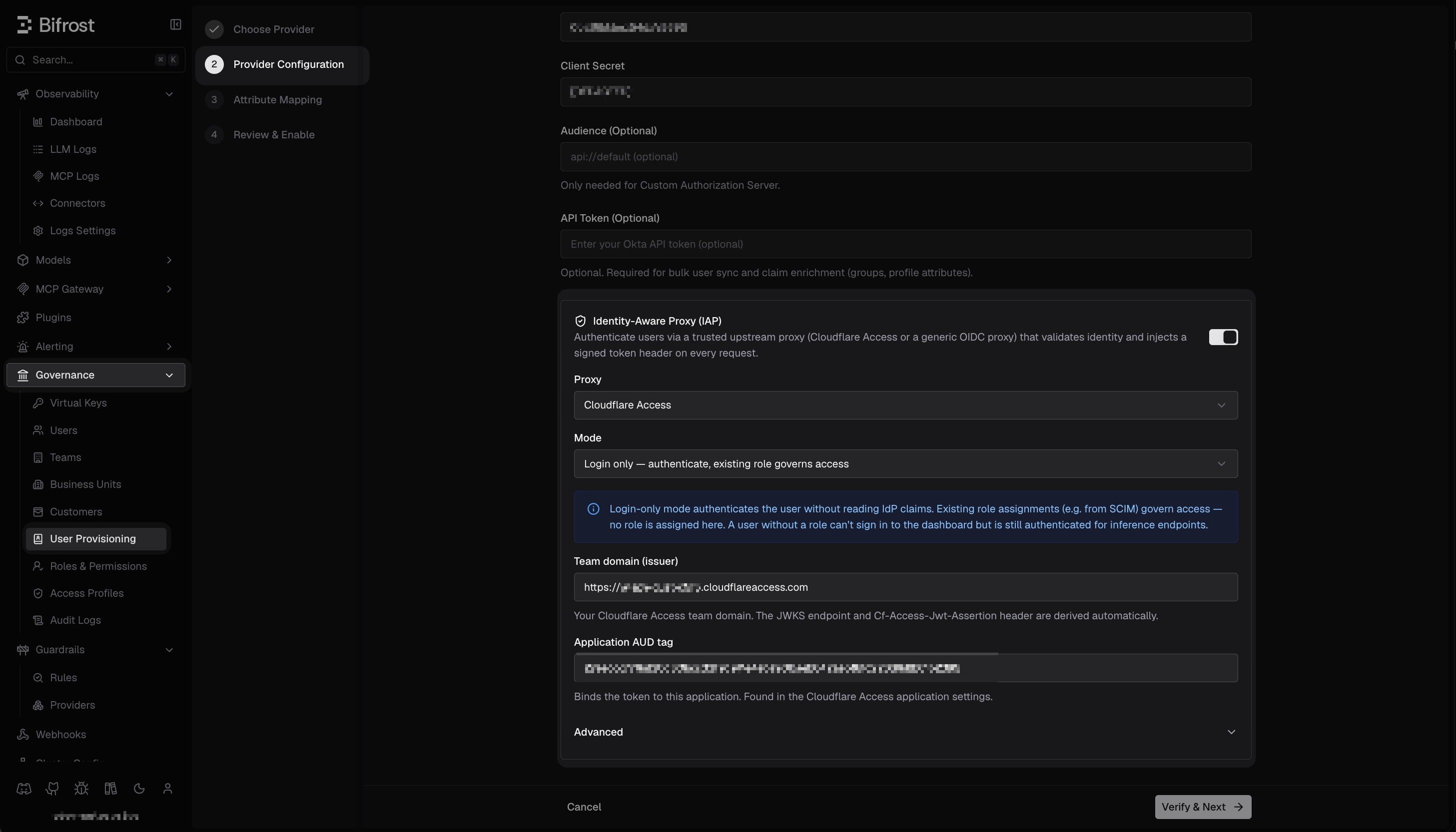 Select **Login only** (authenticate against existing roles) or **Full** (map roles and teams from the token). See [Modes](#modes) above.
| Field | Value |
| ------------------------ | ------------------------------------------------------------------------------------------------------------------------------------------------------------------ |
| **Team domain (issuer)** | Your Cloudflare team domain, e.g. `https://.cloudflareaccess.com`. Bifrost derives the JWKS endpoint and the `Cf-Access-Jwt-Assertion` header automatically. |
| **Application AUD tag** | The Audience tag from your Access application, binding the token to this application. |
The **Advanced** section lets you override the request header, supply an explicit JWKS URL, or change the identity claim — all optional for Cloudflare Access.
Save the provider configuration. Click **Verify & Next** and complete the wizard.
Identity-Aware Proxy changes on an already-enabled provider — turning IAP on or off, switching the proxy type, or editing the team domain, AUD tag, JWKS, or mode — are hot-reloaded and take effect immediately (and are propagated to peer nodes in a cluster).
***
## Configuration reference
The Identity-Aware Proxy is stored as an `authProxy` block on the SSO provider's configuration. Fields marked **string (secret)** below accept a plain-text value, an `env.VAR_NAME` reference, or a `vault.path/to/secret` reference; `enabled`, `provider`, `mode`, and `allowedAudiences` are plain values.
The `authProxy` block lives inside your SSO provider's `config` under the top-level `scim_config`, alongside that provider's own fields:
```json theme={null}
{
"scim_config": {
"enabled": true,
"provider": "okta",
"config": {
...
"authProxy": {
"enabled": true,
"provider": "cloudflare-access",
"mode": "login_only",
"issuerUrl": "https://.cloudflareaccess.com",
"audience": ""
}
}
}
}
```
| Field | Type | Required | Description |
| ------------------ | --------------- | -------- | ----------------------------------------------------------------------------------------- |
| `enabled` | boolean | Yes | Turns the identity-aware proxy on. |
| `provider` | string | No | `cloudflare-access` (default), `generic`, or `aws-alb`. |
| `mode` | string | No | `login_only` (default) or `full`. |
| `issuerUrl` | string (secret) | Yes | Cloudflare team domain, e.g. `https://.cloudflareaccess.com`. Must be `https`. |
| `audience` | string (secret) | Yes\* | The application AUD tag that binds the token to this application. |
| `allowedAudiences` | string\[] | No | Accept any of several AUD tags instead of a single `audience`. |
| `headerName` | string (secret) | No | Override the request header. Defaults to `Cf-Access-Jwt-Assertion`. |
| `jwksUrl` | string (secret) | No | Override the JWKS URL. Derived from the team domain (`/cdn-cgi/access/certs`) when blank. |
| `userIdClaim` | string (secret) | No | Token claim used as the user identity. Defaults to `email`. |
\*Either `audience` or a non-empty `allowedAudiences` is required — an unbound token would be accepted across applications. All URLs must use `https`.
***
## Troubleshooting
### Every request returns 401 Unauthorized
**Cause:** The token signature or audience check failed.
**Fix:** Confirm the **Team domain (issuer)** exactly matches your Cloudflare team URL and that the **Application AUD tag** matches the value on the Access application's Overview tab. Both must be for the *same* application.
### Users get 403 "not provisioned" in login-only mode
**Cause:** Login-only mode never creates users; the identity isn't in Bifrost yet.
**Fix:** Provision the user first via SCIM or a one-time interactive login, or switch the provider to **Full** mode so users are provisioned from the token.
### Role/team mapping doesn't apply in full mode
**Cause:** The mapping claims (e.g. `groups`) aren't present in the Cloudflare Access token.
**Fix:** Enable claim pass-through in your Cloudflare Access identity provider settings (see [Step 2](#step-2%3A-pass-through-idp-claims-full-mode-only)).
***
## Next steps
* **[Generic OIDC proxy](./generic-proxy)** - front Bifrost with any OIDC-based identity-aware proxy
* **[RBAC](../rbac)** - define the roles the proxy authenticates against
* **[User provisioning](../user-provisioning)** - SCIM and OIDC provider setup
Select **Login only** (authenticate against existing roles) or **Full** (map roles and teams from the token). See [Modes](#modes) above.
| Field | Value |
| ------------------------ | ------------------------------------------------------------------------------------------------------------------------------------------------------------------ |
| **Team domain (issuer)** | Your Cloudflare team domain, e.g. `https://.cloudflareaccess.com`. Bifrost derives the JWKS endpoint and the `Cf-Access-Jwt-Assertion` header automatically. |
| **Application AUD tag** | The Audience tag from your Access application, binding the token to this application. |
The **Advanced** section lets you override the request header, supply an explicit JWKS URL, or change the identity claim — all optional for Cloudflare Access.
Save the provider configuration. Click **Verify & Next** and complete the wizard.
Identity-Aware Proxy changes on an already-enabled provider — turning IAP on or off, switching the proxy type, or editing the team domain, AUD tag, JWKS, or mode — are hot-reloaded and take effect immediately (and are propagated to peer nodes in a cluster).
***
## Configuration reference
The Identity-Aware Proxy is stored as an `authProxy` block on the SSO provider's configuration. Fields marked **string (secret)** below accept a plain-text value, an `env.VAR_NAME` reference, or a `vault.path/to/secret` reference; `enabled`, `provider`, `mode`, and `allowedAudiences` are plain values.
The `authProxy` block lives inside your SSO provider's `config` under the top-level `scim_config`, alongside that provider's own fields:
```json theme={null}
{
"scim_config": {
"enabled": true,
"provider": "okta",
"config": {
...
"authProxy": {
"enabled": true,
"provider": "cloudflare-access",
"mode": "login_only",
"issuerUrl": "https://.cloudflareaccess.com",
"audience": ""
}
}
}
}
```
| Field | Type | Required | Description |
| ------------------ | --------------- | -------- | ----------------------------------------------------------------------------------------- |
| `enabled` | boolean | Yes | Turns the identity-aware proxy on. |
| `provider` | string | No | `cloudflare-access` (default), `generic`, or `aws-alb`. |
| `mode` | string | No | `login_only` (default) or `full`. |
| `issuerUrl` | string (secret) | Yes | Cloudflare team domain, e.g. `https://.cloudflareaccess.com`. Must be `https`. |
| `audience` | string (secret) | Yes\* | The application AUD tag that binds the token to this application. |
| `allowedAudiences` | string\[] | No | Accept any of several AUD tags instead of a single `audience`. |
| `headerName` | string (secret) | No | Override the request header. Defaults to `Cf-Access-Jwt-Assertion`. |
| `jwksUrl` | string (secret) | No | Override the JWKS URL. Derived from the team domain (`/cdn-cgi/access/certs`) when blank. |
| `userIdClaim` | string (secret) | No | Token claim used as the user identity. Defaults to `email`. |
\*Either `audience` or a non-empty `allowedAudiences` is required — an unbound token would be accepted across applications. All URLs must use `https`.
***
## Troubleshooting
### Every request returns 401 Unauthorized
**Cause:** The token signature or audience check failed.
**Fix:** Confirm the **Team domain (issuer)** exactly matches your Cloudflare team URL and that the **Application AUD tag** matches the value on the Access application's Overview tab. Both must be for the *same* application.
### Users get 403 "not provisioned" in login-only mode
**Cause:** Login-only mode never creates users; the identity isn't in Bifrost yet.
**Fix:** Provision the user first via SCIM or a one-time interactive login, or switch the provider to **Full** mode so users are provisioned from the token.
### Role/team mapping doesn't apply in full mode
**Cause:** The mapping claims (e.g. `groups`) aren't present in the Cloudflare Access token.
**Fix:** Enable claim pass-through in your Cloudflare Access identity provider settings (see [Step 2](#step-2%3A-pass-through-idp-claims-full-mode-only)).
***
## Next steps
* **[Generic OIDC proxy](./generic-proxy)** - front Bifrost with any OIDC-based identity-aware proxy
* **[RBAC](../rbac)** - define the roles the proxy authenticates against
* **[User provisioning](../user-provisioning)** - SCIM and OIDC provider setup