> ## Documentation Index
> Fetch the complete documentation index at: https://docs.getbifrost.ai/llms.txt
> Use this file to discover all available pages before exploring further.
# Sign in and verify
> Sign in to Edge and prove that the device, certificate, traffic capture, and Bifrost routing are working.
Verify a pilot device before expanding the rollout. A connected tray state is necessary, but the final check is a supported AI request reaching Bifrost with the intended user and policy.
## 1. Sign in
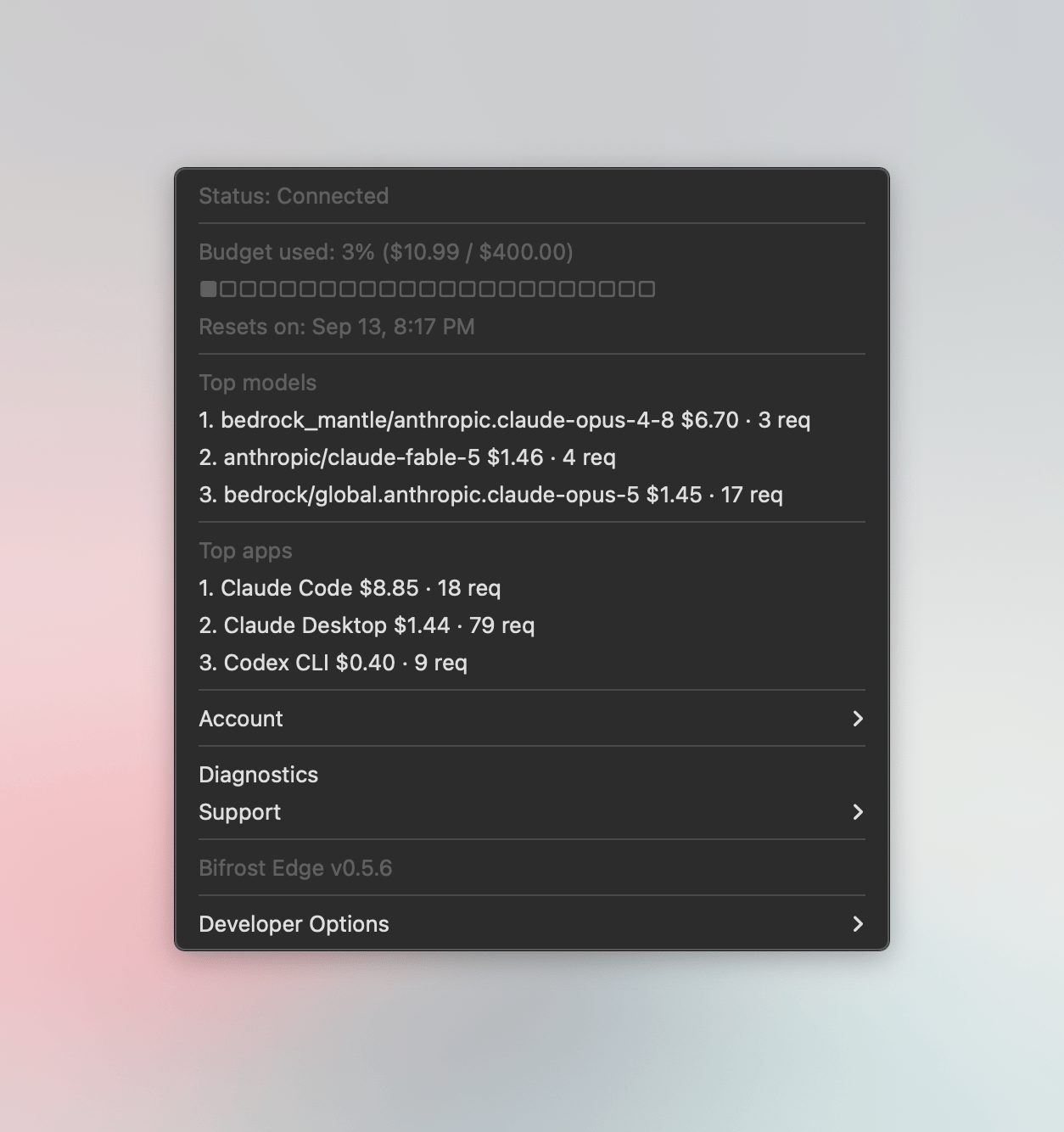
Open the Bifrost Edge tray or menu-bar icon and select **Sign in**.
Edge opens the Bifrost login page in the default browser. Complete your organization's identity-provider flow. When authorization succeeds, the browser hands the session back to the local Edge agent.
The tray shows the signed-in user and **Connected**.
When no IdP is configured and **Allow virtual key sign-in** is enabled, select **Use Virtual Key**, enter an active Bifrost virtual key, and submit it.
The agent validates the key before storing it. The tray shows **Connected (virtual key)** after validation succeeds.
 ## 2. Complete certificate trust
On a direct macOS installation, approve the Bifrost certificate when prompted and complete the administrator authorization. A managed macOS device should already trust the CA through its device-scoped profile. Windows and Linux establish trust from the elevated agent.
Until the active CA is trusted and remote signing is available, Edge passes traffic through without inspecting it.
## 3. Restart the computer
Restart the computer after the active CA is installed and trusted. This restart is required for the CA certificate change to take effect. If the active CA is replaced later, restart the computer again after it trusts the replacement.
Do not continue to traffic verification until the computer has restarted.
## 4. Run Diagnostics
Open **Diagnostics** from the Edge tray. The **Overview** should show a **Healthy** badge, with green status indicators for the checks shown below.
## 2. Complete certificate trust
On a direct macOS installation, approve the Bifrost certificate when prompted and complete the administrator authorization. A managed macOS device should already trust the CA through its device-scoped profile. Windows and Linux establish trust from the elevated agent.
Until the active CA is trusted and remote signing is available, Edge passes traffic through without inspecting it.
## 3. Restart the computer
Restart the computer after the active CA is installed and trusted. This restart is required for the CA certificate change to take effect. If the active CA is replaced later, restart the computer again after it trusts the replacement.
Do not continue to traffic verification until the computer has restarted.
## 4. Run Diagnostics
Open **Diagnostics** from the Edge tray. The **Overview** should show a **Healthy** badge, with green status indicators for the checks shown below.
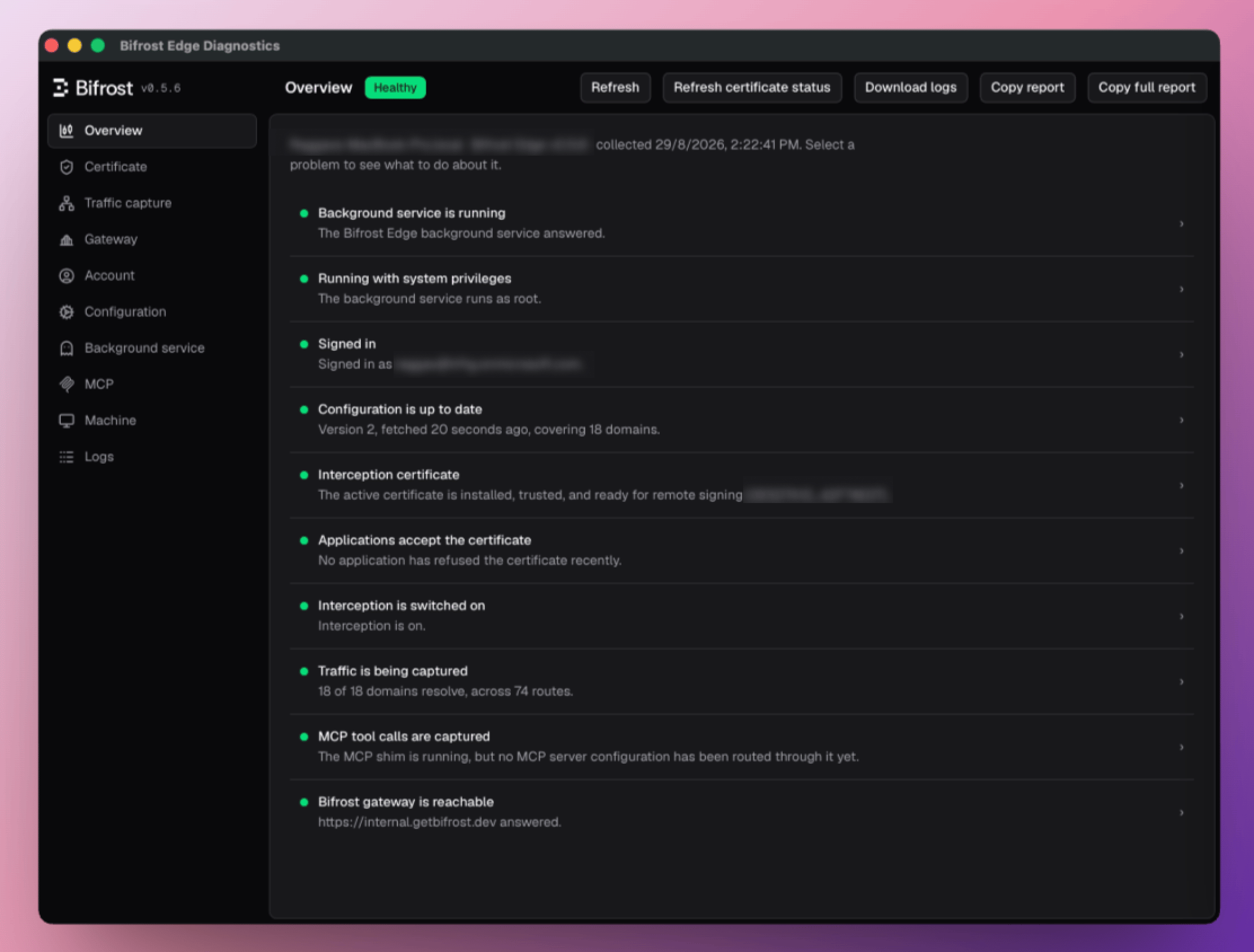 Confirm the following groups have no unresolved failures:
| Check | Healthy result |
| ------------------ | --------------------------------------------------------------------------------------------------------------- |
| Background service | Running with system privileges |
| Account | Signed in, or using a validated virtual key |
| Configuration | A recent configuration version was fetched |
| Certificate | The active certificate is installed, trusted, and ready for remote signing; applications accept the certificate |
| Traffic capture | Interception is switched on, configured domains resolve, and network routes are installed |
| Gateway | The configured Bifrost gateway responds |
| MCP | The shim is running when MCP capture is configured |
If a check is not green, select it to review its details before continuing. If Diagnostics offers **Approve certificate**, complete that action before testing traffic. After making a trust change and restarting the computer, use **Refresh certificate status** to confirm the updated state.
A healthy Diagnostics overview confirms the agent's current checks, but it does not replace the test request later in this guide.
## 5. Confirm the device in Bifrost
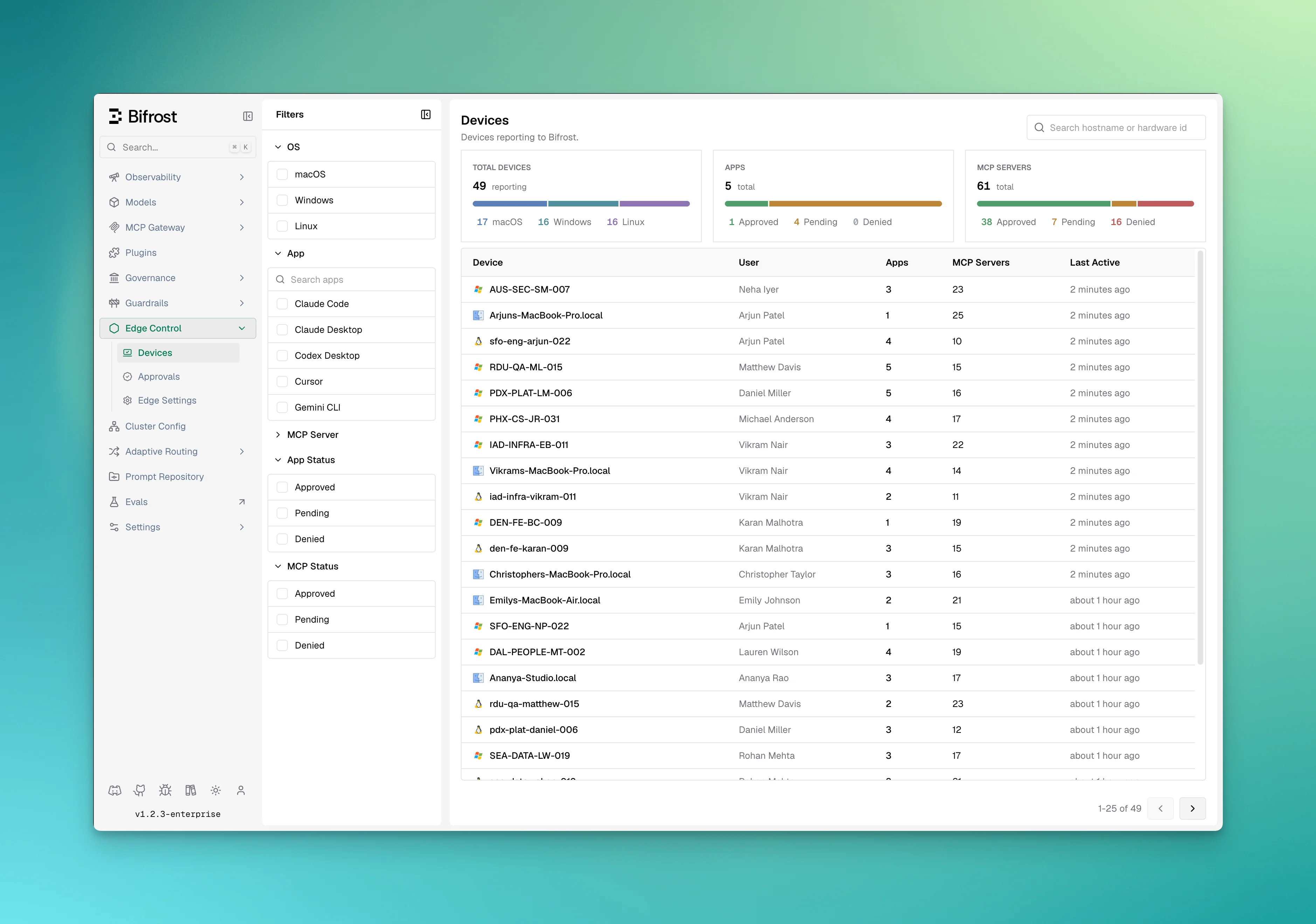
Go to **Edge Control → Devices**. Find the pilot device and confirm:
* The owner matches the signed-in user.
* The hostname, platform, architecture, and agent version are correct.
* The device is online.
* The expected installed AI applications and MCP servers appear after inventory sync.
Confirm the following groups have no unresolved failures:
| Check | Healthy result |
| ------------------ | --------------------------------------------------------------------------------------------------------------- |
| Background service | Running with system privileges |
| Account | Signed in, or using a validated virtual key |
| Configuration | A recent configuration version was fetched |
| Certificate | The active certificate is installed, trusted, and ready for remote signing; applications accept the certificate |
| Traffic capture | Interception is switched on, configured domains resolve, and network routes are installed |
| Gateway | The configured Bifrost gateway responds |
| MCP | The shim is running when MCP capture is configured |
If a check is not green, select it to review its details before continuing. If Diagnostics offers **Approve certificate**, complete that action before testing traffic. After making a trust change and restarting the computer, use **Refresh certificate status** to confirm the updated state.
A healthy Diagnostics overview confirms the agent's current checks, but it does not replace the test request later in this guide.
## 5. Confirm the device in Bifrost
Go to **Edge Control → Devices**. Find the pilot device and confirm:
* The owner matches the signed-in user.
* The hostname, platform, architecture, and agent version are correct.
* The device is online.
* The expected installed AI applications and MCP servers appear after inventory sync.
 ## 6. Send a test request
1. After the computer restarts, open the test AI application.
2. Use an application listed in [Supported applications](/edge/supported-applications).
3. Send a small test request.
4. Confirm the request is visible in Bifrost logs with the intended user or virtual key.
5. Confirm the request receives the access-profile, budget, rate-limit, and guardrail behavior expected for that identity.
Only configured and supported AI domains are intercepted. Unrelated device traffic is not routed through Edge.
## 7. Verify an approval change
If the test application or one of its MCP servers appears under **Edge Control → Approvals**, set the intended approval status. Wait for the next agent poll, then confirm the device enforces the new state.
Pending behavior depends on **Allow pending apps and MCP servers** in Edge Settings. A pending item works when that setting is enabled and is blocked when it is disabled.
## Edge verification
Verification is complete when the computer has restarted after the CA trust change, Diagnostics is healthy, the device is online, a supported request appears in Bifrost, and the intended policy is applied. If any checkpoint fails, use [Troubleshooting Edge setup](/edge/troubleshooting).
## 6. Send a test request
1. After the computer restarts, open the test AI application.
2. Use an application listed in [Supported applications](/edge/supported-applications).
3. Send a small test request.
4. Confirm the request is visible in Bifrost logs with the intended user or virtual key.
5. Confirm the request receives the access-profile, budget, rate-limit, and guardrail behavior expected for that identity.
Only configured and supported AI domains are intercepted. Unrelated device traffic is not routed through Edge.
## 7. Verify an approval change
If the test application or one of its MCP servers appears under **Edge Control → Approvals**, set the intended approval status. Wait for the next agent poll, then confirm the device enforces the new state.
Pending behavior depends on **Allow pending apps and MCP servers** in Edge Settings. A pending item works when that setting is enabled and is blocked when it is disabled.
## Edge verification
Verification is complete when the computer has restarted after the CA trust change, Diagnostics is healthy, the device is online, a supported request appears in Bifrost, and the intended policy is applied. If any checkpoint fails, use [Troubleshooting Edge setup](/edge/troubleshooting).