> ## Documentation Index
> Fetch the complete documentation index at: https://docs.getbifrost.ai/llms.txt
> Use this file to discover all available pages before exploring further.
# How Edge works
> The Bifrost Edge experience from a user's point of view: one browser sign-in, an always-on menu-bar agent, and every AI request routed through Bifrost automatically.
Bifrost Edge is designed to be invisible. After a one-time sign-in, users keep using the AI tools they already have - Claude Desktop, ChatGPT, Cursor, coding agents in the terminal - and Edge quietly routes that traffic through your Bifrost in the background. There is no proxy to configure, no base URL to change, and nothing to remember.
```mermaid theme={null}
sequenceDiagram
participant U as User
participant E as Edge agent
participant B as Bifrost
U->>E: Sign in once in the browser (SSO)
B-->>E: Identity
Note over E: Agent connects and turns on
U->>E: Uses any AI app as normal
E->>B: Routes the AI request
B-->>E: Governed response
E-->>U: Response in the app
```
## One sign-in
The first time Edge runs, the user signs in through their browser using your organization's existing single sign-on. That sign-in links the machine to the user and syncs all policies assigned to them. No API keys are copied or pasted, and nothing sensitive lives in the app itself.
## An always-on menu-bar agent
Once signed in, Edge lives in the menu bar (macOS) or system tray (Windows and Linux). From there a user can see whether they are connected, which key is active, and turn routing on or off. Most people set it once and never think about it again.
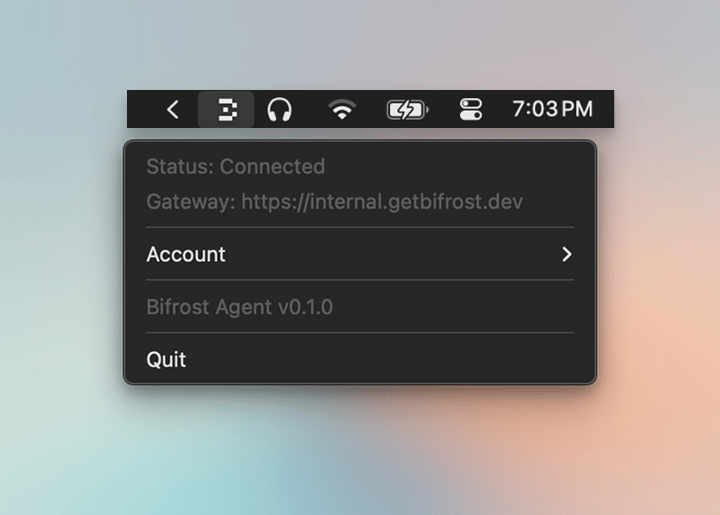 A clear indicator shows when AI traffic is being governed, and surfaces a warning if something needs attention.
Users with more than one virtual key can pick which one to use, with budget visible at a glance.
## Every app, automatically
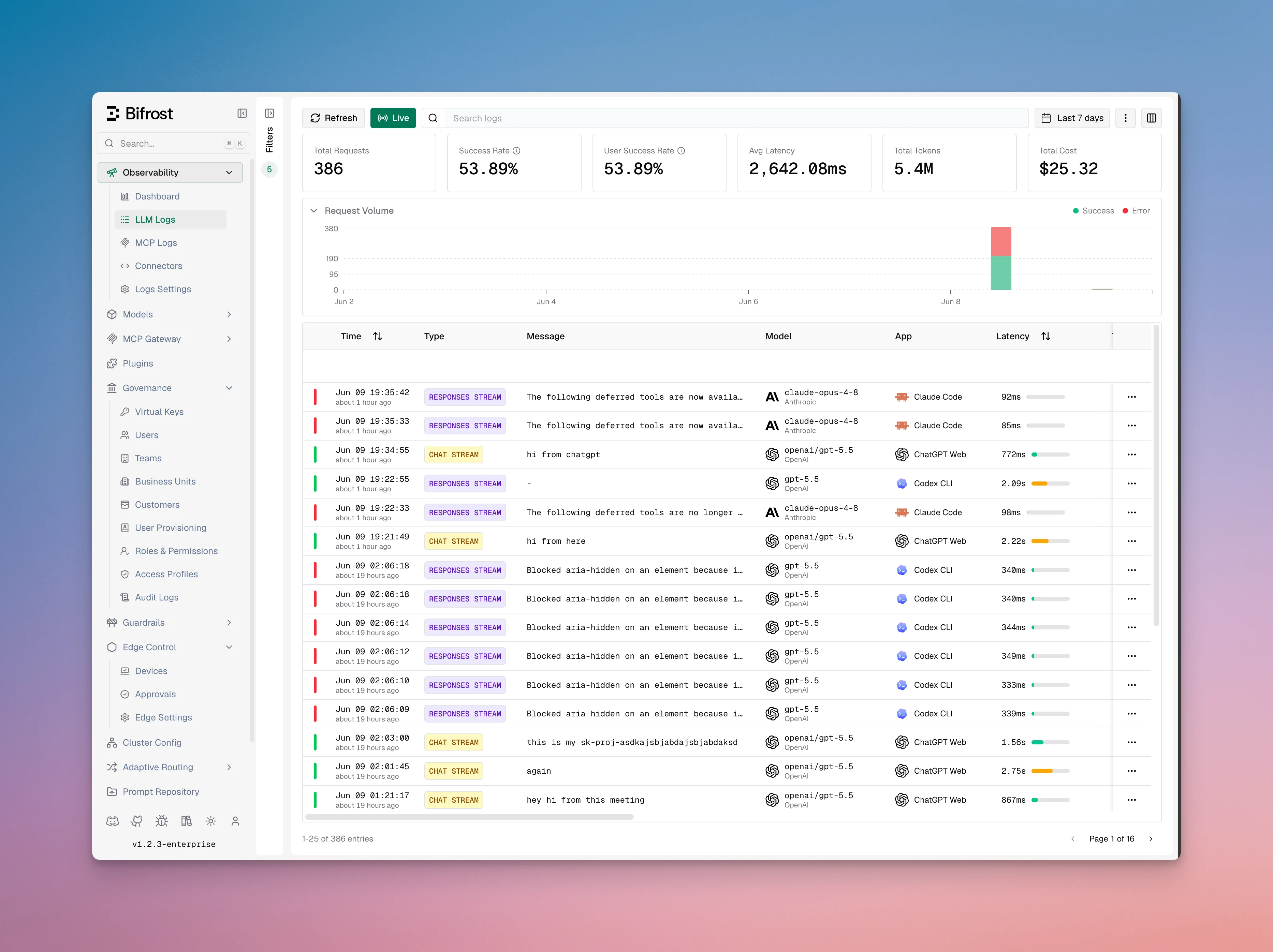
Because Edge routes traffic at the machine level, it covers the AI surfaces people actually use without any per-app setup:
Claude Desktop, the ChatGPT app, Cursor, and other desktop AI clients.
ChatGPT on the web and other browser-based AI surfaces.
Claude Code, Codex, and similar agents in the terminal and IDE.
The result is that governance follows the user instead of waiting for them to opt in. See the full list on the [Supported applications](/edge/supported-applications) page.
A clear indicator shows when AI traffic is being governed, and surfaces a warning if something needs attention.
Users with more than one virtual key can pick which one to use, with budget visible at a glance.
## Every app, automatically
Because Edge routes traffic at the machine level, it covers the AI surfaces people actually use without any per-app setup:
Claude Desktop, the ChatGPT app, Cursor, and other desktop AI clients.
ChatGPT on the web and other browser-based AI surfaces.
Claude Code, Codex, and similar agents in the terminal and IDE.
The result is that governance follows the user instead of waiting for them to opt in. See the full list on the [Supported applications](/edge/supported-applications) page.
 ***
## Next steps
* Control which apps are allowed in [Govern AI apps](/edge/app-governance).
* Control MCP servers in [Govern MCP servers](/edge/mcp-governance).
* Roll Edge out to your fleet in [Deploy with MDM](/edge/deployment-mdm).
***
## Next steps
* Control which apps are allowed in [Govern AI apps](/edge/app-governance).
* Control MCP servers in [Govern MCP servers](/edge/mcp-governance).
* Roll Edge out to your fleet in [Deploy with MDM](/edge/deployment-mdm).