> ## Documentation Index
> Fetch the complete documentation index at: https://docs.getbifrost.ai/llms.txt
> Use this file to discover all available pages before exploring further.
# Devices
> View the machines running Bifrost Edge, who they belong to, and the AI apps and MCP servers installed on each.
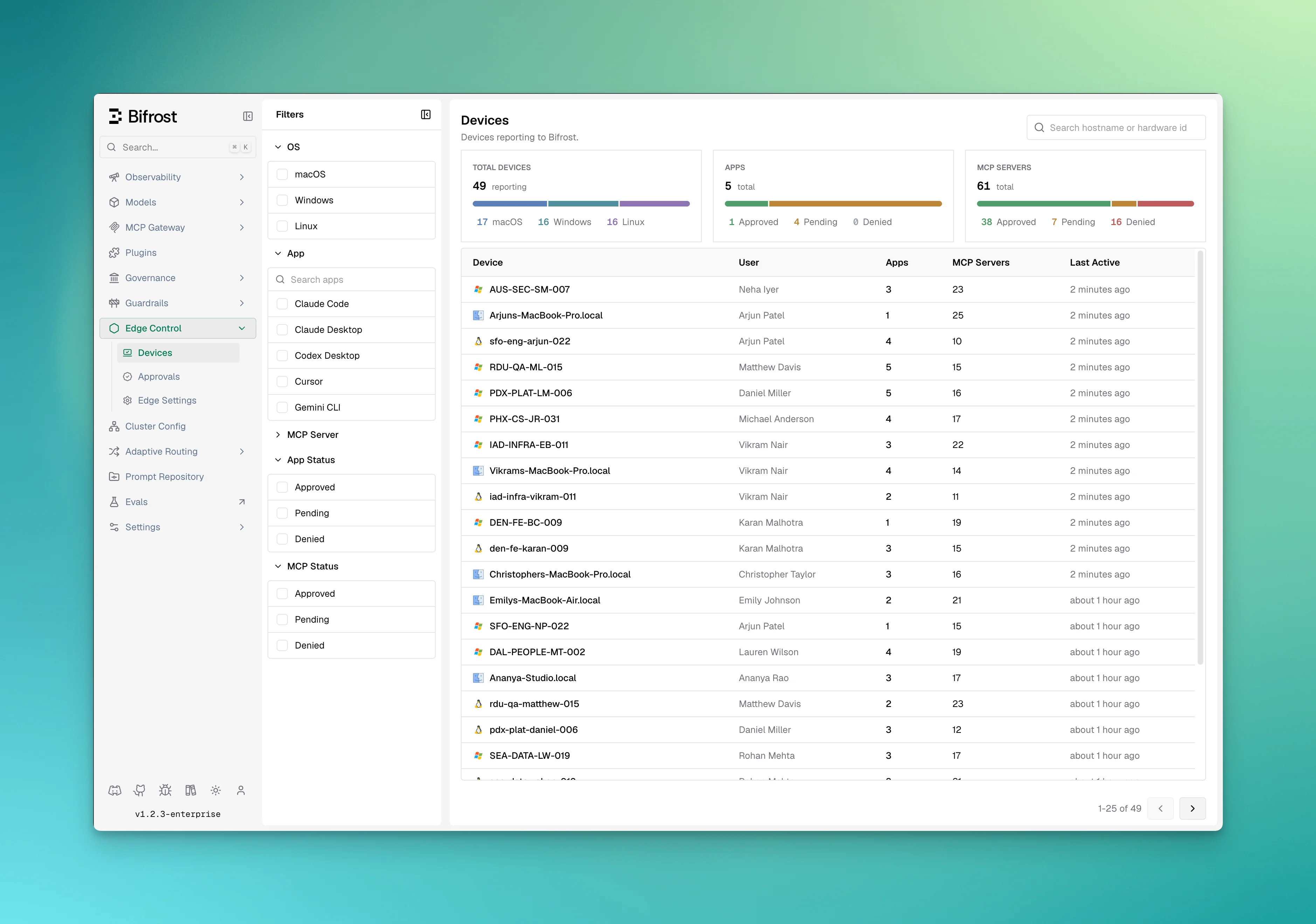
The Devices dashboard lists every machine running the Edge agent. Each agent reports in on a regular cycle, so the list reflects the current state of the fleet.
 ## Fleet summary
The top of the dashboard shows totals for the fleet: number of devices, a breakdown by operating system, and counts of AI apps and MCP servers by status (approved, pending, denied).
## Per-device information
The list shows the following for each device, and you can open a device for its full detail:
| Field | Description |
| ------------- | ---------------------------------------------------- |
| Hostname | The machine's name. |
| Owner | The user signed in on the device (name and email). |
| Platform | Operating system, version, and architecture. |
| Agent version | The version of Edge running on the machine. |
| AI apps | Number of AI apps installed, with versions on hover. |
| MCP servers | Number of MCP servers configured on the device. |
| First seen | When the device first enrolled. |
| Last active | The most recent check-in. |
## Fleet summary
The top of the dashboard shows totals for the fleet: number of devices, a breakdown by operating system, and counts of AI apps and MCP servers by status (approved, pending, denied).
## Per-device information
The list shows the following for each device, and you can open a device for its full detail:
| Field | Description |
| ------------- | ---------------------------------------------------- |
| Hostname | The machine's name. |
| Owner | The user signed in on the device (name and email). |
| Platform | Operating system, version, and architecture. |
| Agent version | The version of Edge running on the machine. |
| AI apps | Number of AI apps installed, with versions on hover. |
| MCP servers | Number of MCP servers configured on the device. |
| First seen | When the device first enrolled. |
| Last active | The most recent check-in. |
 ## Filters
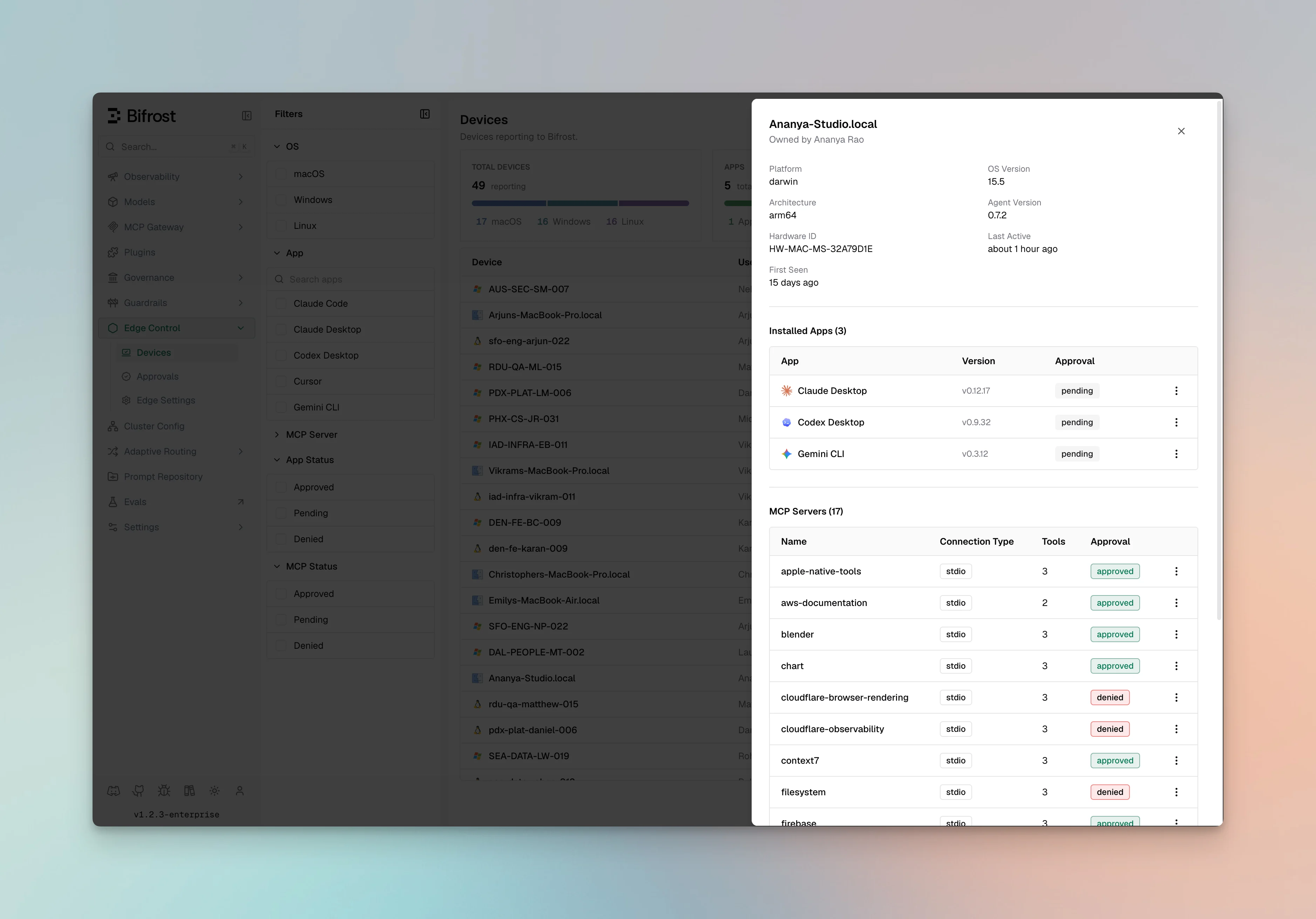
You can narrow the list by:
* Hostname or owner
* Platform (macOS, Windows, Linux)
* A specific installed AI app or MCP server
* Approval status (pending, approved, or denied)
## Device detail
Opening a device shows its installed AI apps and versions, its configured MCP servers and the tools each exposes, and the owner. From here you can also approve or deny apps and MCP servers, or remove the device.
***
## Next steps
* Approve or deny apps and MCP servers in [Approvals](/edge/admin-approvals).
* Set fleet-wide options in [Configurations](/edge/admin-configurations).
## Filters
You can narrow the list by:
* Hostname or owner
* Platform (macOS, Windows, Linux)
* A specific installed AI app or MCP server
* Approval status (pending, approved, or denied)
## Device detail
Opening a device shows its installed AI apps and versions, its configured MCP servers and the tools each exposes, and the owner. From here you can also approve or deny apps and MCP servers, or remove the device.
***
## Next steps
* Approve or deny apps and MCP servers in [Approvals](/edge/admin-approvals).
* Set fleet-wide options in [Configurations](/edge/admin-configurations).