> ## Documentation Index
> Fetch the complete documentation index at: https://docs.getbifrost.ai/llms.txt
> Use this file to discover all available pages before exploring further.
# Zed Editor
> Integrate Zed editor with Bifrost to use any AI provider for code assistance with virtual keys and observability.
[Zed](https://zed.dev/) is a high-performance editor with built-in AI assistant support. It can connect to any OpenAI-compatible API, making Bifrost a natural fit for universal model access across providers, plus governance features like virtual keys and built-in observability.
 If your Allowed Headers are already set to `*`, you can skip this note. If not and you face issues integrating Bifrost with Zed, try switching to `*` or adding the specific headers required by your client. By default, Bifrost whitelists: `Content-Type`, `Authorization`, `X-Requested-With`, `X-Stainless-Timeout`, and `X-Api-Key`.
## Setup
### 1. Configure Bifrost Provider
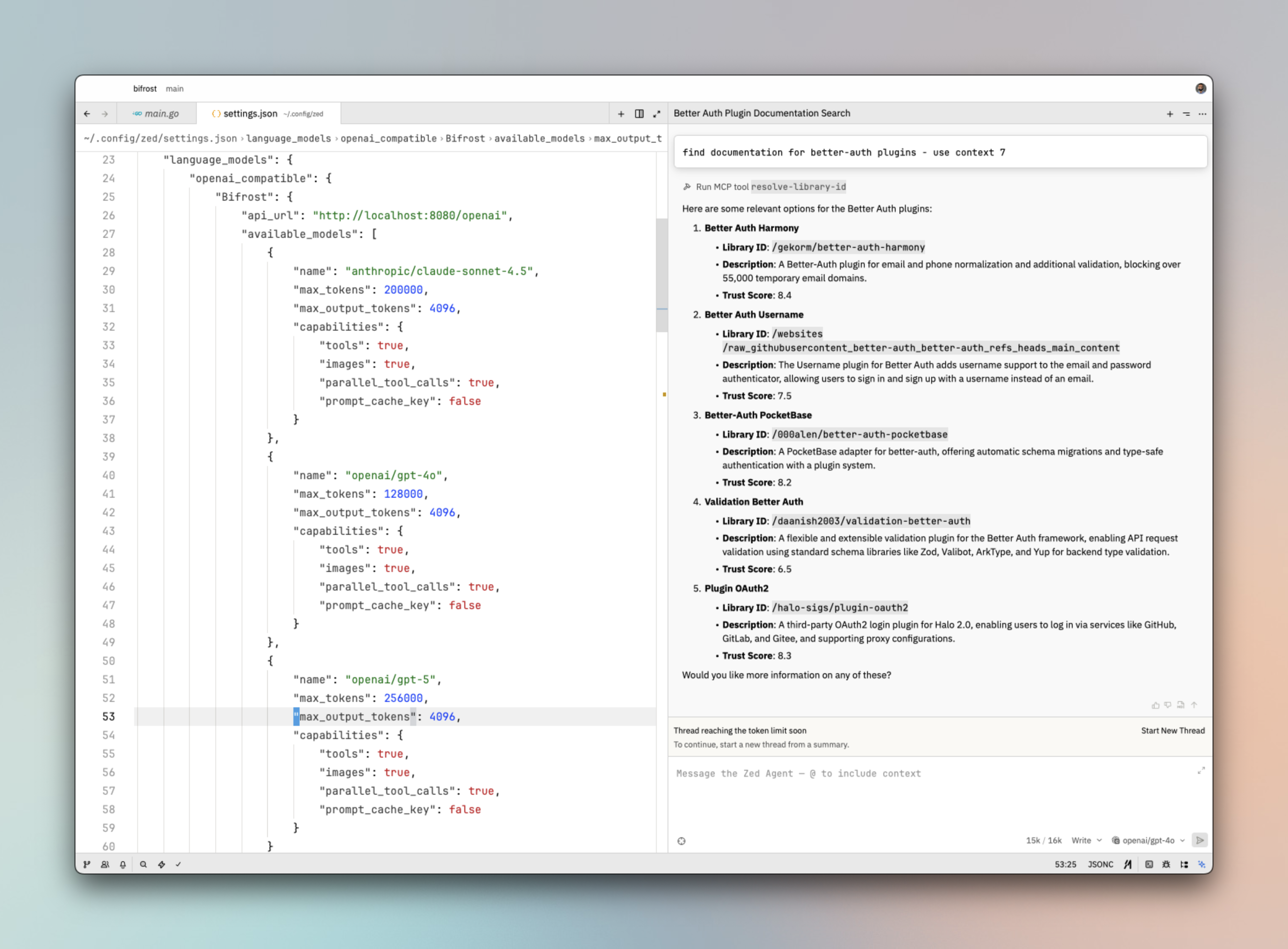
Add Bifrost to Zed's `language_models.openai_compatible` configuration. This is typically in your Zed settings (JSON) or workspace config.
```json theme={null}
"language_models": {
"openai_compatible": {
"Bifrost": {
"api_url": "http://localhost:8080/openai",
"available_models": [
{
"name": "anthropic/claude-sonnet-4.5",
"max_tokens": 200000,
"max_output_tokens": 4096,
"capabilities": {
"tools": true,
"images": true,
"parallel_tool_calls": true,
"prompt_cache_key": false
}
},
{
"name": "openai/gpt-4o",
"max_tokens": 128000,
"max_output_tokens": 4096,
"capabilities": {
"tools": true,
"images": true,
"parallel_tool_calls": true,
"prompt_cache_key": false
}
},
{
"name": "openai/gpt-5",
"max_tokens": 256000,
"max_output_tokens": 4096,
"capabilities": {
"tools": true,
"images": true,
"parallel_tool_calls": true,
"prompt_cache_key": false
}
}
]
}
}
}
```
Replace `http://localhost:8080/openai` with your Bifrost gateway URL + `/openai`.
### 2. Model Capabilities
| Field | Description |
| --------------------- | ---------------------------------------------------- |
| `tools` | Enable tool/function calling |
| `images` | Enable image input (vision) |
| `parallel_tool_calls` | Support multiple tool calls in one response |
| `prompt_cache_key` | Enable prompt caching (set `false` if not supported) |
Use Bifrost model IDs in `provider/model` format (e.g. `openai/gpt-5`, `anthropic/claude-sonnet-4.5`). Ensure these models are configured in Bifrost.
### 3. Reload Workspace
After changing the configuration, reload the workspace so Zed recognizes and reloads the provider list.
## Virtual Keys
When Bifrost has [virtual key authentication](/features/governance/virtual-keys) enabled, add an `api_key` field to the Bifrost provider config (check Zed's documentation for the exact field name - it may vary by version):
```json theme={null}
"Bifrost": {
"api_url": "http://localhost:8080/openai",
"api_key": "bf-your-virtual-key-here",
"available_models": [...]
}
```
This lets you enforce usage limits, budgets, and access control per user or team. For team deployments, create a separate virtual key for each team or environment - each key can have its own rate limits, budgets, and provider access rules configured in the Bifrost dashboard.
## Model Selection
Zed lets you assign models to different AI features. Use Bifrost model IDs in `provider/model` format to access any configured provider:
* Use powerful models like `openai/gpt-5` or `anthropic/claude-sonnet-4-5-20250929` for complex code generation and refactoring
* Use fast models like `groq/llama-3.3-70b-versatile` for quick completions and inline suggestions
## Using Multiple Providers
Bifrost routes requests to the correct provider based on the model name. Use the `provider/model-name` format to access any configured provider through the single OpenAI-compatible endpoint:
```
anthropic/claude-sonnet-4-5-20250929
openai/gpt-5
gemini/gemini-2.5-pro
mistral/mistral-large-latest
```
### Supported Providers
Bifrost supports the following providers with the `provider/model-name` format:
`openai`, `azure`, `gemini`, `vertex`, `bedrock`, `mistral`, `groq`, `cerebras`, `deepseek`, `cohere`, `perplexity`, `xai`, `ollama`, `openrouter`, `huggingface`, `nebius`, `parasail`, `replicate`, `vllm`, `sgl`
Non-native models **must support tool use** for Zed's AI features (code actions, refactoring) to work properly. Models without tool use support will only work for basic chat and completions.
Zed connects to Bifrost via a single OpenAI-compatible endpoint. Bifrost handles routing to the correct provider based on the model name - no per-provider configuration needed.
## Observability
All Zed requests through Bifrost are logged. Monitor them at `http://localhost:8080/logs` - filter by provider, model, or search through conversation content to track usage.
## Next Steps
* [Provider Configuration](/quickstart/gateway/provider-configuration) - Configure AI providers in Bifrost
* [Virtual Keys](/features/governance/virtual-keys) - Set up usage limits and access control
If your Allowed Headers are already set to `*`, you can skip this note. If not and you face issues integrating Bifrost with Zed, try switching to `*` or adding the specific headers required by your client. By default, Bifrost whitelists: `Content-Type`, `Authorization`, `X-Requested-With`, `X-Stainless-Timeout`, and `X-Api-Key`.
## Setup
### 1. Configure Bifrost Provider
Add Bifrost to Zed's `language_models.openai_compatible` configuration. This is typically in your Zed settings (JSON) or workspace config.
```json theme={null}
"language_models": {
"openai_compatible": {
"Bifrost": {
"api_url": "http://localhost:8080/openai",
"available_models": [
{
"name": "anthropic/claude-sonnet-4.5",
"max_tokens": 200000,
"max_output_tokens": 4096,
"capabilities": {
"tools": true,
"images": true,
"parallel_tool_calls": true,
"prompt_cache_key": false
}
},
{
"name": "openai/gpt-4o",
"max_tokens": 128000,
"max_output_tokens": 4096,
"capabilities": {
"tools": true,
"images": true,
"parallel_tool_calls": true,
"prompt_cache_key": false
}
},
{
"name": "openai/gpt-5",
"max_tokens": 256000,
"max_output_tokens": 4096,
"capabilities": {
"tools": true,
"images": true,
"parallel_tool_calls": true,
"prompt_cache_key": false
}
}
]
}
}
}
```
Replace `http://localhost:8080/openai` with your Bifrost gateway URL + `/openai`.
### 2. Model Capabilities
| Field | Description |
| --------------------- | ---------------------------------------------------- |
| `tools` | Enable tool/function calling |
| `images` | Enable image input (vision) |
| `parallel_tool_calls` | Support multiple tool calls in one response |
| `prompt_cache_key` | Enable prompt caching (set `false` if not supported) |
Use Bifrost model IDs in `provider/model` format (e.g. `openai/gpt-5`, `anthropic/claude-sonnet-4.5`). Ensure these models are configured in Bifrost.
### 3. Reload Workspace
After changing the configuration, reload the workspace so Zed recognizes and reloads the provider list.
## Virtual Keys
When Bifrost has [virtual key authentication](/features/governance/virtual-keys) enabled, add an `api_key` field to the Bifrost provider config (check Zed's documentation for the exact field name - it may vary by version):
```json theme={null}
"Bifrost": {
"api_url": "http://localhost:8080/openai",
"api_key": "bf-your-virtual-key-here",
"available_models": [...]
}
```
This lets you enforce usage limits, budgets, and access control per user or team. For team deployments, create a separate virtual key for each team or environment - each key can have its own rate limits, budgets, and provider access rules configured in the Bifrost dashboard.
## Model Selection
Zed lets you assign models to different AI features. Use Bifrost model IDs in `provider/model` format to access any configured provider:
* Use powerful models like `openai/gpt-5` or `anthropic/claude-sonnet-4-5-20250929` for complex code generation and refactoring
* Use fast models like `groq/llama-3.3-70b-versatile` for quick completions and inline suggestions
## Using Multiple Providers
Bifrost routes requests to the correct provider based on the model name. Use the `provider/model-name` format to access any configured provider through the single OpenAI-compatible endpoint:
```
anthropic/claude-sonnet-4-5-20250929
openai/gpt-5
gemini/gemini-2.5-pro
mistral/mistral-large-latest
```
### Supported Providers
Bifrost supports the following providers with the `provider/model-name` format:
`openai`, `azure`, `gemini`, `vertex`, `bedrock`, `mistral`, `groq`, `cerebras`, `deepseek`, `cohere`, `perplexity`, `xai`, `ollama`, `openrouter`, `huggingface`, `nebius`, `parasail`, `replicate`, `vllm`, `sgl`
Non-native models **must support tool use** for Zed's AI features (code actions, refactoring) to work properly. Models without tool use support will only work for basic chat and completions.
Zed connects to Bifrost via a single OpenAI-compatible endpoint. Bifrost handles routing to the correct provider based on the model name - no per-provider configuration needed.
## Observability
All Zed requests through Bifrost are logged. Monitor them at `http://localhost:8080/logs` - filter by provider, model, or search through conversation content to track usage.
## Next Steps
* [Provider Configuration](/quickstart/gateway/provider-configuration) - Configure AI providers in Bifrost
* [Virtual Keys](/features/governance/virtual-keys) - Set up usage limits and access control