> ## Documentation Index
> Fetch the complete documentation index at: https://docs.getbifrost.ai/llms.txt
> Use this file to discover all available pages before exploring further.
# Roo Code
> Use Roo Code with Bifrost to access any AI provider through a powerful VS Code extension with virtual keys and observability.
[Roo Code](https://roo-code.net/) is an AI-powered VS Code extension that supports OpenAI-compatible APIs. By connecting it to Bifrost, you get access to any provider/model in your Bifrost configuration, plus governance features like virtual keys and built-in observability.
If your Allowed Headers are already set to `*`, you can skip this note. If not and you face issues integrating Bifrost with Roo Code, try switching to `*` or adding the specific headers required by your client. By default, Bifrost whitelists: `Content-Type`, `Authorization`, `X-Requested-With`, `X-Stainless-Timeout`, and `X-Api-Key`.
## Setup
### 1. Install Roo Code
Install the [Roo Code extension](https://marketplace.visualstudio.com/items?itemName=RooCodeInc.roo-code) from the VS Code marketplace.
### 2. Create an API Configuration Profile
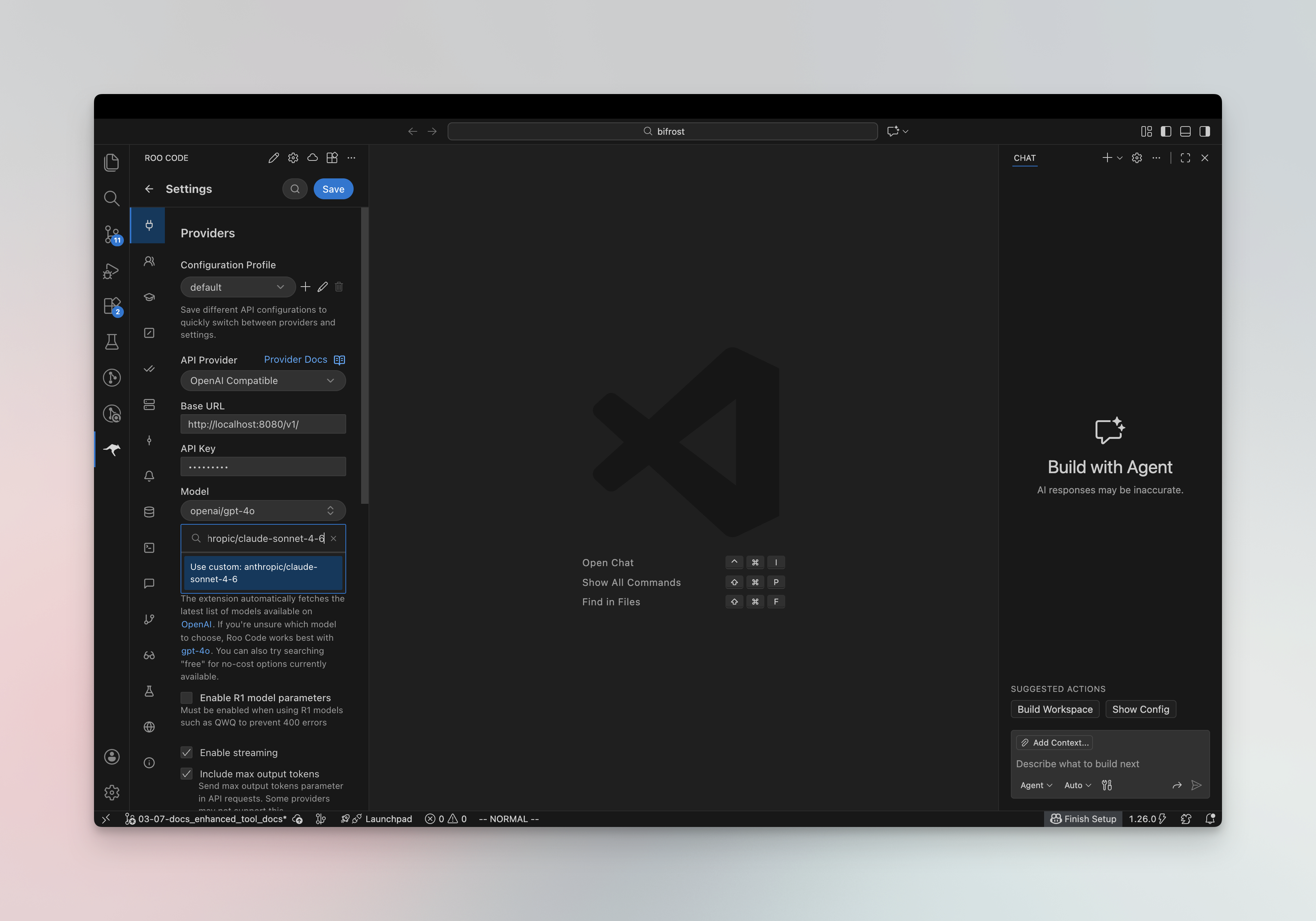
1. Open **Settings** (click the gear icon) → **Providers**
2. Click the **+** button to create a new profile
3. Select **OpenAI Compatible** as the provider
4. Configure the following:
| Field | Value |
| ------------ | --------------------------------------------------------------------------------------------------------- |
| **Base URL** | `http://localhost:8080/openai` (or your Bifrost host, e.g. `https://bifrost.yourcompany.com/openai`) |
| **API Key** | Your Bifrost virtual key if authentication is enabled; otherwise use `dummy` or leave empty |
| **Model** | Bifrost model ID in `provider/model` format (e.g. `anthropic/claude-sonnet-4-5-20250929`, `openai/gpt-5`) |
 ### 3. Verify the Connection
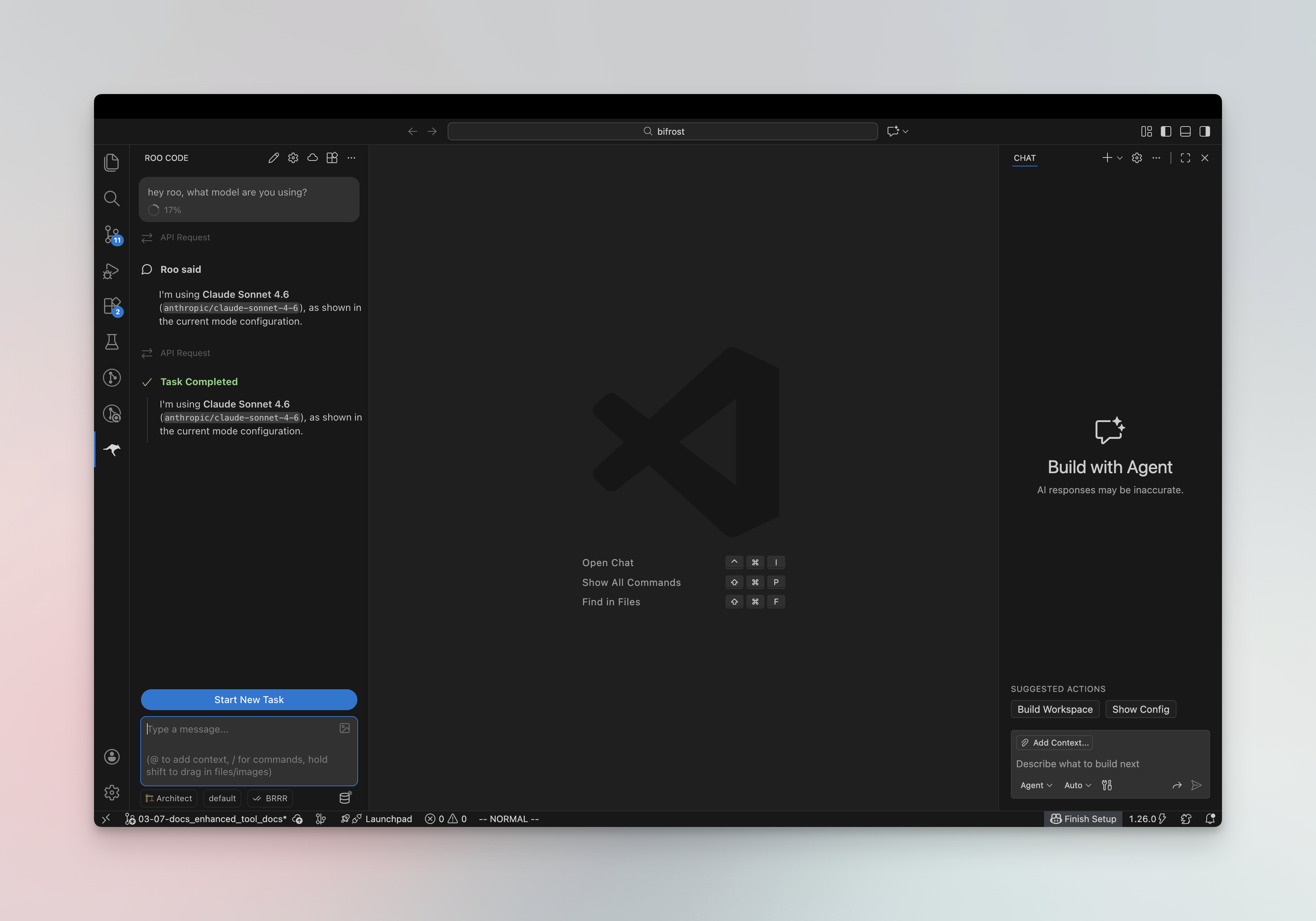
Ask Roo which model it's using - it should respond with the Bifrost model ID you configured (e.g. `anthropic/claude-sonnet-4-5`).
### 3. Verify the Connection
Ask Roo which model it's using - it should respond with the Bifrost model ID you configured (e.g. `anthropic/claude-sonnet-4-5`).
 Roo Code supports multiple API configuration profiles. Create separate profiles for different Bifrost virtual keys or model combinations, then switch between them via the profile dropdown in Settings or during chat.
## Virtual Keys
When Bifrost has [virtual key authentication](/features/governance/virtual-keys) enabled, set **API Key** in your Roo Code profile to your virtual key. This lets you enforce usage limits, budgets, and access control per user or team.
For team deployments, create a separate configuration profile for each team - each can use a different virtual key with its own rate limits, budgets, and provider access rules configured in the Bifrost dashboard.
## Model Selection
Roo Code lets you assign models per mode (Code, Ask, Architect, Debug, Orchestrator). Use Bifrost model IDs in `provider/model` format to access any configured provider:
* Use powerful models like `openai/gpt-5` or `anthropic/claude-sonnet-4-5-20250929` for complex coding tasks
* Use fast models like `groq/llama-3.3-70b-versatile` for quick completions
* Link different profiles to different modes in the **Prompts** tab for optimal cost and performance
## Using Multiple Providers
Bifrost routes requests to the correct provider based on the model name. Use the `provider/model-name` format to access any configured provider through the single OpenAI-compatible endpoint:
```
anthropic/claude-sonnet-4-5-20250929
openai/gpt-5
gemini/gemini-2.5-pro
mistral/mistral-large-latest
```
### Supported Providers
Bifrost supports the following providers with the `provider/model-name` format:
`openai`, `azure`, `gemini`, `vertex`, `bedrock`, `mistral`, `groq`, `cerebras`, `deepseek`, `cohere`, `perplexity`, `xai`, `ollama`, `openrouter`, `huggingface`, `nebius`, `parasail`, `replicate`, `vllm`, `sgl`
Roo Code requires **native tool calling** (OpenAI-compatible function calling). Models without tool use support cannot be used with Roo Code. Ensure the model you select supports tool calling.
Roo Code connects to Bifrost via a single OpenAI-compatible endpoint. Bifrost handles routing to the correct provider based on the model name - no per-provider configuration needed.
## MCP Server Integration
Roo Code supports MCP (Model Context Protocol). You can connect it to Bifrost's MCP server to access all tools configured in Bifrost. See [MCP Gateway](/mcp/gateway) for setup instructions.
## Observability
All Roo Code traffic through Bifrost is logged. Monitor it at `http://localhost:8080/logs` - filter by provider, model, or search through conversation content to track usage.
## Next Steps
* [Provider Configuration](/quickstart/gateway/provider-configuration) - Configure AI providers in Bifrost
* [Virtual Keys](/features/governance/virtual-keys) - Set up usage limits and access control
Roo Code supports multiple API configuration profiles. Create separate profiles for different Bifrost virtual keys or model combinations, then switch between them via the profile dropdown in Settings or during chat.
## Virtual Keys
When Bifrost has [virtual key authentication](/features/governance/virtual-keys) enabled, set **API Key** in your Roo Code profile to your virtual key. This lets you enforce usage limits, budgets, and access control per user or team.
For team deployments, create a separate configuration profile for each team - each can use a different virtual key with its own rate limits, budgets, and provider access rules configured in the Bifrost dashboard.
## Model Selection
Roo Code lets you assign models per mode (Code, Ask, Architect, Debug, Orchestrator). Use Bifrost model IDs in `provider/model` format to access any configured provider:
* Use powerful models like `openai/gpt-5` or `anthropic/claude-sonnet-4-5-20250929` for complex coding tasks
* Use fast models like `groq/llama-3.3-70b-versatile` for quick completions
* Link different profiles to different modes in the **Prompts** tab for optimal cost and performance
## Using Multiple Providers
Bifrost routes requests to the correct provider based on the model name. Use the `provider/model-name` format to access any configured provider through the single OpenAI-compatible endpoint:
```
anthropic/claude-sonnet-4-5-20250929
openai/gpt-5
gemini/gemini-2.5-pro
mistral/mistral-large-latest
```
### Supported Providers
Bifrost supports the following providers with the `provider/model-name` format:
`openai`, `azure`, `gemini`, `vertex`, `bedrock`, `mistral`, `groq`, `cerebras`, `deepseek`, `cohere`, `perplexity`, `xai`, `ollama`, `openrouter`, `huggingface`, `nebius`, `parasail`, `replicate`, `vllm`, `sgl`
Roo Code requires **native tool calling** (OpenAI-compatible function calling). Models without tool use support cannot be used with Roo Code. Ensure the model you select supports tool calling.
Roo Code connects to Bifrost via a single OpenAI-compatible endpoint. Bifrost handles routing to the correct provider based on the model name - no per-provider configuration needed.
## MCP Server Integration
Roo Code supports MCP (Model Context Protocol). You can connect it to Bifrost's MCP server to access all tools configured in Bifrost. See [MCP Gateway](/mcp/gateway) for setup instructions.
## Observability
All Roo Code traffic through Bifrost is logged. Monitor it at `http://localhost:8080/logs` - filter by provider, model, or search through conversation content to track usage.
## Next Steps
* [Provider Configuration](/quickstart/gateway/provider-configuration) - Configure AI providers in Bifrost
* [Virtual Keys](/features/governance/virtual-keys) - Set up usage limits and access control