> ## Documentation Index
> Fetch the complete documentation index at: https://docs.getbifrost.ai/llms.txt
> Use this file to discover all available pages before exploring further.
# Cursor
> Add Bifrost as a custom model in Cursor, configure MCP tools, and use virtual keys for team access control.
[Cursor](https://cursor.com) is an AI-powered IDE that supports OpenAI-compatible APIs and MCP (Model Context Protocol). By connecting Cursor to Bifrost, you get access to any provider/model in your Bifrost configuration, plus MCP tools and governance features like virtual keys.
 If your Allowed Headers are already set to `*`, you can skip this note. If not and you face issues integrating Bifrost with Cursor, try switching to `*` or adding the specific headers required by your client. By default, Bifrost whitelists: `Content-Type`, `Authorization`, `X-Requested-With`, `X-Stainless-Timeout`, and `X-Api-Key`.
## Setup
1. **Open Cursor Settings**
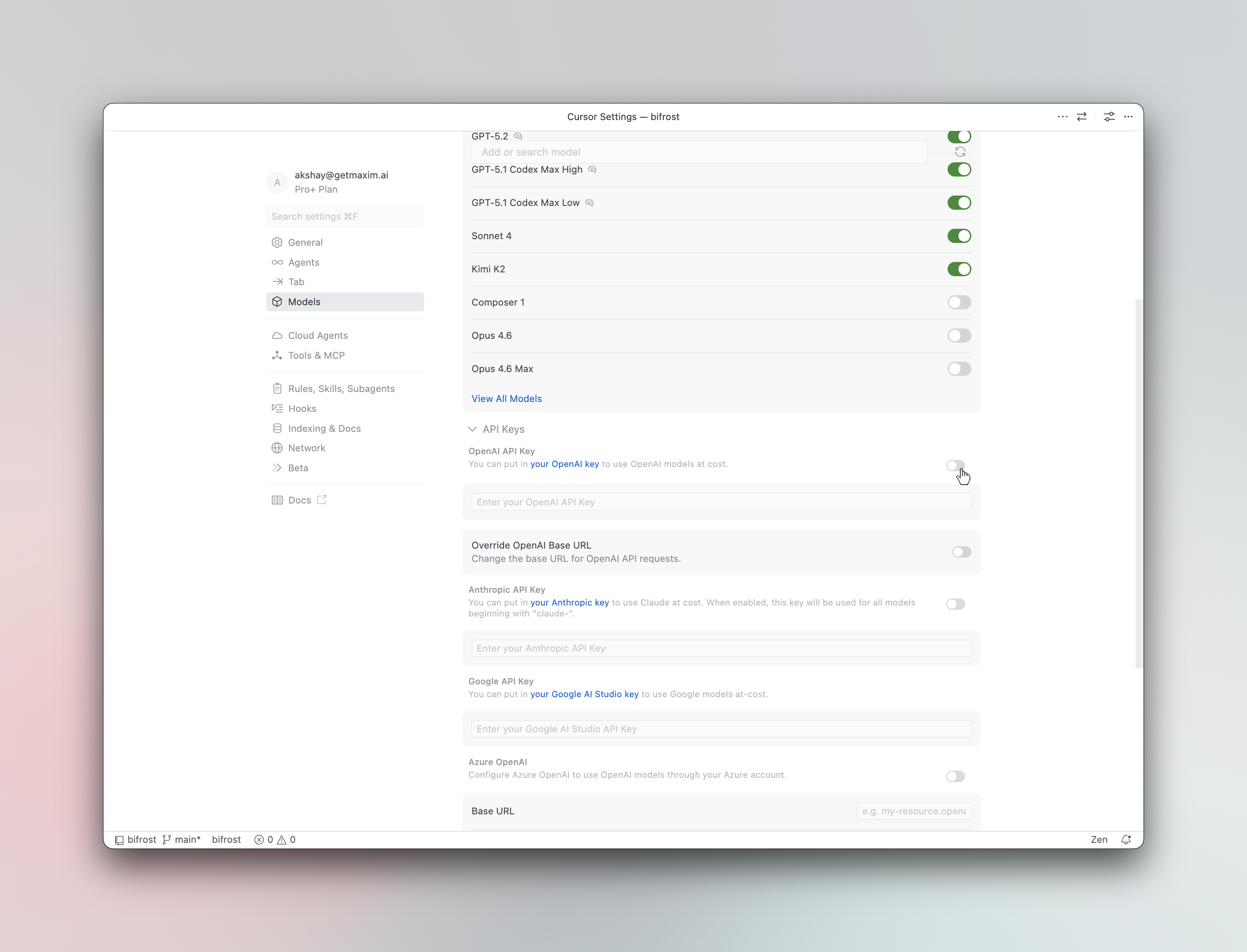
Press Cmd+, (macOS) or Ctrl+, (Windows/Linux) and navigate to **Models**.
2. **Enter your API key**
In the **OpenAI API Key** field, enter your Bifrost virtual key or provider API key.
3. **Override the base URL**
Toggle **Override OpenAI Base URL** to ON and enter your Bifrost endpoint:
For cursor you need publicly accessible link for Bifrost.
For deployed instances, use your Bifrost deployment URL (e.g., `https://bifrost.example.com/cursor`).
4. **Add custom models** (optional)
Type a model name in the **Add or search model** field using the `provider/model-name` format:
If your Allowed Headers are already set to `*`, you can skip this note. If not and you face issues integrating Bifrost with Cursor, try switching to `*` or adding the specific headers required by your client. By default, Bifrost whitelists: `Content-Type`, `Authorization`, `X-Requested-With`, `X-Stainless-Timeout`, and `X-Api-Key`.
## Setup
1. **Open Cursor Settings**
Press Cmd+, (macOS) or Ctrl+, (Windows/Linux) and navigate to **Models**.
2. **Enter your API key**
In the **OpenAI API Key** field, enter your Bifrost virtual key or provider API key.
3. **Override the base URL**
Toggle **Override OpenAI Base URL** to ON and enter your Bifrost endpoint:
For cursor you need publicly accessible link for Bifrost.
For deployed instances, use your Bifrost deployment URL (e.g., `https://bifrost.example.com/cursor`).
4. **Add custom models** (optional)
Type a model name in the **Add or search model** field using the `provider/model-name` format:
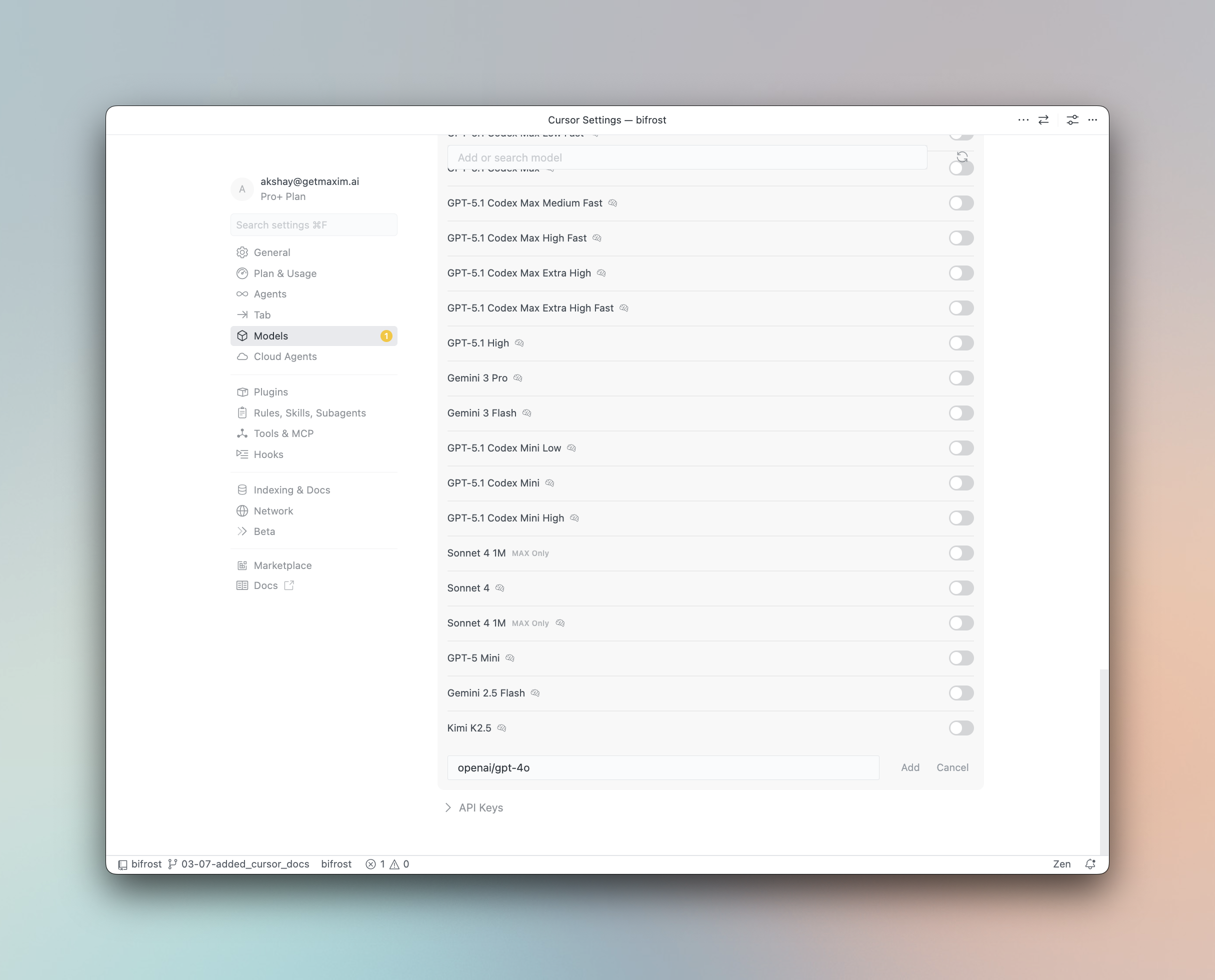 Examples: `anthropic/claude-sonnet-4-5-20250929`, `openai/gpt-5`, `gemini-2.5-pro`
| Provider | Format | Example |
| ------------------- | ---------------------- | -------------------------------------- |
| Anthropic | `anthropic/model-name` | `anthropic/claude-sonnet-4-5-20250929` |
| Gemini | `model-name` | `gemini-2.5-pro` |
| OpenAI | `openai/model-name` | `openai/gpt-5` |
| Bedrock | `bedrock/model-name` | `bedrock/anthropic.claude-3` |
| Vertex (non-Gemini) | `vertex/model-name` | `vertex/text-bison` |
| Other providers | `provider/model-name` | `groq/llama-3.3-70b-versatile` |
## Using Virtual Keys
Bifrost [Virtual Keys](/features/governance/virtual-keys) can be used as the OpenAI API Key in Cursor. Virtual keys let you enforce budgets, rate limits, and provider access controls for each user or team.
## Model Selection
Cursor assigns models to different features - **Chat**, **Agent**, **Inline Edit**, and **Tab Completion**. After configuring Bifrost, you can assign any `provider/model-name` to each feature for optimal cost and performance:
* Use a powerful model like `openai/gpt-5` or `anthropic/claude-sonnet-4-5-20250929` for Agent mode
* Use a fast model like `groq/llama-3.3-70b-versatile` for Tab completion
## Using Multiple Providers
Bifrost routes requests to the correct provider based on the model name. Use the `provider/model-name` format to access any configured provider through the single OpenAI-compatible endpoint:
```
anthropic/claude-sonnet-4-5-20250929
openai/gpt-5
gemini/gemini-2.5-pro
mistral/mistral-large-latest
```
### Supported Providers
Bifrost supports the following providers with the `provider/model-name` format:
`openai`, `anthropic`, `azure`, `gemini`, `vertex`, `bedrock`, `mistral`, `groq`, `cerebras`, `deepseek`, `cohere`, `perplexity`, `xai`, `ollama`, `openrouter`, `huggingface`, `nebius`, `parasail`, `replicate`, `vllm`, `sgl`
Non-native models **must support tool use** for Cursor's agent mode and inline editing to work properly. Models without tool use support will only work for basic chat.
Cursor's "Override OpenAI Base URL" is a global setting that applies to all OpenAI-compatible models. This works well with Bifrost since Bifrost handles routing to the correct provider based on the model name.
## Observability
All Cursor requests through Bifrost are logged. Monitor them at `http://localhost:8080/logs` - filter by provider, model, or search through conversation content.
Examples: `anthropic/claude-sonnet-4-5-20250929`, `openai/gpt-5`, `gemini-2.5-pro`
| Provider | Format | Example |
| ------------------- | ---------------------- | -------------------------------------- |
| Anthropic | `anthropic/model-name` | `anthropic/claude-sonnet-4-5-20250929` |
| Gemini | `model-name` | `gemini-2.5-pro` |
| OpenAI | `openai/model-name` | `openai/gpt-5` |
| Bedrock | `bedrock/model-name` | `bedrock/anthropic.claude-3` |
| Vertex (non-Gemini) | `vertex/model-name` | `vertex/text-bison` |
| Other providers | `provider/model-name` | `groq/llama-3.3-70b-versatile` |
## Using Virtual Keys
Bifrost [Virtual Keys](/features/governance/virtual-keys) can be used as the OpenAI API Key in Cursor. Virtual keys let you enforce budgets, rate limits, and provider access controls for each user or team.
## Model Selection
Cursor assigns models to different features - **Chat**, **Agent**, **Inline Edit**, and **Tab Completion**. After configuring Bifrost, you can assign any `provider/model-name` to each feature for optimal cost and performance:
* Use a powerful model like `openai/gpt-5` or `anthropic/claude-sonnet-4-5-20250929` for Agent mode
* Use a fast model like `groq/llama-3.3-70b-versatile` for Tab completion
## Using Multiple Providers
Bifrost routes requests to the correct provider based on the model name. Use the `provider/model-name` format to access any configured provider through the single OpenAI-compatible endpoint:
```
anthropic/claude-sonnet-4-5-20250929
openai/gpt-5
gemini/gemini-2.5-pro
mistral/mistral-large-latest
```
### Supported Providers
Bifrost supports the following providers with the `provider/model-name` format:
`openai`, `anthropic`, `azure`, `gemini`, `vertex`, `bedrock`, `mistral`, `groq`, `cerebras`, `deepseek`, `cohere`, `perplexity`, `xai`, `ollama`, `openrouter`, `huggingface`, `nebius`, `parasail`, `replicate`, `vllm`, `sgl`
Non-native models **must support tool use** for Cursor's agent mode and inline editing to work properly. Models without tool use support will only work for basic chat.
Cursor's "Override OpenAI Base URL" is a global setting that applies to all OpenAI-compatible models. This works well with Bifrost since Bifrost handles routing to the correct provider based on the model name.
## Observability
All Cursor requests through Bifrost are logged. Monitor them at `http://localhost:8080/logs` - filter by provider, model, or search through conversation content.