> ## Documentation Index
> Fetch the complete documentation index at: https://docs.getbifrost.ai/llms.txt
> Use this file to discover all available pages before exploring further.
# Claude for Office
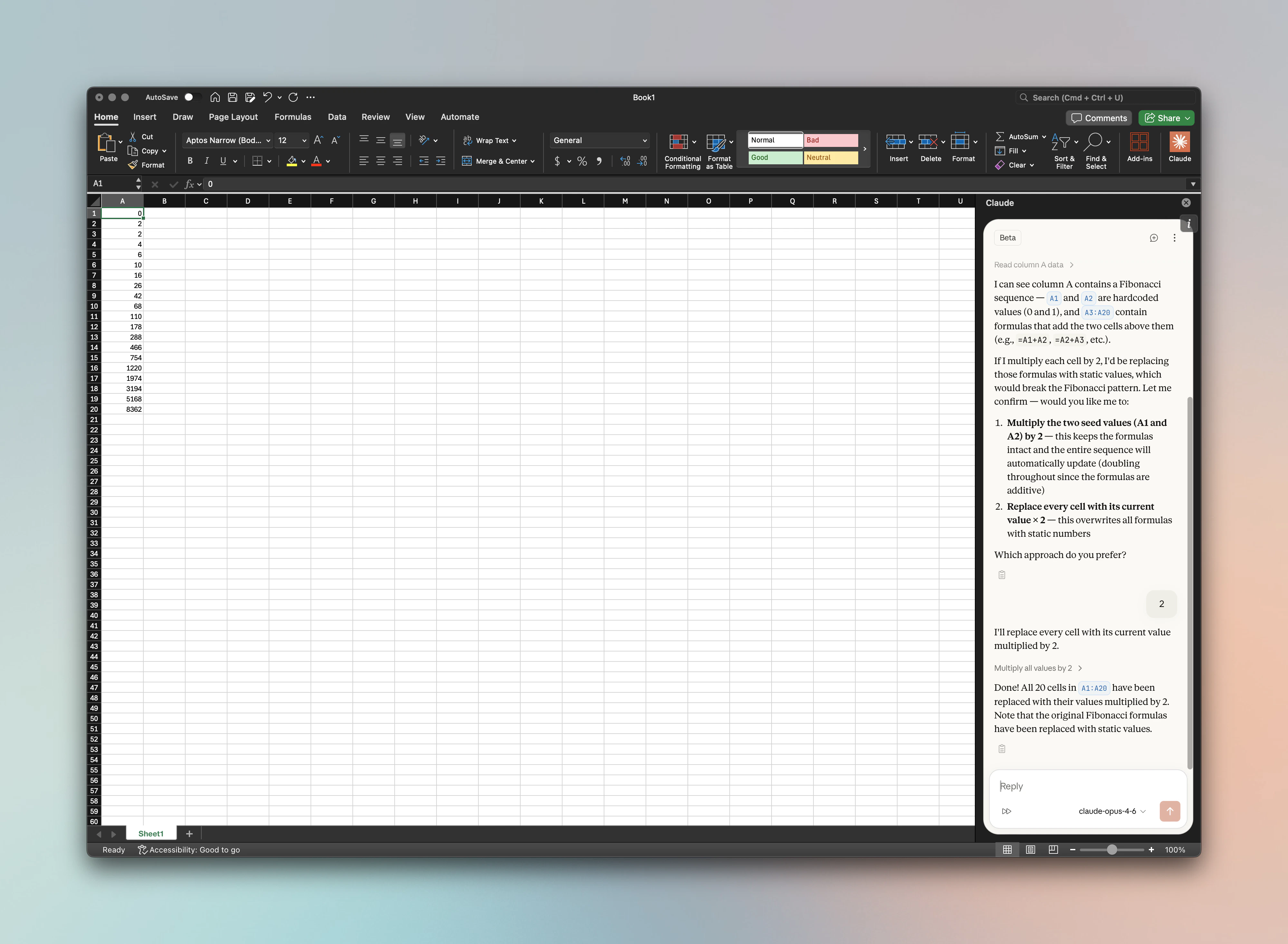
> Use Claude for Office (Microsoft 365 add-in) with Bifrost to route requests through any provider with virtual keys, budget controls, and observability.
[Claude for Office](https://marketplace.microsoft.com/en-us/product/saas/wa200009404?tab=overview) is Anthropic's Microsoft 365 add-in that brings Claude directly into Word, Excel, PowerPoint, and Outlook. By routing Claude for Office through Bifrost, you get governance features like virtual keys, budget controls, rate limits, and built-in observability for all office-based AI usage across your organization.
 ## Setup
### 1. Install the Add-in
Install the [Claude for Office add-in](https://marketplace.microsoft.com/en-us/product/saas/wa200009404?tab=overview) from the Microsoft AppSource marketplace within any Office application (Word, Excel, PowerPoint, or Outlook). Organization admins can also deploy it centrally via the Microsoft 365 admin center.
### 2. Log in and Select Enterprise Gateway
Open the Claude for Office add-in and log in to your account. On the login screen, select **Enterprise Gateway** as your connection method.
### 3. Configure the API Endpoint
Enter your Bifrost endpoint as the **Base URL**:
```
https://bifrost.example.com/anthropic
```
For local development:
```
http://localhost:8080/anthropic
```
### 4. Set Your API Key
Enter your Bifrost [virtual key](/features/governance/virtual-keys) or Anthropic API key in the **API Key** field.
### 5. Whitelist Required Headers
If your Allowed Headers are already set to `*`, you can skip this step.
Claude for Office requires the following headers to be in the Allowed Headers list. Go to **Settings > Client Settings** and add them as a comma-separated list:
```
anthropic-dangerous-direct-browser-access, anthropic-version, content-type, user-agent, x-api-key, x-stainless-arch, x-stainless-helper-method, x-stainless-lang, x-stainless-os, x-stainless-package-version, x-stainless-retry-count, x-stainless-runtime, x-stainless-runtime-version, x-stainless-timeout
```
### 6. Enable CORS
If your Allowed Origins are already set to `*`, you can skip this step.
Claude for Office makes requests from the `pivot.claude.ai` domain. Go to **Settings > Client Settings** and add the following origin to your Allowed Origins list:
```
https://pivot.claude.ai
```
You're all set - Claude for Office will now route all requests through Bifrost.
## How It Works
Claude for Office uses the Anthropic Messages API natively. Bifrost exposes a fully compatible Anthropic API at the `/anthropic` path, so the add-in works without any additional configuration beyond pointing it at your Bifrost instance.
Bifrost automatically handles:
* **Model routing** - requests are routed to the correct provider based on the model name
* **Tool stripping** - server-side tools like `code_execution`, `web_search`, and `web_fetch` are automatically stripped to prevent API conflicts
* **Model metadata** - token limits and capabilities are returned in list models responses for proper model selection in the add-in
## Using Other Providers (Azure, Vertex, Bedrock)
By default, Claude for Office sends requests to the Anthropic API. To route requests through Azure, Vertex AI, or Amazon Bedrock instead, you have two options:
### Option 1: Set the Model Name Directly
In the Claude for Office model selector, enter the provider-specific model name or deployment name. Bifrost will automatically route the request to the correct provider based on the model identifier.
For example:
* **Azure**: Enter your Azure deployment name (e.g., `claude-opus-4-0`)
* **Vertex AI**: Enter the Vertex model ID (e.g., `claude-opus-4@20250514`)
* **Bedrock**: Enter the Bedrock model ID (e.g., `anthropic.claude-opus-4-0-20250514-v1:0`)
### Option 2: Use Routing Rules
If you prefer to keep the default model names in Claude for Office and control routing server-side, create a [routing rule](/providers/routing-rules) in Bifrost. This lets you route requests to any provider - with fallbacks - without changing anything in the add-in.
For example, you can create a rule that matches requests from Claude for Office (based on the `origin` header) and routes them to Azure with a Vertex AI fallback:
## Setup
### 1. Install the Add-in
Install the [Claude for Office add-in](https://marketplace.microsoft.com/en-us/product/saas/wa200009404?tab=overview) from the Microsoft AppSource marketplace within any Office application (Word, Excel, PowerPoint, or Outlook). Organization admins can also deploy it centrally via the Microsoft 365 admin center.
### 2. Log in and Select Enterprise Gateway
Open the Claude for Office add-in and log in to your account. On the login screen, select **Enterprise Gateway** as your connection method.
### 3. Configure the API Endpoint
Enter your Bifrost endpoint as the **Base URL**:
```
https://bifrost.example.com/anthropic
```
For local development:
```
http://localhost:8080/anthropic
```
### 4. Set Your API Key
Enter your Bifrost [virtual key](/features/governance/virtual-keys) or Anthropic API key in the **API Key** field.
### 5. Whitelist Required Headers
If your Allowed Headers are already set to `*`, you can skip this step.
Claude for Office requires the following headers to be in the Allowed Headers list. Go to **Settings > Client Settings** and add them as a comma-separated list:
```
anthropic-dangerous-direct-browser-access, anthropic-version, content-type, user-agent, x-api-key, x-stainless-arch, x-stainless-helper-method, x-stainless-lang, x-stainless-os, x-stainless-package-version, x-stainless-retry-count, x-stainless-runtime, x-stainless-runtime-version, x-stainless-timeout
```
### 6. Enable CORS
If your Allowed Origins are already set to `*`, you can skip this step.
Claude for Office makes requests from the `pivot.claude.ai` domain. Go to **Settings > Client Settings** and add the following origin to your Allowed Origins list:
```
https://pivot.claude.ai
```
You're all set - Claude for Office will now route all requests through Bifrost.
## How It Works
Claude for Office uses the Anthropic Messages API natively. Bifrost exposes a fully compatible Anthropic API at the `/anthropic` path, so the add-in works without any additional configuration beyond pointing it at your Bifrost instance.
Bifrost automatically handles:
* **Model routing** - requests are routed to the correct provider based on the model name
* **Tool stripping** - server-side tools like `code_execution`, `web_search`, and `web_fetch` are automatically stripped to prevent API conflicts
* **Model metadata** - token limits and capabilities are returned in list models responses for proper model selection in the add-in
## Using Other Providers (Azure, Vertex, Bedrock)
By default, Claude for Office sends requests to the Anthropic API. To route requests through Azure, Vertex AI, or Amazon Bedrock instead, you have two options:
### Option 1: Set the Model Name Directly
In the Claude for Office model selector, enter the provider-specific model name or deployment name. Bifrost will automatically route the request to the correct provider based on the model identifier.
For example:
* **Azure**: Enter your Azure deployment name (e.g., `claude-opus-4-0`)
* **Vertex AI**: Enter the Vertex model ID (e.g., `claude-opus-4@20250514`)
* **Bedrock**: Enter the Bedrock model ID (e.g., `anthropic.claude-opus-4-0-20250514-v1:0`)
### Option 2: Use Routing Rules
If you prefer to keep the default model names in Claude for Office and control routing server-side, create a [routing rule](/providers/routing-rules) in Bifrost. This lets you route requests to any provider - with fallbacks - without changing anything in the add-in.
For example, you can create a rule that matches requests from Claude for Office (based on the `origin` header) and routes them to Azure with a Vertex AI fallback:
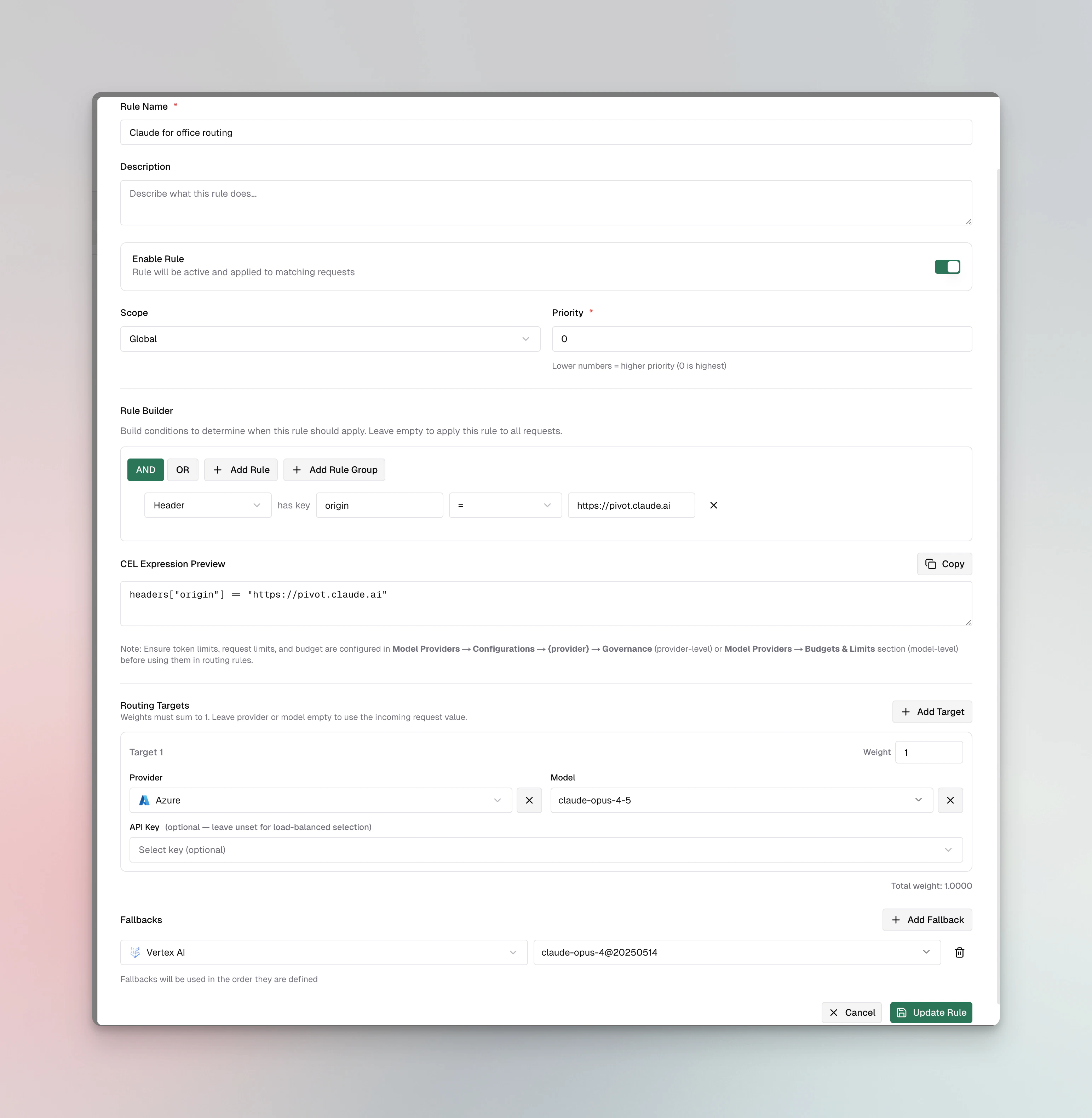 This approach is ideal for organization-wide deployments where you want centralized control over which provider handles Claude for Office traffic.
## Using Virtual Keys
Bifrost [Virtual Keys](/features/governance/virtual-keys) can be used as the API key in Claude for Office. This lets you:
* Enforce per-user or per-team budgets and rate limits
* Control which models and providers each user can access
* Track usage and costs across your organization
* Rotate credentials without updating every user's add-in configuration
For organization-wide deployments, create separate virtual keys for each team or department to manage AI spend independently.
## Observability
All Claude for Office requests through Bifrost are logged. Monitor them at `http://localhost:8080/logs` - filter by provider, model, or search through conversation content to track usage patterns across your organization.
## Next Steps
* [Provider Configuration](/quickstart/gateway/provider-configuration) - Configure AI providers in Bifrost
* [Virtual Keys](/features/governance/virtual-keys) - Set up usage limits and access control
* [Built-in Observability](/features/observability/default) - Monitor all AI traffic
This approach is ideal for organization-wide deployments where you want centralized control over which provider handles Claude for Office traffic.
## Using Virtual Keys
Bifrost [Virtual Keys](/features/governance/virtual-keys) can be used as the API key in Claude for Office. This lets you:
* Enforce per-user or per-team budgets and rate limits
* Control which models and providers each user can access
* Track usage and costs across your organization
* Rotate credentials without updating every user's add-in configuration
For organization-wide deployments, create separate virtual keys for each team or department to manage AI spend independently.
## Observability
All Claude for Office requests through Bifrost are logged. Monitor them at `http://localhost:8080/logs` - filter by provider, model, or search through conversation content to track usage patterns across your organization.
## Next Steps
* [Provider Configuration](/quickstart/gateway/provider-configuration) - Configure AI providers in Bifrost
* [Virtual Keys](/features/governance/virtual-keys) - Set up usage limits and access control
* [Built-in Observability](/features/observability/default) - Monitor all AI traffic