> ## Documentation Index
> Fetch the complete documentation index at: https://docs.getbifrost.ai/llms.txt
> Use this file to discover all available pages before exploring further.
# Claude Code
> Use Claude Code with Bifrost to route through any provider and unlock advanced features like MCP tools and observability.
[Claude Code](https://www.claude.com/product/claude-code) brings AI-powered coding capabilities directly to your terminal.
**Tested on Claude Code versions:**
| Version | Released |
| ------- | ---------- |
| 2.1.212 | 2026-07-17 |
| 2.1.143 | 2026-05-15 |
| 2.1.132 | 2026-05-06 |
| 2.1.131 | 2026-05-06 |
| 2.1.129 | 2026-05-05 |
| 2.1.128 | 2026-05-04 |
Since version 2.1.212, Anthropic has enforced the anthropic-version header along with some others.
Go to **Settings > Client Settings** and add them as a comma-separated list:
```
anthropic-dangerous-direct-browser-access, anthropic-version, content-type, user-agent, x-api-key, x-stainless-arch, x-stainless-helper-method, x-stainless-lang, x-stainless-os, x-stainless-package-version, x-stainless-retry-count, x-stainless-runtime, x-stainless-runtime-version, x-stainless-timeout
```
If your Allowed Headers are already set to `*`, you can skip this note. If not and you face issues integrating Bifrost with Claude Code,
try switching to `*` or adding the specific headers required by your client. By default, Bifrost whitelists: `Content-Type`,
`Authorization`, `X-Requested-With`, `X-Stainless-Timeout`, and `X-Api-Key`.
## Installing Claude Code
```bash theme={null}
curl -fsSL https://claude.ai/install.sh | bash
```
For platform-specific instructions, visit [https://code.claude.com/docs/en/overview](https://code.claude.com/docs/en/overview).
## Authentication Methods
There are two ways to authenticate Claude Code with Bifrost:
### `ANTHROPIC_AUTH_TOKEN` (Recommended)
Set `ANTHROPIC_AUTH_TOKEN` to your Bifrost virtual key. Claude Code sends this token in the `Authorization: Bearer` header automatically. Bifrost recognizes this header and uses the virtual key for routing and authentication.
**Why this is recommended:** You do not need to log in to an Anthropic account. No Anthropic credentials are required, as Bifrost handles everything through the virtual key.
All code snippets below use this method.
### `ANTHROPIC_CUSTOM_HEADERS` (Alternative)
Set `ANTHROPIC_CUSTOM_HEADERS` to `x-bf-vk: your-virtual-key`. This passes the virtual key as a custom header instead of the `Authorization` header.
**Caveat:** Because the virtual key is sent as a custom header rather than as the bearer token, Claude Code falls back to standard Anthropic account authentication for the `Authorization` header. This means you still need to log in with an Anthropic account. No credits are needed on the Anthropic account since billing goes through your Bifrost virtual key, but the account login is still required.
## Configuring Claude Code to work with Bifrost
**To avoid caching issues in Claude Code**, follow these steps:
* Open your `settings.json` and remove the `model` field if it is present. This field overwrites the `env`-based model selection and can cause unexpected behavior.
* Save the file.
* Start Claude Code, run the `/logout` command, then restart Claude Code.
* When prompted to choose an authentication method:
* If you are using `ANTHROPIC_AUTH_TOKEN` (recommended), no Anthropic account login is required, so you can skip this step.
* If you are using `ANTHROPIC_CUSTOM_HEADERS`, select **"Anthropic Console account · API usage billing"** when prompted.
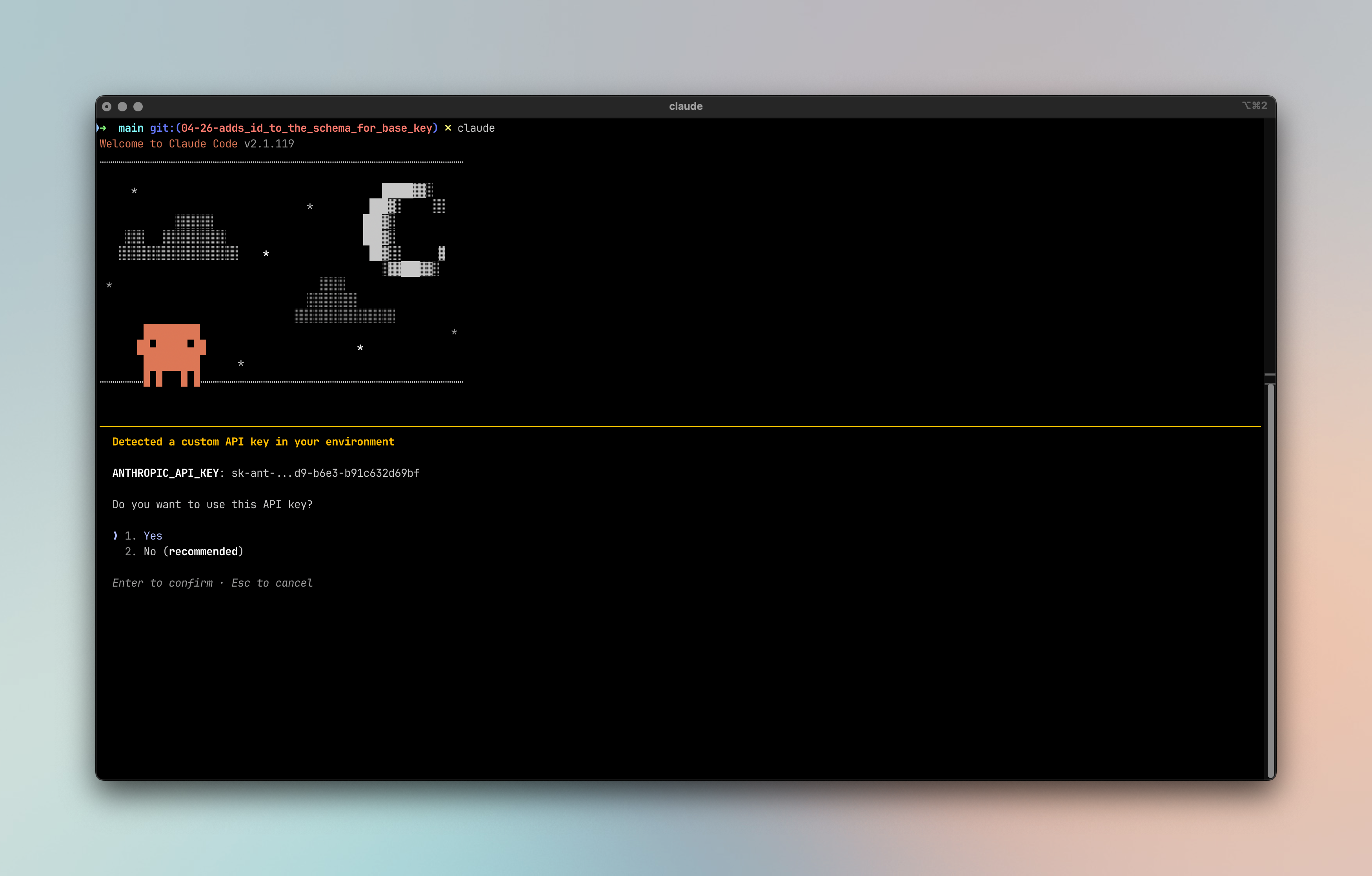 Claude Code supports multiple authentication methods. Choose the one that matches your account type.
1. **Update settings.json**
Global `settings.json` is placed in your home folder.
* macOS / Linux / WSL (User Global): `~/.claude/settings.json`
* Windows (User Global): `%USERPROFILE%\.claude\settings.json`
* Project-Specific: `.claude/settings.json` (located within your individual project's root directory)
* Local Overrides: `.claude/settings.local.json` (also in the project root, used for personal preferences that aren't shared via Git)
You will need to update the most granular `settings.json`.
### 1. Using alias
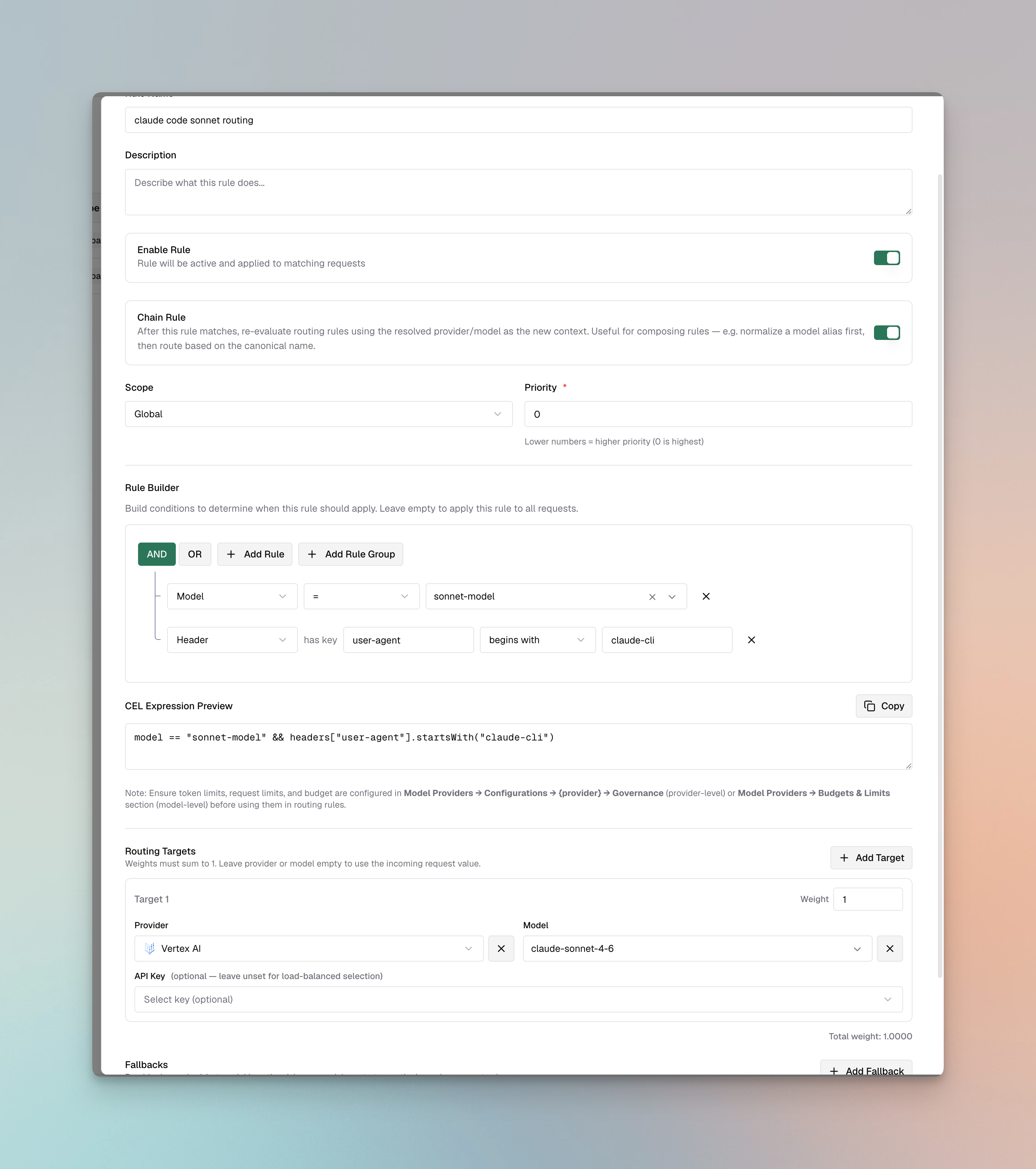
This approach uses Bifrost's [dynamic aliasing via routing rules](/providers/aliasing-models#dynamic-aliasing) — the names `sonnet-model` and `haiku-model` are arbitrary labels that Claude Code sends, and a routing rule rewrites them to whatever provider/model you want at request time. Because the rewrite is rule-based, you can route the same alias to different targets per scope, per header, or per other request attributes.
1. Add following routing rules in Bifrost
**`sonnet-model` route**
* Keep it a global level and assign priority you want to assign
* Add model condition as `model` `=` `sonnet-model`. This option is not available out of the box - so type this string and select `Create sonnet-model`
* And add second header condition; to check if the `user-agent` starts with `claude-cli`.
* And then you can map this model to any model you want — Anthropic, OpenAI, Gemini, or any other provider configured in Bifrost. In the configuration given, we are using `vertex/claude-sonnet-4-6`.
Claude Code supports multiple authentication methods. Choose the one that matches your account type.
1. **Update settings.json**
Global `settings.json` is placed in your home folder.
* macOS / Linux / WSL (User Global): `~/.claude/settings.json`
* Windows (User Global): `%USERPROFILE%\.claude\settings.json`
* Project-Specific: `.claude/settings.json` (located within your individual project's root directory)
* Local Overrides: `.claude/settings.local.json` (also in the project root, used for personal preferences that aren't shared via Git)
You will need to update the most granular `settings.json`.
### 1. Using alias
This approach uses Bifrost's [dynamic aliasing via routing rules](/providers/aliasing-models#dynamic-aliasing) — the names `sonnet-model` and `haiku-model` are arbitrary labels that Claude Code sends, and a routing rule rewrites them to whatever provider/model you want at request time. Because the rewrite is rule-based, you can route the same alias to different targets per scope, per header, or per other request attributes.
1. Add following routing rules in Bifrost
**`sonnet-model` route**
* Keep it a global level and assign priority you want to assign
* Add model condition as `model` `=` `sonnet-model`. This option is not available out of the box - so type this string and select `Create sonnet-model`
* And add second header condition; to check if the `user-agent` starts with `claude-cli`.
* And then you can map this model to any model you want — Anthropic, OpenAI, Gemini, or any other provider configured in Bifrost. In the configuration given, we are using `vertex/claude-sonnet-4-6`.
 **`haiku-model` route**
* Repeat the above steps by replacing `sonnet-model` with `haiku-model`.
2. Update `settings.json`
The JSON snippets below show only the `env` key. Merge them into your existing `settings.json` top-level object - do not paste them as a
standalone file, or you will overwrite other settings like `permissions`, `model`, and `apiKeyHelper`.
```json theme={null}
"env": {
"ANTHROPIC_BASE_URL": "http://localhost:8080/anthropic",
"ANTHROPIC_AUTH_TOKEN": "your-virtual-key",
"ANTHROPIC_DEFAULT_HAIKU_MODEL": "haiku-model",
"ANTHROPIC_DEFAULT_SONNET_MODEL": "sonnet-model"
}
```
### 2. Using provider-specific model pinning
This approach pins Claude Code's Haiku/Sonnet slots to specific provider+model identifiers up front. Under the hood it behaves like Bifrost's [static aliasing](/providers/aliasing-models#static-aliasing) — the value you set is the exact target Bifrost forwards to. You can pin to **any model on any provider** Bifrost is configured for (Anthropic, Bedrock, Vertex, Azure, OpenAI, Gemini, etc.), not just Claude models on different clouds. The only requirement is that the model you pick supports the tool-calling features Claude Code needs for the operations you intend to use (file edits, bash, web search, computer use, etc.).
#### Anthropic
Update `settings.json` to pick Anthropic models. For Anthropic models, you don't need to prefix models with provider name.
```json theme={null}
"env": {
"ANTHROPIC_BASE_URL": "http://localhost:8080/anthropic",
"ANTHROPIC_AUTH_TOKEN": "your-virtual-key",
"ANTHROPIC_DEFAULT_HAIKU_MODEL": "claude-haiku-4-5",
"ANTHROPIC_DEFAULT_SONNET_MODEL": "claude-sonnet-4-6"
}
```
#### Bedrock
Update `settings.json` to pick Anthropic models on Bedrock.
```json theme={null}
"env": {
"ANTHROPIC_BASE_URL": "http://localhost:8080/anthropic",
"ANTHROPIC_AUTH_TOKEN": "your-virtual-key",
"ANTHROPIC_DEFAULT_HAIKU_MODEL": "bedrock/global.anthropic.claude-haiku-4-5",
"ANTHROPIC_DEFAULT_SONNET_MODEL": "bedrock/global.anthropic.claude-sonnet-4-6"
}
```
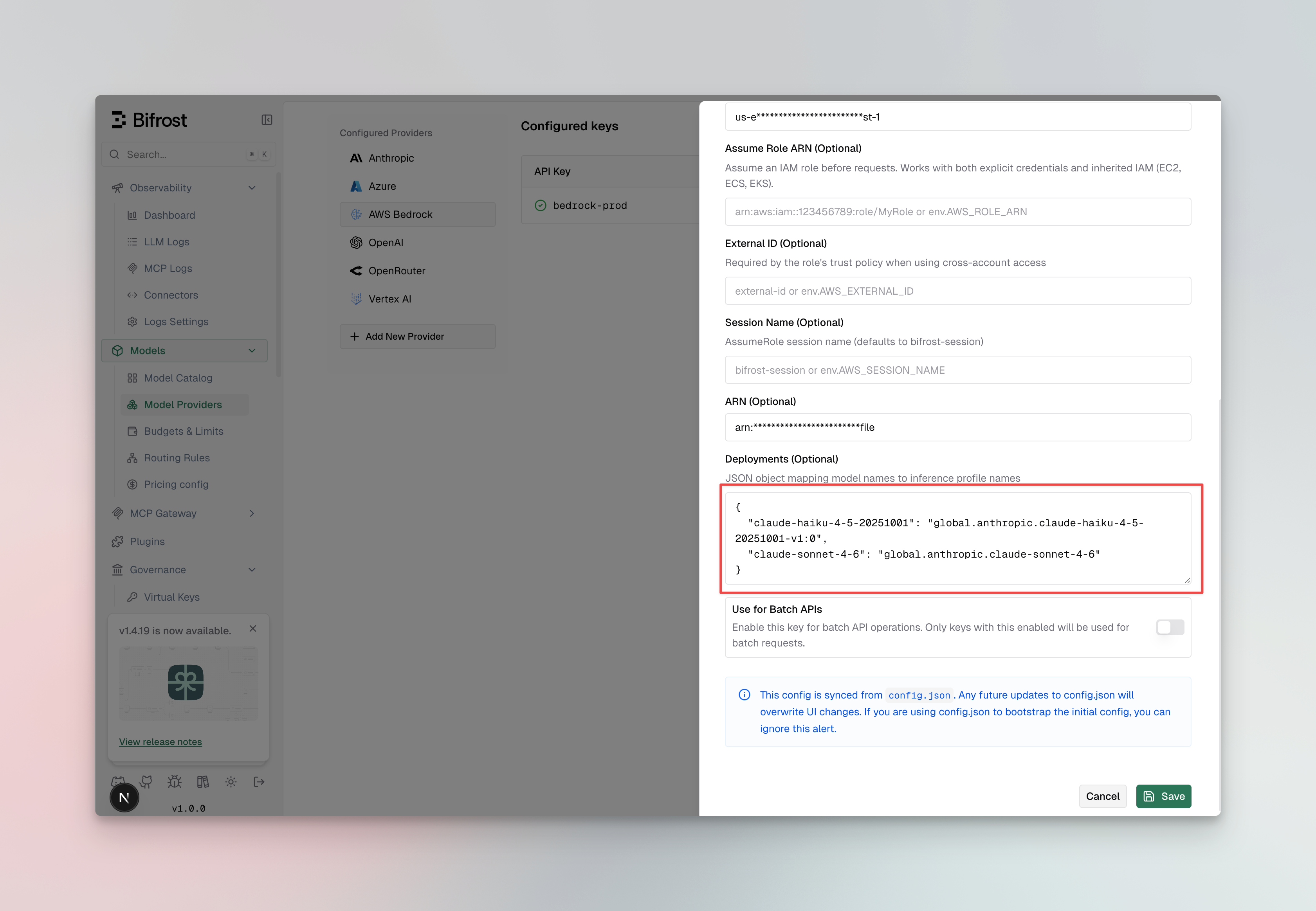
If you don't pin using CLI - you can pin these in UI. Go to Dashboard > Models > Model Providers > AWS Bedrock > Key. And add deployments
**`haiku-model` route**
* Repeat the above steps by replacing `sonnet-model` with `haiku-model`.
2. Update `settings.json`
The JSON snippets below show only the `env` key. Merge them into your existing `settings.json` top-level object - do not paste them as a
standalone file, or you will overwrite other settings like `permissions`, `model`, and `apiKeyHelper`.
```json theme={null}
"env": {
"ANTHROPIC_BASE_URL": "http://localhost:8080/anthropic",
"ANTHROPIC_AUTH_TOKEN": "your-virtual-key",
"ANTHROPIC_DEFAULT_HAIKU_MODEL": "haiku-model",
"ANTHROPIC_DEFAULT_SONNET_MODEL": "sonnet-model"
}
```
### 2. Using provider-specific model pinning
This approach pins Claude Code's Haiku/Sonnet slots to specific provider+model identifiers up front. Under the hood it behaves like Bifrost's [static aliasing](/providers/aliasing-models#static-aliasing) — the value you set is the exact target Bifrost forwards to. You can pin to **any model on any provider** Bifrost is configured for (Anthropic, Bedrock, Vertex, Azure, OpenAI, Gemini, etc.), not just Claude models on different clouds. The only requirement is that the model you pick supports the tool-calling features Claude Code needs for the operations you intend to use (file edits, bash, web search, computer use, etc.).
#### Anthropic
Update `settings.json` to pick Anthropic models. For Anthropic models, you don't need to prefix models with provider name.
```json theme={null}
"env": {
"ANTHROPIC_BASE_URL": "http://localhost:8080/anthropic",
"ANTHROPIC_AUTH_TOKEN": "your-virtual-key",
"ANTHROPIC_DEFAULT_HAIKU_MODEL": "claude-haiku-4-5",
"ANTHROPIC_DEFAULT_SONNET_MODEL": "claude-sonnet-4-6"
}
```
#### Bedrock
Update `settings.json` to pick Anthropic models on Bedrock.
```json theme={null}
"env": {
"ANTHROPIC_BASE_URL": "http://localhost:8080/anthropic",
"ANTHROPIC_AUTH_TOKEN": "your-virtual-key",
"ANTHROPIC_DEFAULT_HAIKU_MODEL": "bedrock/global.anthropic.claude-haiku-4-5",
"ANTHROPIC_DEFAULT_SONNET_MODEL": "bedrock/global.anthropic.claude-sonnet-4-6"
}
```
If you don't pin using CLI - you can pin these in UI. Go to Dashboard > Models > Model Providers > AWS Bedrock > Key. And add deployments
 #### Vertex
Update `settings.json` to pick Anthropic models on Vertex.
```json theme={null}
"env": {
"ANTHROPIC_BASE_URL": "http://localhost:8080/anthropic",
"ANTHROPIC_AUTH_TOKEN": "your-virtual-key",
"ANTHROPIC_DEFAULT_HAIKU_MODEL": "vertex/claude-haiku-4-5",
"ANTHROPIC_DEFAULT_SONNET_MODEL": "vertex/claude-sonnet-4-6"
}
```
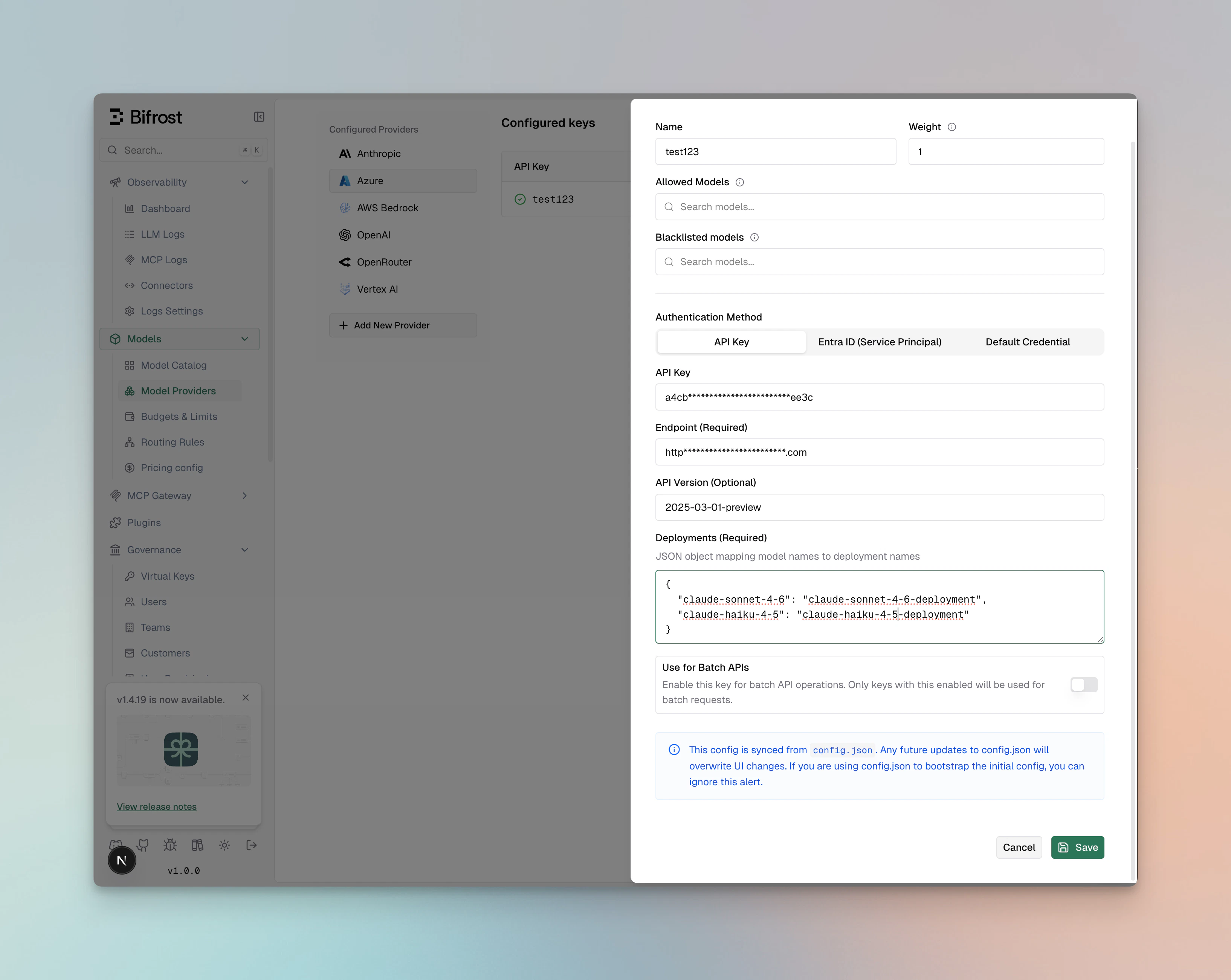
#### Azure
Update `settings.json` to pick Anthropic models on Azure.
```json theme={null}
"env": {
"ANTHROPIC_BASE_URL": "http://localhost:8080/anthropic",
"ANTHROPIC_AUTH_TOKEN": "your-virtual-key",
"ANTHROPIC_DEFAULT_HAIKU_MODEL": "azure/claude-haiku-4-5",
"ANTHROPIC_DEFAULT_SONNET_MODEL": "azure/claude-sonnet-4-6"
}
```
#### Vertex
Update `settings.json` to pick Anthropic models on Vertex.
```json theme={null}
"env": {
"ANTHROPIC_BASE_URL": "http://localhost:8080/anthropic",
"ANTHROPIC_AUTH_TOKEN": "your-virtual-key",
"ANTHROPIC_DEFAULT_HAIKU_MODEL": "vertex/claude-haiku-4-5",
"ANTHROPIC_DEFAULT_SONNET_MODEL": "vertex/claude-sonnet-4-6"
}
```
#### Azure
Update `settings.json` to pick Anthropic models on Azure.
```json theme={null}
"env": {
"ANTHROPIC_BASE_URL": "http://localhost:8080/anthropic",
"ANTHROPIC_AUTH_TOKEN": "your-virtual-key",
"ANTHROPIC_DEFAULT_HAIKU_MODEL": "azure/claude-haiku-4-5",
"ANTHROPIC_DEFAULT_SONNET_MODEL": "azure/claude-sonnet-4-6"
}
```
 Azure-hosted models must support **tool use capabilities** for Claude Code to function properly. Verify tool calling support before
configuring Azure models.
#### Other providers (OpenAI, Gemini, etc.)
You are not limited to Anthropic-family models. Any provider Bifrost supports can be pinned the same way — just prefix the model with the provider name:
```json theme={null}
"env": {
"ANTHROPIC_BASE_URL": "http://localhost:8080/anthropic",
"ANTHROPIC_AUTH_TOKEN": "your-virtual-key",
"ANTHROPIC_DEFAULT_HAIKU_MODEL": "openai/gpt-5.5",
"ANTHROPIC_DEFAULT_SONNET_MODEL": "vertex/gemini-3.1-pro"
}
```
Whichever model you pin, it must support the **tool-calling features** the operations you intend to run rely on (file edits, bash, web
search, computer use, citations). Non-Claude models might not implement Claude-specific server-side tools like `computer_use` — if your workflow needs those, try sticking to Claude-family models on a provider that fully supports them.
## Model Configuration
Claude Code uses three model tiers: **Sonnet** (default), **Opus** (complex tasks), and **Haiku** (fast, lightweight). With Bifrost, you can override these defaults to use any model from any provider.
**Start with a Specific Model:**
Launch Claude Code with a specific model using the `--model` flag:
```bash theme={null}
# Start with Opus
claude --model claude-opus-4-8
# Start with Haiku for lightweight tasks
claude --model claude-haiku-4-5
# Or any other provider/model via Bifrost
claude --model openai/gpt-5.5
claude --model vertex/gemini-3.1-pro
```
## Switching Models Mid-Session
Use the `/model` command to switch models during an active session. The target can be **any provider/model combination** Bifrost is configured for — not just Claude on different clouds:
```bash theme={null}
# Anthropic-native (no prefix required)
/model claude-opus-4-8
/model claude-sonnet-4-6
# Claude on other clouds via Bifrost
/model vertex/claude-haiku-4-5
/model azure/claude-sonnet-4-6
/model bedrock/global.anthropic.claude-sonnet-4-6
# Non-Anthropic providers
/model openai/gpt-5.5
/model vertex/gemini-3.1-pro
```
Run `/model` without arguments to check your current model. The switch is instantaneous and Claude Code seamlessly continues your
conversation context with the new model.
## Provider Compatibility
Bifrost lets Claude Code talk to any model on any provider it's configured for. The only hard requirement is that the model you pick **properly supports tool calling for the operations you intend to perform** — Claude Code relies heavily on tool use for file edits, bash, code editing, web search, computer use, and citations.
A few things to keep in mind:
* **Claude-specific server-side tools** (`web_search`, `computer_use`, `citations`) are only available on Claude-family models on providers that expose them. Non-Claude models might silently lack these capabilities.
* **Streaming tool-call arguments** must be implemented correctly by the upstream. Some providers (notably **OpenRouter** at the time of writing) do not stream function-call arguments properly — tool calls arrive with empty `arguments` fields and Claude Code fails on file operations. If this happens, switch to a different provider in your Bifrost configuration.
* **Azure-hosted models** must explicitly support tool use; verify before pinning.
If a tool call isn't executing as expected, the fastest sanity check is to swap to a known-good model (e.g. `claude-sonnet-4-6` direct from Anthropic) and confirm the issue is provider/model-specific rather than Bifrost configuration.
## Using Bifrost as an MCP Gateway
Bifrost can also act as an [MCP server](/mcp/gateway), aggregating every MCP tool you've connected (filesystem, GitHub, web search, databases, etc.) behind a single `/mcp` endpoint. Pointing Claude Code at it means one config entry instead of N, plus per-VK tool filtering, centralized governance, and observability for every tool call.
### Adding Bifrost as an MCP server
Use the `claude mcp add` CLI with the HTTP transport:
```bash theme={null}
claude mcp add --transport http bifrost http://localhost:8080/mcp \
--header "Authorization: Bearer your-virtual-key" \
--scope user
```
`--scope` controls where the entry is stored: `local` (default, current project only), `project` (writes a checked-in `.mcp.json`), or `user` (available across all your projects).
Or write it directly into `.mcp.json` / `~/.claude.json`:
```json theme={null}
{
"mcpServers": {
"bifrost": {
"type": "http",
"url": "http://localhost:8080/mcp",
"headers": {
"Authorization": "Bearer your-virtual-key"
}
}
}
}
```
Bifrost also accepts `X-Api-Key: ` or `x-bf-vk: ` if the `Authorization` header conflicts with another tool in the chain.
To remove the server later:
```bash theme={null}
claude mcp remove bifrost
```
### When you need an identity header
For setups that only use **global MCPs** (auth type `none`, `headers`, or `oauth`), Claude Code can connect to `/mcp` without any header and get the full global tool set. Identity headers only become load-bearing when **per-user MCPs** (`per_user_oauth` or `per_user_headers`) are in the mix — and even then the connection itself still succeeds; only tool calls into the per-user server return an error until an identity is present.
For a per-user-headers MCP without identity, the tool call returns:
```
per-user headers for requires an identity: send a Virtual Key (x-bf-vk),
authenticate as a user, or set x-bf-mcp-session-id to any opaque string you'll
re-send on subsequent calls
```
Bifrost recognizes three [identity modes](/mcp/auth/overview#identity-modes):
| Mode | Header | When to use |
| --------- | ---------------------------------------------------------------------- | --------------------------- |
| `user` | Enterprise SSO (attached by auth middleware), or a user-owned VK | Enterprise SSO setups |
| `vk` | `Authorization: Bearer ` (or `X-Api-Key` / `x-bf-vk`) | Typical Claude Code pattern |
| `session` | `x-bf-mcp-session-id: ` (must be re-sent on every call) | No VK and no SSO available |
Session-mode (`x-bf-mcp-session-id` only) requires `enforce_auth_on_inference=false` on the Bifrost client config. With enforcement on, every request must carry a valid VK — session-only requests are rejected before identity resolution even runs.
You can attach a VK even when you don't strictly need per-user auth — it's how Bifrost scopes tool filtering and governance per caller.
### Recommended: disable auto tool injection
When the same Claude Code instance routes inference through Bifrost's LLM gateway **and** connects to `/mcp`, the same tool can reach the model twice — once because the LLM gateway auto-injects every configured MCP tool, and once because Claude Code's own MCP client discovers it via `/mcp`. Bifrost auto-dedupes tools for Claude Code specifically, but turning the inject toggle off is still recommended — it cleanly separates the two paths and matches what other MCP-host clients expect.
See [Recommended: disable auto tool injection](/mcp/gateway#recommended-disable-auto-tool-injection) for the toggle.
### Verifying
Run `/mcp` inside Claude Code. `bifrost` should appear as connected with a tool count next to it. The same panel surfaces reconnect, re-authenticate, and disconnect actions.
### FAQs
The full error reads:
```
SDK auth failed: HTTP 405: Invalid OAuth error response: SyntaxError: JSON Parse error:
Unexpected identifier "Method". Raw body: Method Not Allowed
```
This appears whenever the [gateway auth mode](../mcp/gateway-auth) is `headers`: clicking **Re-authenticate** makes Claude Code probe `/register` (RFC 7591 Dynamic Client Registration), but registration and discovery aren't served in that mode, so the SDK logs the parse error. The `/mcp` connection itself keeps working.
To make Re-authenticate work, switch `mcp_server_auth_mode` to `both` or `oauth` — Bifrost then serves real Dynamic Client Registration and the error disappears. If you're staying on `headers`, use **Reconnect** in the `/mcp` panel to refresh tools instead. See the upstream [Claude Code bug report](https://github.com/anthropics/claude-code/issues/46640) for context.
Claude Code completed an OAuth flow, but the token it presented to `/mcp` was rejected. Two common causes:
1. **You recently switched `mcp_server_auth_mode`.** Claude Code caches OAuth state per server, and tokens issued under the old mode are no longer accepted. Remove and re-add the server (`claude mcp remove bifrost`, then add it again).
2. **A VK header is being sent alongside the OAuth token.** Bifrost rejects requests carrying two credential types at once (`conflicting credentials`). This typically happens in `both` mode when the VK is configured under a non-standard header: Claude Code only treats a configured `Authorization` header as "use header auth" — with `x-bf-vk` or `X-Api-Key` it may still run the OAuth flow and then send the OAuth token *and* your VK header together, which Bifrost rejects.
In `both` mode, configure the VK as `Authorization: Bearer ` (not `x-bf-vk` / `X-Api-Key`), or drop the header entirely and authenticate via OAuth.
You'll see this when clicking **Reconnect** in `/mcp` if the request reaches Bifrost without a valid identity:
* No `Authorization` / `x-bf-vk` / `X-Api-Key` header and `enforce_auth_on_inference=true`
* Sending only `x-bf-mcp-session-id` while `enforce_auth_on_inference=true`
* A VK that doesn't exist or has been disabled
Fix: either send a valid active VK in your header config, or set `enforce_auth_on_inference=false` if you intend to use session-id (or unauthenticated) callers. After updating the header, re-add the server or click **Reconnect** again.
Three things to check, in order:
1. **The upstream MCP is still connected in Bifrost.** Bifrost's health monitor marks a server `disconnected` after 5 consecutive failed pings, and disconnected servers serve zero tools. Reconnect from the Bifrost MCP page or via `POST /api/mcp/client/{id}/reconnect`.
2. **The attached VK allows the tools.** If you're sending a VK, its `mcp_configs` allowlist must include the MCP client name and the tools you expect to see. A VK with no entry for that MCP exposes none of its tools.
3. **The MCP isn't running in [Code Mode](/mcp/code-mode).** Code-mode MCPs don't expose their raw tools through `tools/list` — they're exposed as **meta tools** (`list_tools`, `call_tool`, etc.) that the LLM uses to discover and call the underlying tools indirectly. From a stock MCP client's perspective the server looks like it only has a handful of meta tools.
Expected behavior for `per_user_oauth` and `per_user_headers` MCPs. Open the URL surfaced in the tool result — for OAuth flows it points at the upstream provider's consent page; for headers flows it points at a Bifrost form to enter your values. Bifrost stores the credential against your identity and the next tool call executes normally. See [Per-User OAuth](/mcp/auth/per-user-oauth) and [Per-User Headers](/mcp/auth/per-user-headers).
If Claude Code behaves unexpectedly after any change to Bifrost's MCP auth settings, remove and re-add the server — Claude Code caches auth tokens per MCP server, and stale cached credentials can survive Reconnect.
## Checklist
1. Ensure the model selected is same as you configured in the `settings.json`.
Azure-hosted models must support **tool use capabilities** for Claude Code to function properly. Verify tool calling support before
configuring Azure models.
#### Other providers (OpenAI, Gemini, etc.)
You are not limited to Anthropic-family models. Any provider Bifrost supports can be pinned the same way — just prefix the model with the provider name:
```json theme={null}
"env": {
"ANTHROPIC_BASE_URL": "http://localhost:8080/anthropic",
"ANTHROPIC_AUTH_TOKEN": "your-virtual-key",
"ANTHROPIC_DEFAULT_HAIKU_MODEL": "openai/gpt-5.5",
"ANTHROPIC_DEFAULT_SONNET_MODEL": "vertex/gemini-3.1-pro"
}
```
Whichever model you pin, it must support the **tool-calling features** the operations you intend to run rely on (file edits, bash, web
search, computer use, citations). Non-Claude models might not implement Claude-specific server-side tools like `computer_use` — if your workflow needs those, try sticking to Claude-family models on a provider that fully supports them.
## Model Configuration
Claude Code uses three model tiers: **Sonnet** (default), **Opus** (complex tasks), and **Haiku** (fast, lightweight). With Bifrost, you can override these defaults to use any model from any provider.
**Start with a Specific Model:**
Launch Claude Code with a specific model using the `--model` flag:
```bash theme={null}
# Start with Opus
claude --model claude-opus-4-8
# Start with Haiku for lightweight tasks
claude --model claude-haiku-4-5
# Or any other provider/model via Bifrost
claude --model openai/gpt-5.5
claude --model vertex/gemini-3.1-pro
```
## Switching Models Mid-Session
Use the `/model` command to switch models during an active session. The target can be **any provider/model combination** Bifrost is configured for — not just Claude on different clouds:
```bash theme={null}
# Anthropic-native (no prefix required)
/model claude-opus-4-8
/model claude-sonnet-4-6
# Claude on other clouds via Bifrost
/model vertex/claude-haiku-4-5
/model azure/claude-sonnet-4-6
/model bedrock/global.anthropic.claude-sonnet-4-6
# Non-Anthropic providers
/model openai/gpt-5.5
/model vertex/gemini-3.1-pro
```
Run `/model` without arguments to check your current model. The switch is instantaneous and Claude Code seamlessly continues your
conversation context with the new model.
## Provider Compatibility
Bifrost lets Claude Code talk to any model on any provider it's configured for. The only hard requirement is that the model you pick **properly supports tool calling for the operations you intend to perform** — Claude Code relies heavily on tool use for file edits, bash, code editing, web search, computer use, and citations.
A few things to keep in mind:
* **Claude-specific server-side tools** (`web_search`, `computer_use`, `citations`) are only available on Claude-family models on providers that expose them. Non-Claude models might silently lack these capabilities.
* **Streaming tool-call arguments** must be implemented correctly by the upstream. Some providers (notably **OpenRouter** at the time of writing) do not stream function-call arguments properly — tool calls arrive with empty `arguments` fields and Claude Code fails on file operations. If this happens, switch to a different provider in your Bifrost configuration.
* **Azure-hosted models** must explicitly support tool use; verify before pinning.
If a tool call isn't executing as expected, the fastest sanity check is to swap to a known-good model (e.g. `claude-sonnet-4-6` direct from Anthropic) and confirm the issue is provider/model-specific rather than Bifrost configuration.
## Using Bifrost as an MCP Gateway
Bifrost can also act as an [MCP server](/mcp/gateway), aggregating every MCP tool you've connected (filesystem, GitHub, web search, databases, etc.) behind a single `/mcp` endpoint. Pointing Claude Code at it means one config entry instead of N, plus per-VK tool filtering, centralized governance, and observability for every tool call.
### Adding Bifrost as an MCP server
Use the `claude mcp add` CLI with the HTTP transport:
```bash theme={null}
claude mcp add --transport http bifrost http://localhost:8080/mcp \
--header "Authorization: Bearer your-virtual-key" \
--scope user
```
`--scope` controls where the entry is stored: `local` (default, current project only), `project` (writes a checked-in `.mcp.json`), or `user` (available across all your projects).
Or write it directly into `.mcp.json` / `~/.claude.json`:
```json theme={null}
{
"mcpServers": {
"bifrost": {
"type": "http",
"url": "http://localhost:8080/mcp",
"headers": {
"Authorization": "Bearer your-virtual-key"
}
}
}
}
```
Bifrost also accepts `X-Api-Key: ` or `x-bf-vk: ` if the `Authorization` header conflicts with another tool in the chain.
To remove the server later:
```bash theme={null}
claude mcp remove bifrost
```
### When you need an identity header
For setups that only use **global MCPs** (auth type `none`, `headers`, or `oauth`), Claude Code can connect to `/mcp` without any header and get the full global tool set. Identity headers only become load-bearing when **per-user MCPs** (`per_user_oauth` or `per_user_headers`) are in the mix — and even then the connection itself still succeeds; only tool calls into the per-user server return an error until an identity is present.
For a per-user-headers MCP without identity, the tool call returns:
```
per-user headers for requires an identity: send a Virtual Key (x-bf-vk),
authenticate as a user, or set x-bf-mcp-session-id to any opaque string you'll
re-send on subsequent calls
```
Bifrost recognizes three [identity modes](/mcp/auth/overview#identity-modes):
| Mode | Header | When to use |
| --------- | ---------------------------------------------------------------------- | --------------------------- |
| `user` | Enterprise SSO (attached by auth middleware), or a user-owned VK | Enterprise SSO setups |
| `vk` | `Authorization: Bearer ` (or `X-Api-Key` / `x-bf-vk`) | Typical Claude Code pattern |
| `session` | `x-bf-mcp-session-id: ` (must be re-sent on every call) | No VK and no SSO available |
Session-mode (`x-bf-mcp-session-id` only) requires `enforce_auth_on_inference=false` on the Bifrost client config. With enforcement on, every request must carry a valid VK — session-only requests are rejected before identity resolution even runs.
You can attach a VK even when you don't strictly need per-user auth — it's how Bifrost scopes tool filtering and governance per caller.
### Recommended: disable auto tool injection
When the same Claude Code instance routes inference through Bifrost's LLM gateway **and** connects to `/mcp`, the same tool can reach the model twice — once because the LLM gateway auto-injects every configured MCP tool, and once because Claude Code's own MCP client discovers it via `/mcp`. Bifrost auto-dedupes tools for Claude Code specifically, but turning the inject toggle off is still recommended — it cleanly separates the two paths and matches what other MCP-host clients expect.
See [Recommended: disable auto tool injection](/mcp/gateway#recommended-disable-auto-tool-injection) for the toggle.
### Verifying
Run `/mcp` inside Claude Code. `bifrost` should appear as connected with a tool count next to it. The same panel surfaces reconnect, re-authenticate, and disconnect actions.
### FAQs
The full error reads:
```
SDK auth failed: HTTP 405: Invalid OAuth error response: SyntaxError: JSON Parse error:
Unexpected identifier "Method". Raw body: Method Not Allowed
```
This appears whenever the [gateway auth mode](../mcp/gateway-auth) is `headers`: clicking **Re-authenticate** makes Claude Code probe `/register` (RFC 7591 Dynamic Client Registration), but registration and discovery aren't served in that mode, so the SDK logs the parse error. The `/mcp` connection itself keeps working.
To make Re-authenticate work, switch `mcp_server_auth_mode` to `both` or `oauth` — Bifrost then serves real Dynamic Client Registration and the error disappears. If you're staying on `headers`, use **Reconnect** in the `/mcp` panel to refresh tools instead. See the upstream [Claude Code bug report](https://github.com/anthropics/claude-code/issues/46640) for context.
Claude Code completed an OAuth flow, but the token it presented to `/mcp` was rejected. Two common causes:
1. **You recently switched `mcp_server_auth_mode`.** Claude Code caches OAuth state per server, and tokens issued under the old mode are no longer accepted. Remove and re-add the server (`claude mcp remove bifrost`, then add it again).
2. **A VK header is being sent alongside the OAuth token.** Bifrost rejects requests carrying two credential types at once (`conflicting credentials`). This typically happens in `both` mode when the VK is configured under a non-standard header: Claude Code only treats a configured `Authorization` header as "use header auth" — with `x-bf-vk` or `X-Api-Key` it may still run the OAuth flow and then send the OAuth token *and* your VK header together, which Bifrost rejects.
In `both` mode, configure the VK as `Authorization: Bearer ` (not `x-bf-vk` / `X-Api-Key`), or drop the header entirely and authenticate via OAuth.
You'll see this when clicking **Reconnect** in `/mcp` if the request reaches Bifrost without a valid identity:
* No `Authorization` / `x-bf-vk` / `X-Api-Key` header and `enforce_auth_on_inference=true`
* Sending only `x-bf-mcp-session-id` while `enforce_auth_on_inference=true`
* A VK that doesn't exist or has been disabled
Fix: either send a valid active VK in your header config, or set `enforce_auth_on_inference=false` if you intend to use session-id (or unauthenticated) callers. After updating the header, re-add the server or click **Reconnect** again.
Three things to check, in order:
1. **The upstream MCP is still connected in Bifrost.** Bifrost's health monitor marks a server `disconnected` after 5 consecutive failed pings, and disconnected servers serve zero tools. Reconnect from the Bifrost MCP page or via `POST /api/mcp/client/{id}/reconnect`.
2. **The attached VK allows the tools.** If you're sending a VK, its `mcp_configs` allowlist must include the MCP client name and the tools you expect to see. A VK with no entry for that MCP exposes none of its tools.
3. **The MCP isn't running in [Code Mode](/mcp/code-mode).** Code-mode MCPs don't expose their raw tools through `tools/list` — they're exposed as **meta tools** (`list_tools`, `call_tool`, etc.) that the LLM uses to discover and call the underlying tools indirectly. From a stock MCP client's perspective the server looks like it only has a handful of meta tools.
Expected behavior for `per_user_oauth` and `per_user_headers` MCPs. Open the URL surfaced in the tool result — for OAuth flows it points at the upstream provider's consent page; for headers flows it points at a Bifrost form to enter your values. Bifrost stores the credential against your identity and the next tool call executes normally. See [Per-User OAuth](/mcp/auth/per-user-oauth) and [Per-User Headers](/mcp/auth/per-user-headers).
If Claude Code behaves unexpectedly after any change to Bifrost's MCP auth settings, remove and re-add the server — Claude Code caches auth tokens per MCP server, and stale cached credentials can survive Reconnect.
## Checklist
1. Ensure the model selected is same as you configured in the `settings.json`.
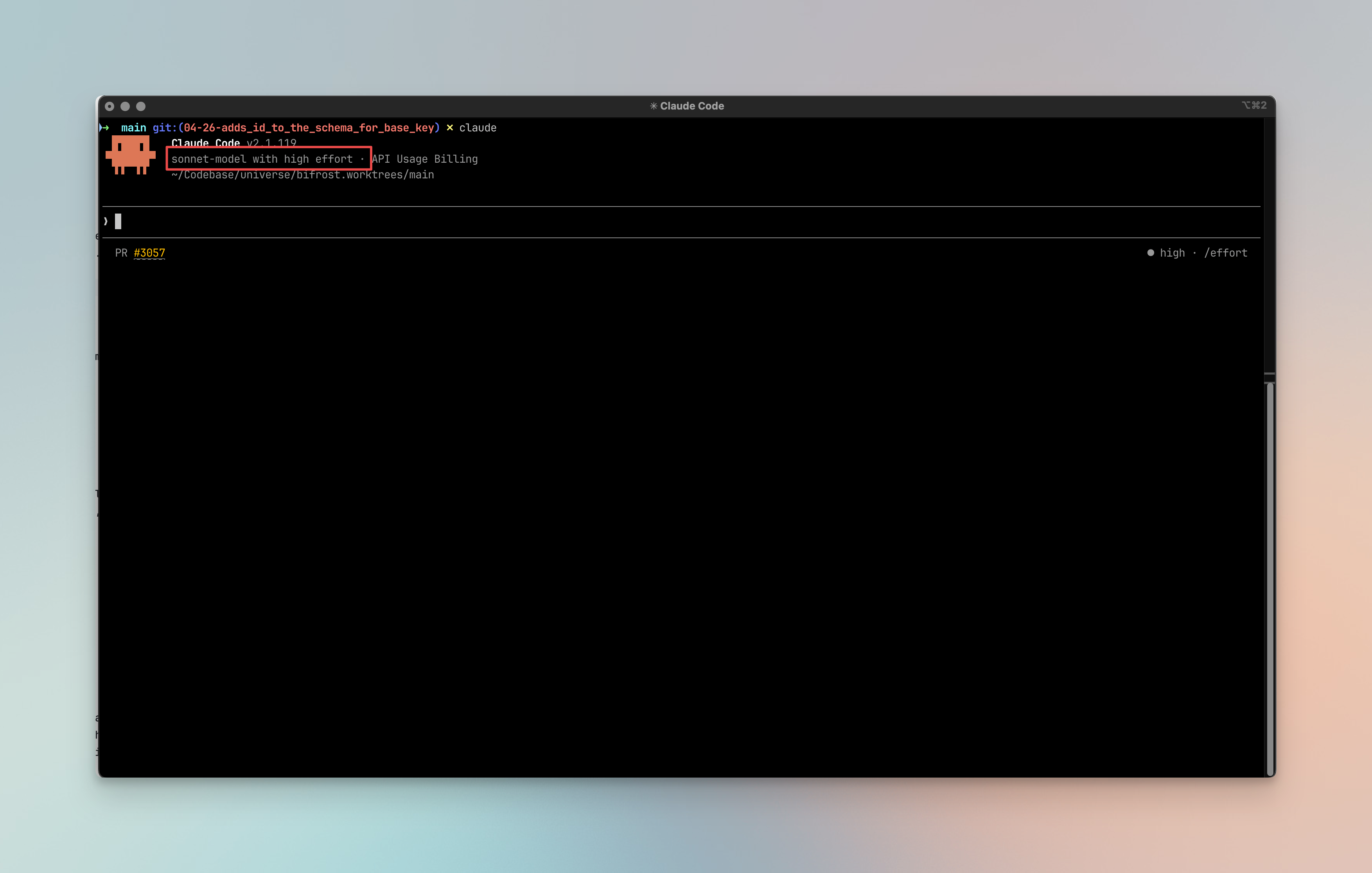 If this is not the case -
2. Select model using /config
3. Execute `/config`
4. Search for model
5. Select the correct model
If this is not the case -
2. Select model using /config
3. Execute `/config`
4. Search for model
5. Select the correct model
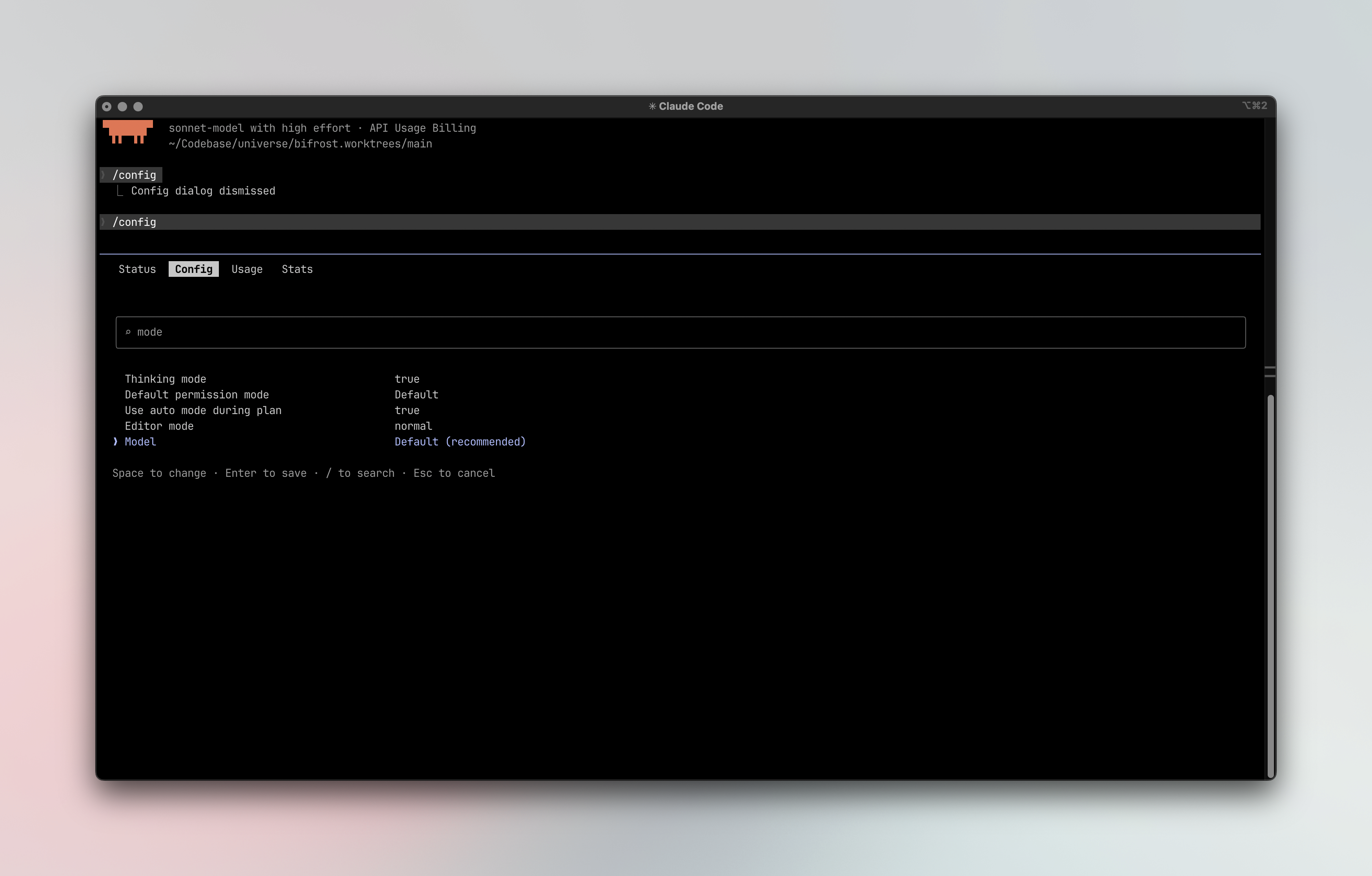 6. Or pass the model using `/model ` e.g., `/model sonnet-model`